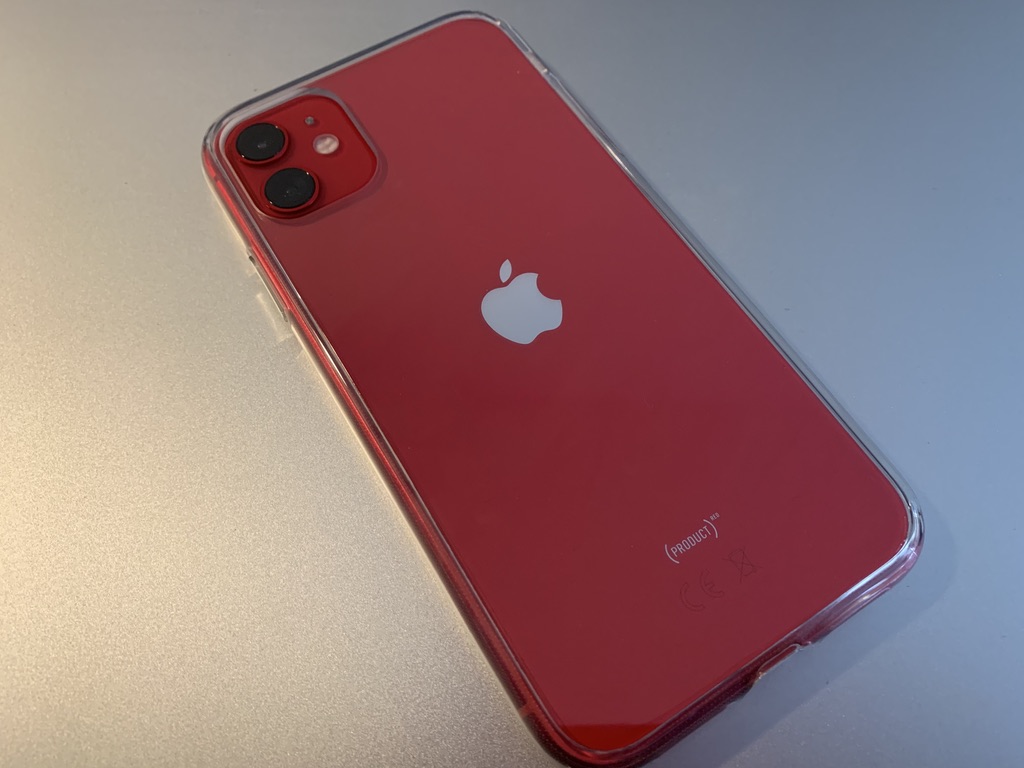

The iPhone has many great features that allow it to seamlessly connect with other Apple devices such as an iPad or MacBook. Programs like Airdrop, Handoff, Siri and iCloud all make the process of integrating your Apple devices easier. AirPlay is one such app. However, if you experience AirPlay not working on iPhone issues, how can you fix them?
What is AirPlay?
AirPlay lets you share videos, photos, music and other content from Apple devices to speakers, Apple TV and Smart TVs. The app is different to Apple CarPlay which utilises your iPhone in your vehicle. If you find that your iPhone Airplay stops working suddenly then try the following steps to fix it.
Are Wi-Fi and Bluetooth enabled?
Both Wi-Fi and Bluetooth are required for AirPlay to work. These functions both need to be turned on otherwise AirPlay cannot transmit data from your iPhone to the receiving device.
To turn on both Wi-Fi and Bluetooth head in to the settings menu and switch them on. Alternatively, swipe down from the top right of the screen to open the control centre and switch them both on.
Are you using the same Wi-Fi network?
It seems so simple, but both the sending and receiving device need to be on the same Wi-Fi networks. Connect to the same network and see if this solves the issue.
Sometimes Wi-Fi networks can have a 2G or 5G setting so opt for the same frequency.
Are you using the same Apple ID?
The same Apple ID needs to be used on all devices that are using AirPlay. Therefore, make sure that you are logged in on the same Apple account.
What’s more, if you are using a MacBook or iMac then make sure that you have the AirPlay receiver option enabled.
To check, go to: “System Preferences” on the Mac and select “Sharing”. Next, enable the “AirPlay Receiver“ checkbox. Your MacBook or iMac can now receive AirPlay communications.
Ensure iPhone is not in Low Data Mode
Content streamed over AirPlay can be affected by the Low Data Mode option. Therefore check that the Wi-Fi or other network you are using doesn’t have it enabled on your iPhone.
Head to “Settings > Wi-Fi” and click on the small “i” button next to the current Wi-Fi network. On the subsequent screen ensure that “Low Data Mode” is not enabled otherwise this will affect your AirPlay connectivity.
Try a network reset to fix iPhone AirPlay not working
If you have exhausted the other tips then a network reset could help. This option will reset all of the saved network settings back to their defaults, but may help you fix iPhone AirPlay not working problems.
Go to “Settings > General > Transfer or Reset iPhone” and then select the “Reset” option. On the subsequent screen choose “ Reset Network Settings” and follow the on-screen prompts.
This procedure will reset the network settings only and leave the rest of your photos and data intact.
Once complete, try and see if this has fixed AirPlay not working on iPhone.
How to fix AirPlay not working on iPhone overall
In this way, you can continue using your iPhone without interruption. AirPlay not working on iPhone shouldn’t be an issue and you can return to streaming your favourite content to your smart TV, Mac or Apple TV.