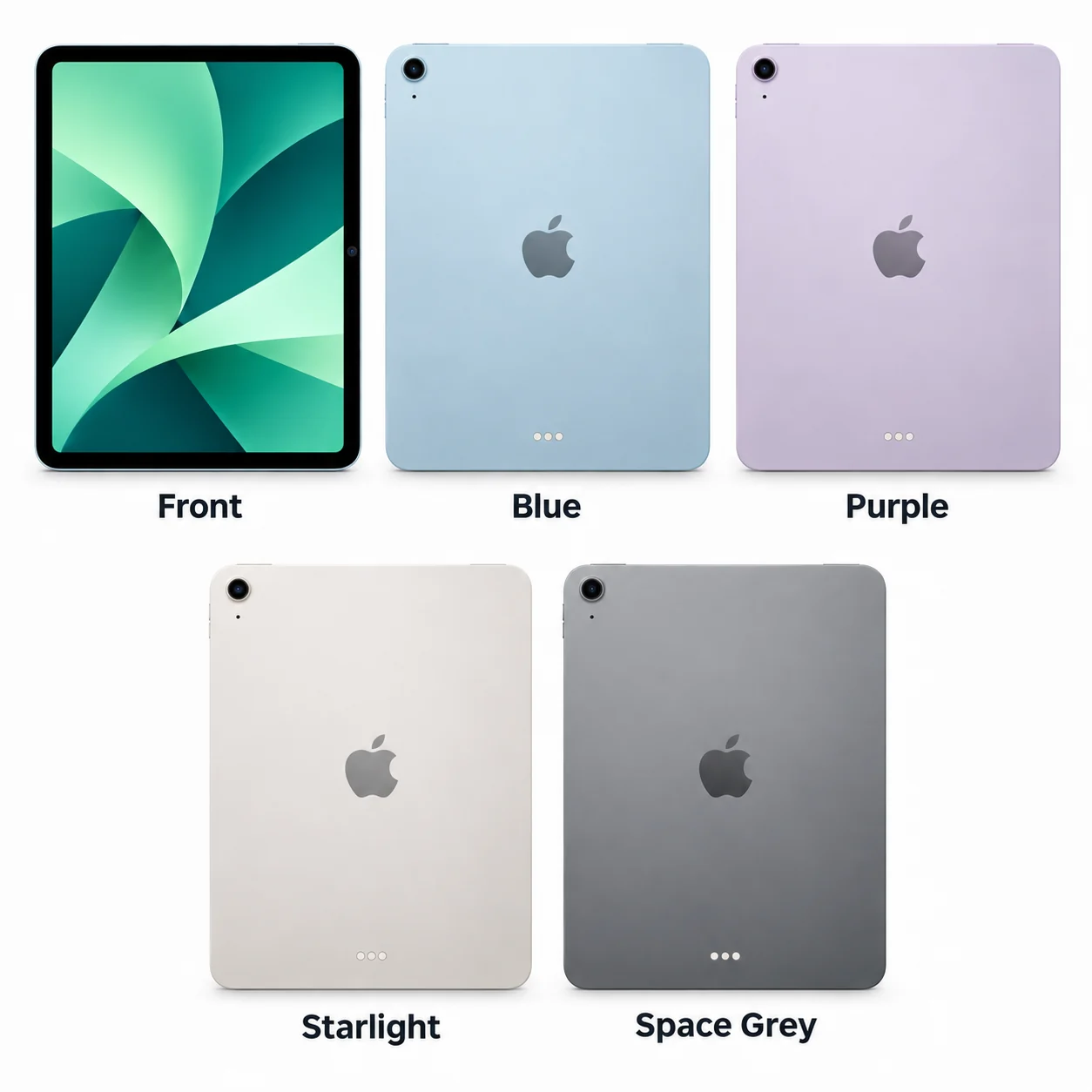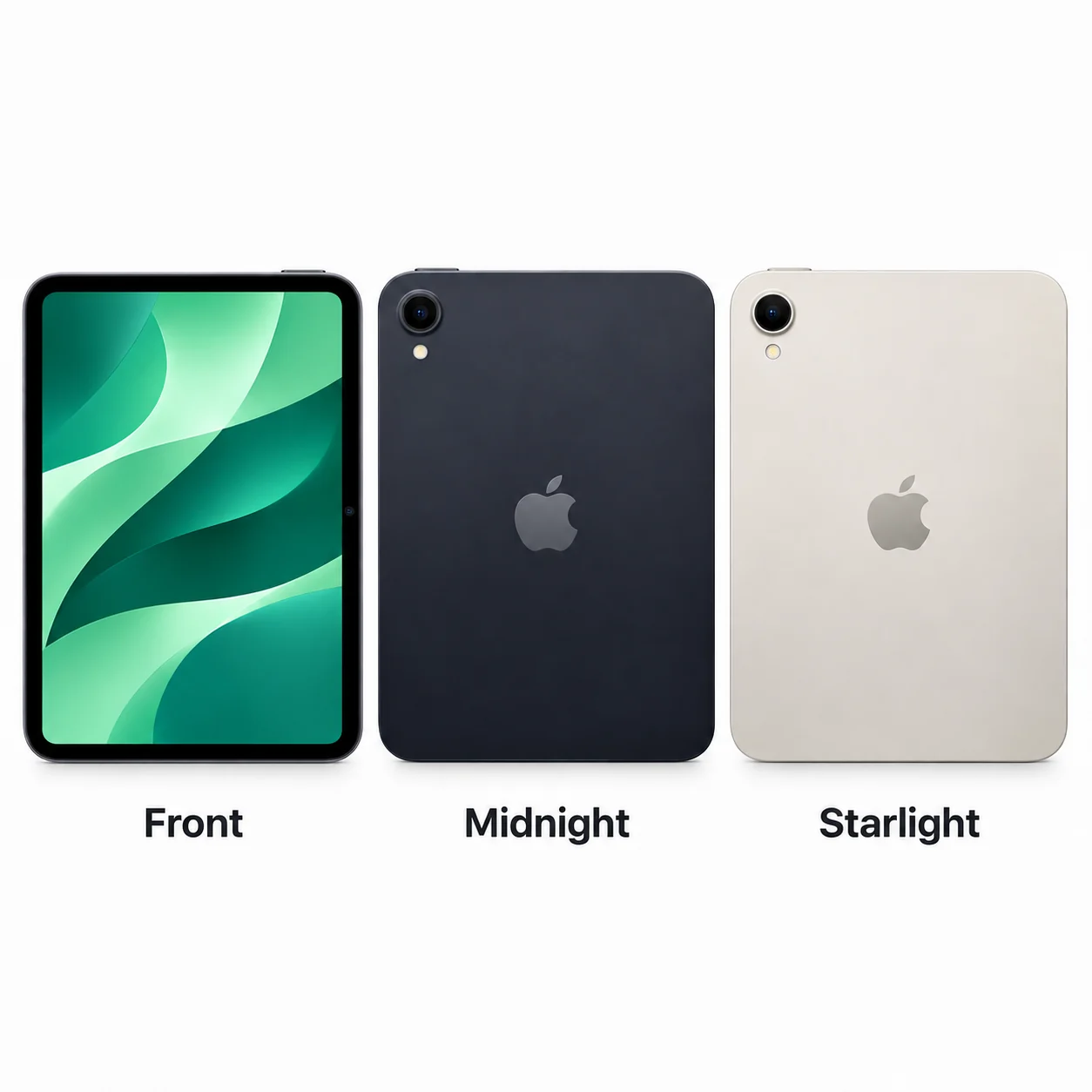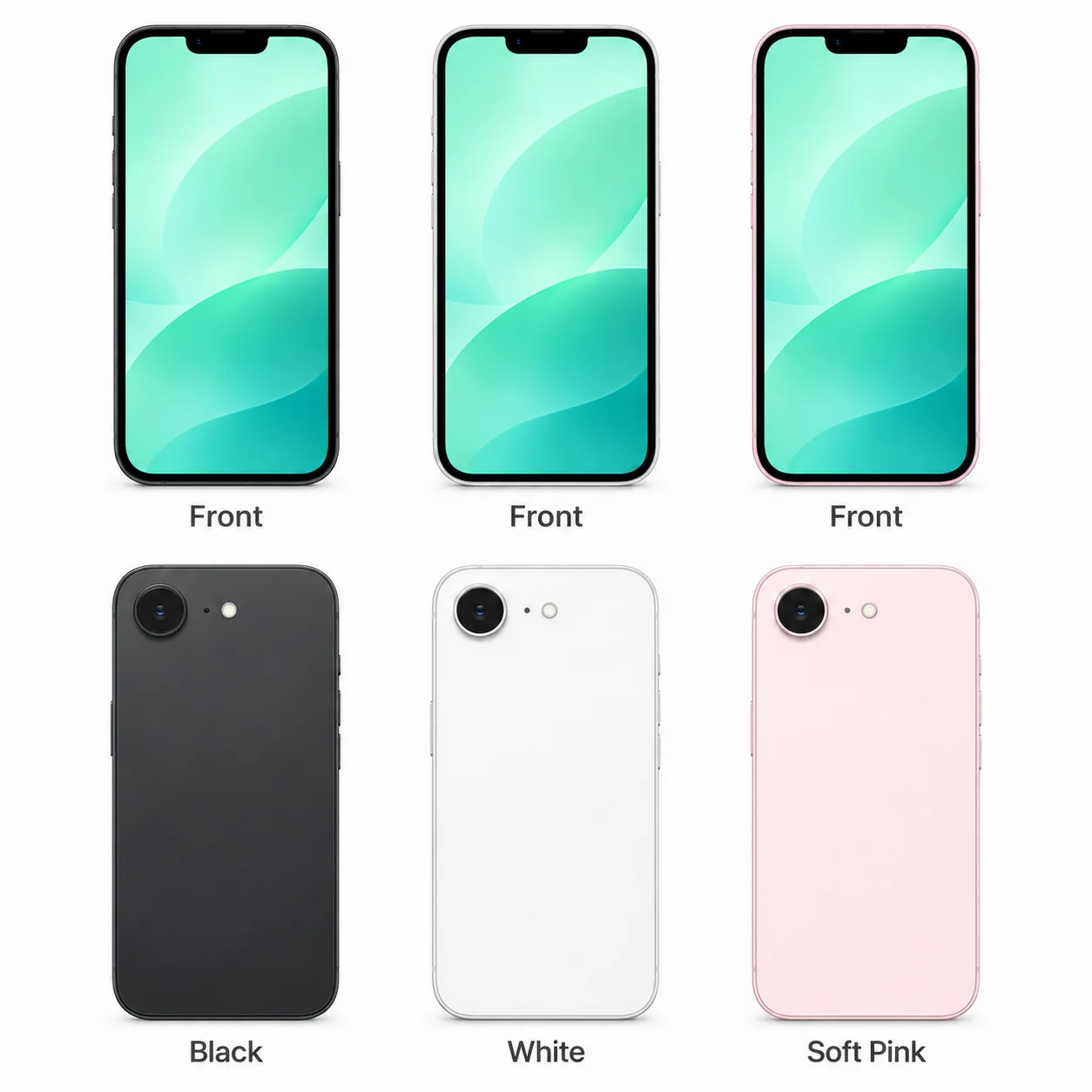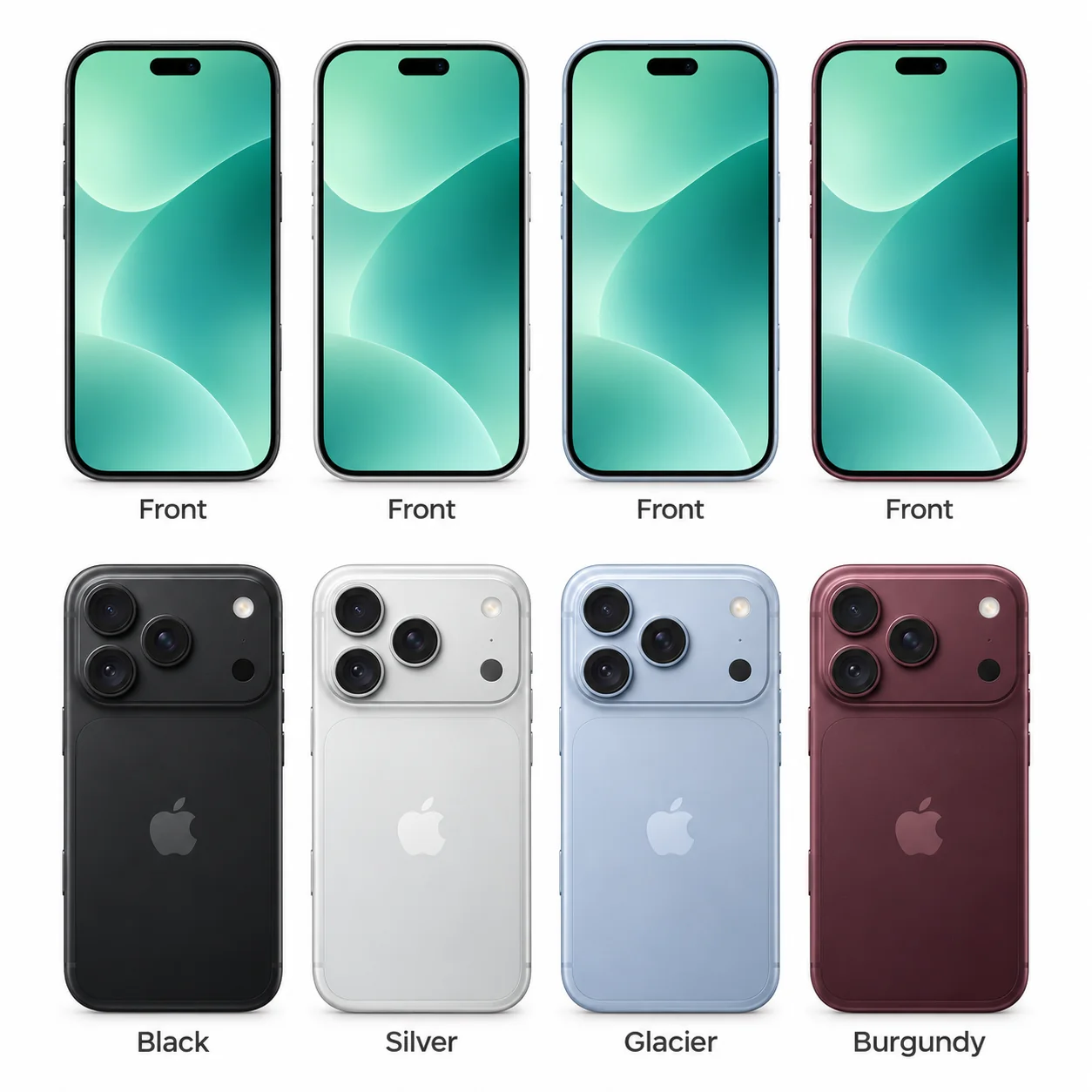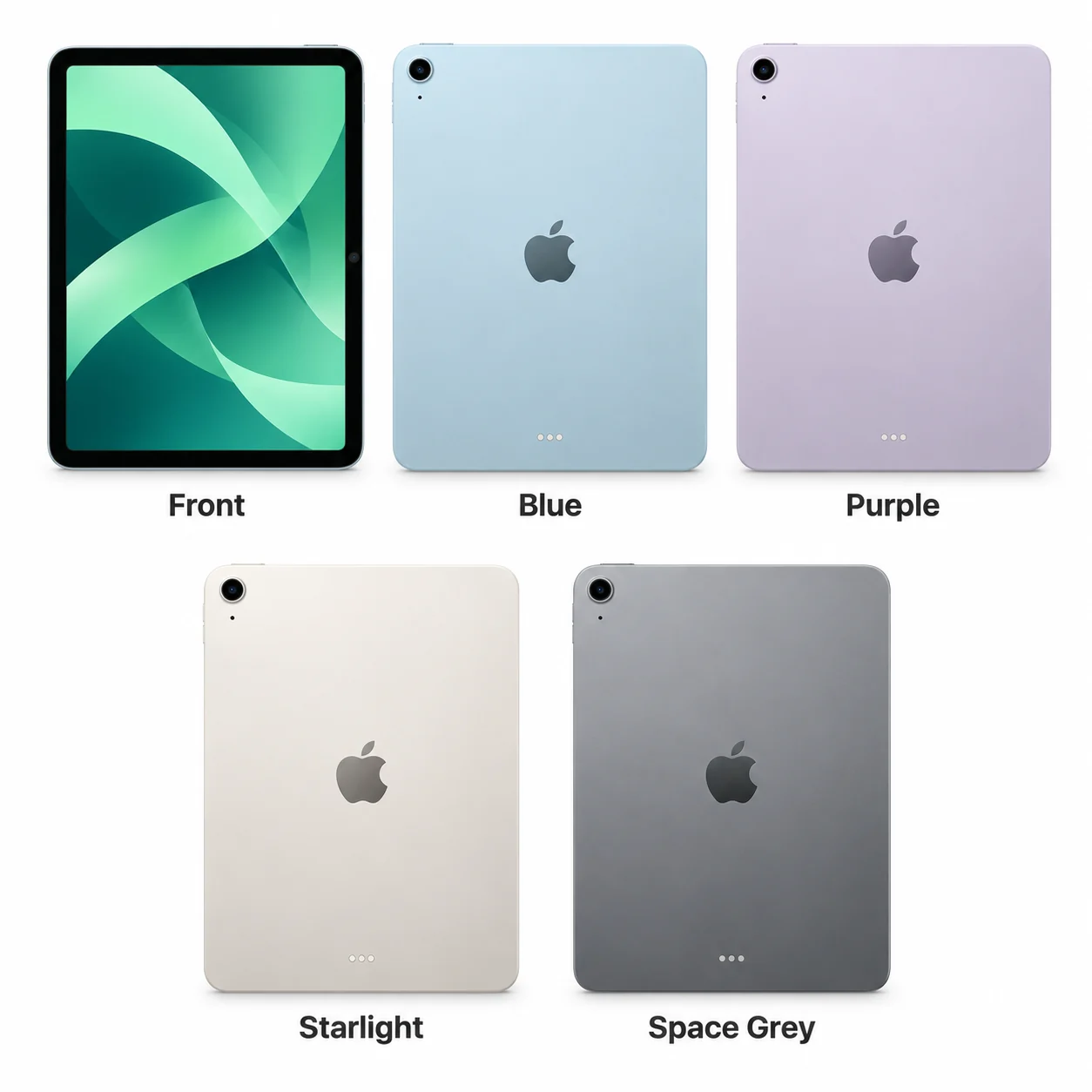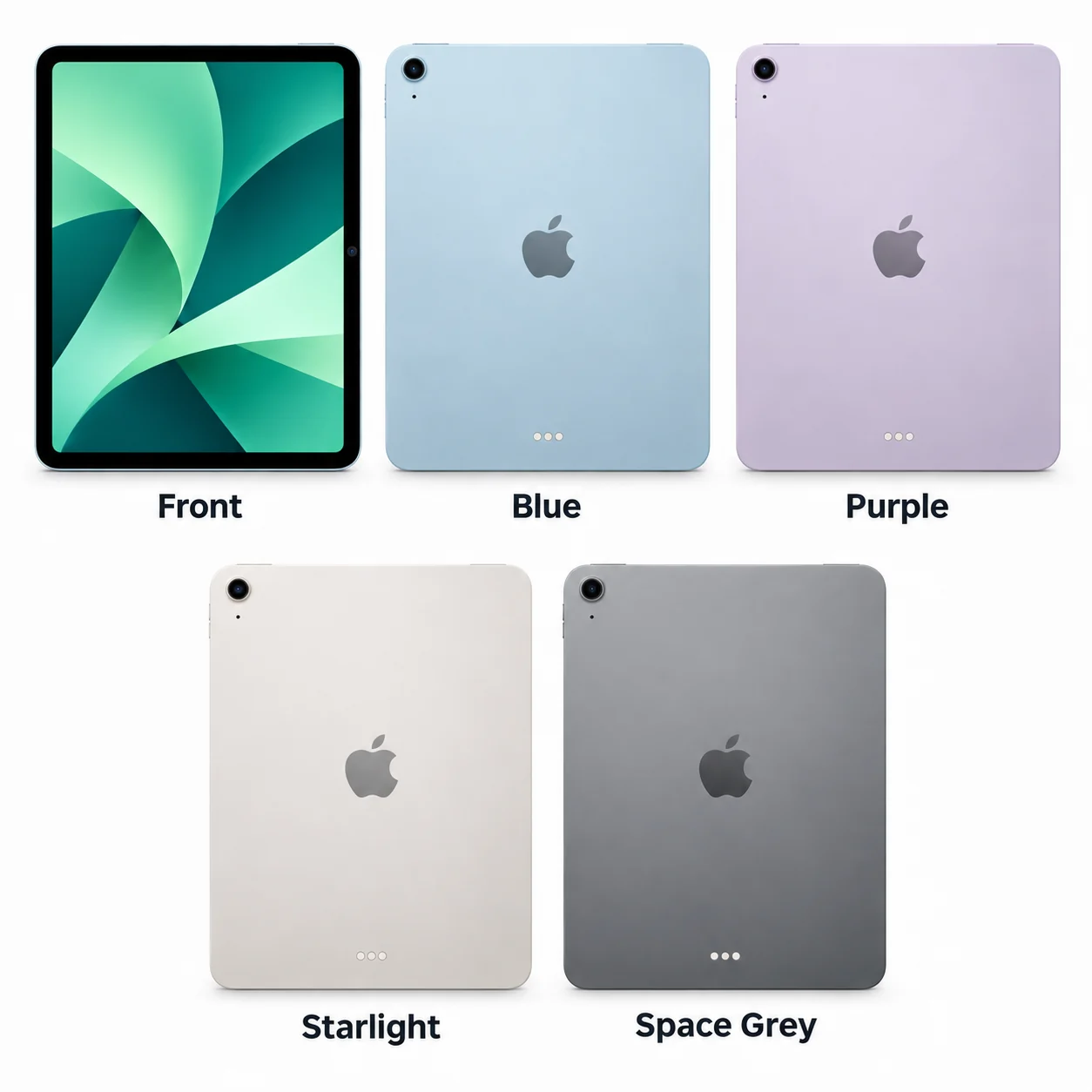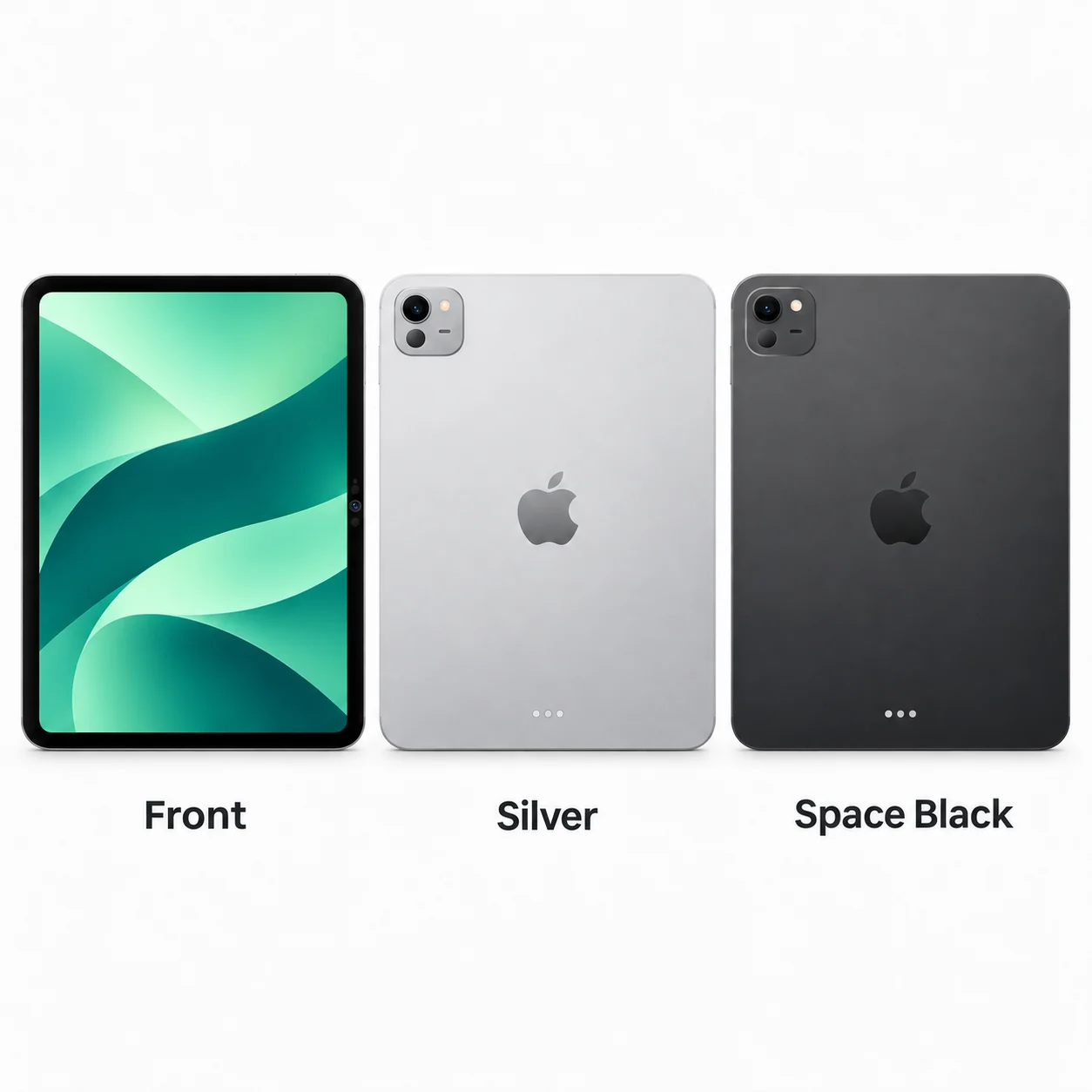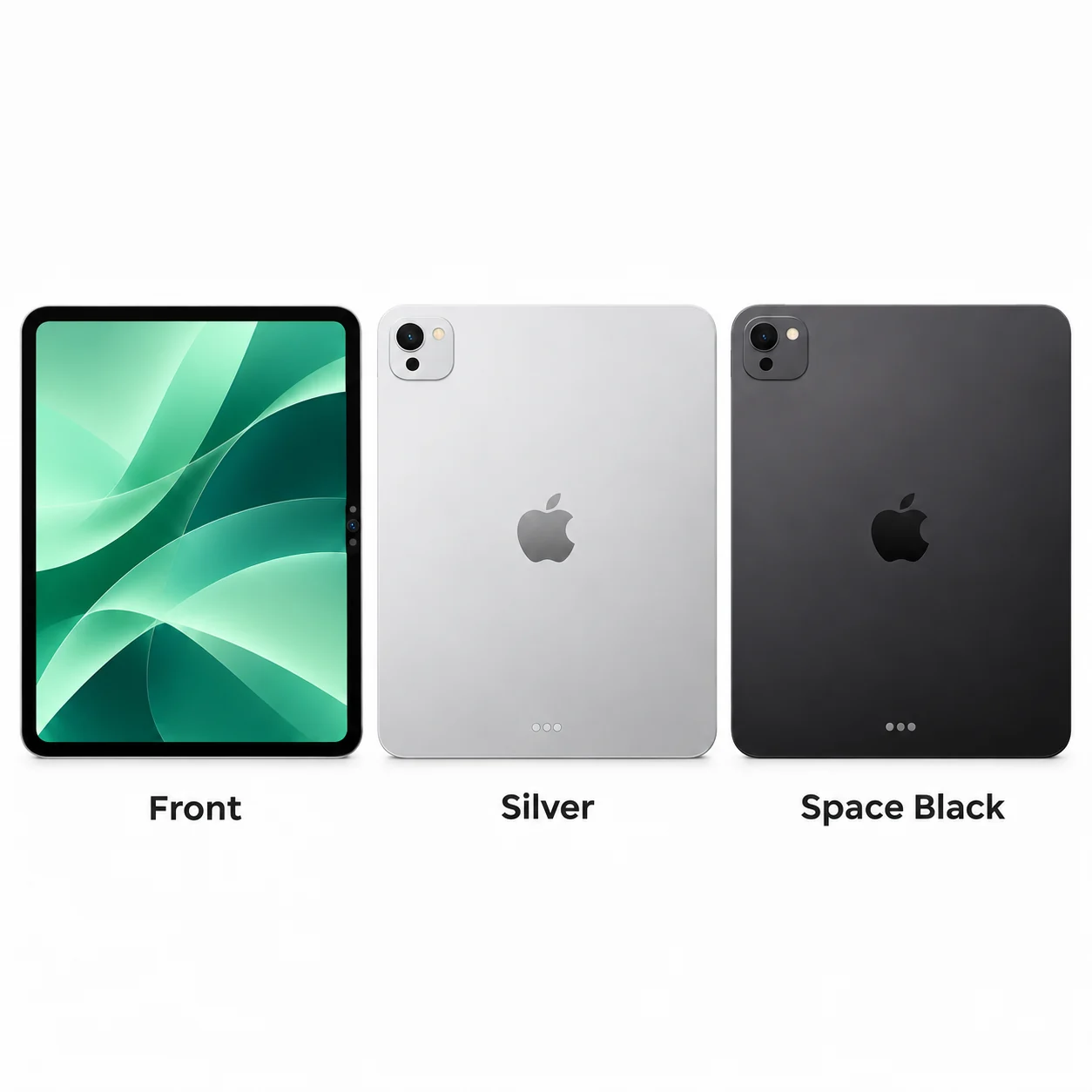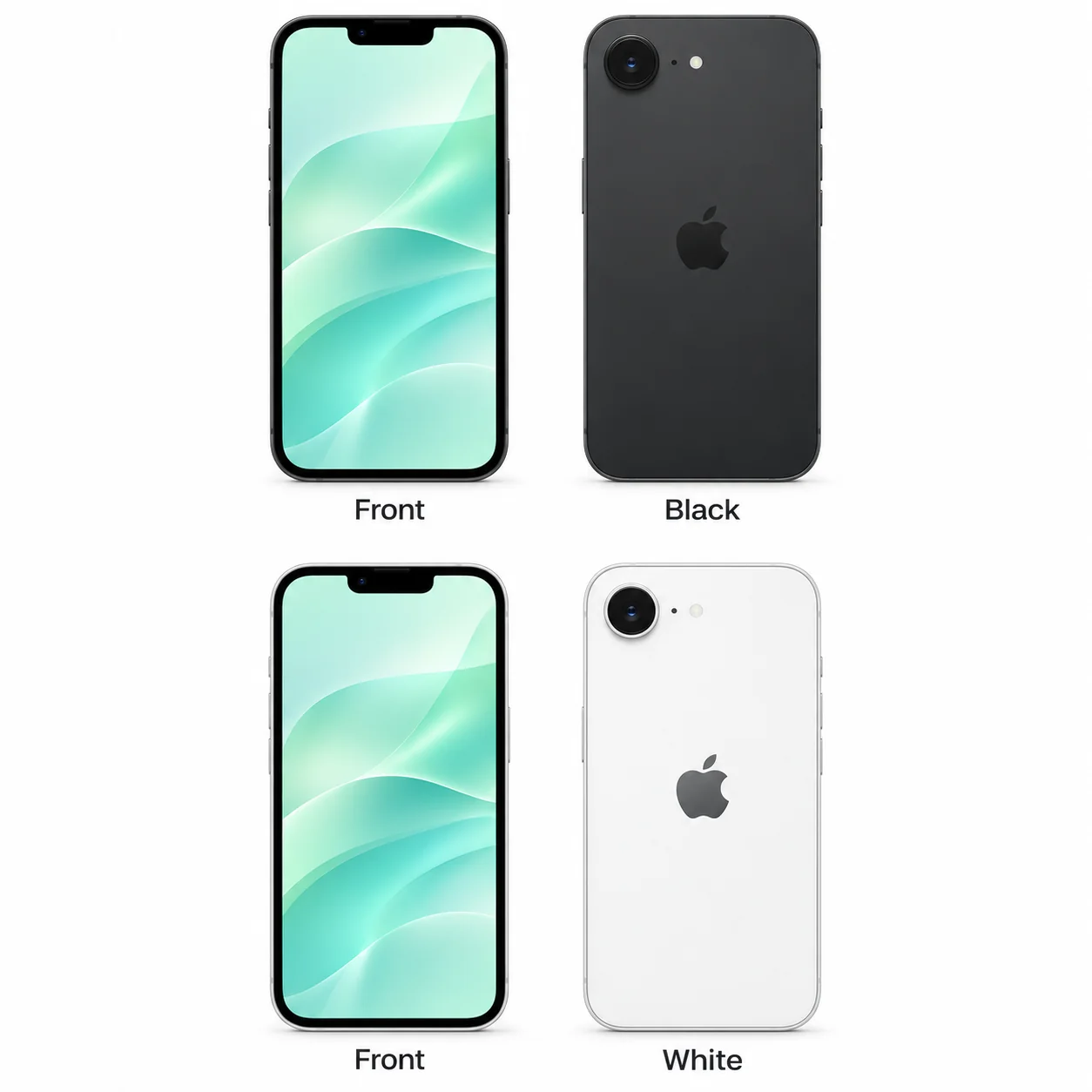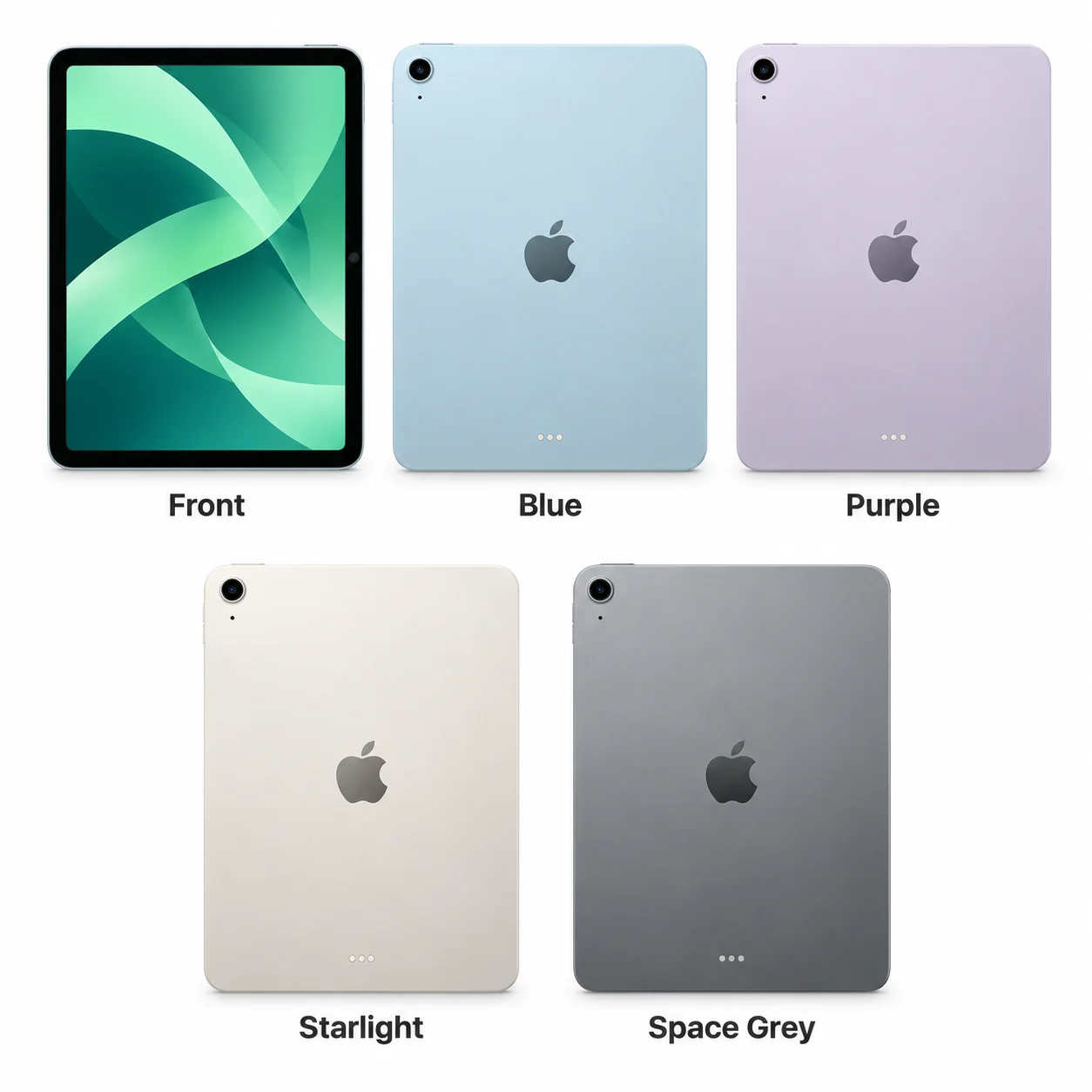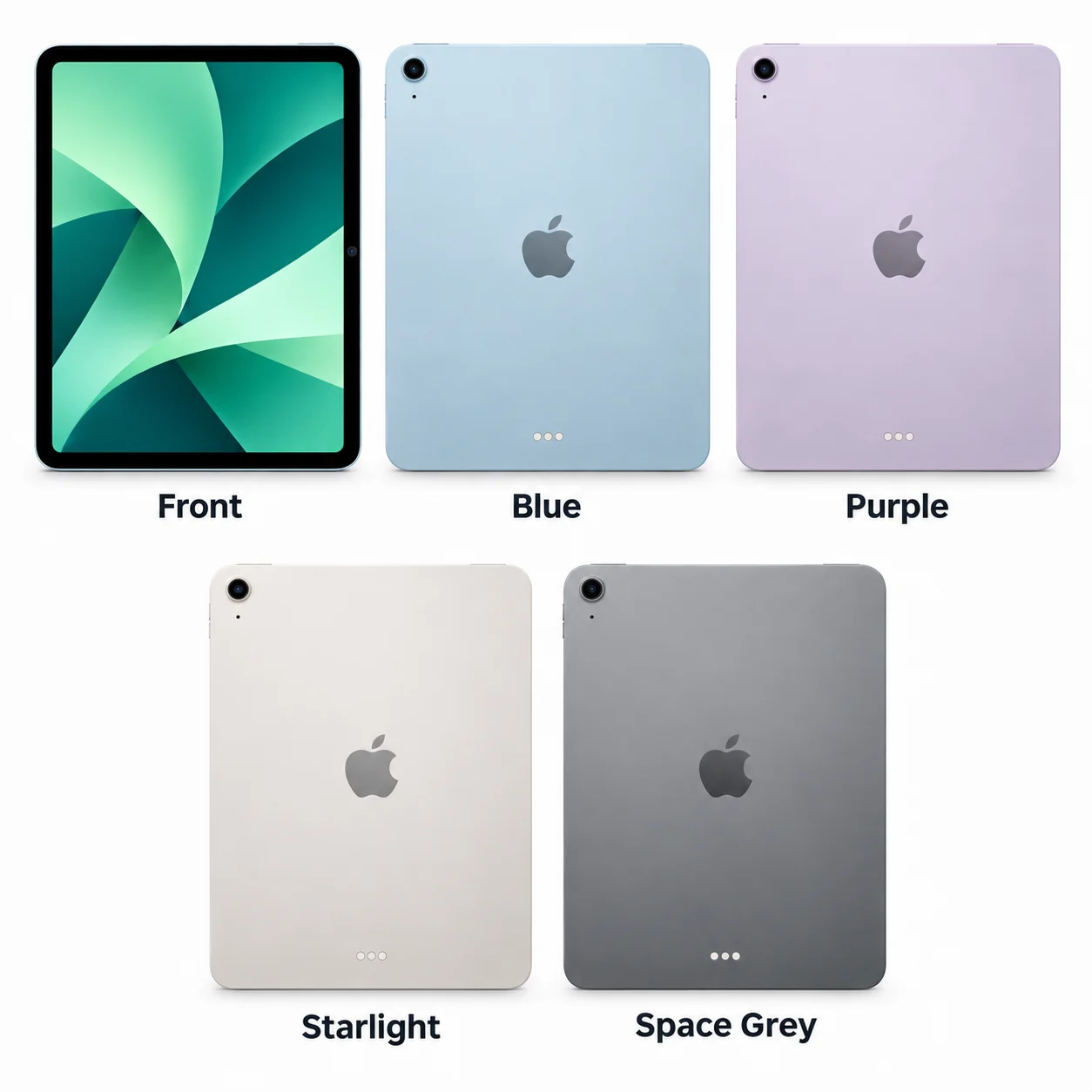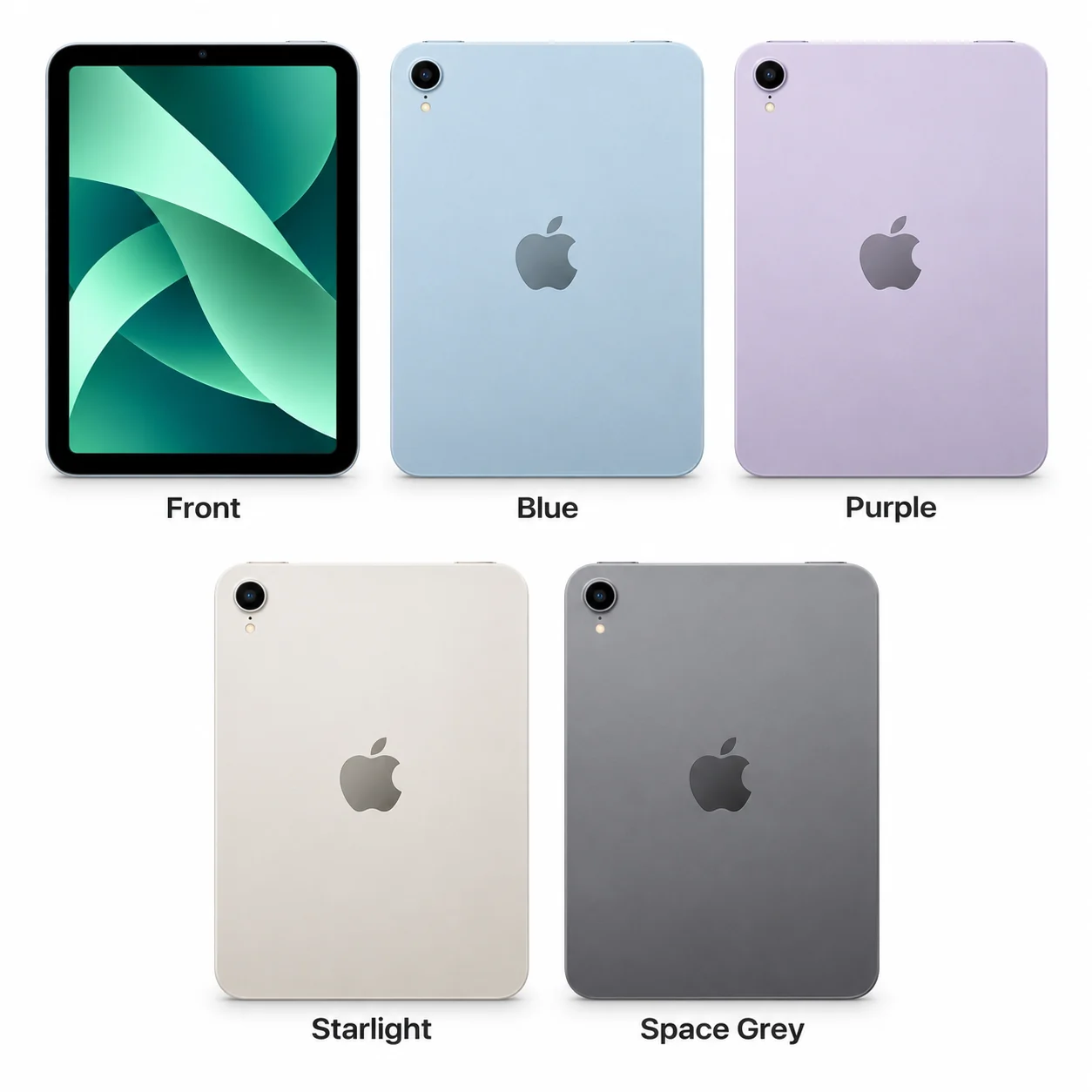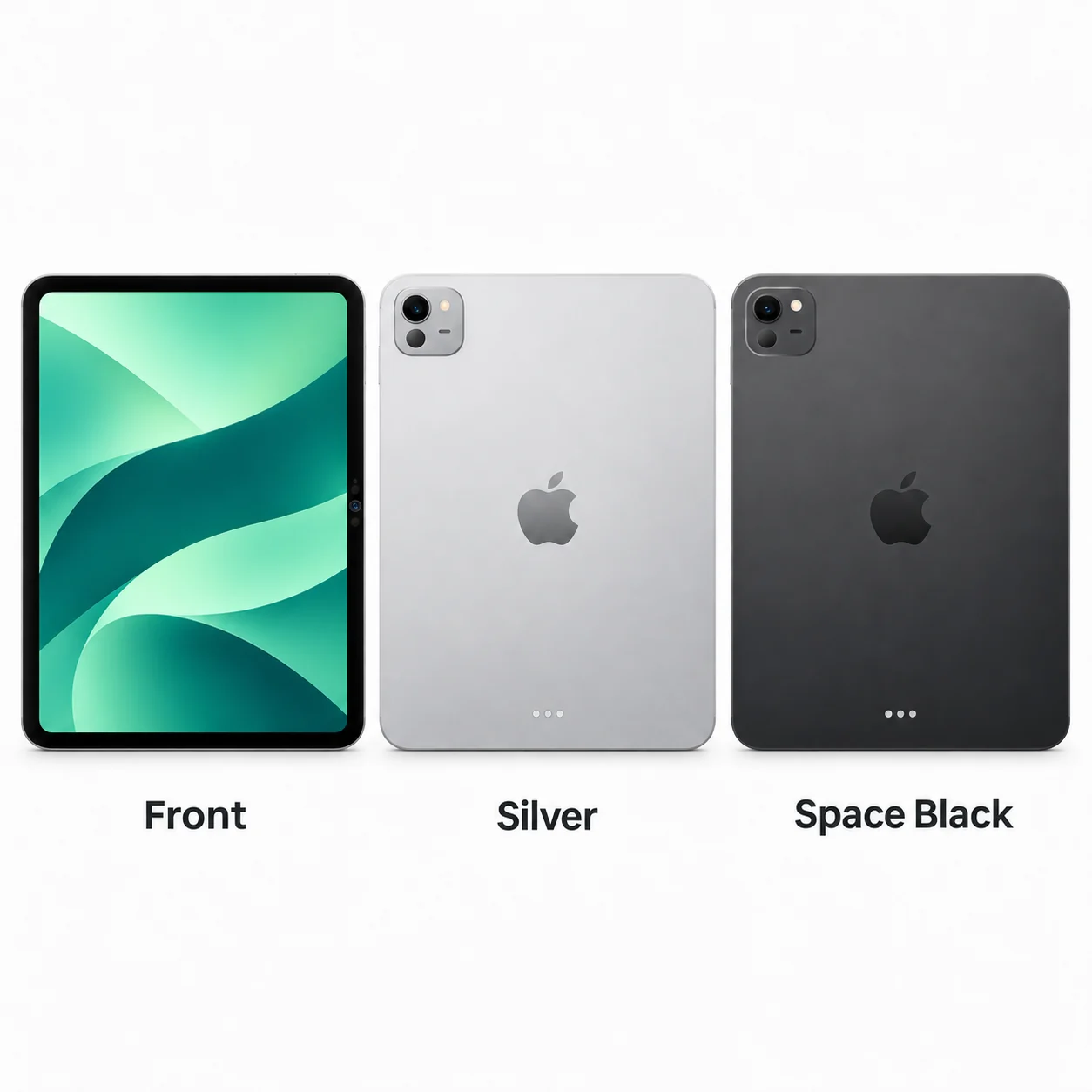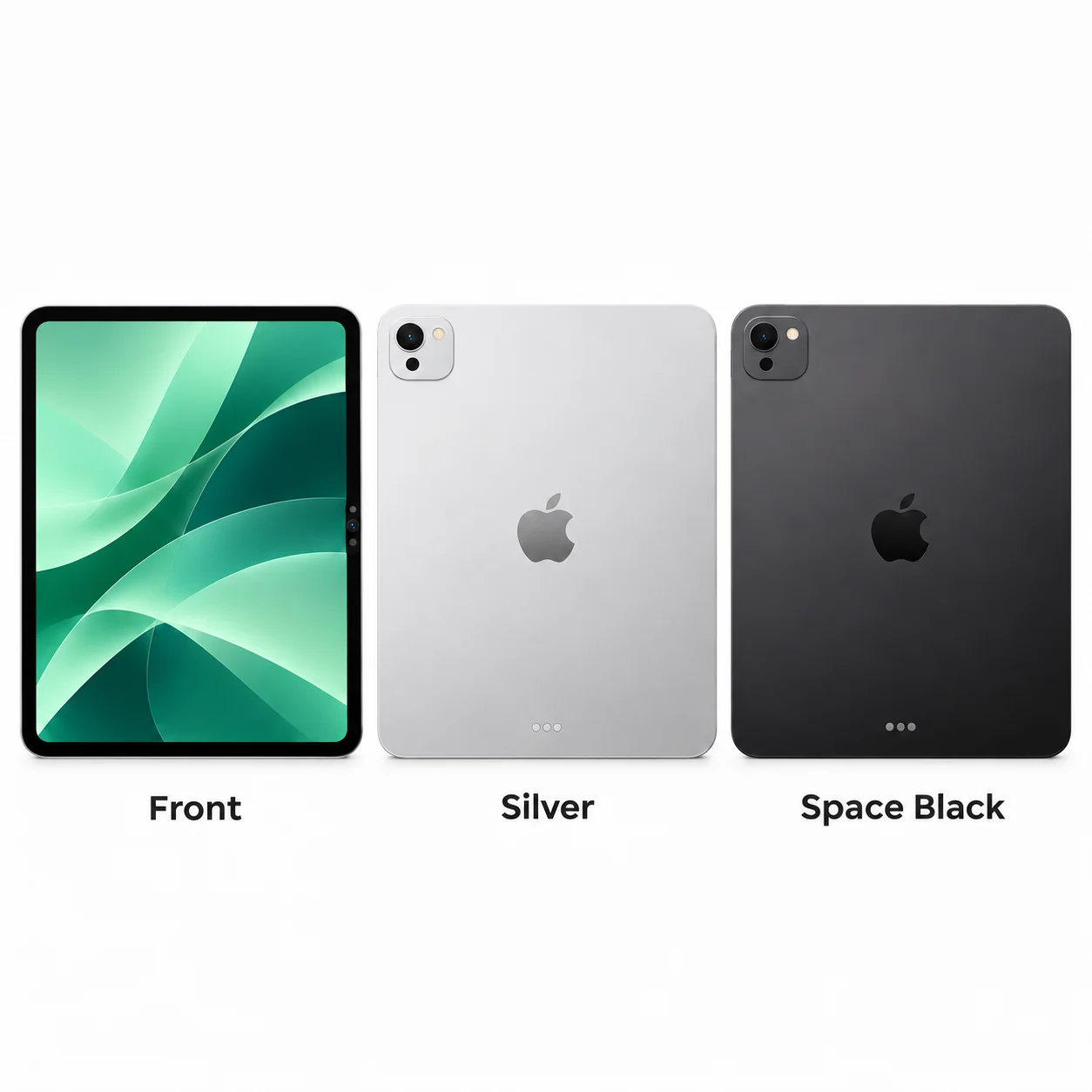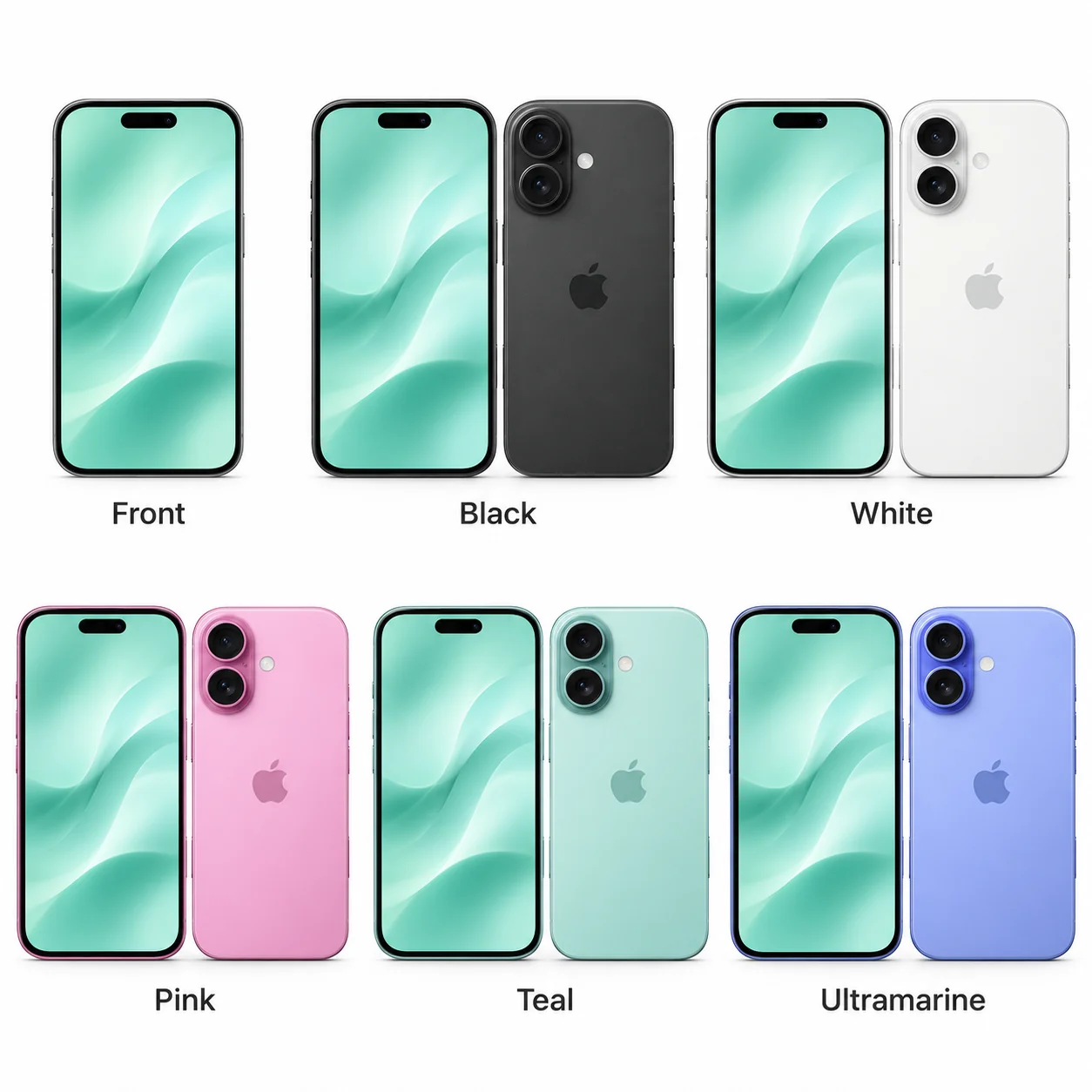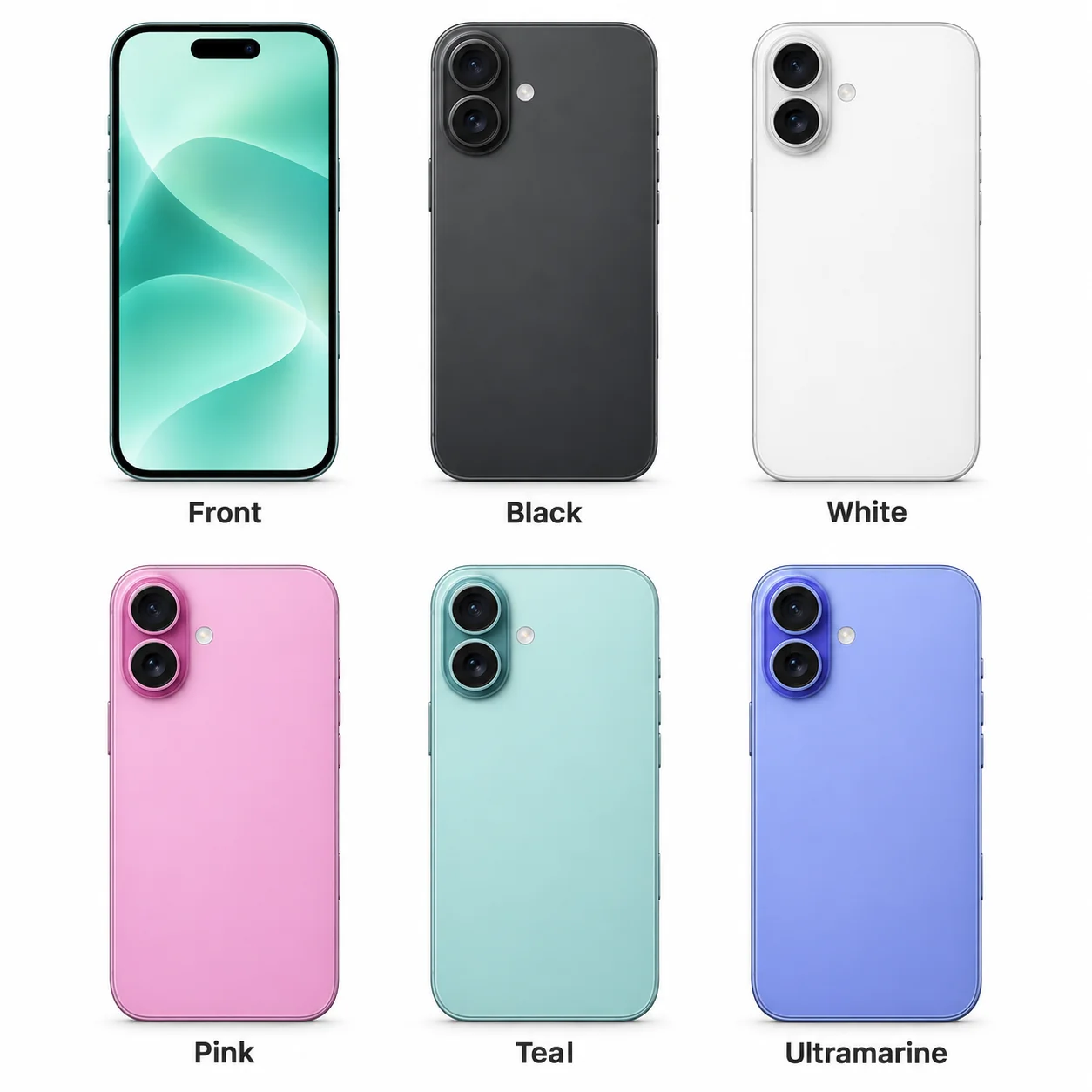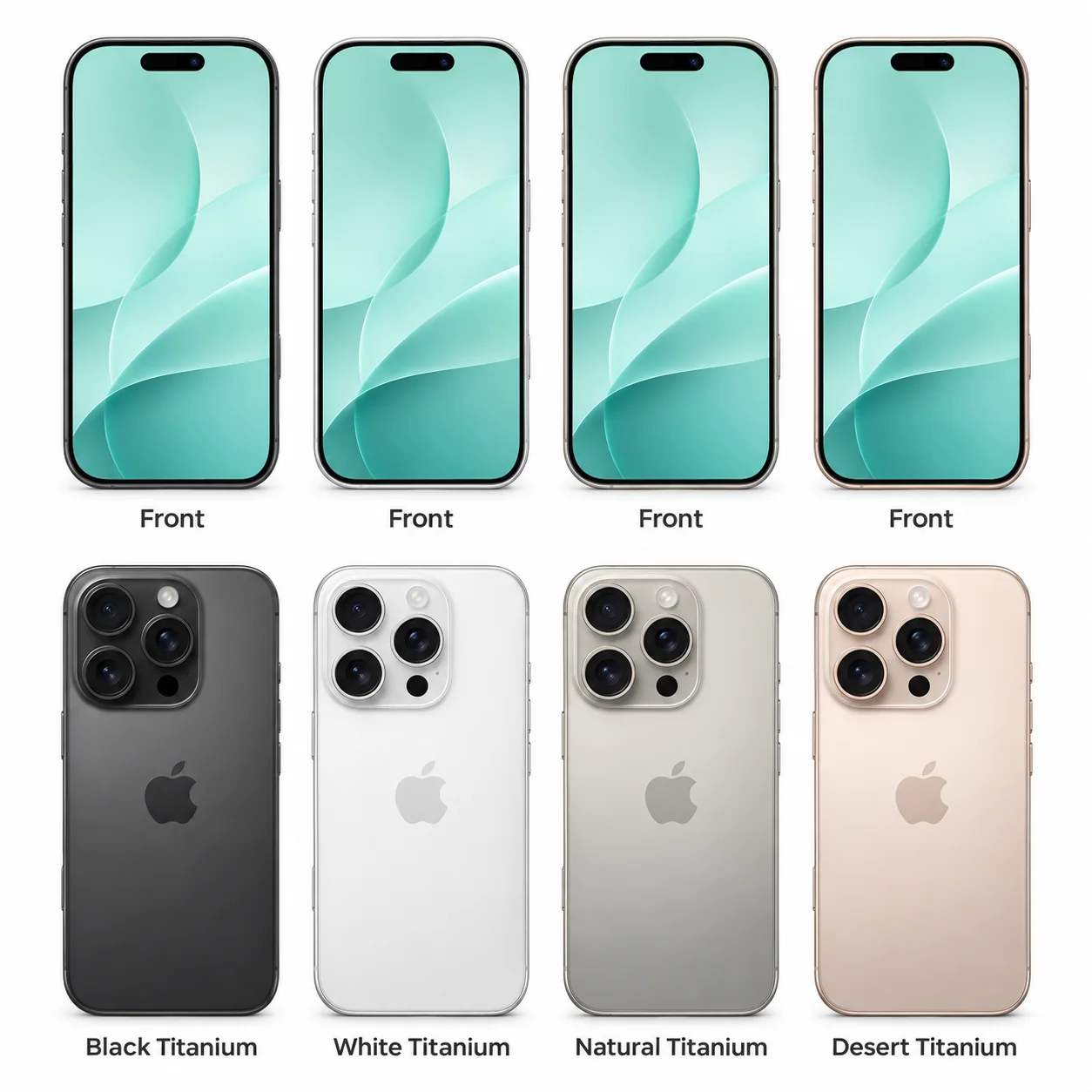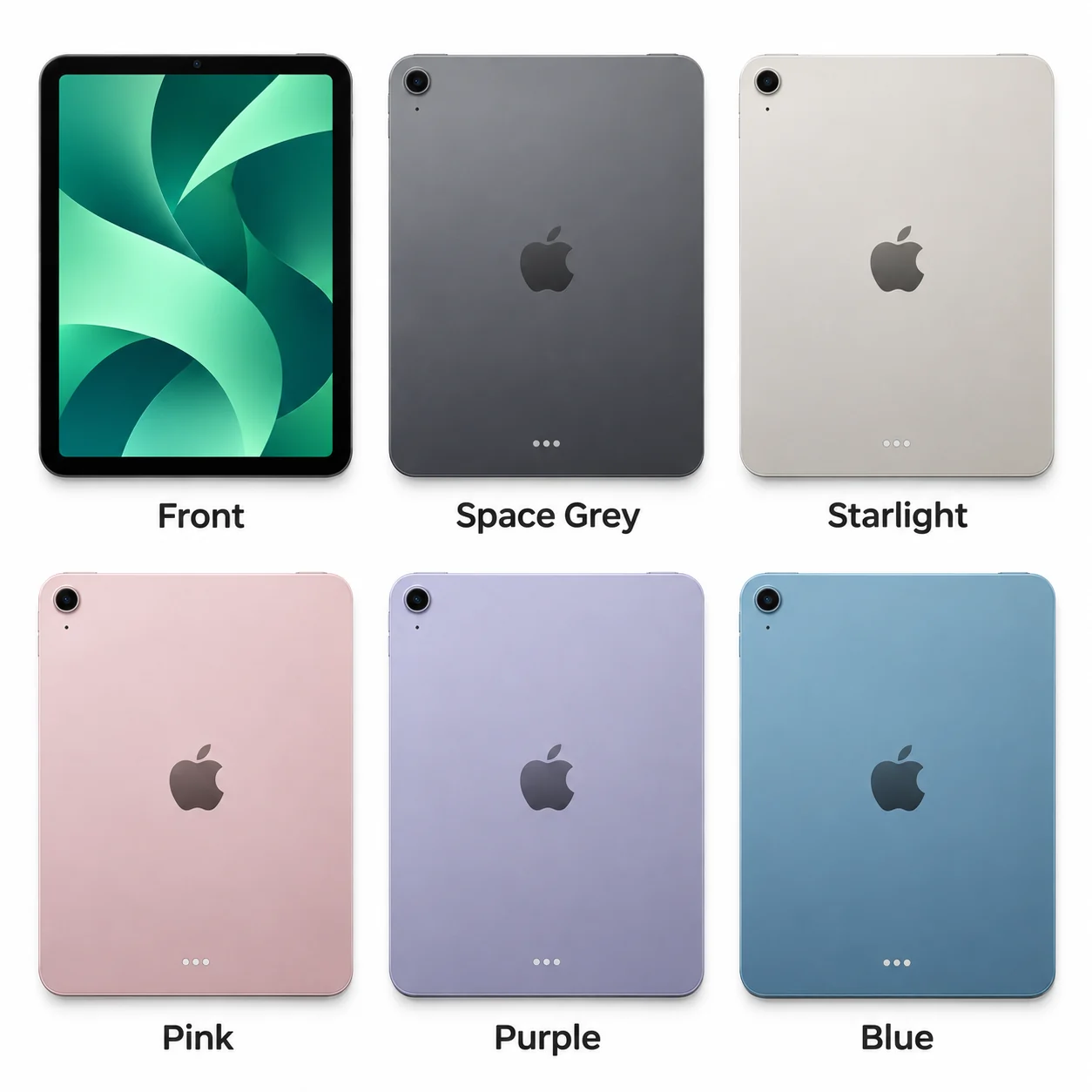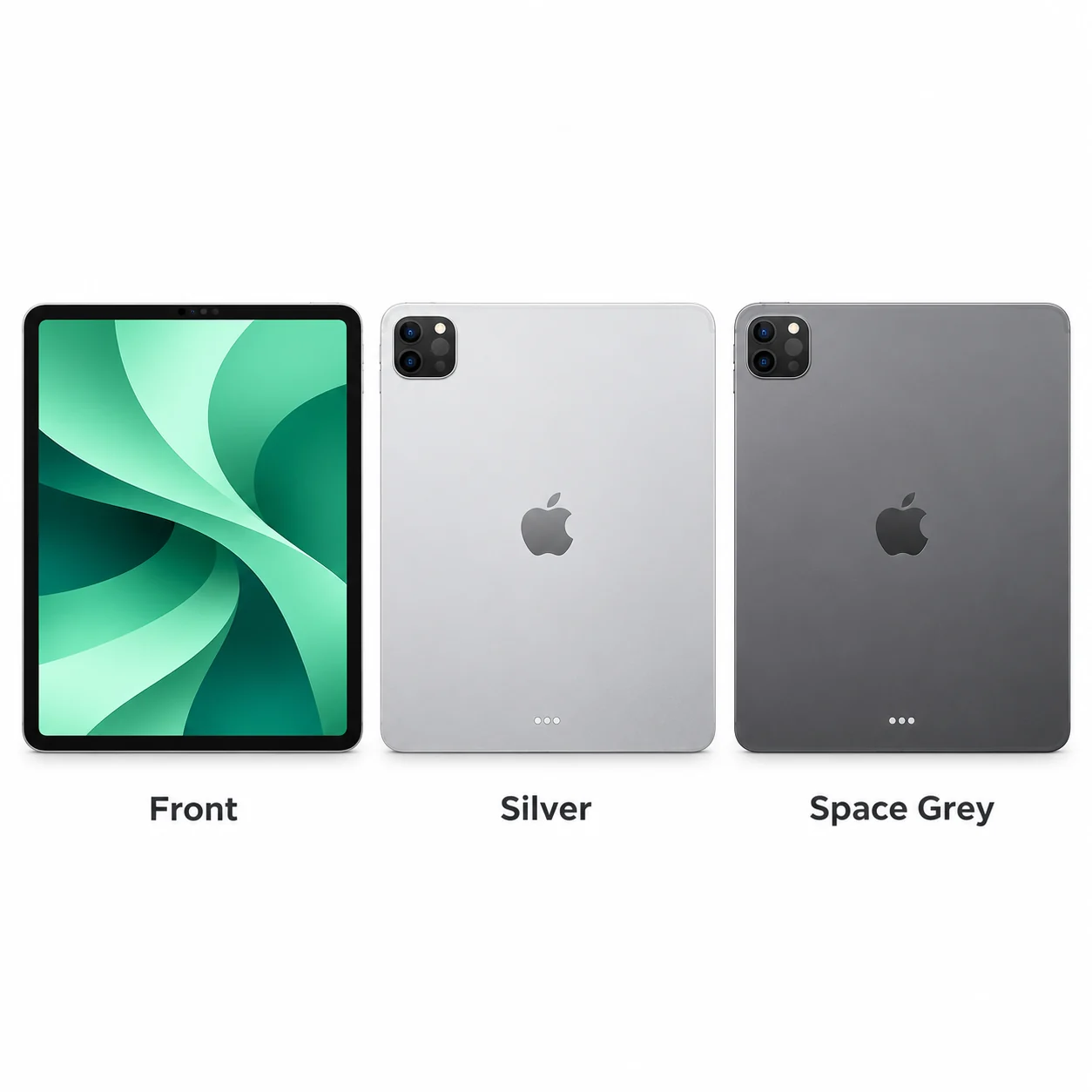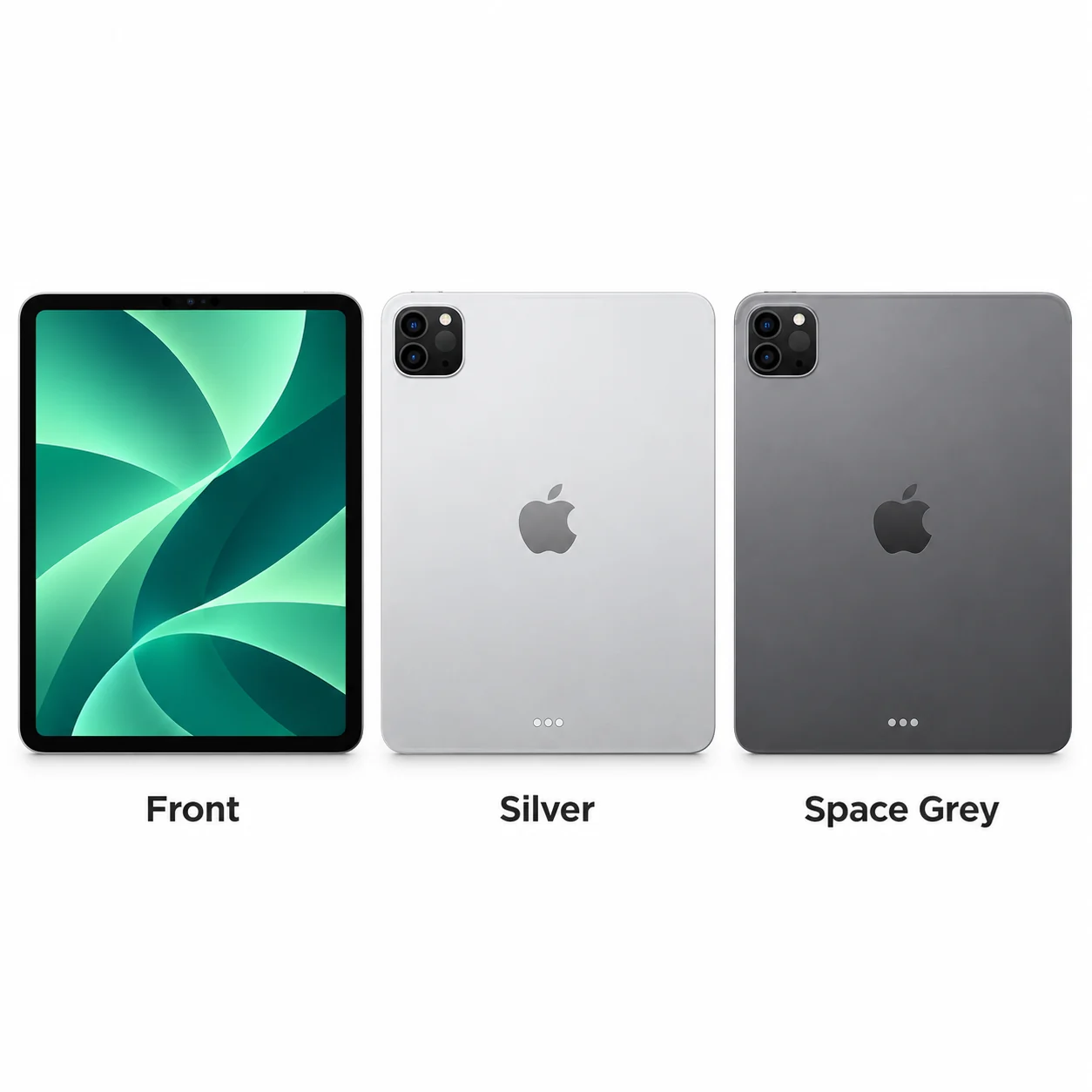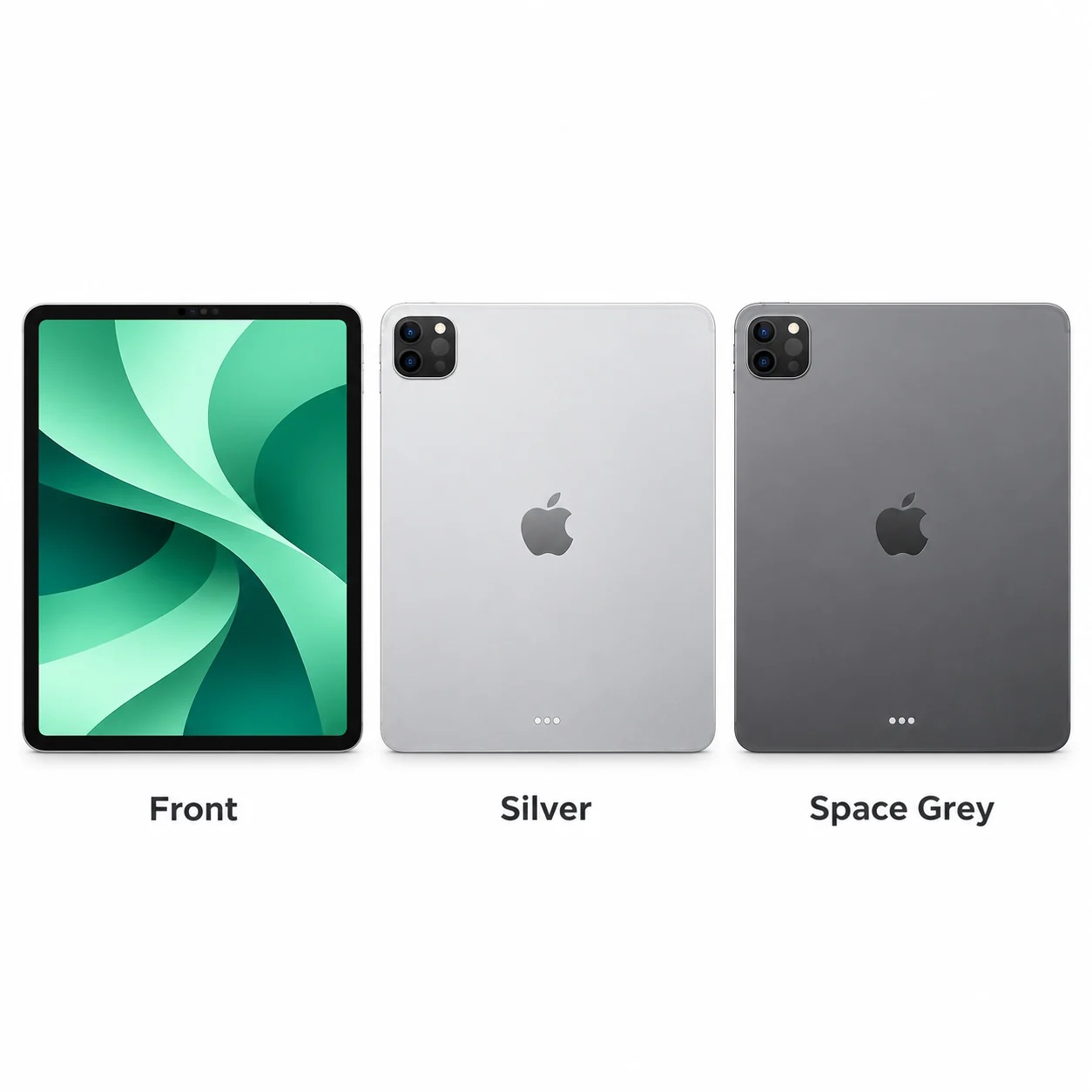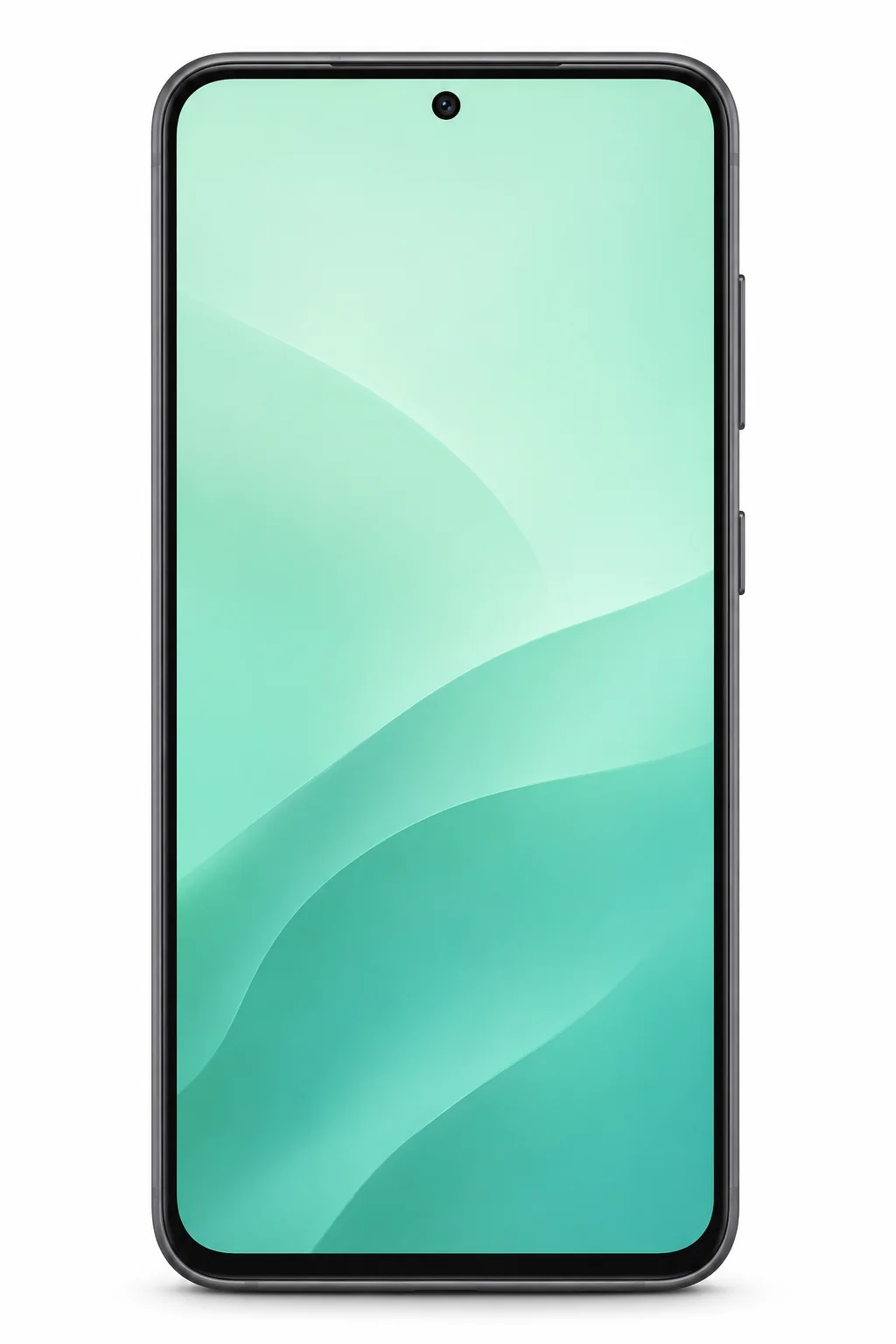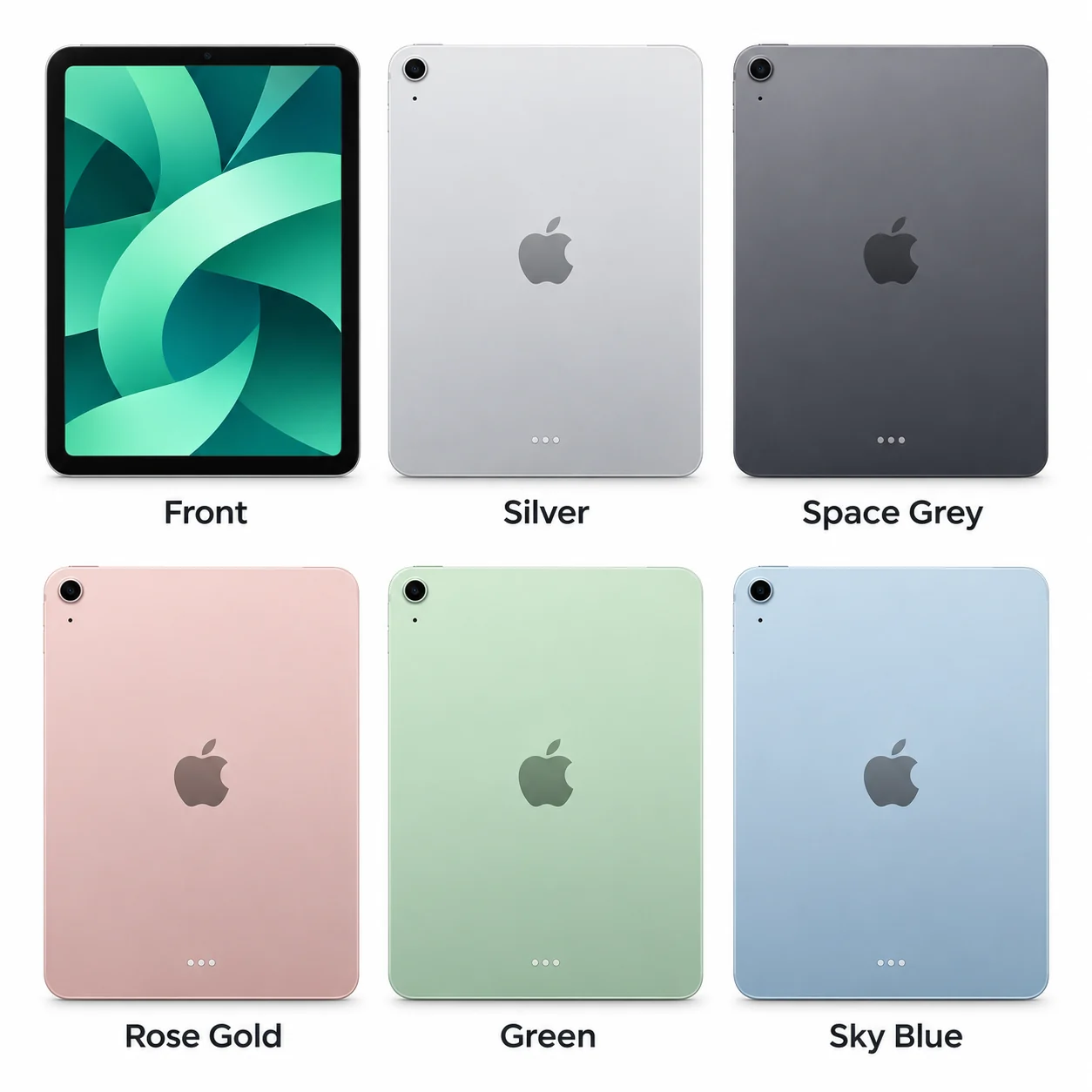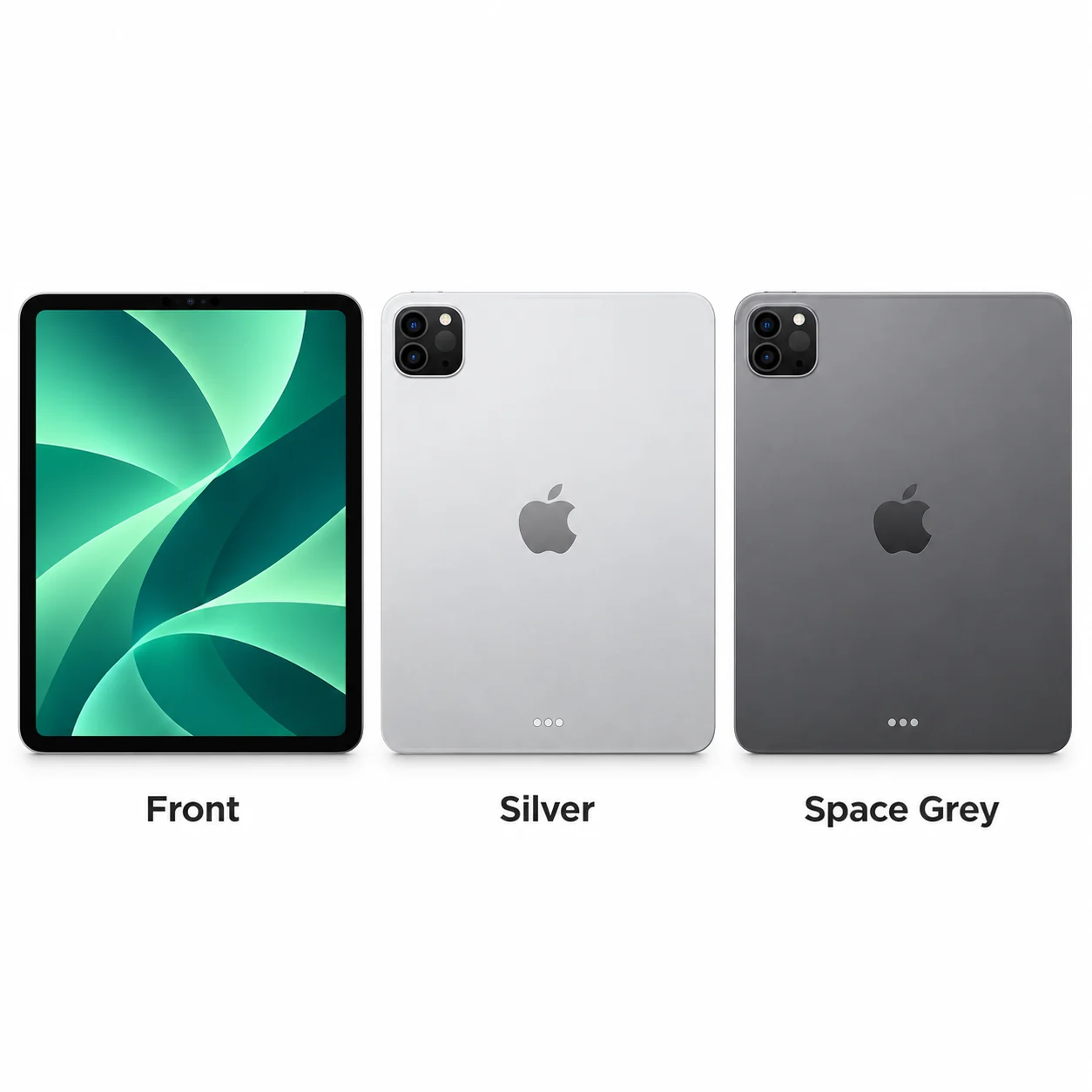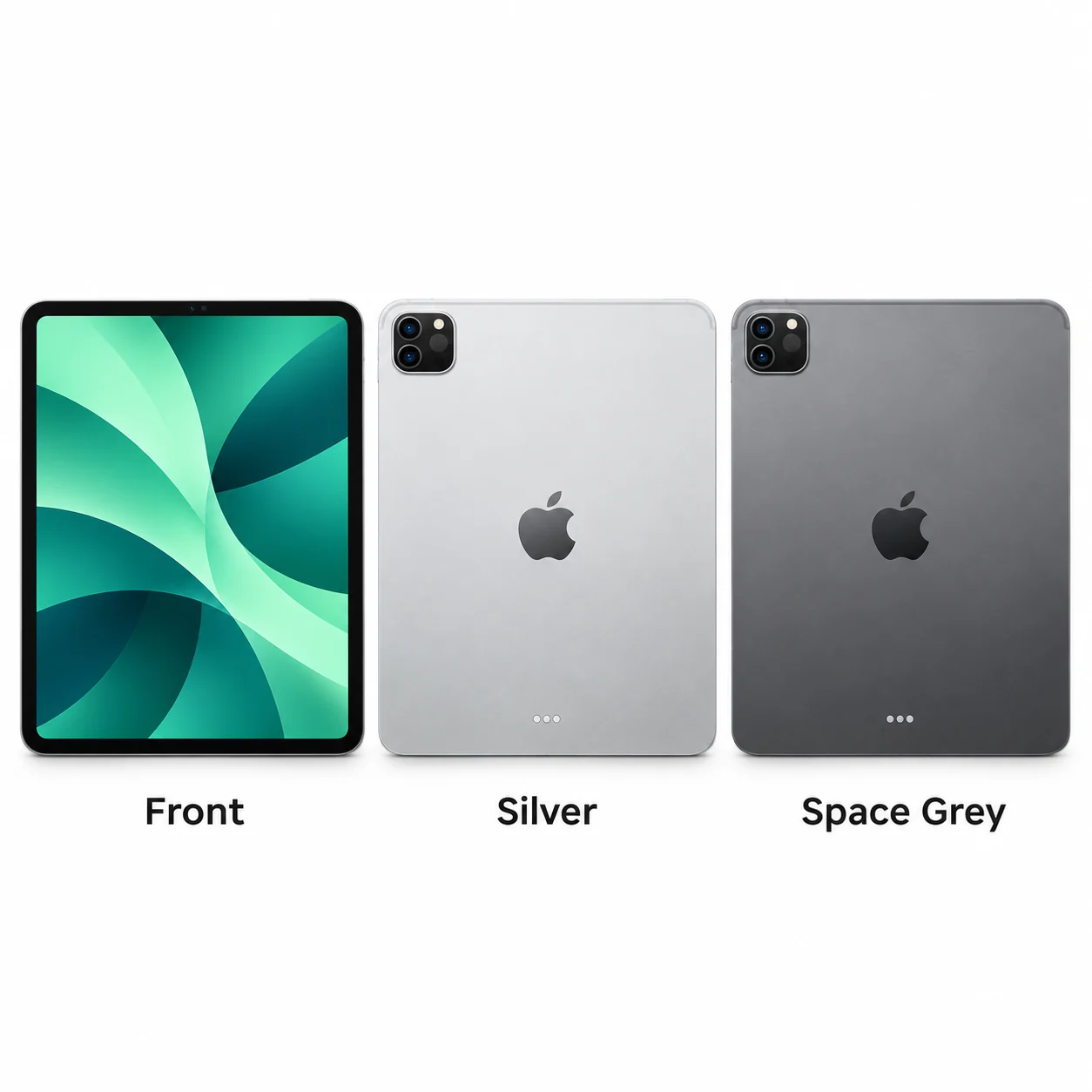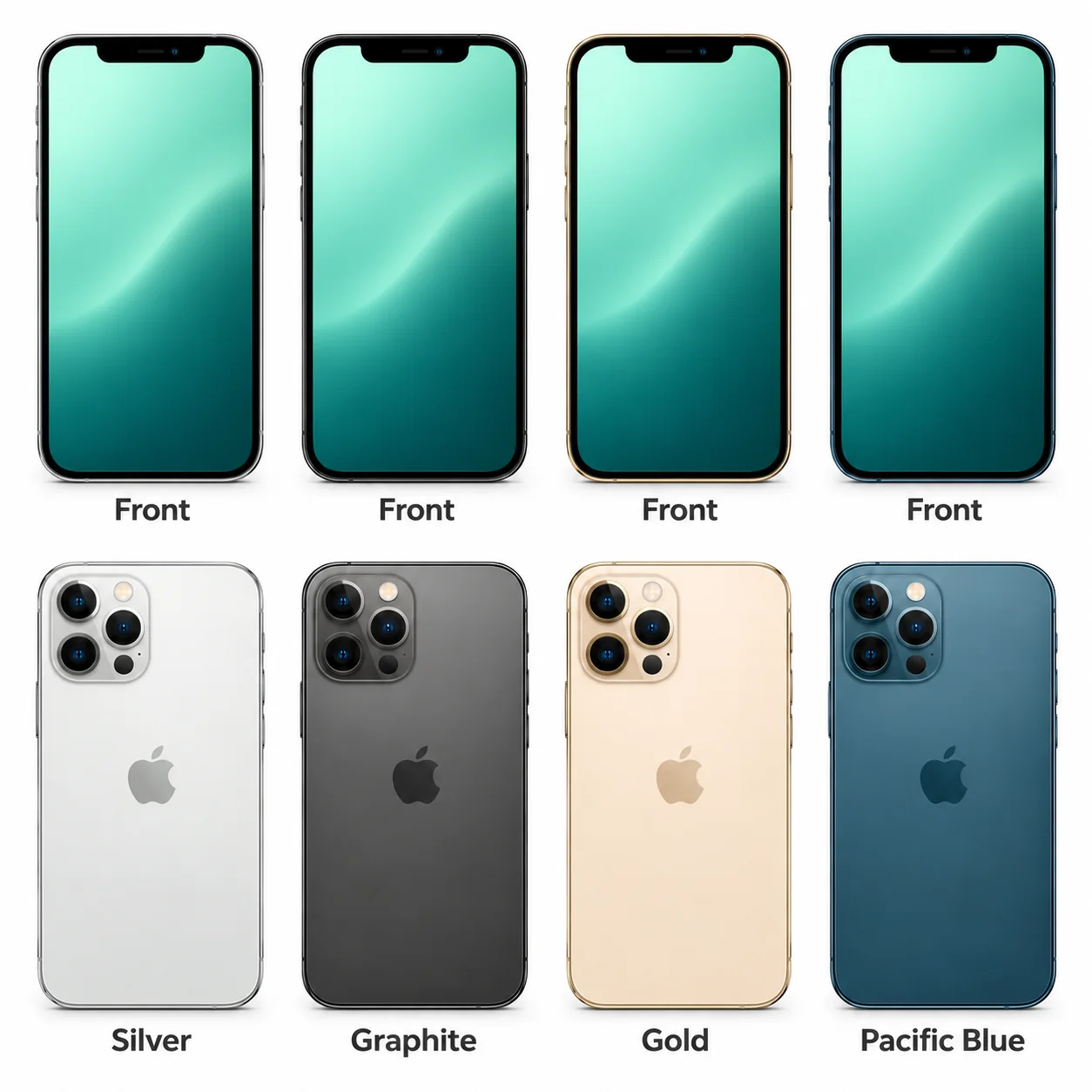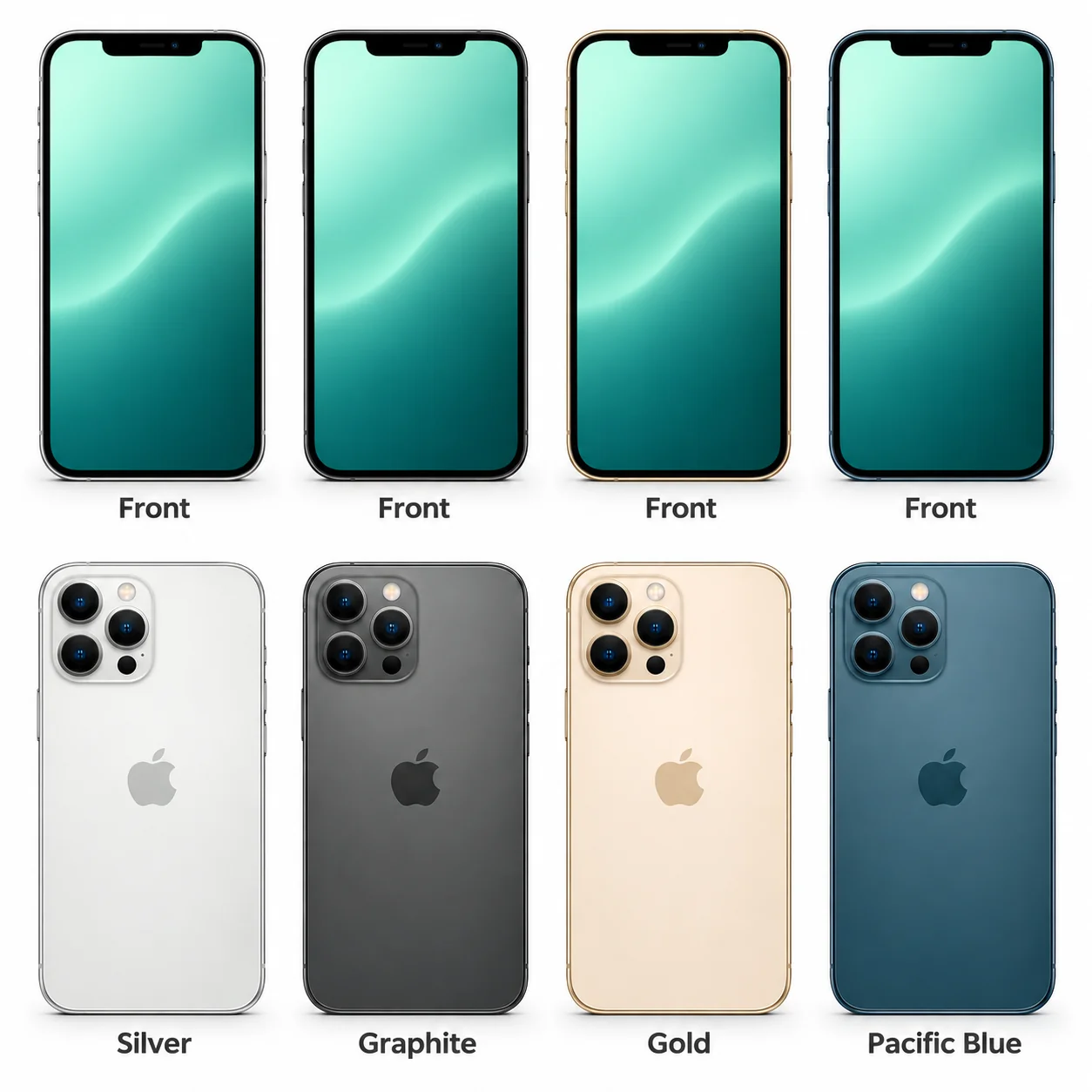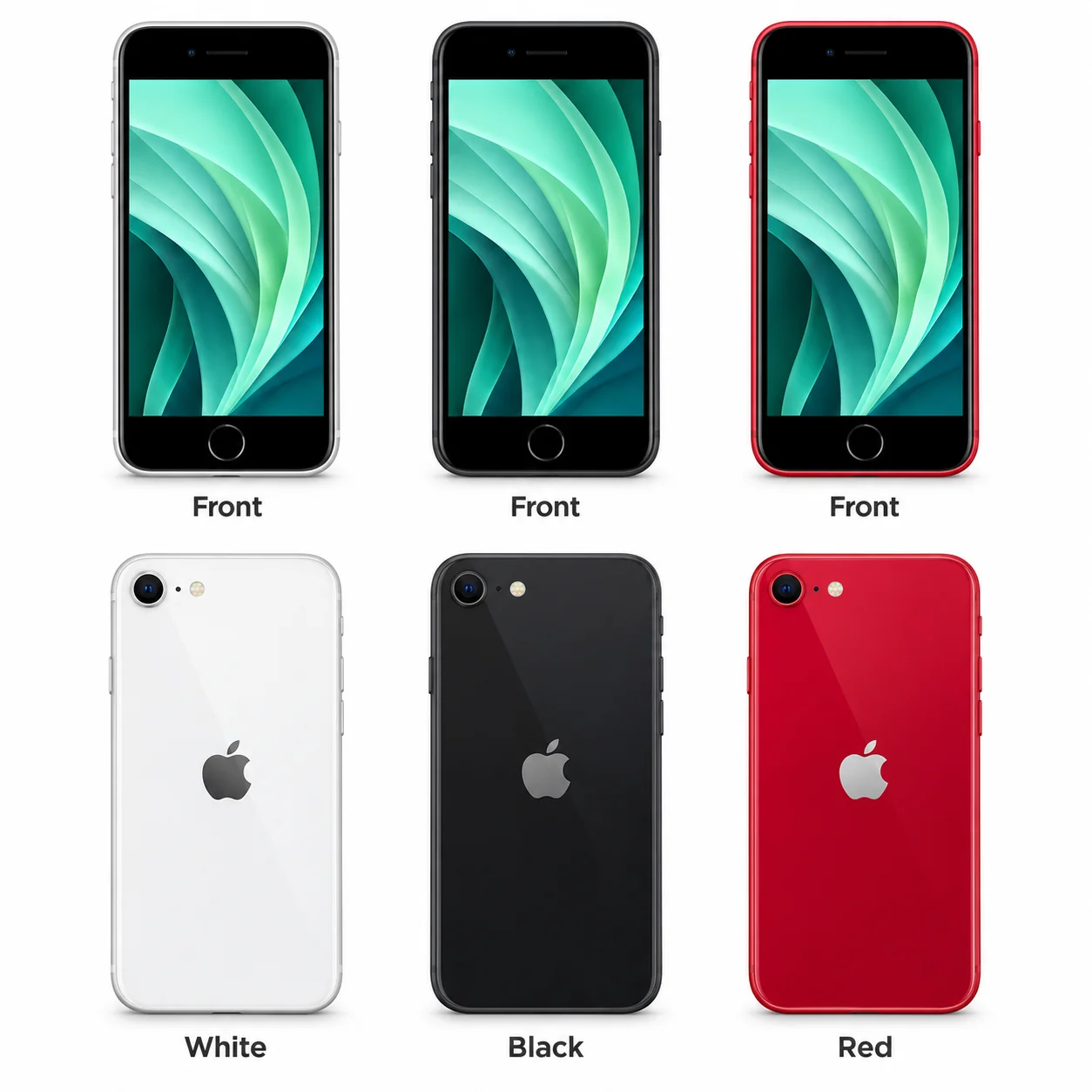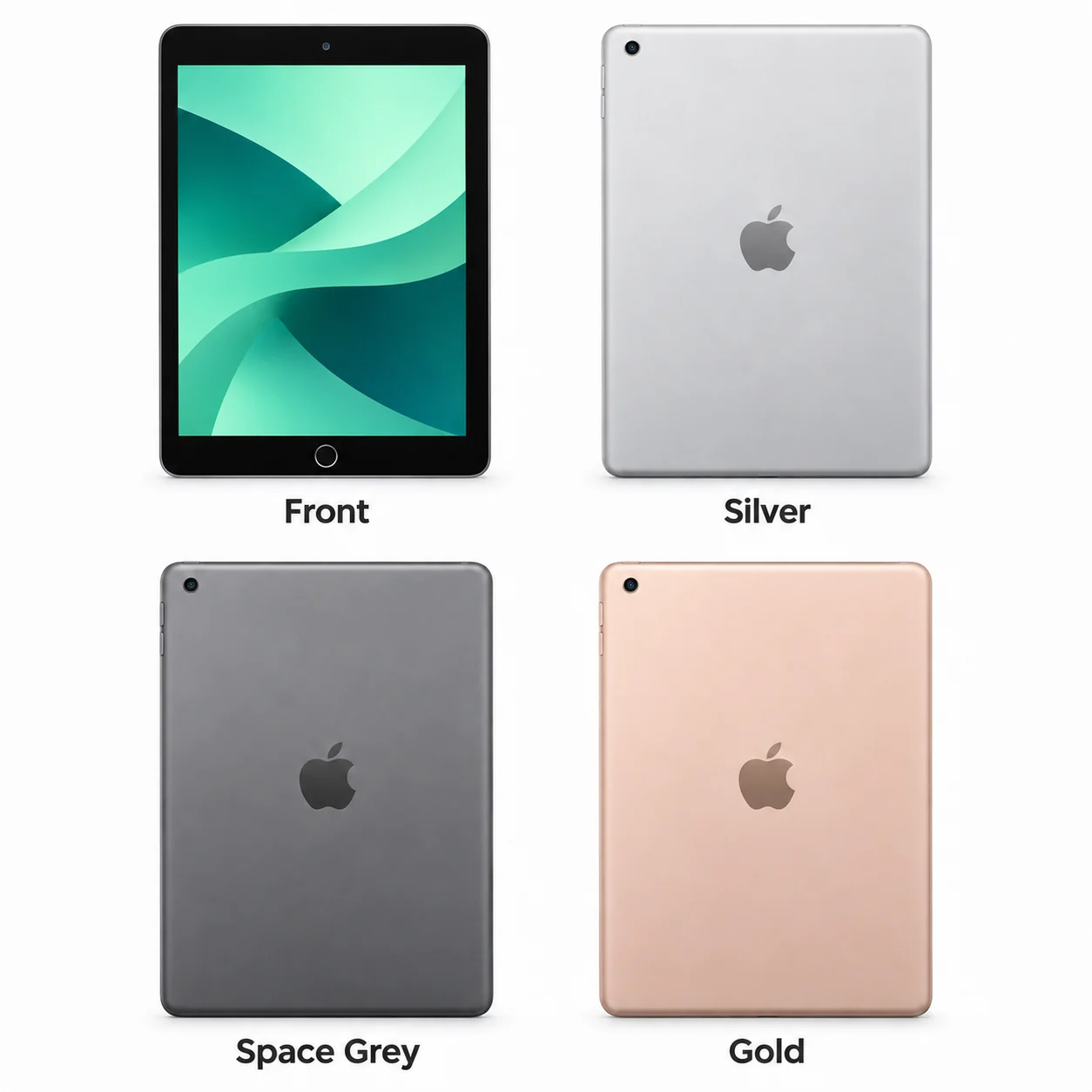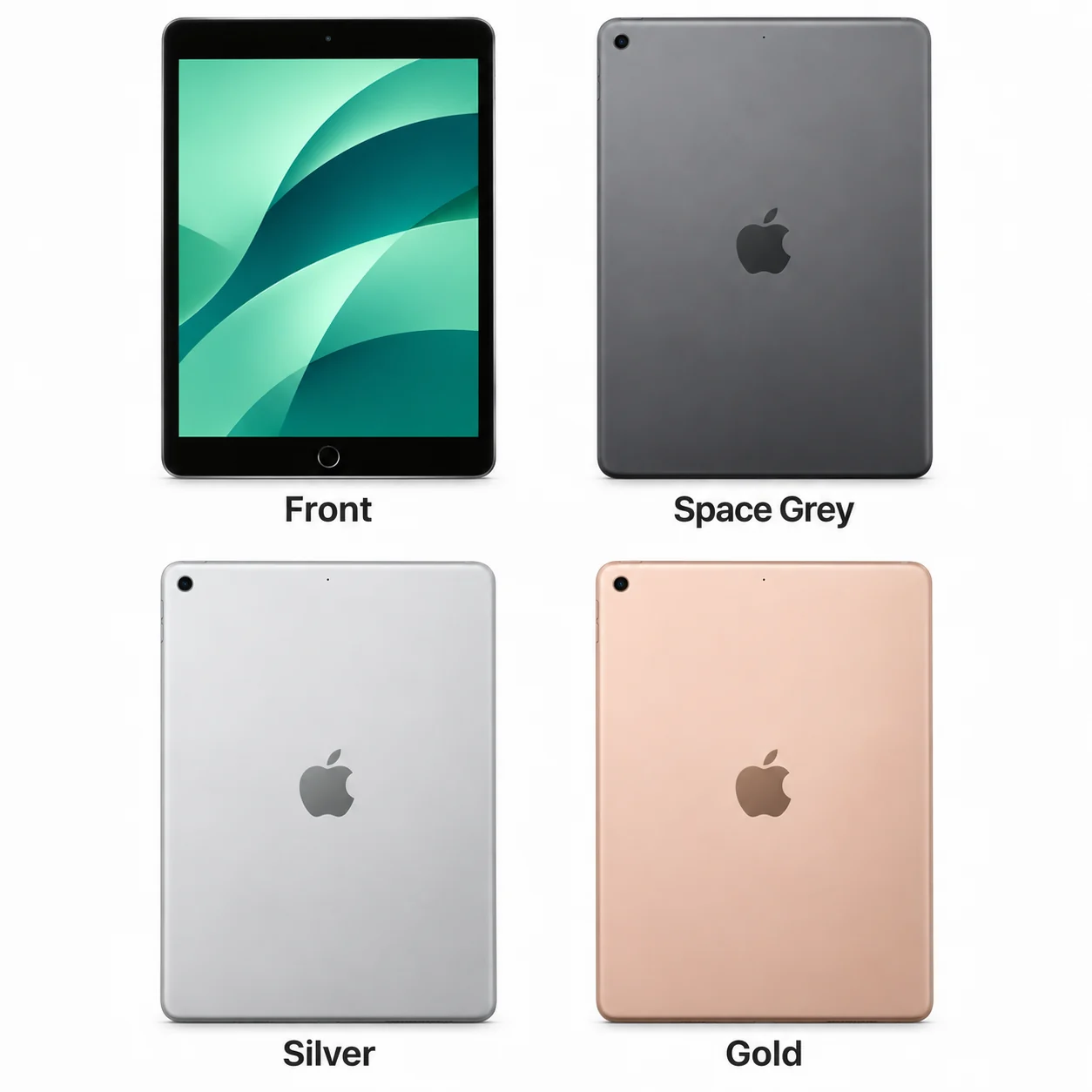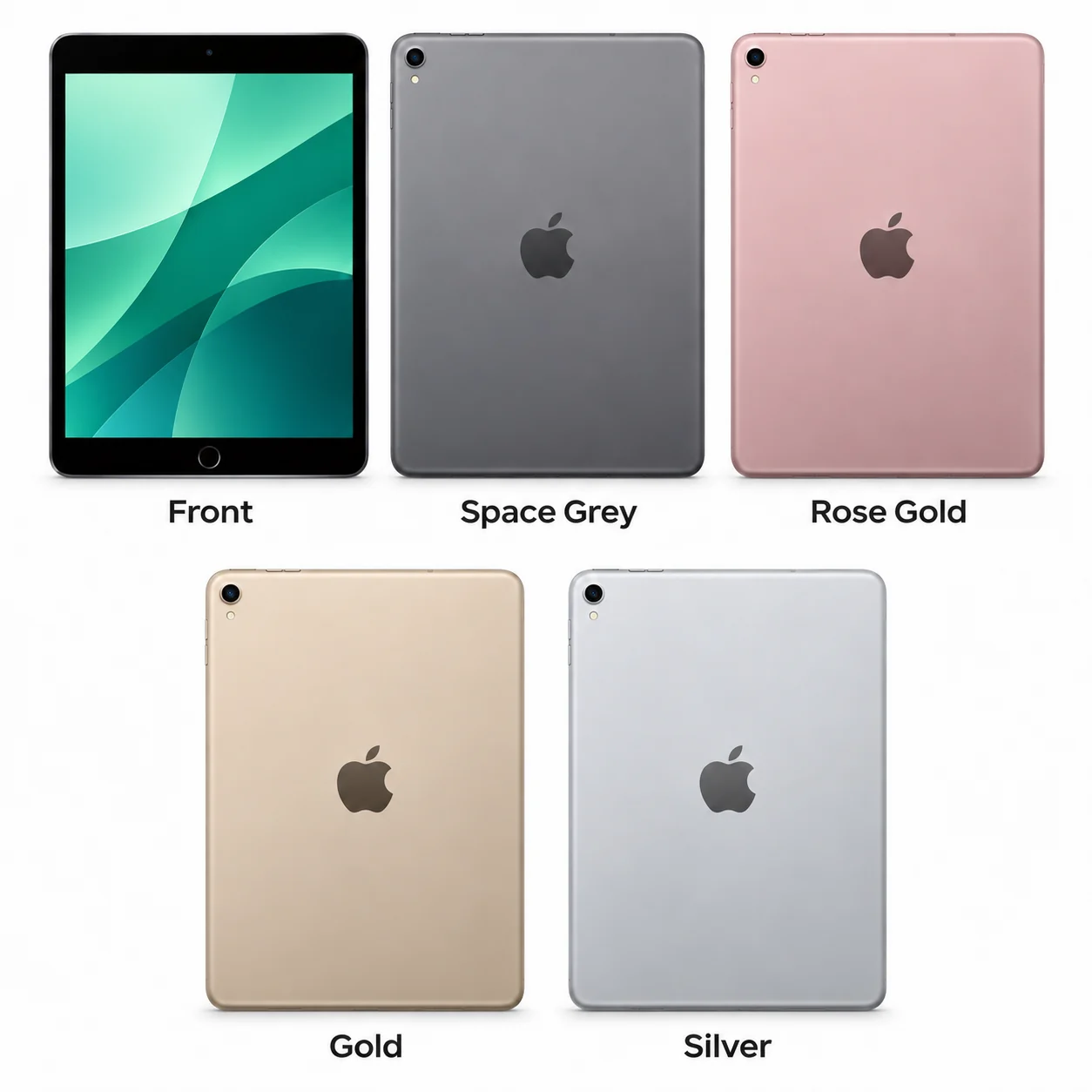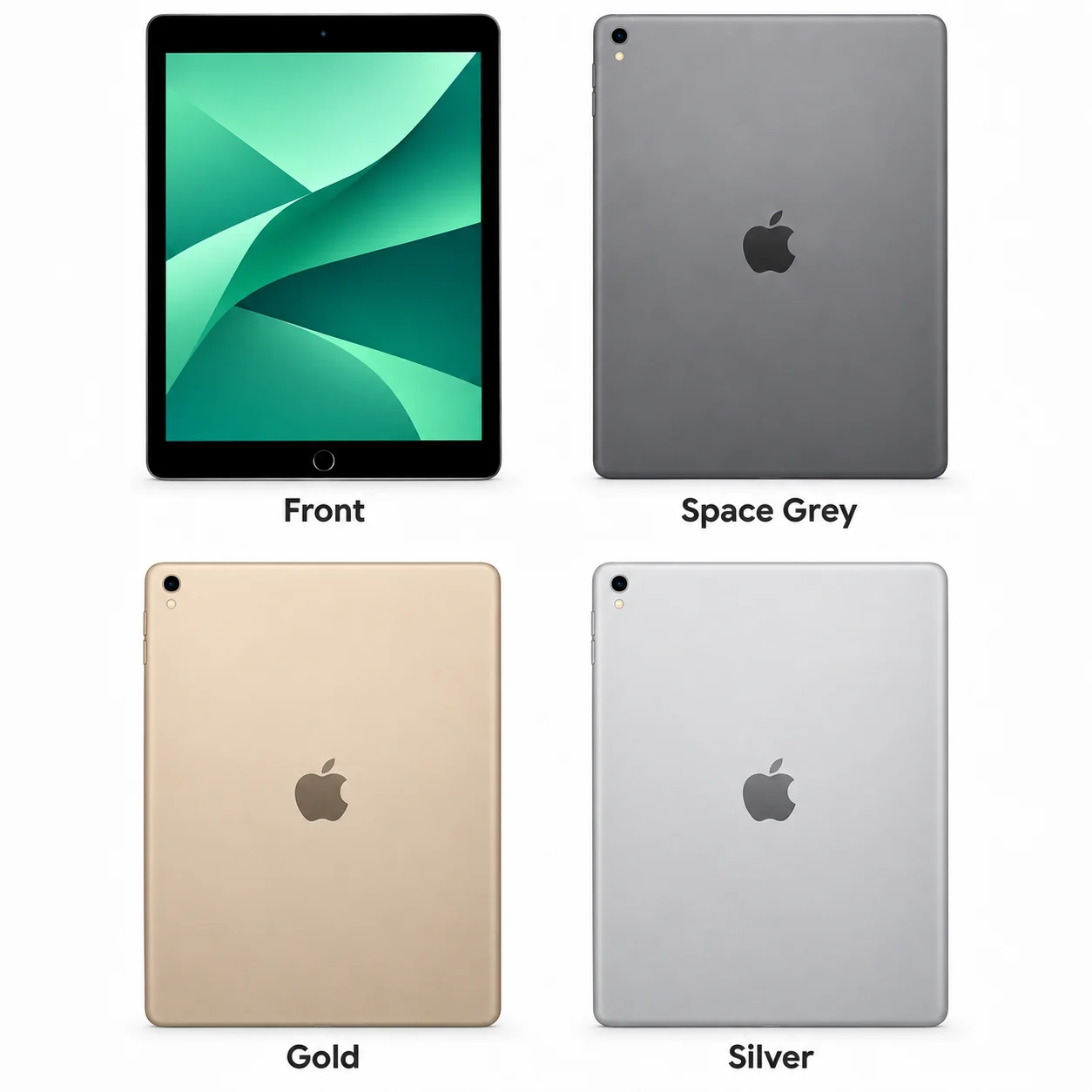
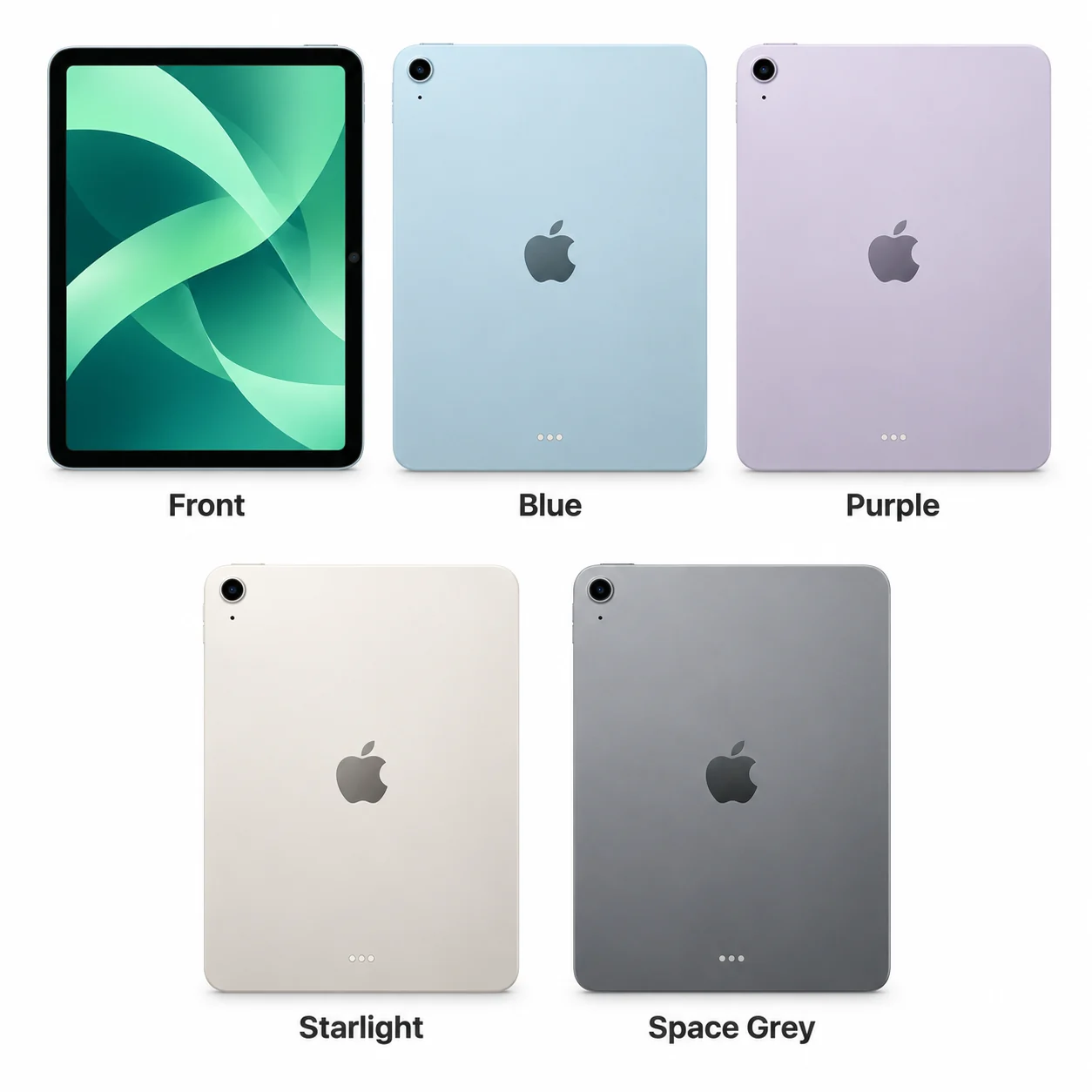
Apple iPad Air 11-inch (M4)
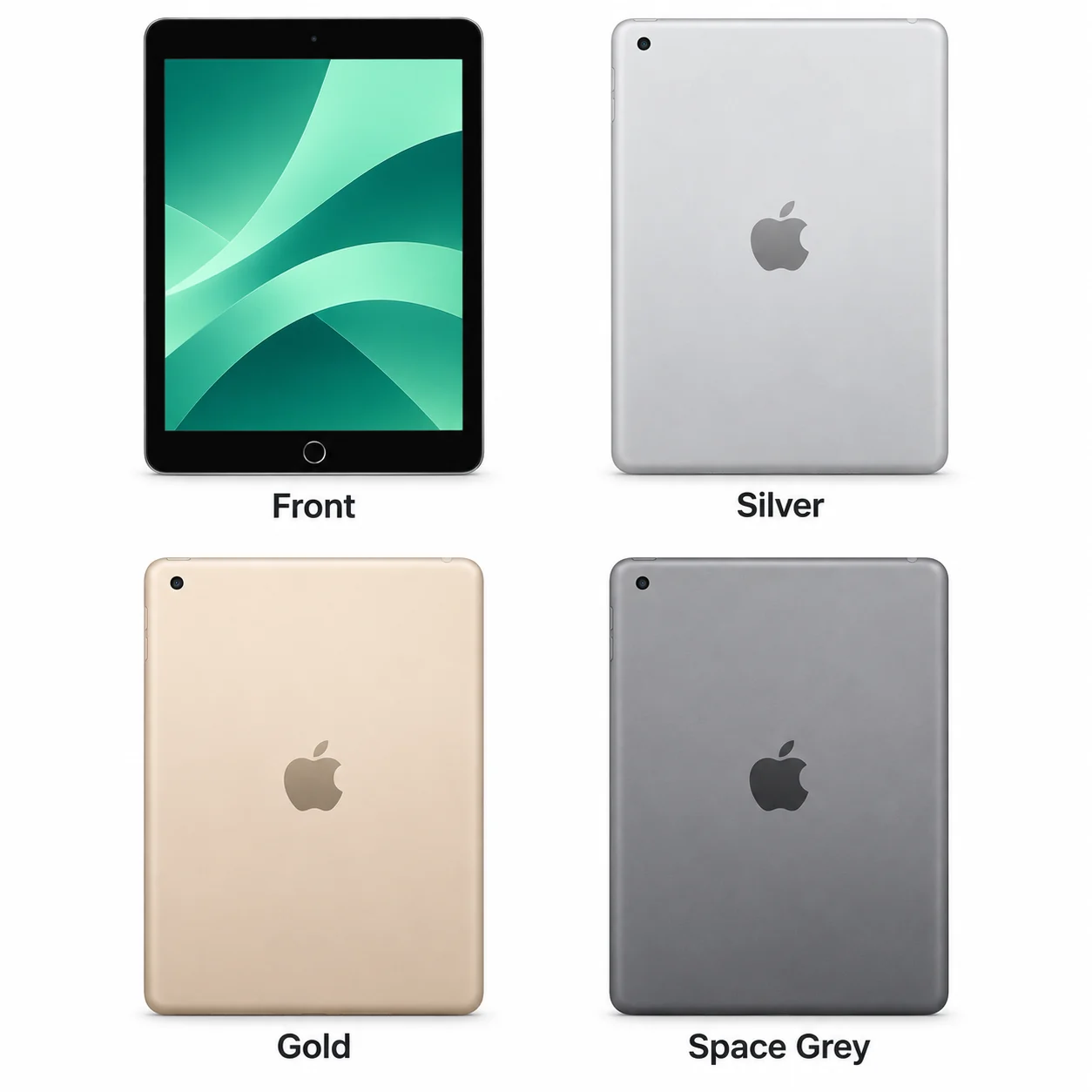
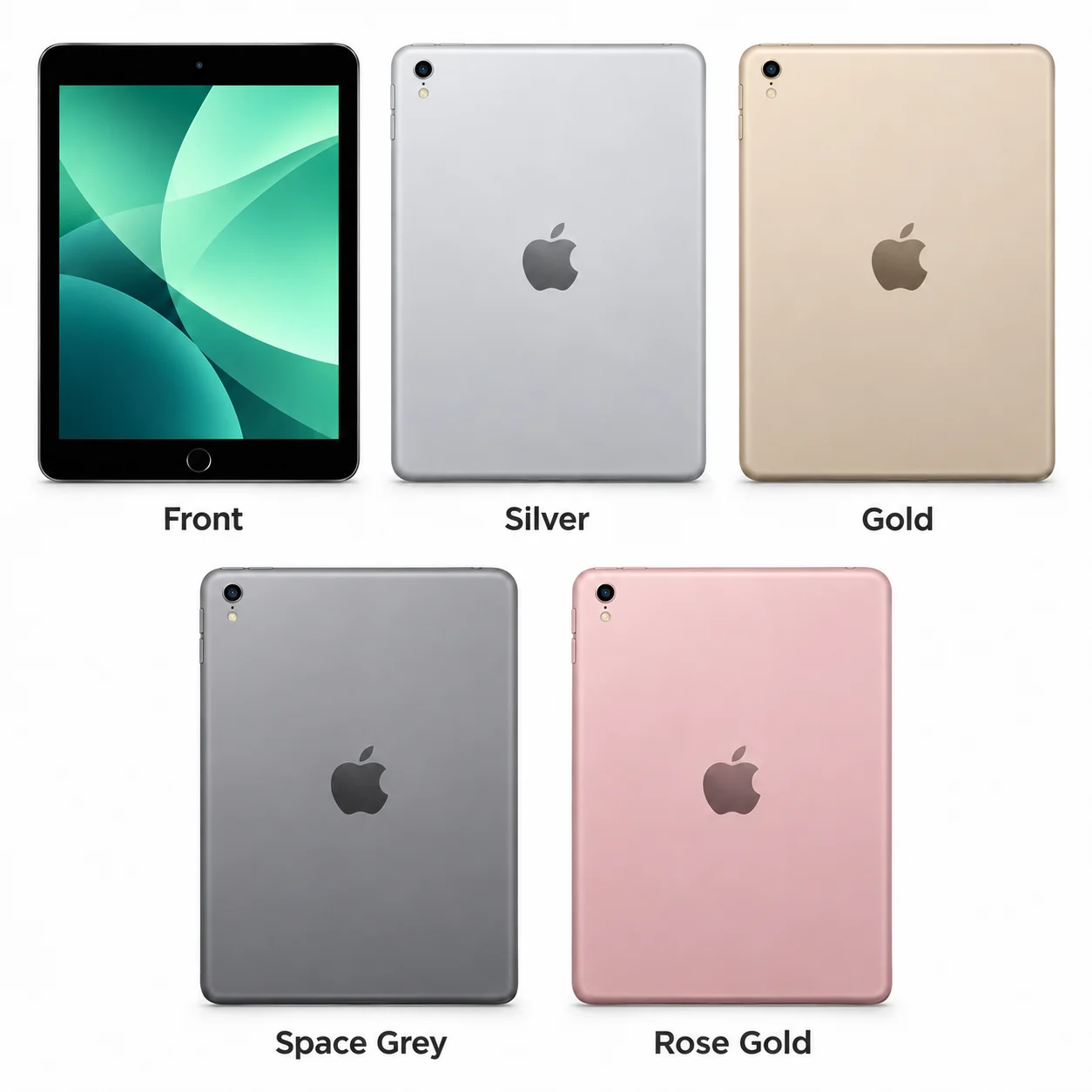
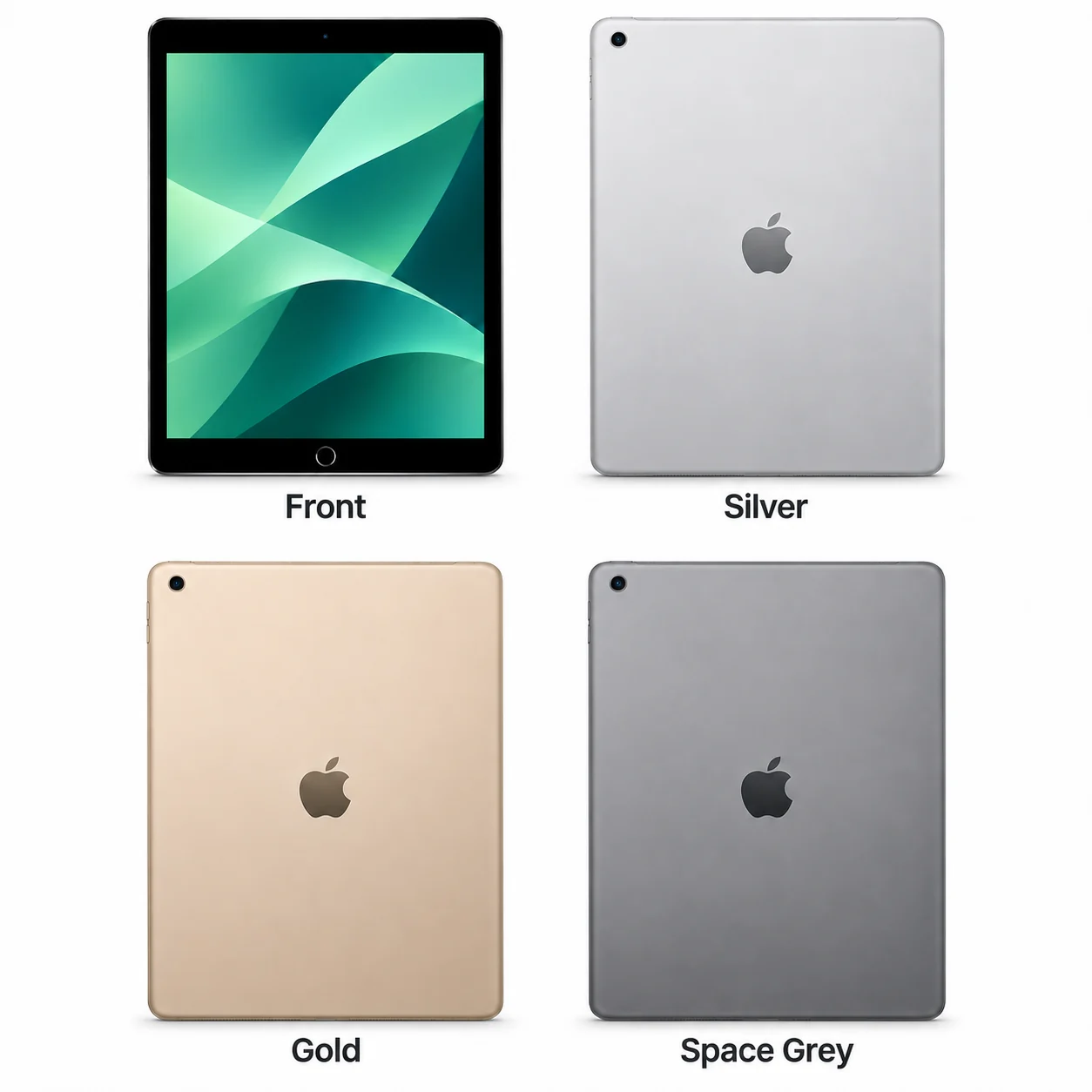
2026 · 11-inch · M4. M4 in the smaller Air.
Wi-Fi & cellular model numbers
A3459A3460A3463
- Screen
- 11-inch
- Chip
- M4
- Connector
- USB-C
Colours & model codes inside
Find the exact iPhone, iPad or Samsung model, compare its front and back, and make sense of its features.
Explore 55 iPhone models and 46 iPad models, with the different hardware versions grouped in the correct guide.
Choose the exact model, compare its colours and understand the specifications.
2026 · 11-inch · M4. M4 in the smaller Air.
2026 · 13-inch · M4. A large Air with M4.
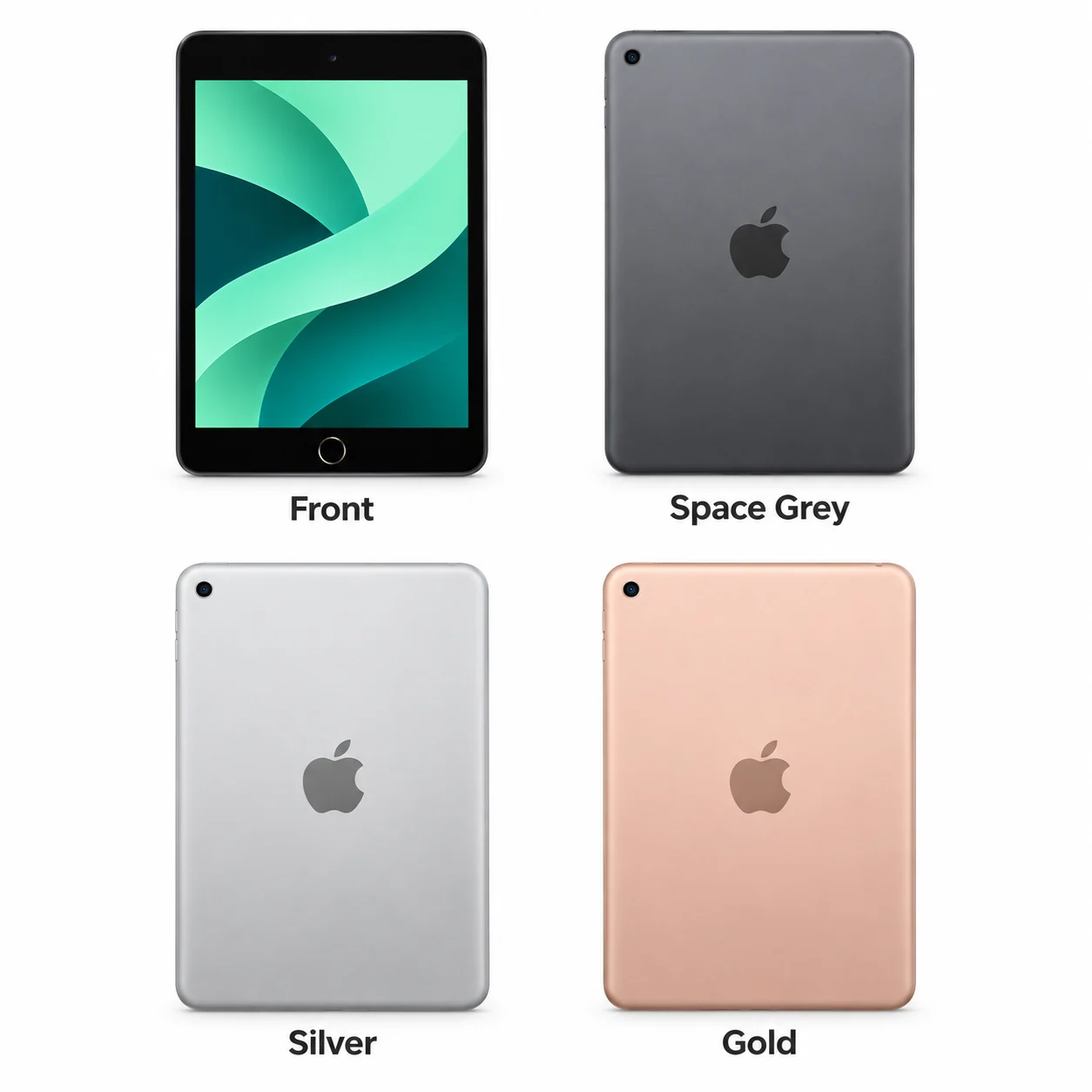
2026 · 8.5-inch · A20 Pro. The 2026 mini has a new OLED design.
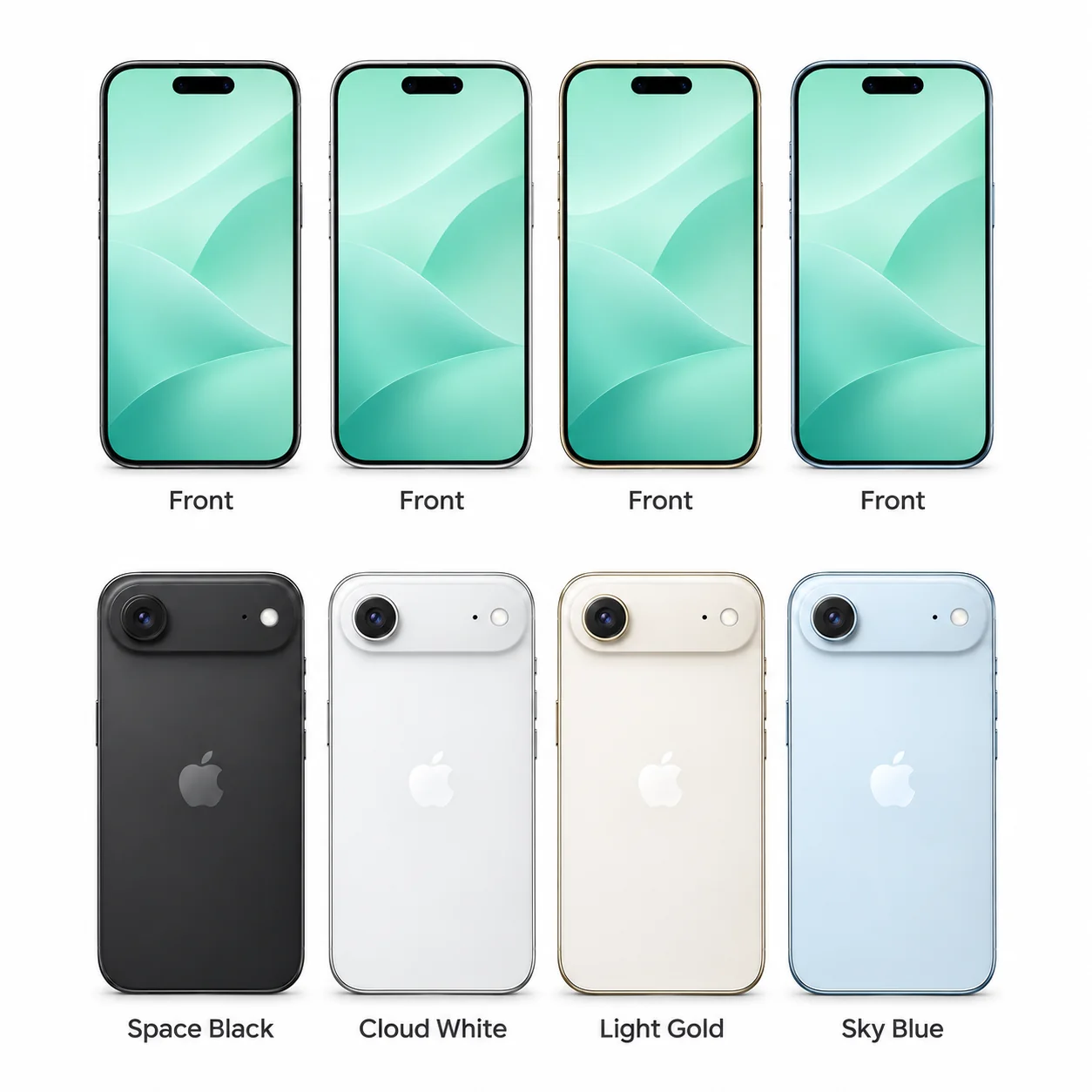
The iPhone 17e is a 2026 model with a 6.1-inch OLED screen, A19 chip and one rear camera.
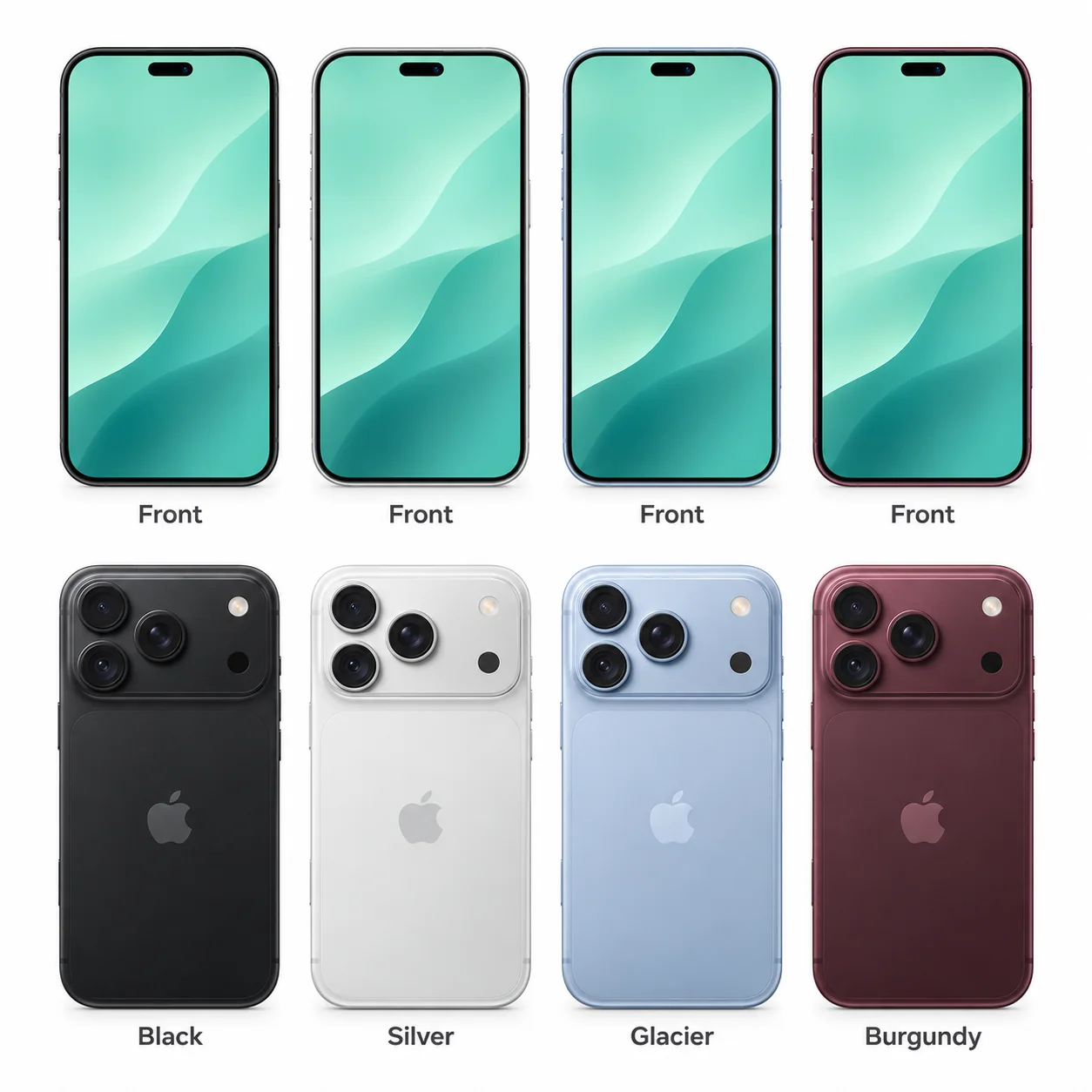
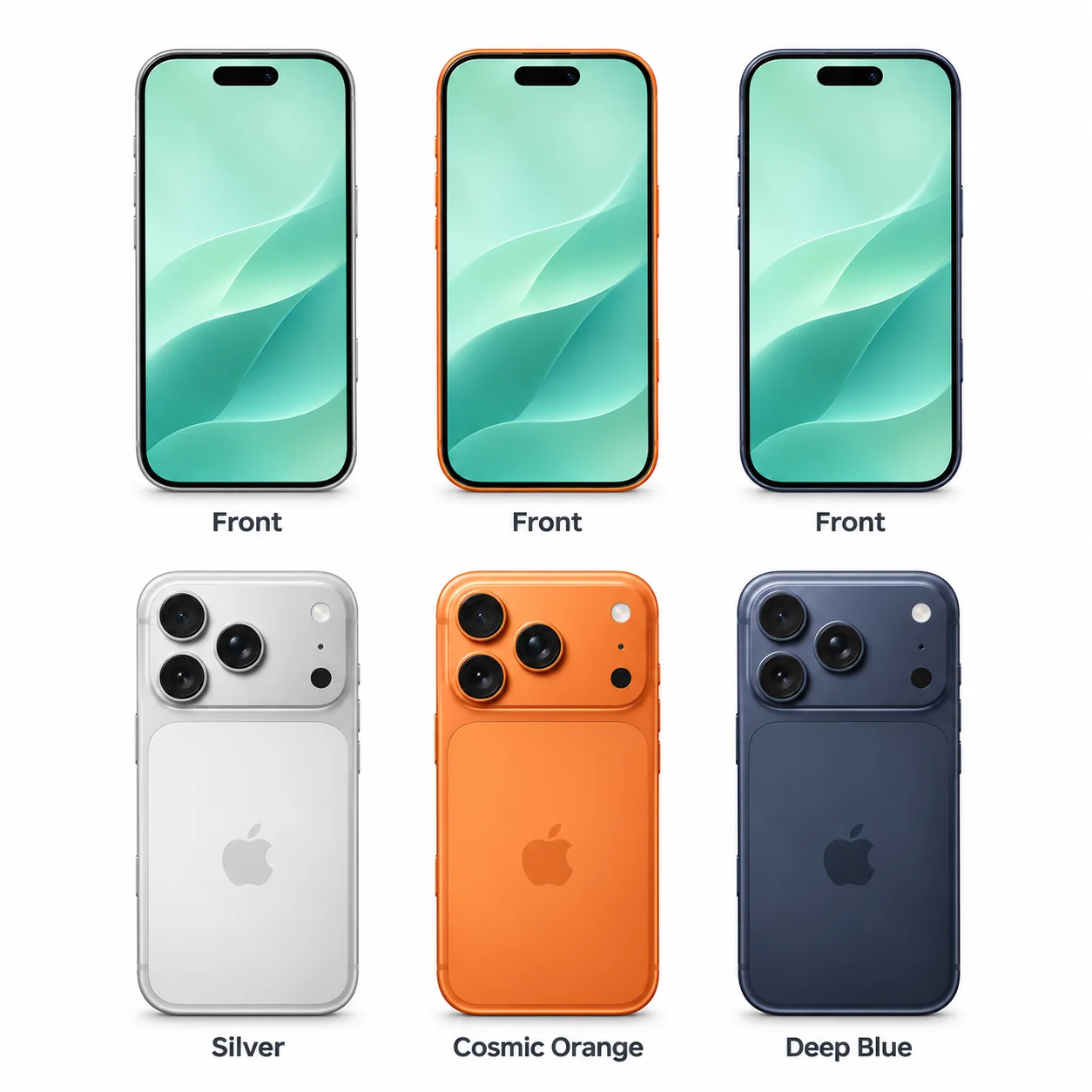
The iPhone 18 Pro puts Apple's 2026 A20 Pro hardware in the smaller Pro body.
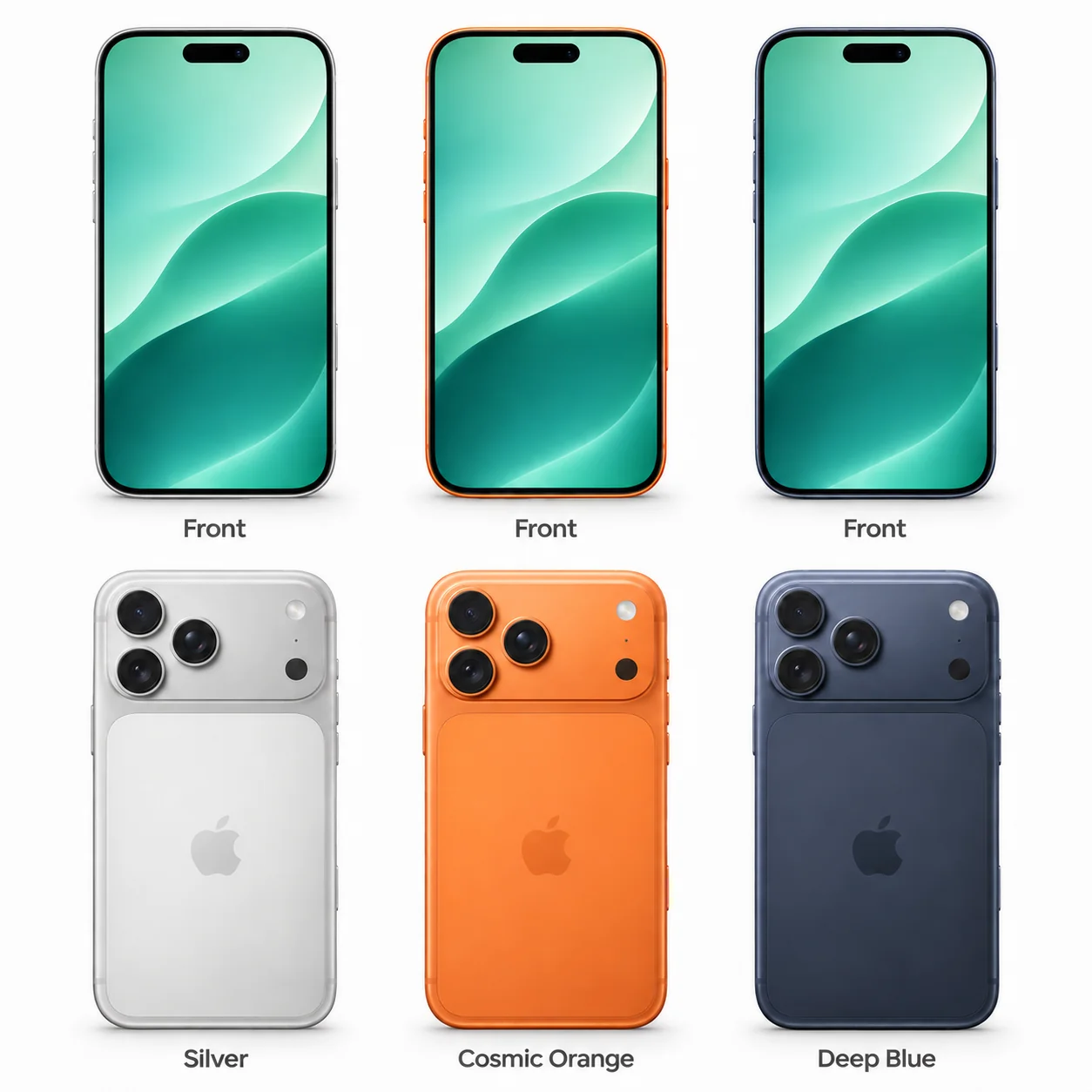
The iPhone 18 Pro Max is the larger of Apple's two 2026 Pro handsets, with a 6.9-inch OLED screen and an A20 Pro chip.
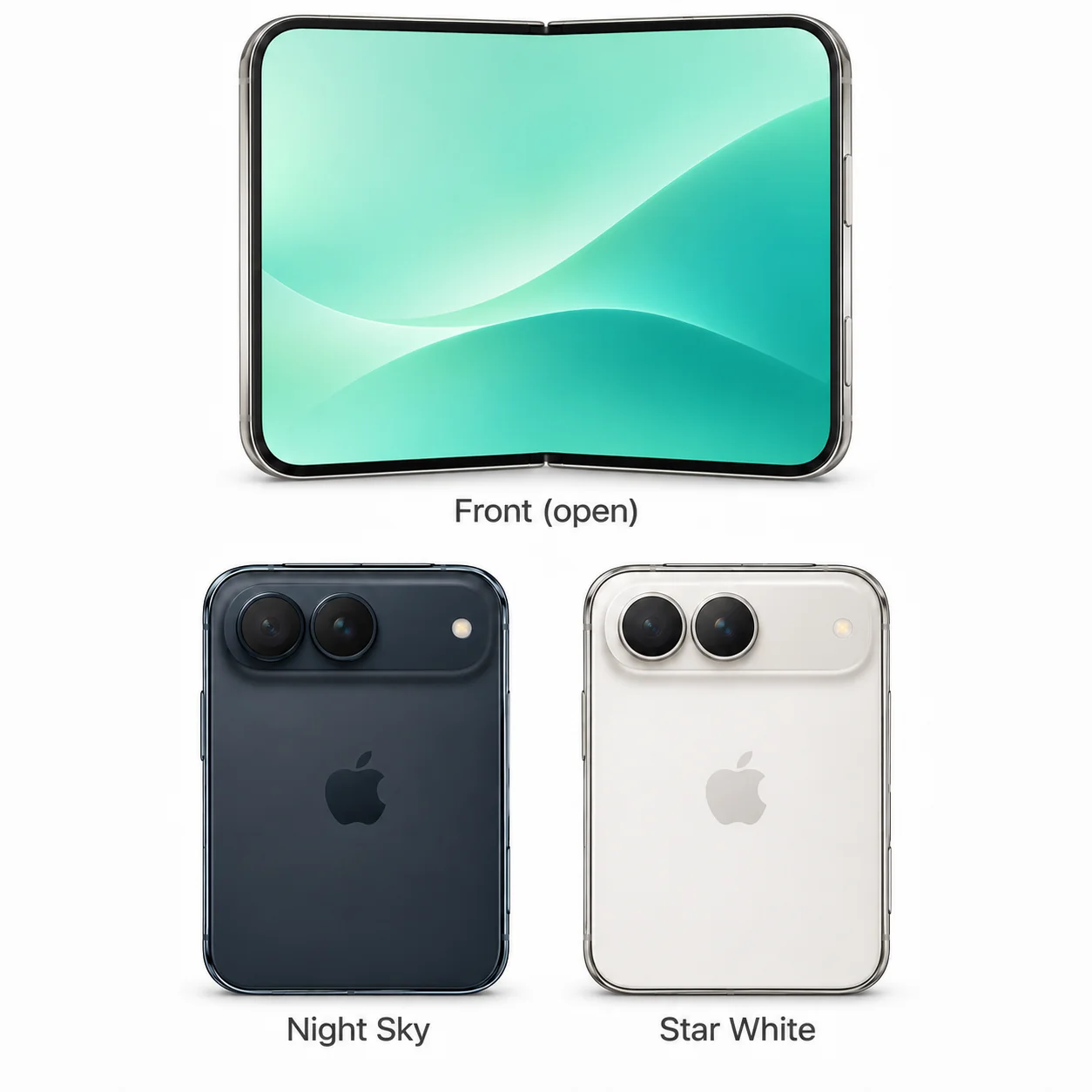
The iPhone Duo is Apple's 2026 folding iPhone.
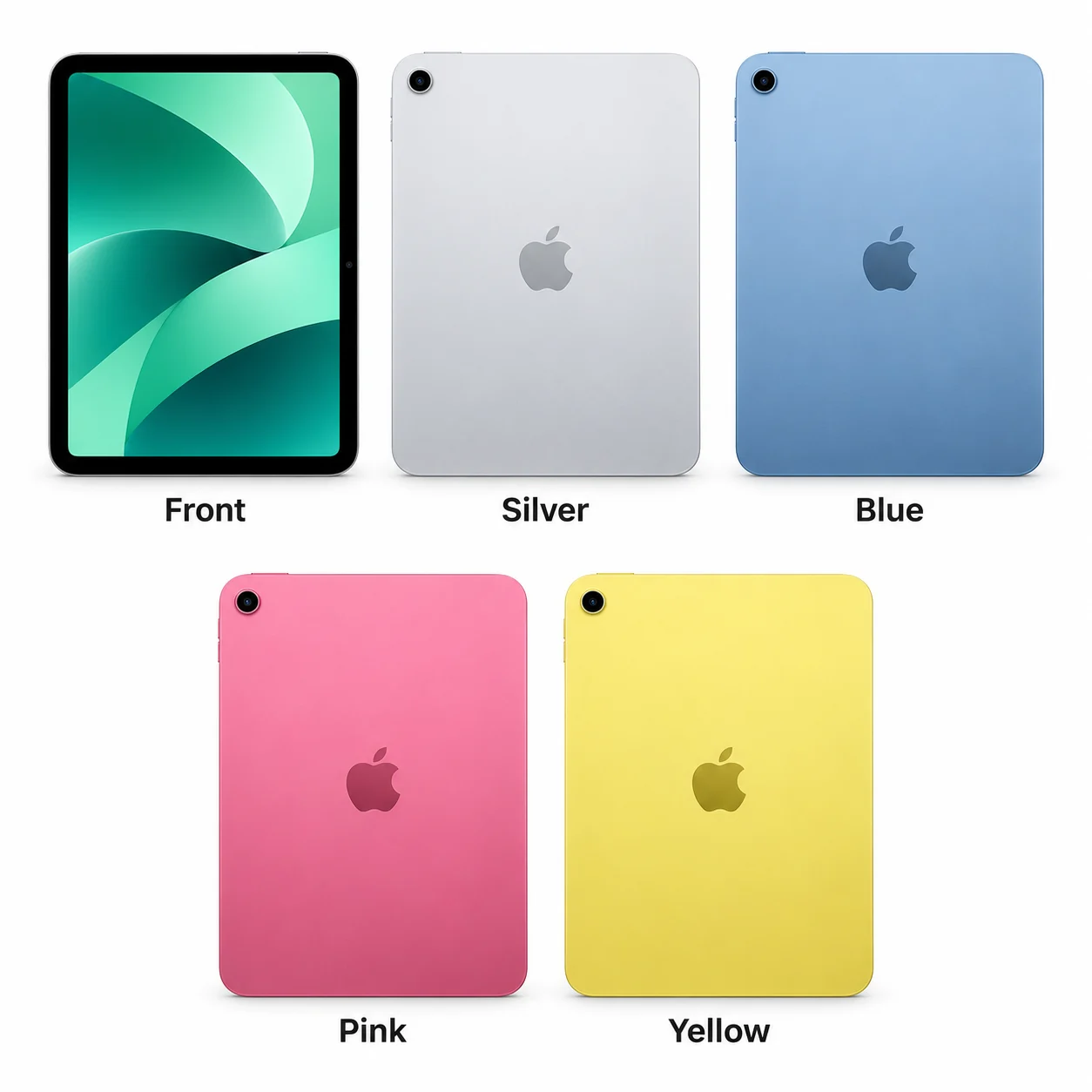
2025 · 11-inch · A16. The 2025 standard iPad uses A16.
2025 · 11-inch · M3. The 11-inch M3 Air in context.
2025 · 13-inch · M3. The 2025 large-screen Air.
2025 · 11-inch · M5. The smaller M5 Pro.
2025 · 13-inch · M5. A large OLED workspace with M5.
The iPhone 16e is a 2025 iPhone with a 6.1-inch OLED display, A18 chip and one 48MP rear camera.
The standard iPhone 17 is a 2025 model with a 6.3-inch OLED screen, A19 chip and two rear cameras.
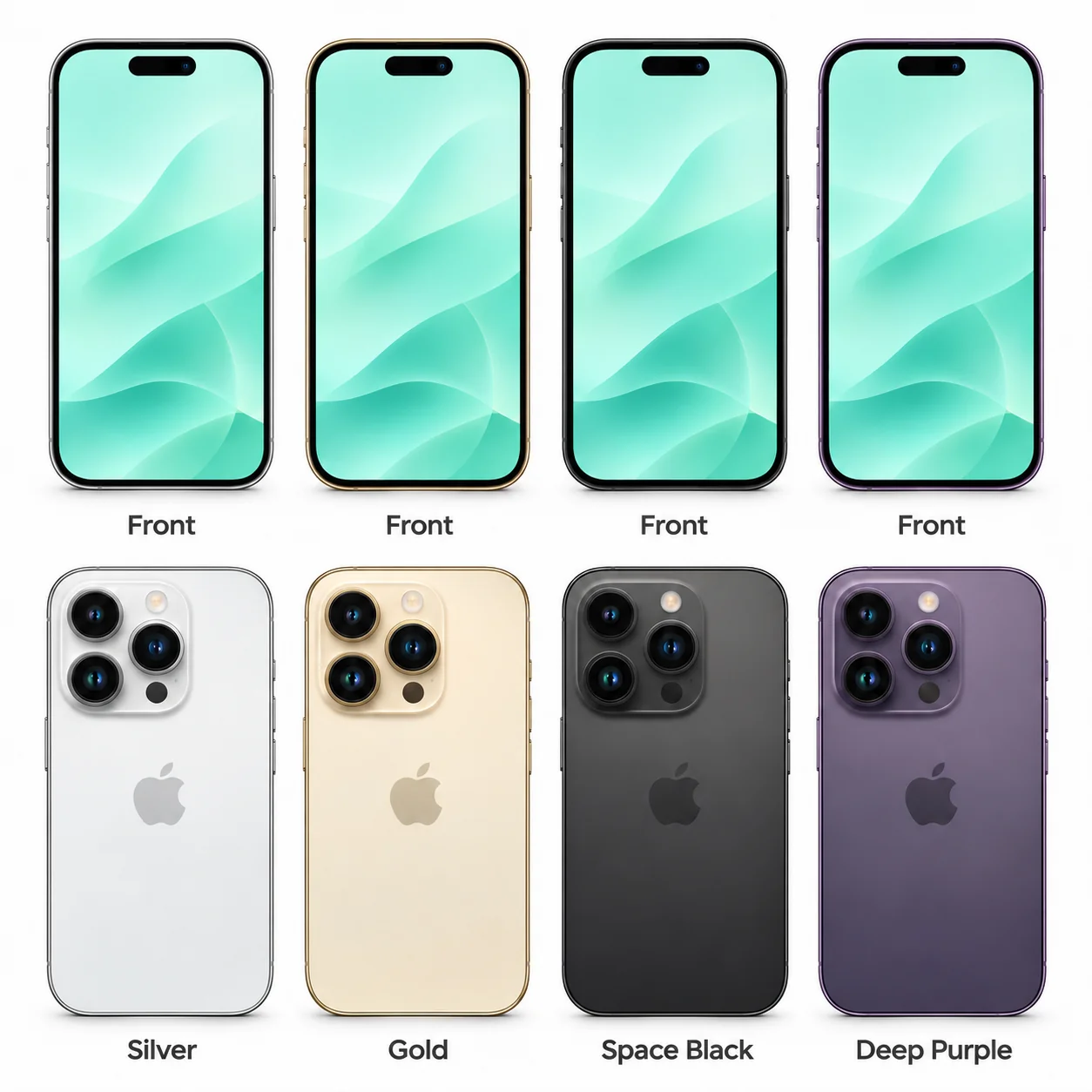
The iPhone 17 Pro is the smaller 2025 Pro model, built around a 6.3-inch OLED display and A19 Pro chip.
The iPhone 17 Pro Max is the 6.9-inch Pro model from 2025.
The iPhone Air is Apple's slim 2025 iPhone, with a 6.5-inch OLED display in a titanium body.
2024 · 11-inch · M2. The 2024 11-inch Air uses M2.
2024 · 13-inch · M2. The first 13-inch Air.
2024 · 8.3-inch · A17 Pro. The 2024 mini uses A17 Pro.
2024 · 11-inch · M4. An OLED screen in the 11-inch Pro.
2024 · 13-inch · M4. The 13-inch move to tandem OLED.
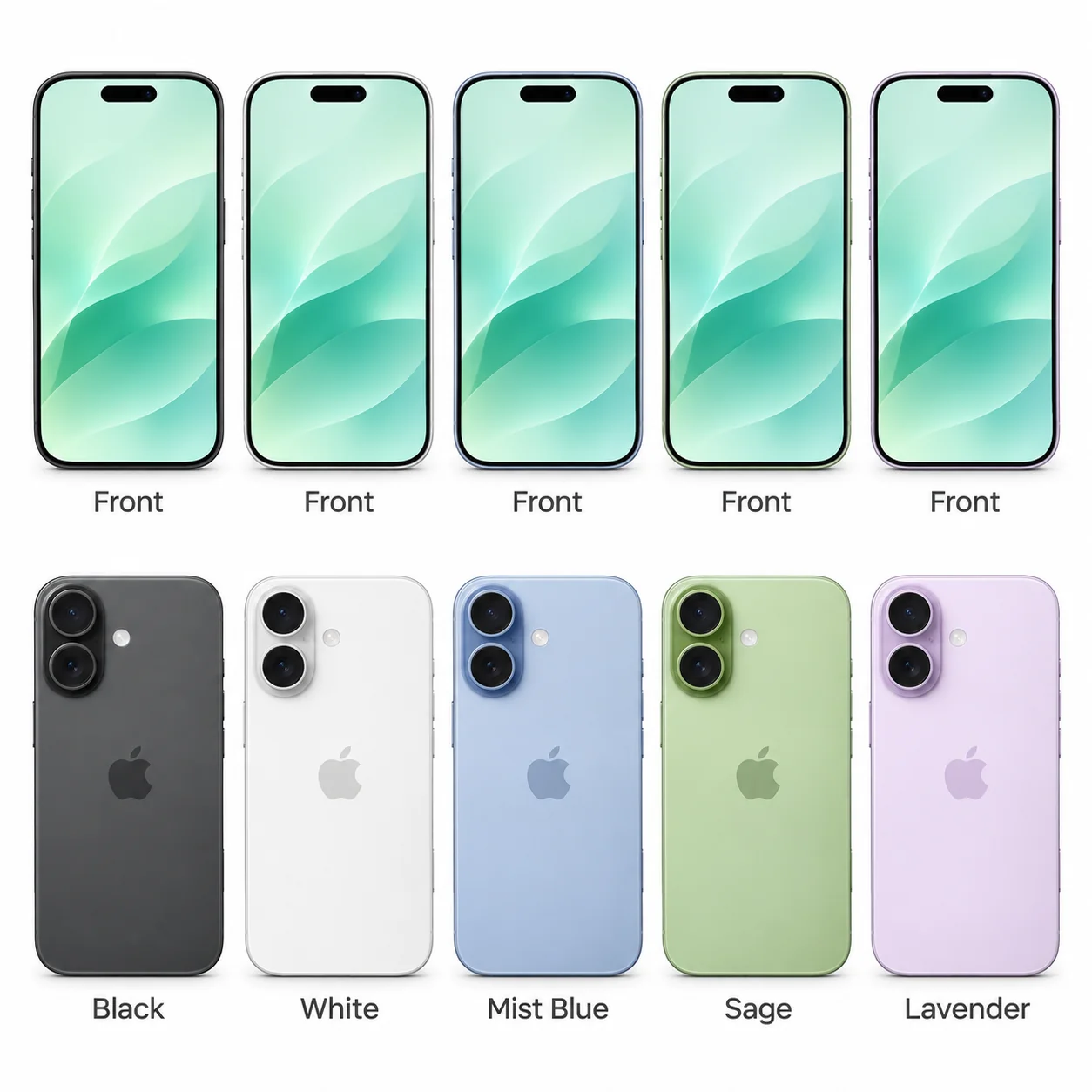
The iPhone 16 is Apple's standard 6.1-inch model from 2024.
The iPhone 16 Plus is the 6.7-inch standard model from 2024.
The iPhone 16 Pro brings a 6.3-inch OLED screen and A18 Pro chip to Apple's smaller 2024 Pro body.
The iPhone 16 Pro Max is the larger 2024 Pro iPhone, with a 6.9-inch OLED display and titanium exterior.
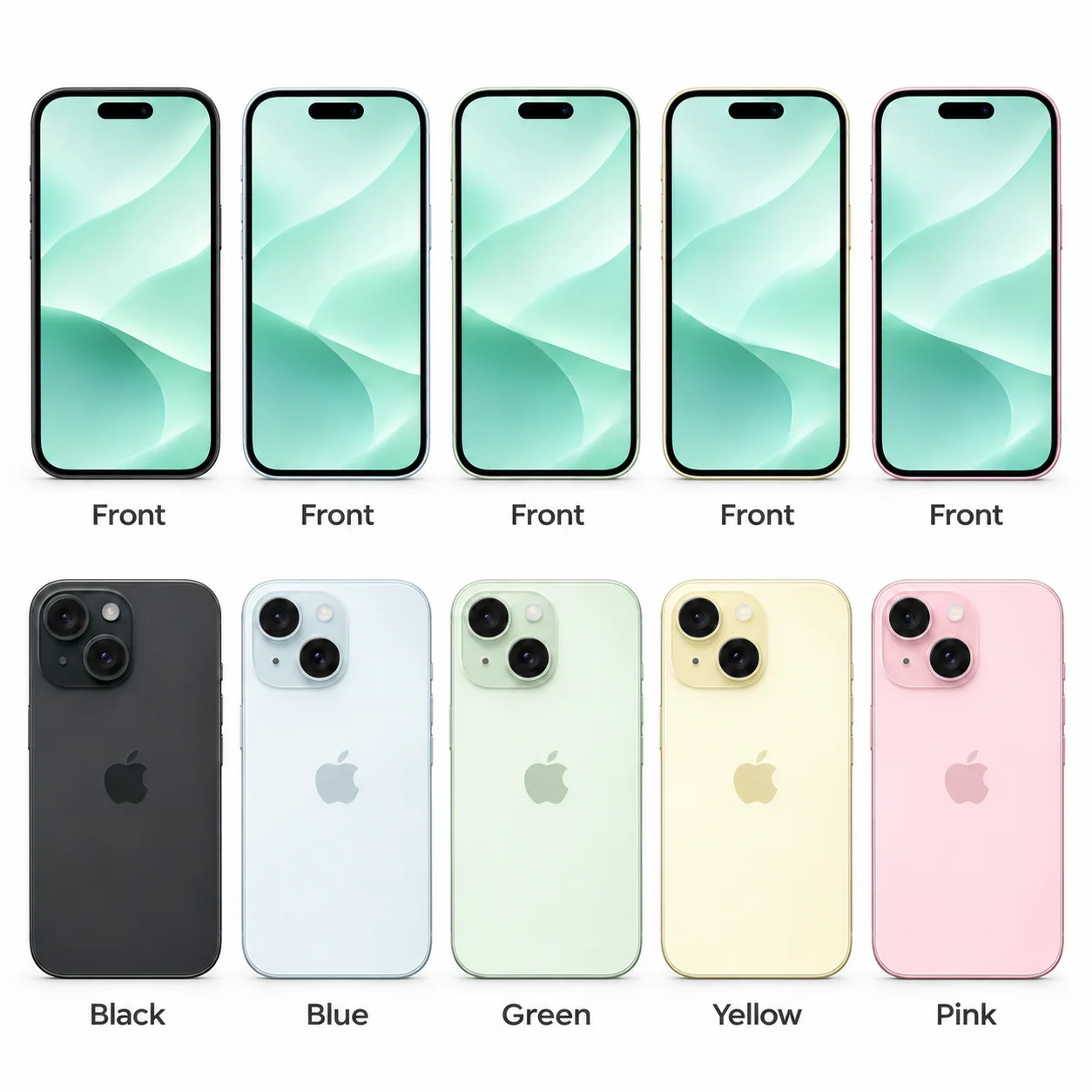
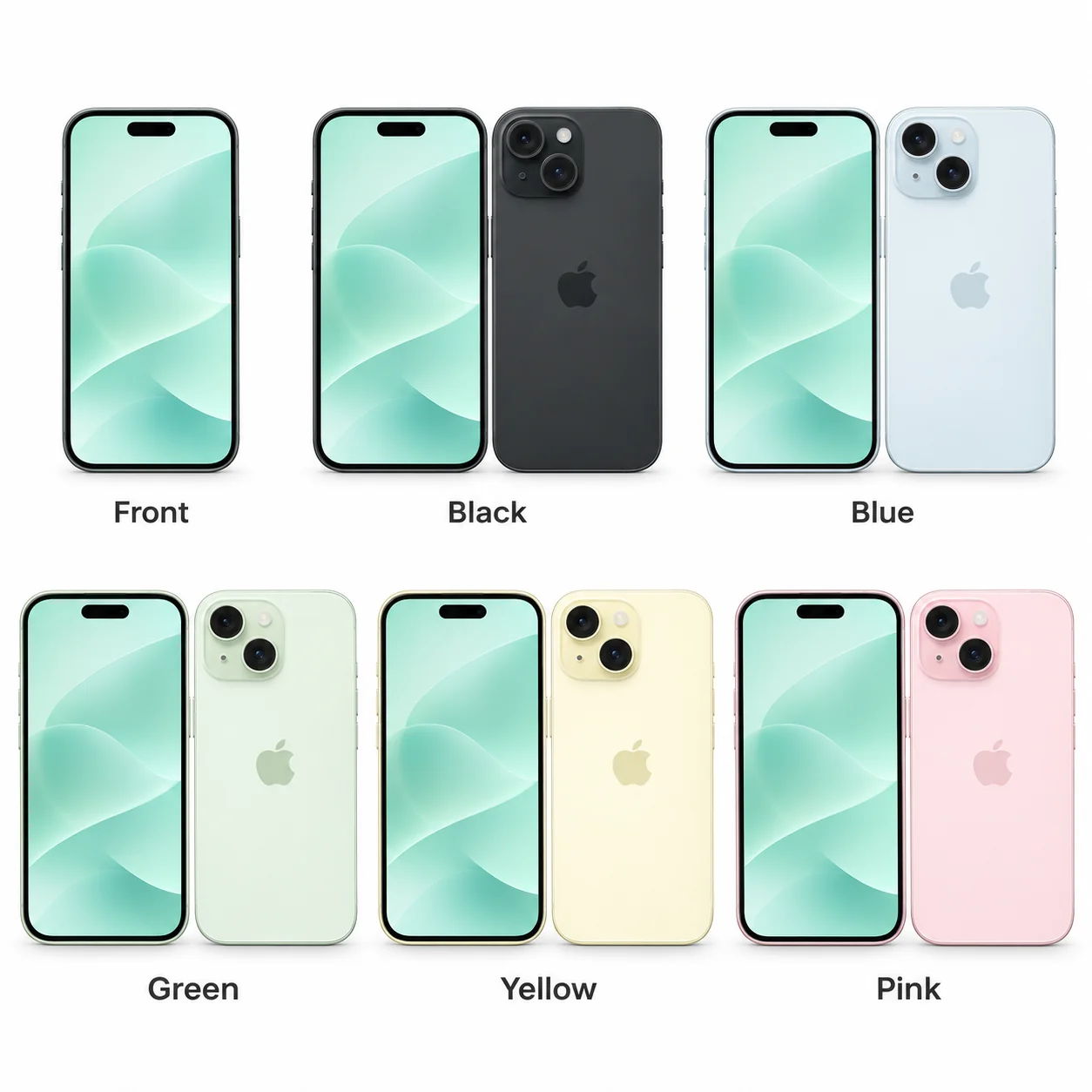
The iPhone 15 is the standard 6.1-inch model from 2023.
The iPhone 15 Plus is Apple's larger standard iPhone from 2023, with a 6.7-inch OLED screen.
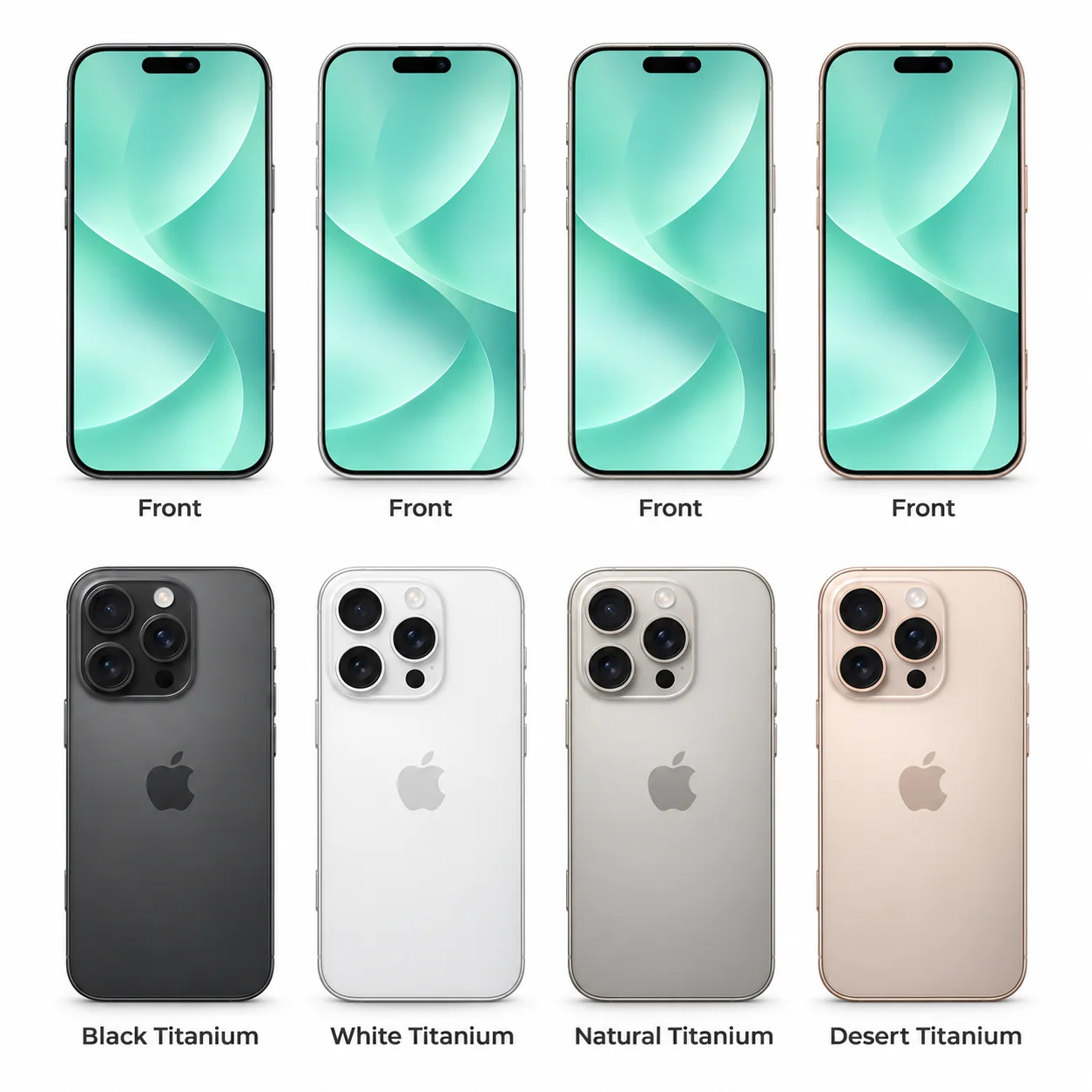
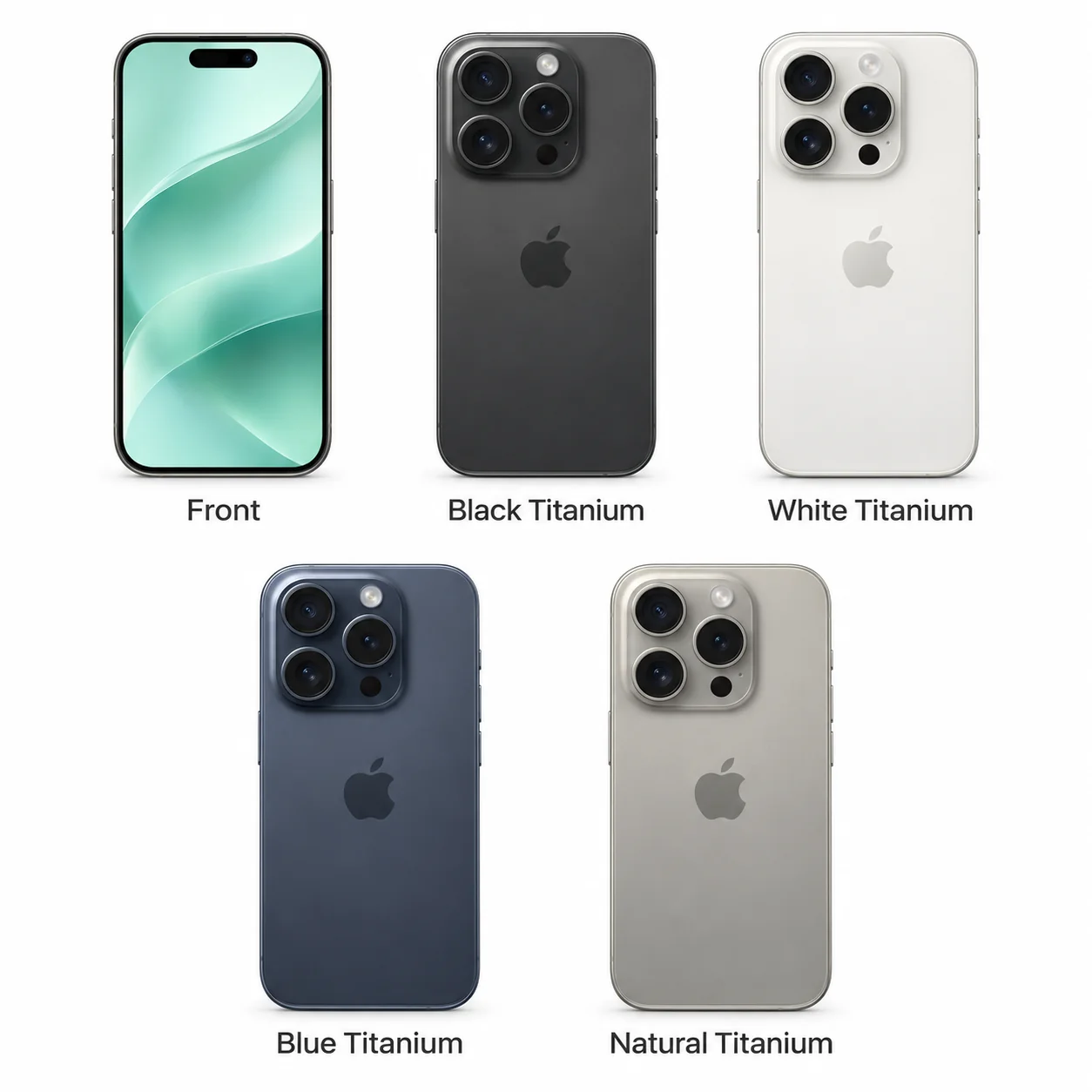
The iPhone 15 Pro is the 6.1-inch Pro model from 2023.
The iPhone 15 Pro Max is the larger titanium Pro iPhone from 2023.
2022 · 10.9-inch · A14 Bionic. The standard iPad changes design.
2022 · 10.9-inch · M1. The 2022 Air brings M1.
2022 · 11-inch · M2. The 2022 11-inch Pro is the M2 model.
2022 · 12.9-inch · M2. The final 12.9-inch generation uses M2.
Camera updates and an important SIM difference on imported models.
The iPhone 14 Plus is the larger standard iPhone from 2022, with a 6.7-inch OLED display and A15 Bionic chip.
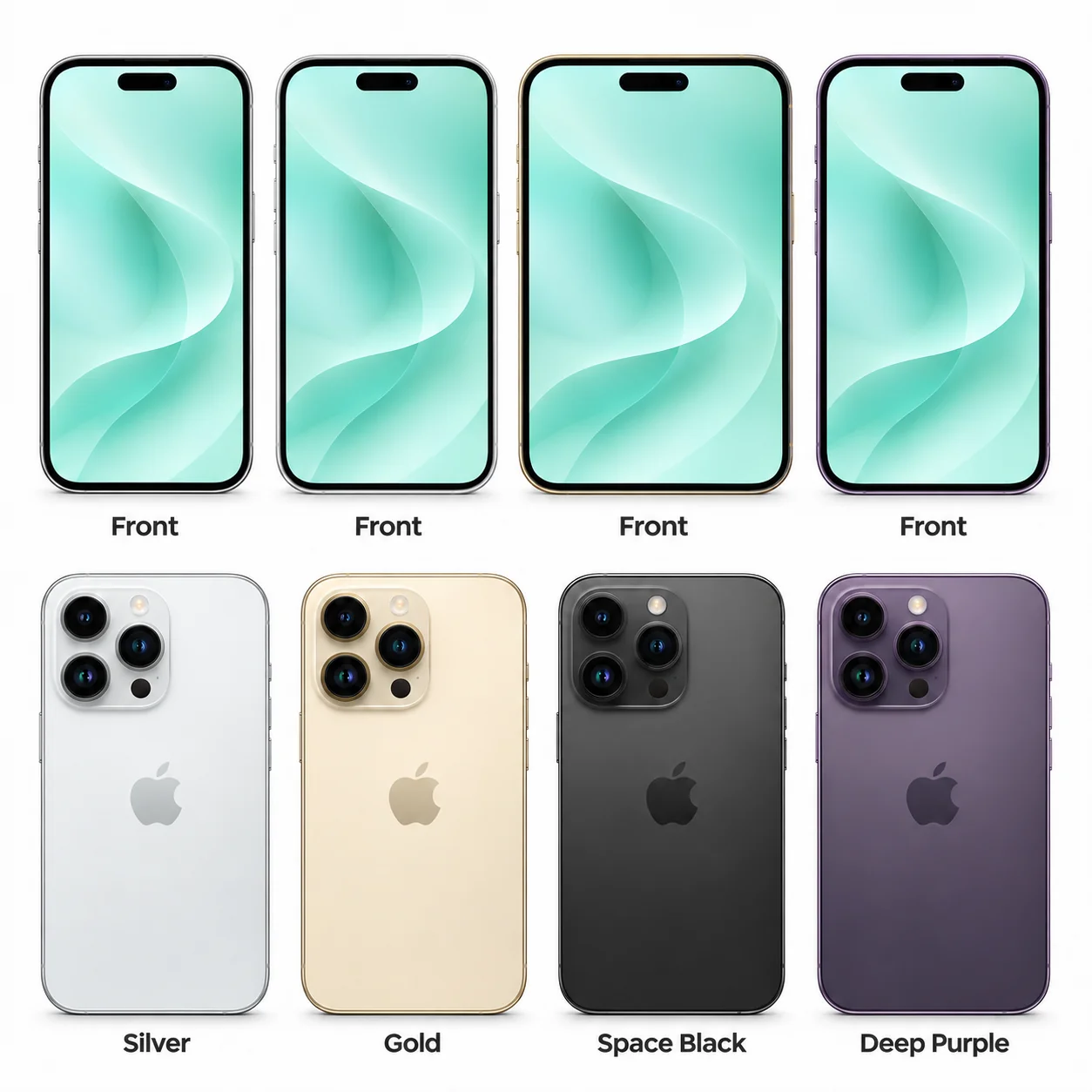
The iPhone 14 Pro is the smaller Pro iPhone from 2022, with a 6.1-inch OLED screen and A16 Bionic chip.
The iPhone 14 Pro Max is the 6.7-inch Pro model from 2022.
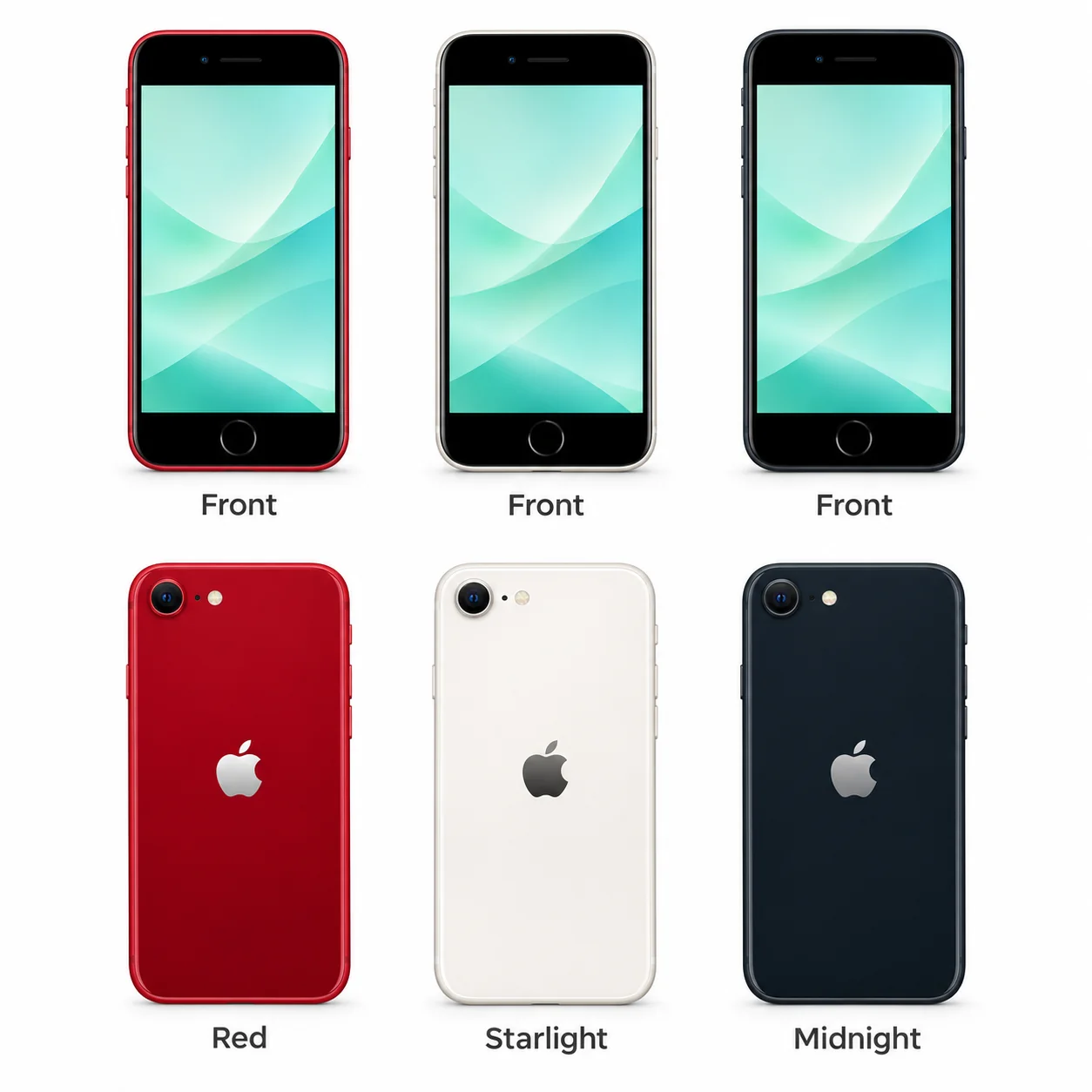
The third-generation iPhone SE was introduced in 2022.
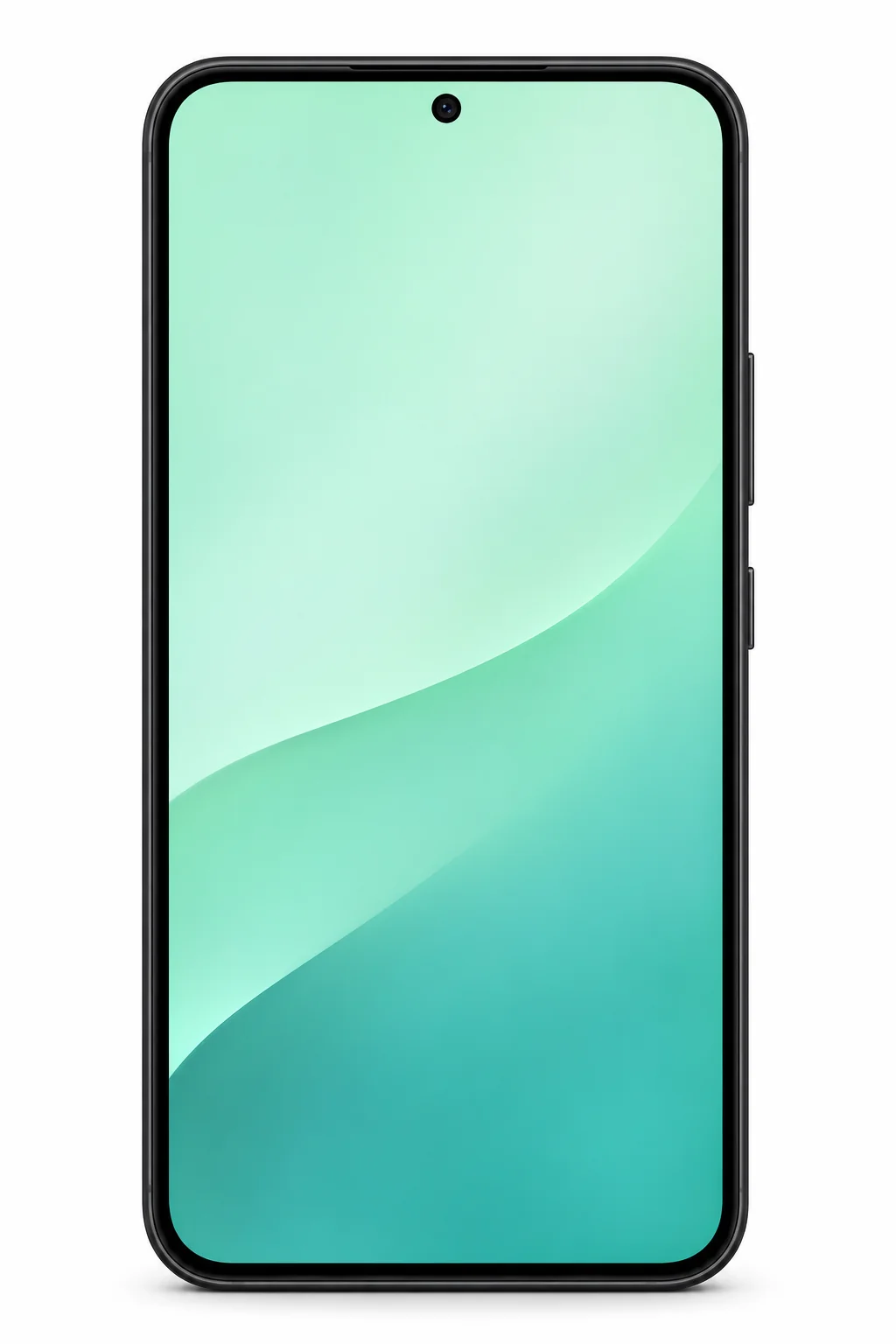
A compact Galaxy with a dedicated 3x optical zoom camera.
2021 · 10.2-inch · A13 Bionic. The 2021 Home-button iPad.
2021 · 8.3-inch · A15 Bionic. The mini changes shape in 2021.
2021 · 11-inch · M1. M1 in the compact 2021 Pro.
2021 · 12.9-inch · M1. M1 and a mini-LED display.
An OLED screen, two rear cameras and a familiar iPhone design.
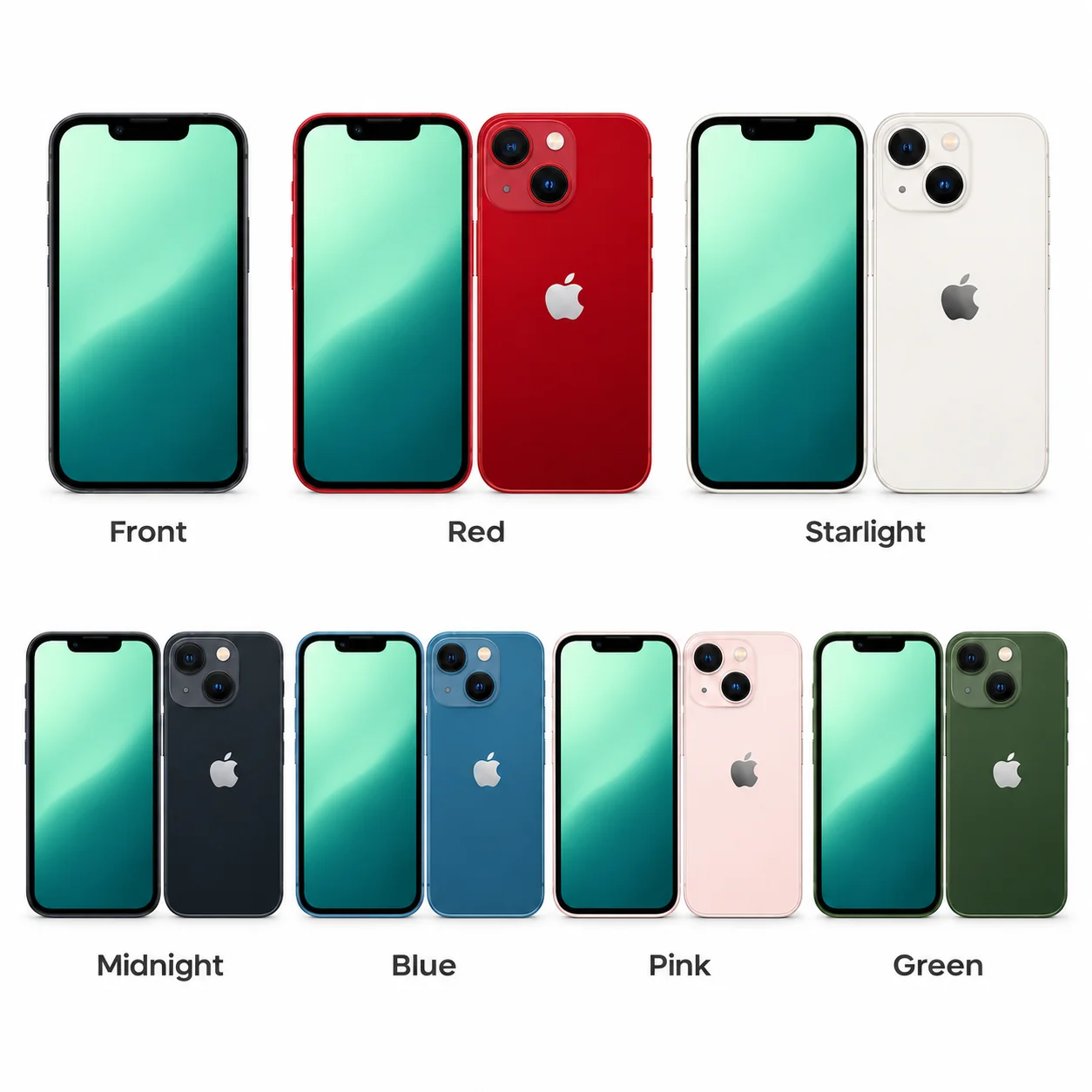
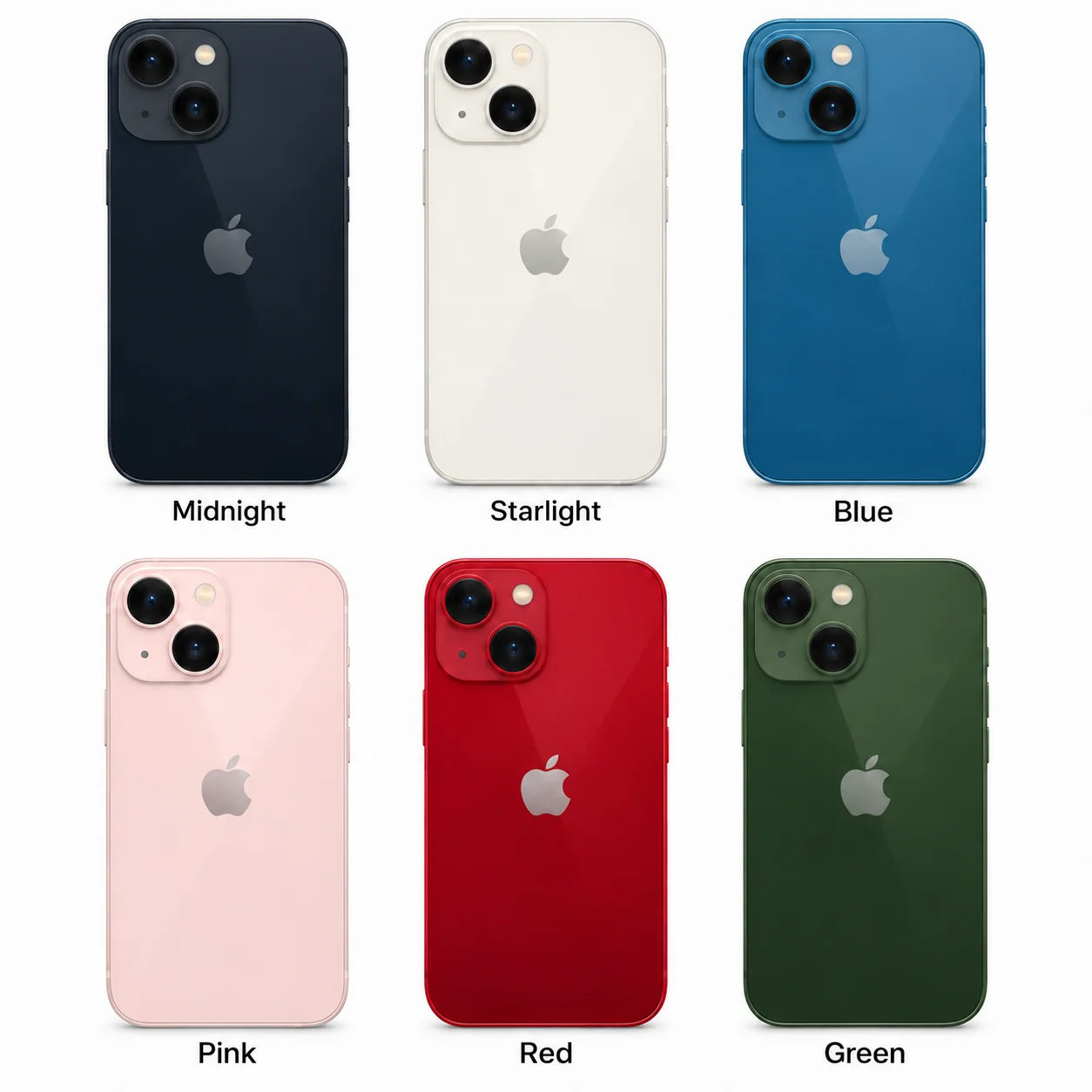
The iPhone 13 mini is the smaller standard iPhone from 2021, with a 5.4-inch OLED screen and A15 Bionic chip.
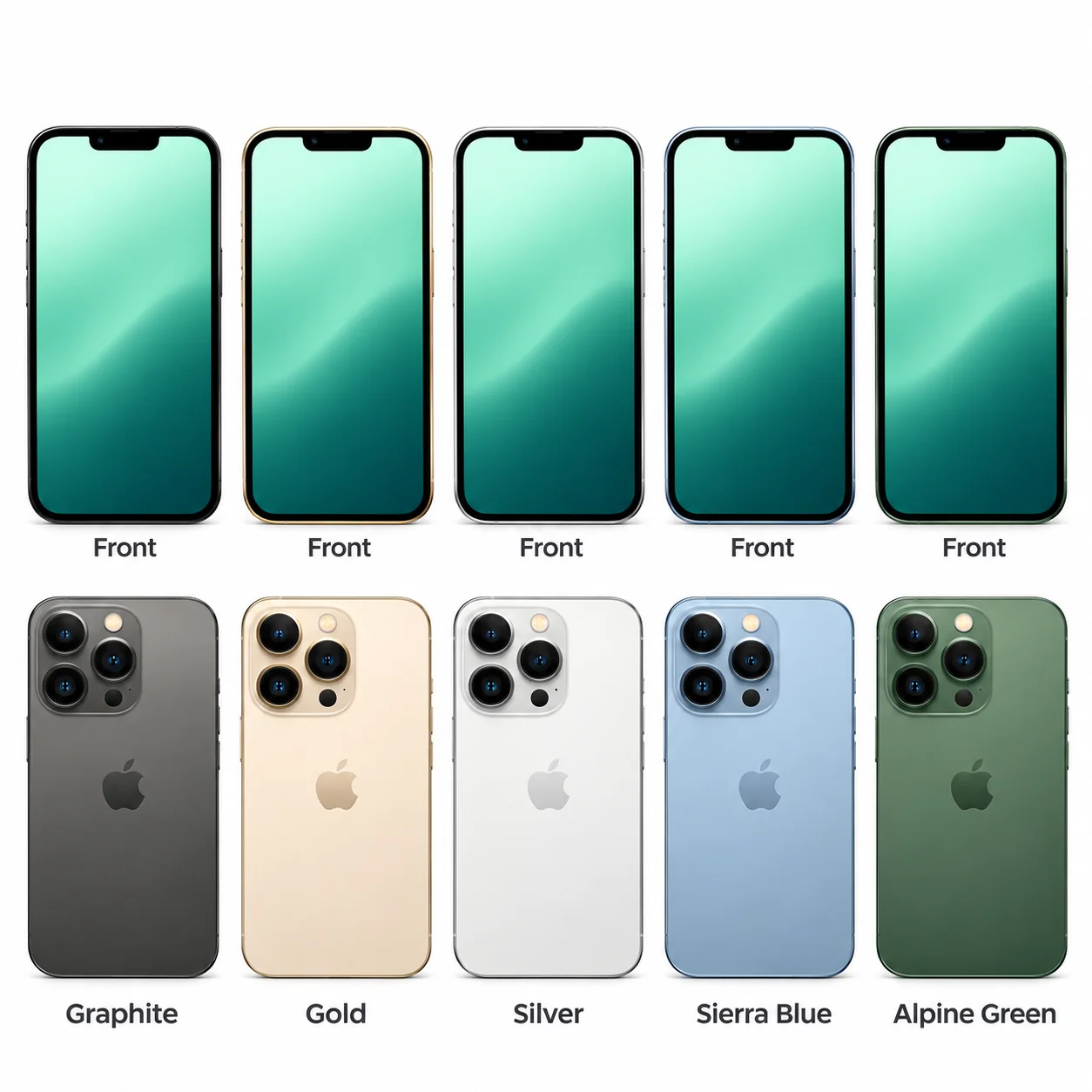
The iPhone 13 Pro is the 6.1-inch Pro model from 2021.
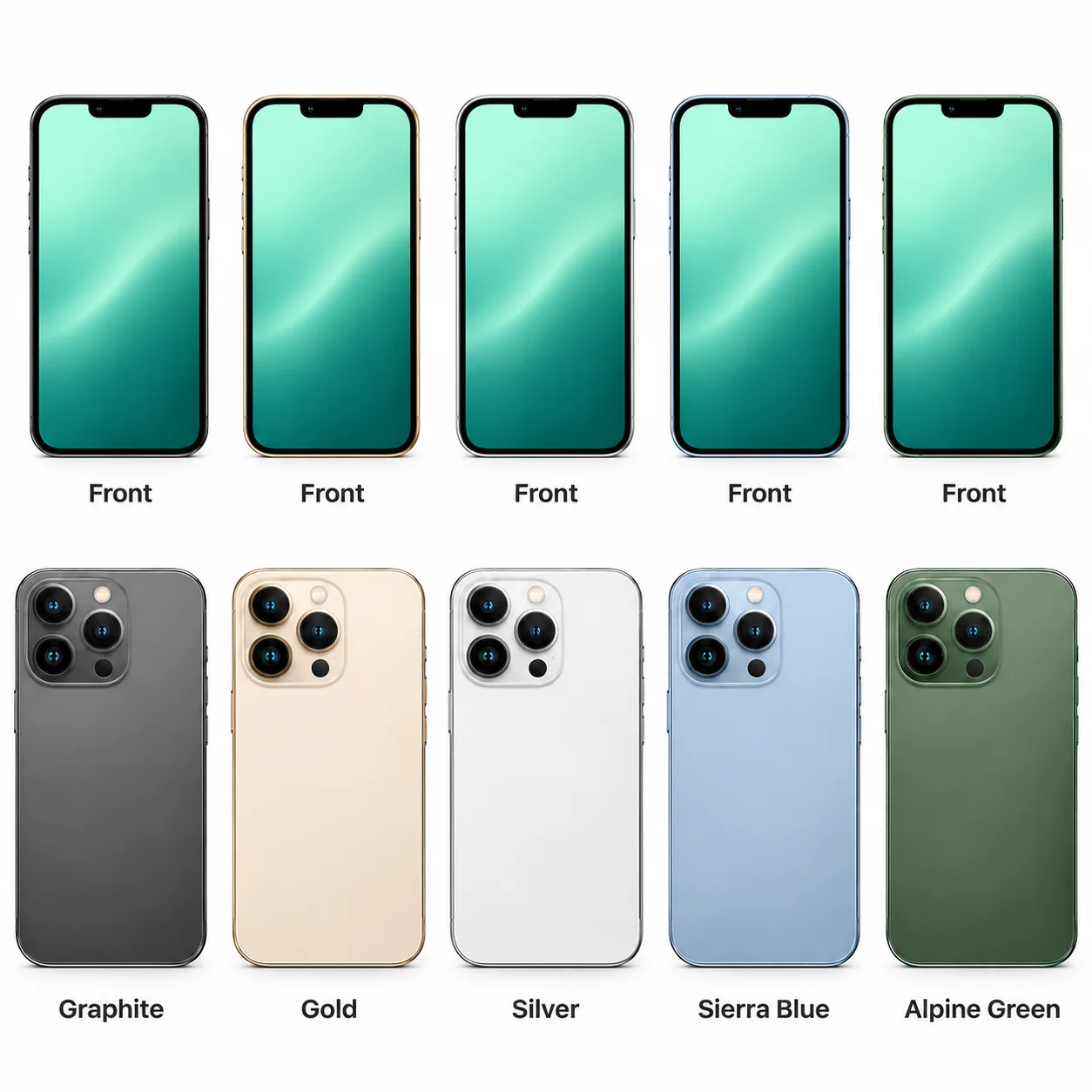
The iPhone 13 Pro Max is Apple's larger 2021 Pro handset, with a 6.7-inch OLED screen and stainless steel frame.
A smooth display, three rear cameras and wireless charging.
2020 · 10.2-inch · A12 Bionic. A12 in the familiar 10.2-inch body.
2020 · 10.9-inch · A14 Bionic. The Air adopts a flat-sided design.
2020 · 11-inch · A12Z Bionic. A12Z in the second 11-inch generation.
2020 · 12.9-inch · A12Z Bionic. The 2020 large Pro uses A12Z.
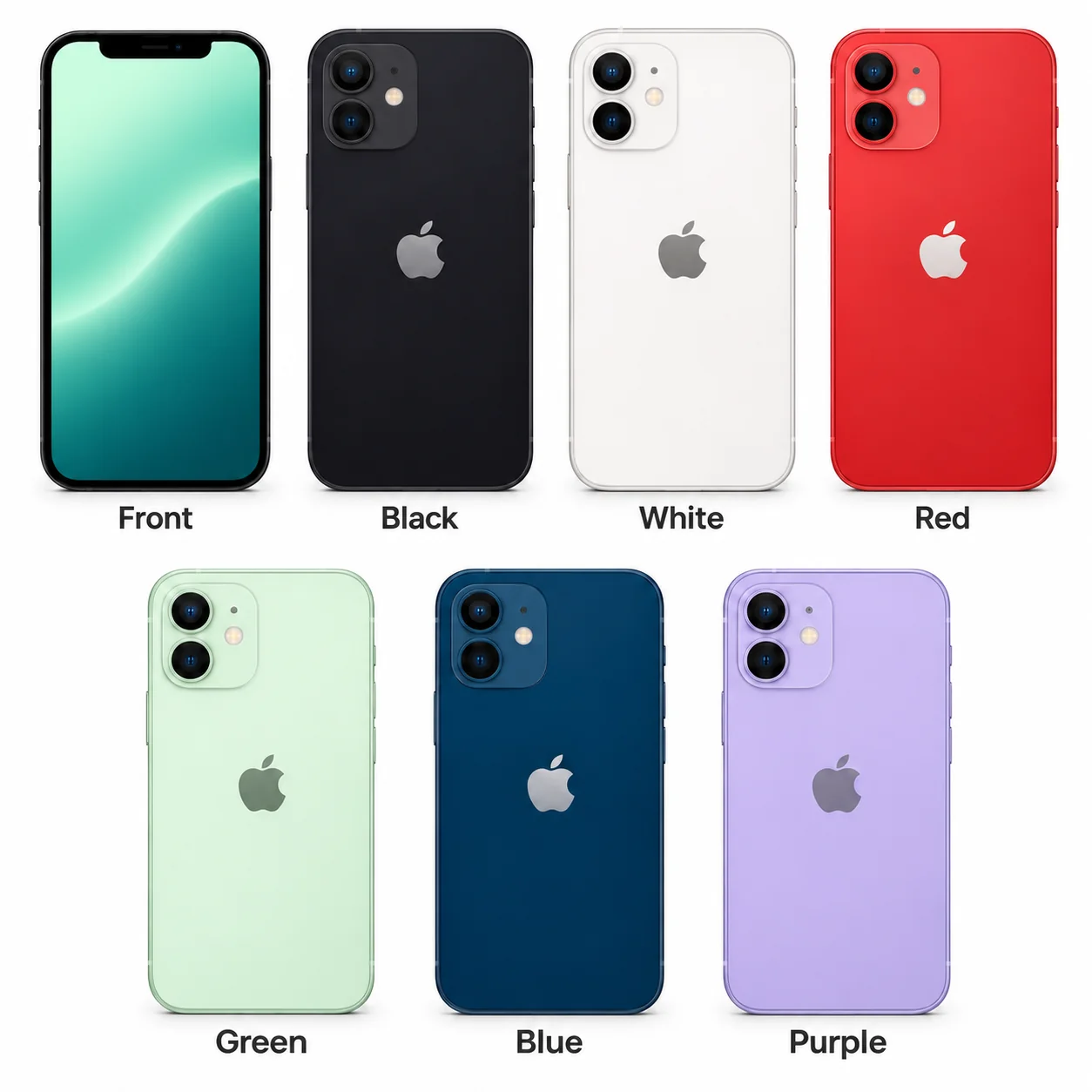
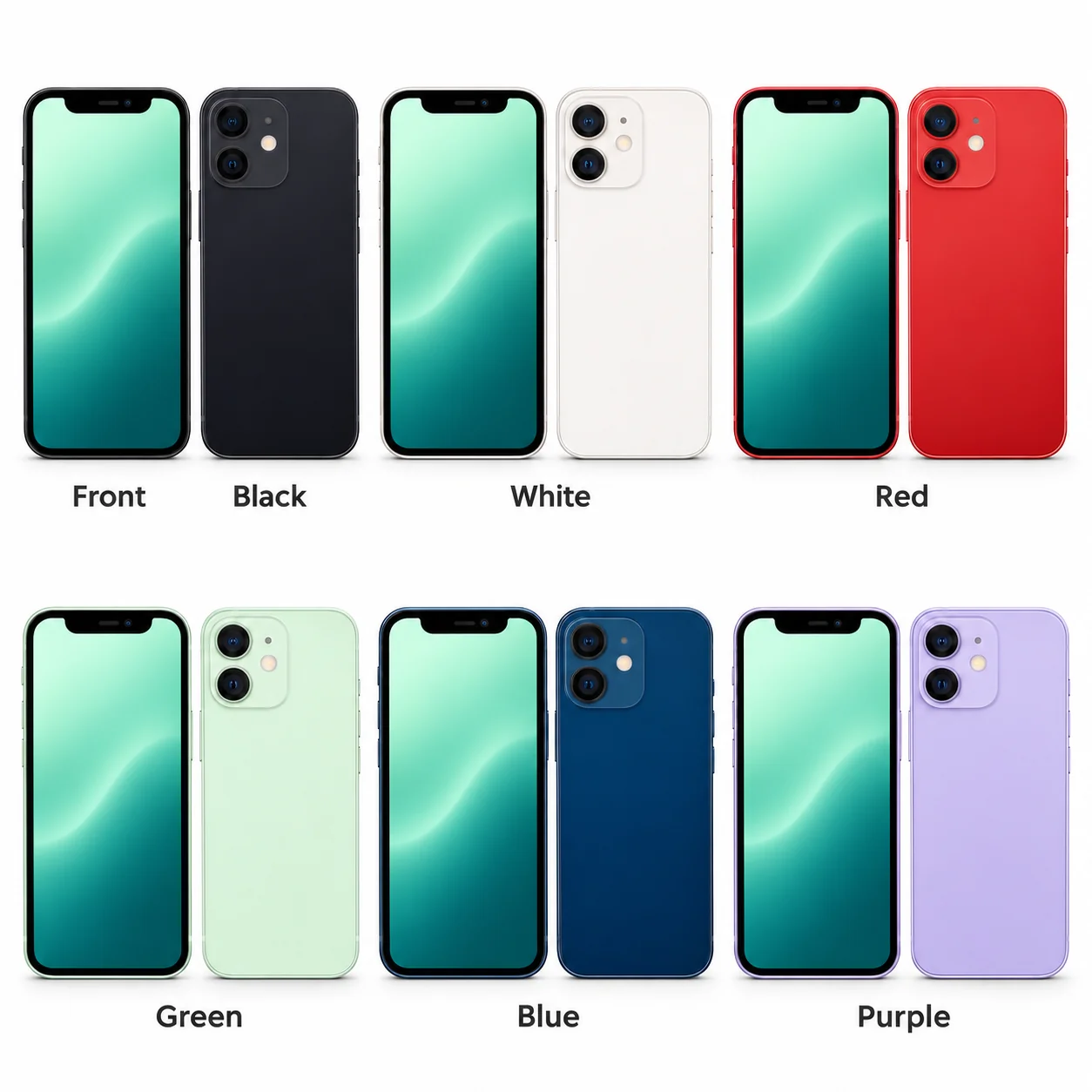
The iPhone 12 is Apple's standard 6.1-inch model from 2020, with an OLED display, A14 Bionic chip and 5G.
The iPhone 12 mini is the compact 2020 iPhone, with a 5.4-inch OLED screen and A14 Bionic chip.
The iPhone 12 Pro is the 6.1-inch Pro model from 2020.
The iPhone 12 Pro Max is the larger 2020 Pro iPhone, with a 6.7-inch OLED display, A14 Bionic chip and stainless steel frame.
The second-generation iPhone SE is the 2020 SE, with a 4.7-inch LCD, A13 Bionic chip and Touch ID Home button.
2019 · 10.2-inch · A10 Fusion. The standard iPad grows to 10.2 inches.
2019 · 10.5-inch · A12 Bionic. A larger Home-button Air.
2019 · 7.9-inch · A12 Bionic. The last 7.9-inch Home-button mini.
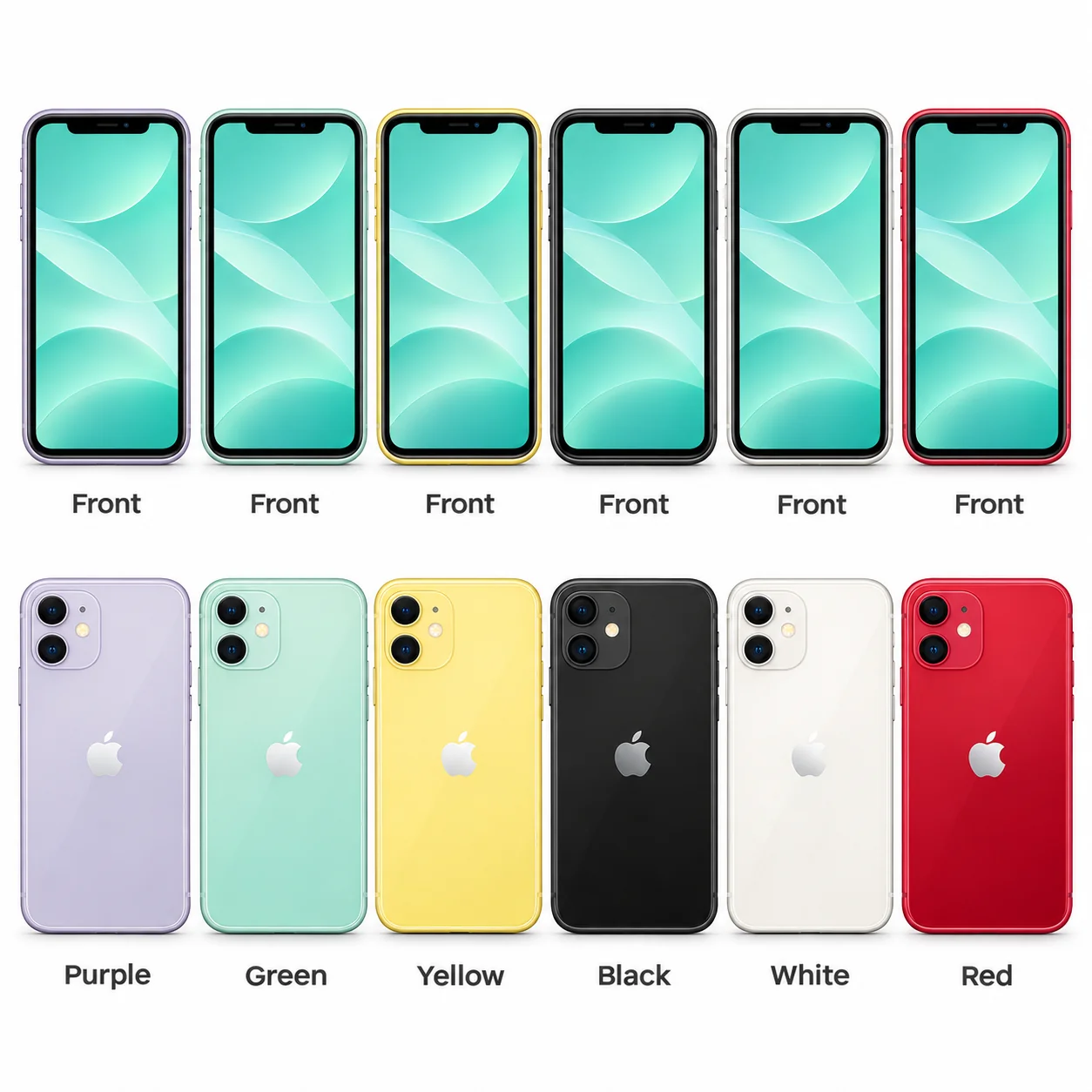
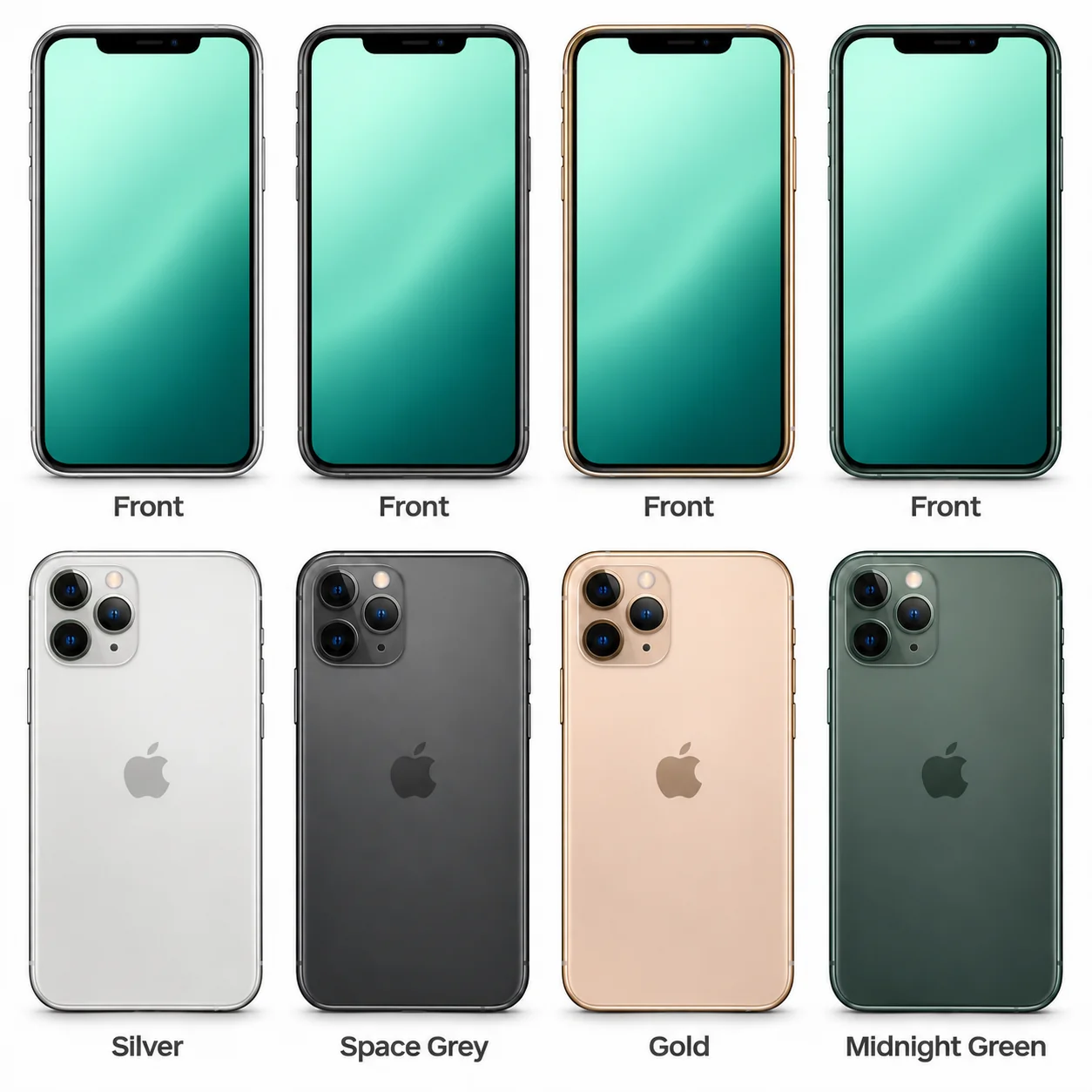
The iPhone 11 is Apple's standard 6.1-inch model from 2019, with an A13 Bionic chip and Liquid Retina HD LCD.
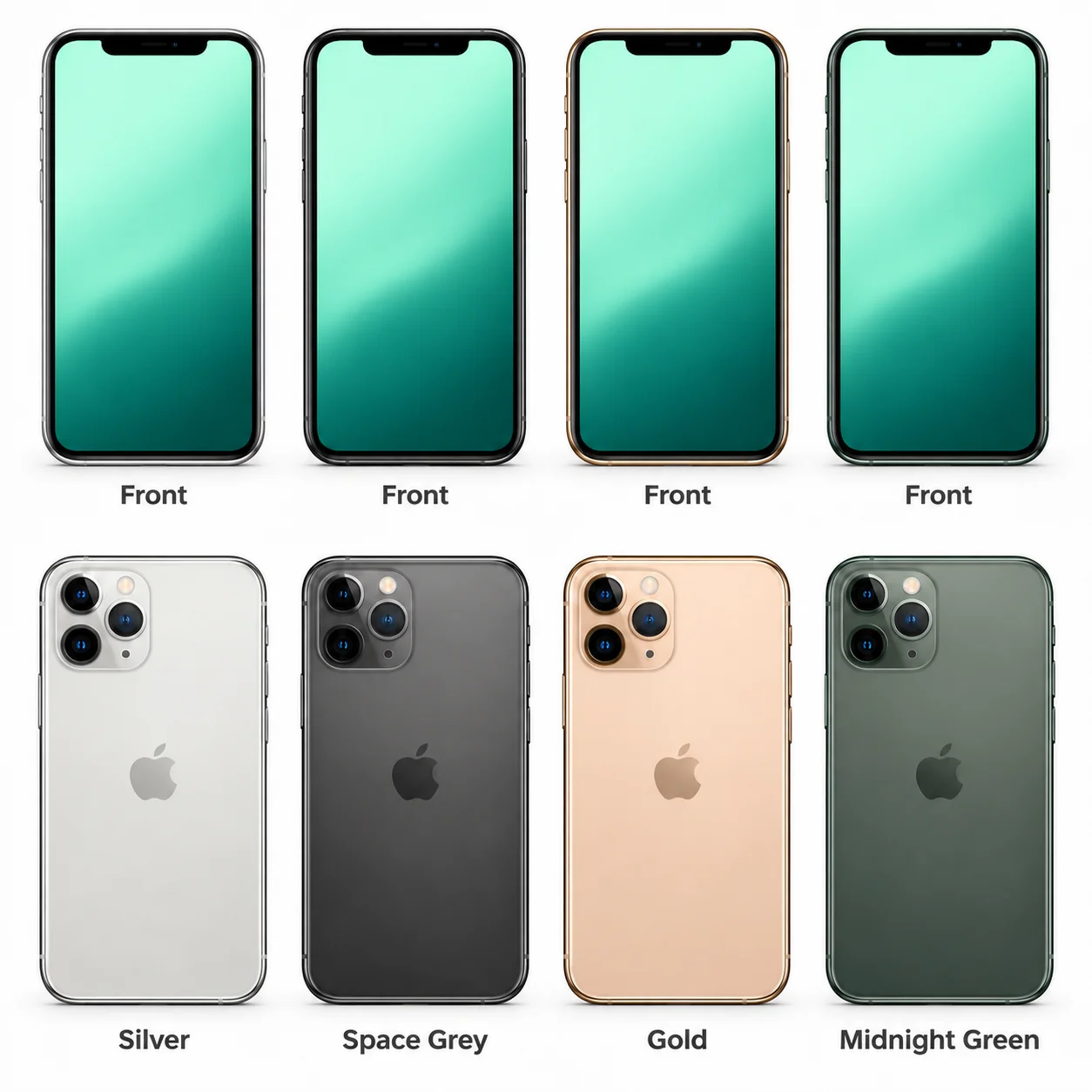
The iPhone 11 Pro is the smaller Pro iPhone from 2019, with a 5.8-inch OLED screen and A13 Bionic chip.
The iPhone 11 Pro Max is the 6.5-inch Pro iPhone from 2019.
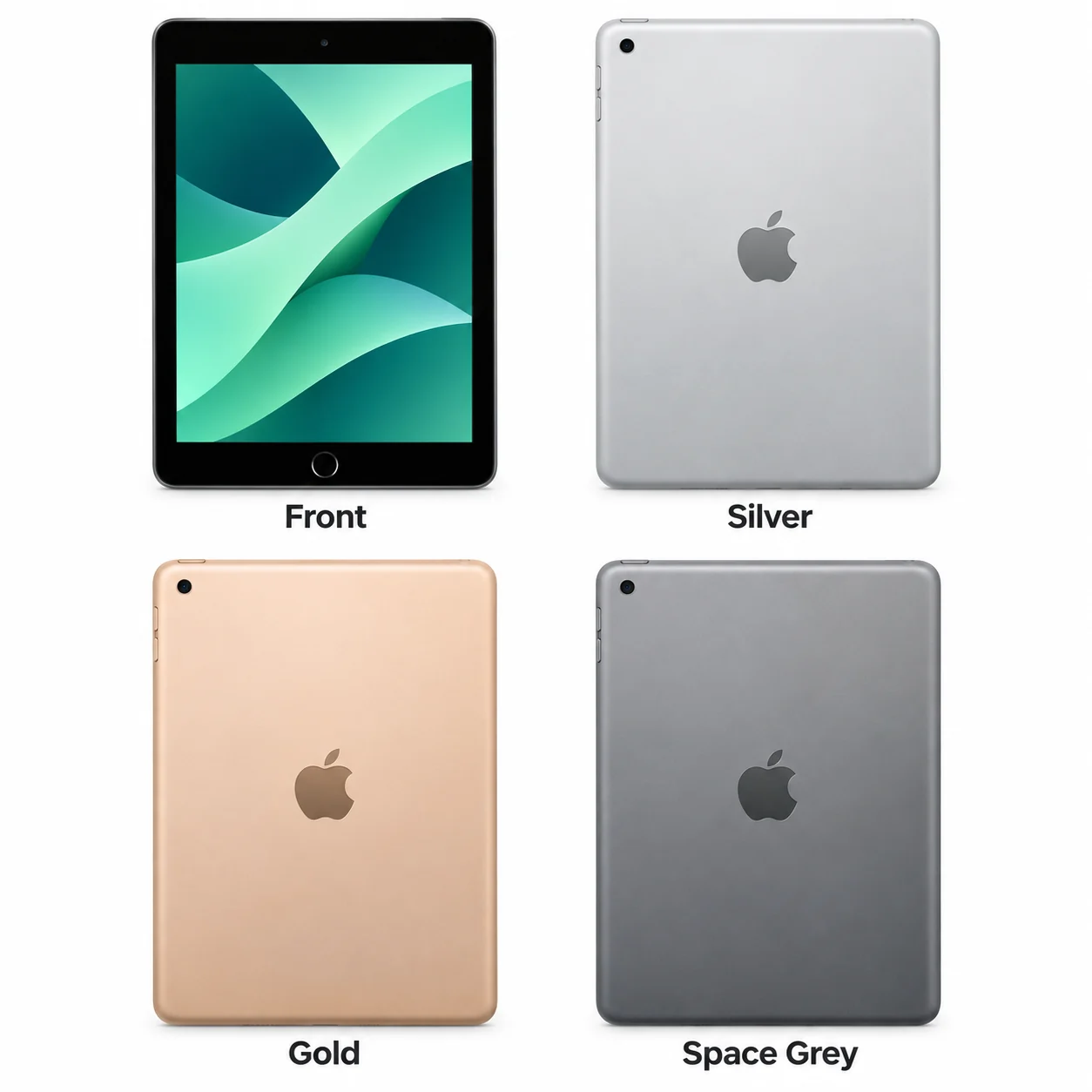
2018 · 9.7-inch · A10 Fusion. The 2018 9.7-inch iPad.
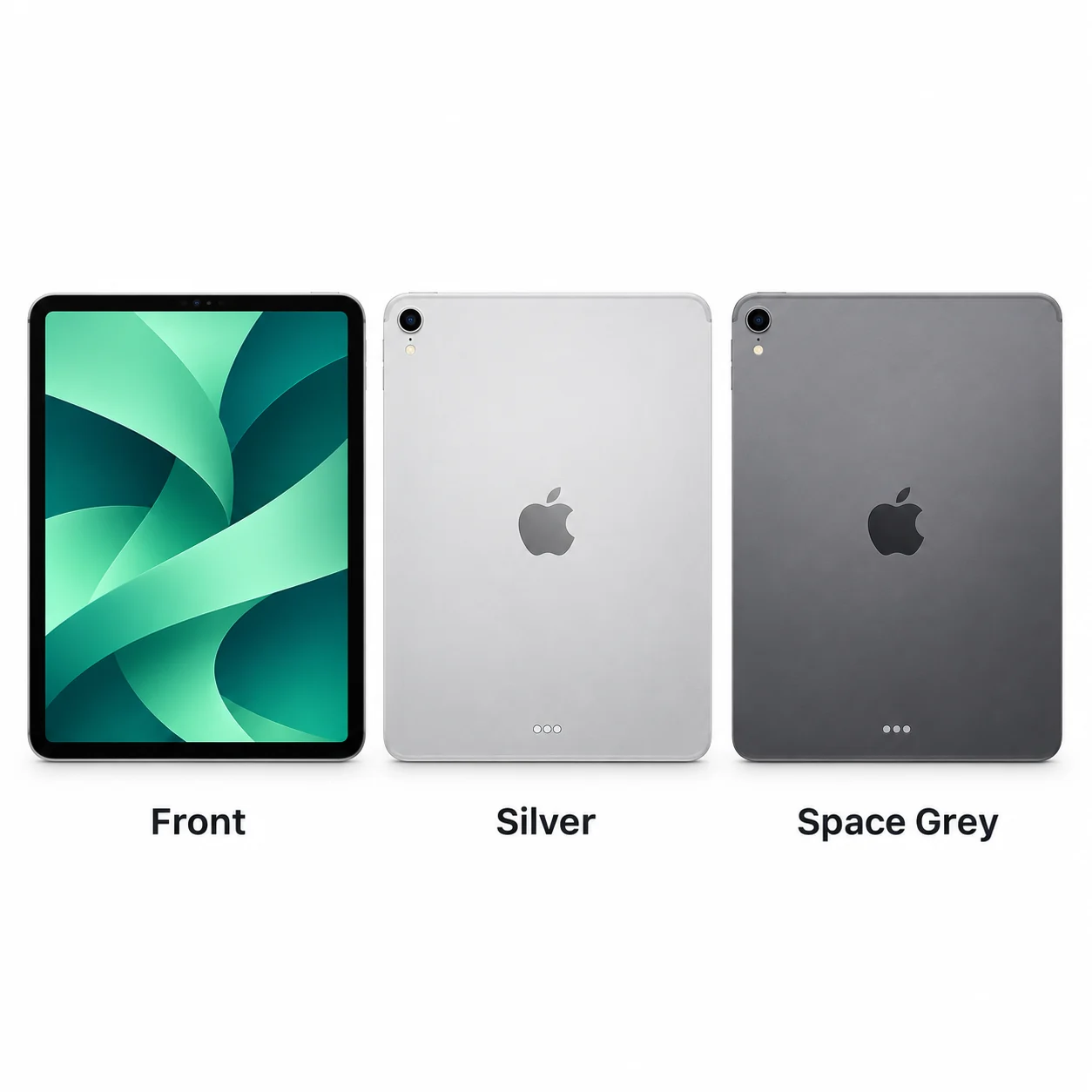
2018 · 11-inch · A12X Bionic. The first 11-inch Pro.
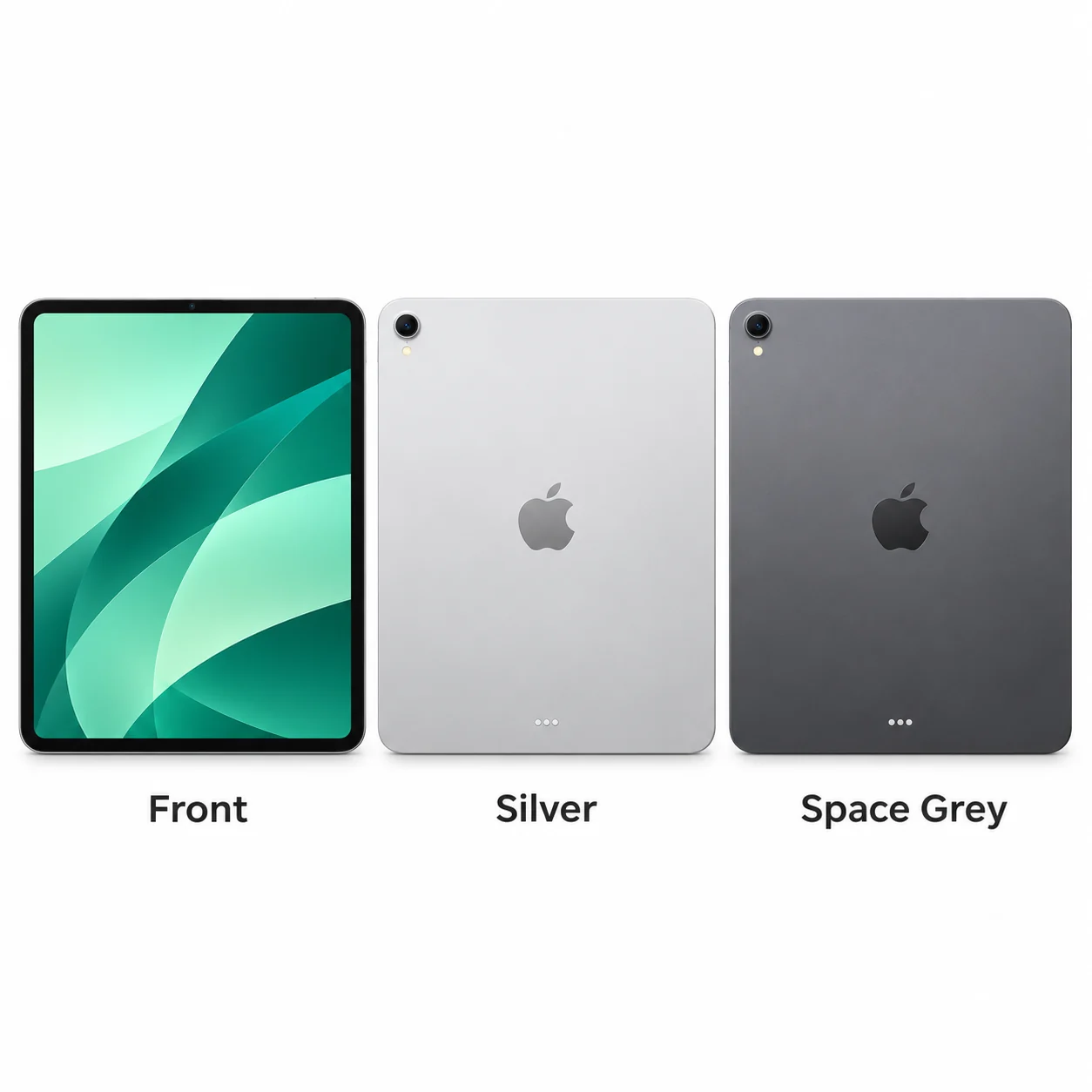
2018 · 12.9-inch · A12X Bionic. The 12.9-inch Pro adopts Face ID.
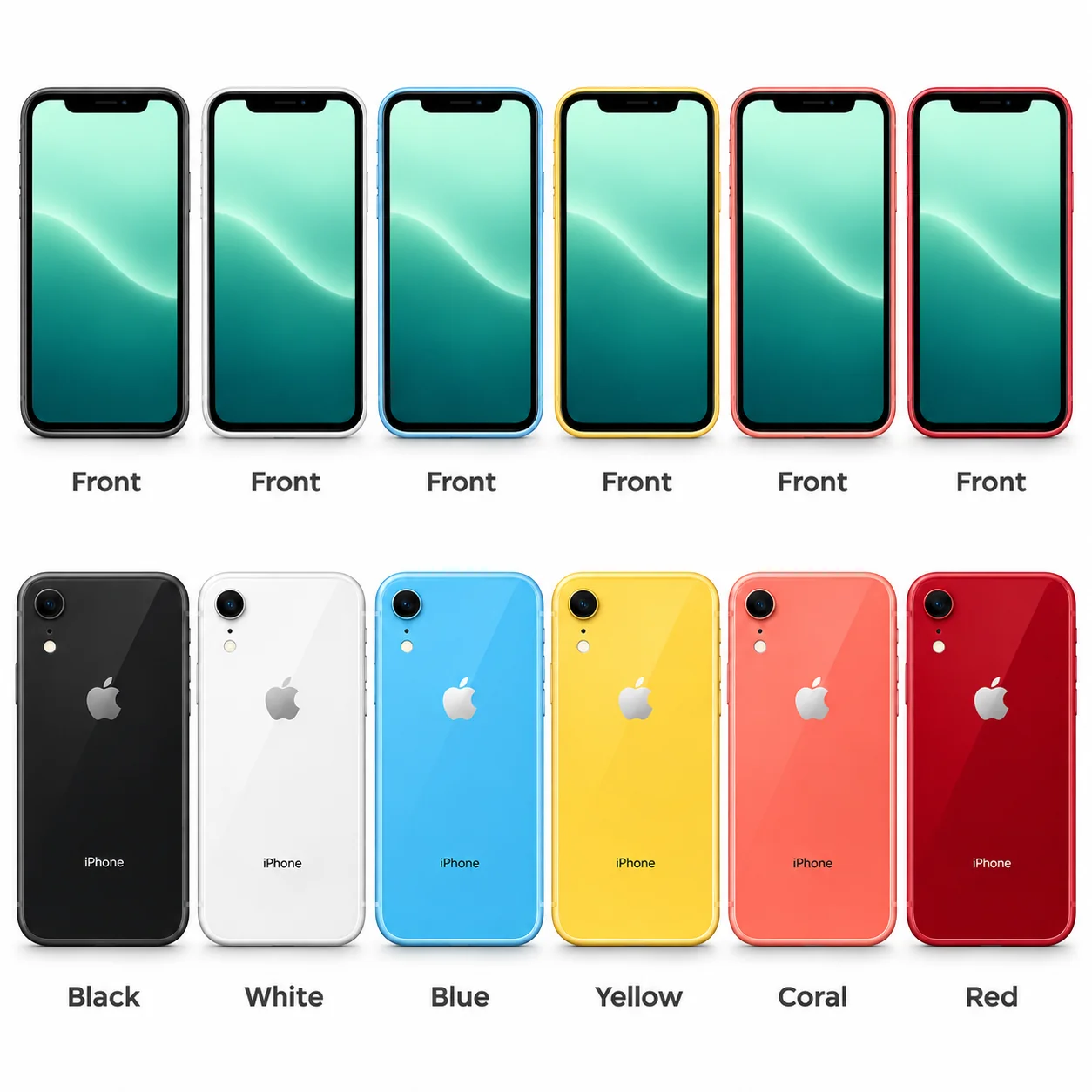
The iPhone XR is the colourful 6.1-inch LCD model from 2018, using the A12 Bionic chip and an aluminium frame.
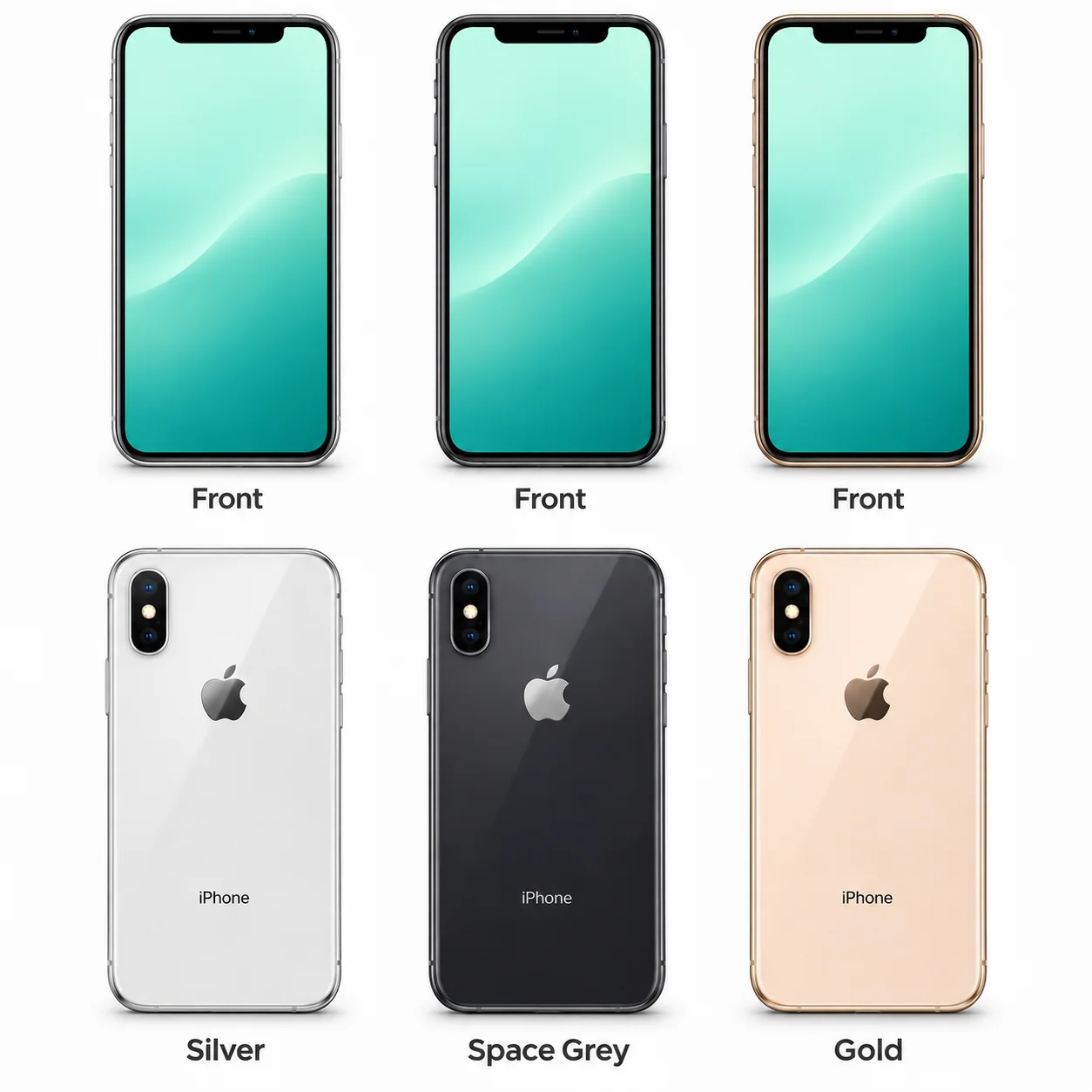
The iPhone XS is the 5.8-inch OLED iPhone from 2018.
The iPhone XS Max is the larger 2018 XS model, with a 6.5-inch OLED screen and A12 Bionic chip.
2017 · 9.7-inch · A9. The standard iPad returns in 2017.
2017 · 10.5-inch · A10X Fusion. The 10.5-inch Pro is a distinct size.
2017 · 12.9-inch · A10X Fusion. The second large Home-button Pro.
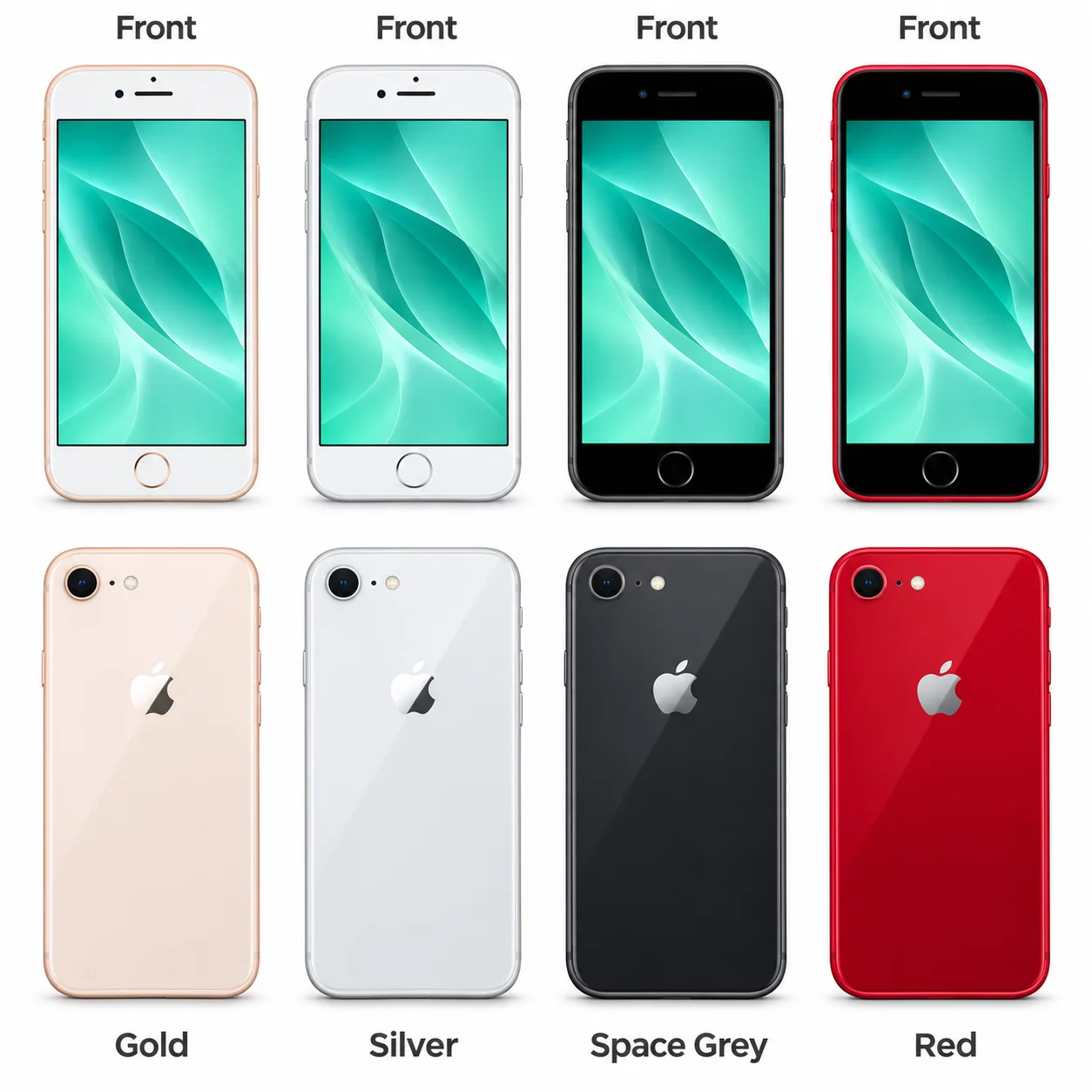
The iPhone 8 is the 4.7-inch Home-button iPhone from 2017, powered by A11 Bionic.
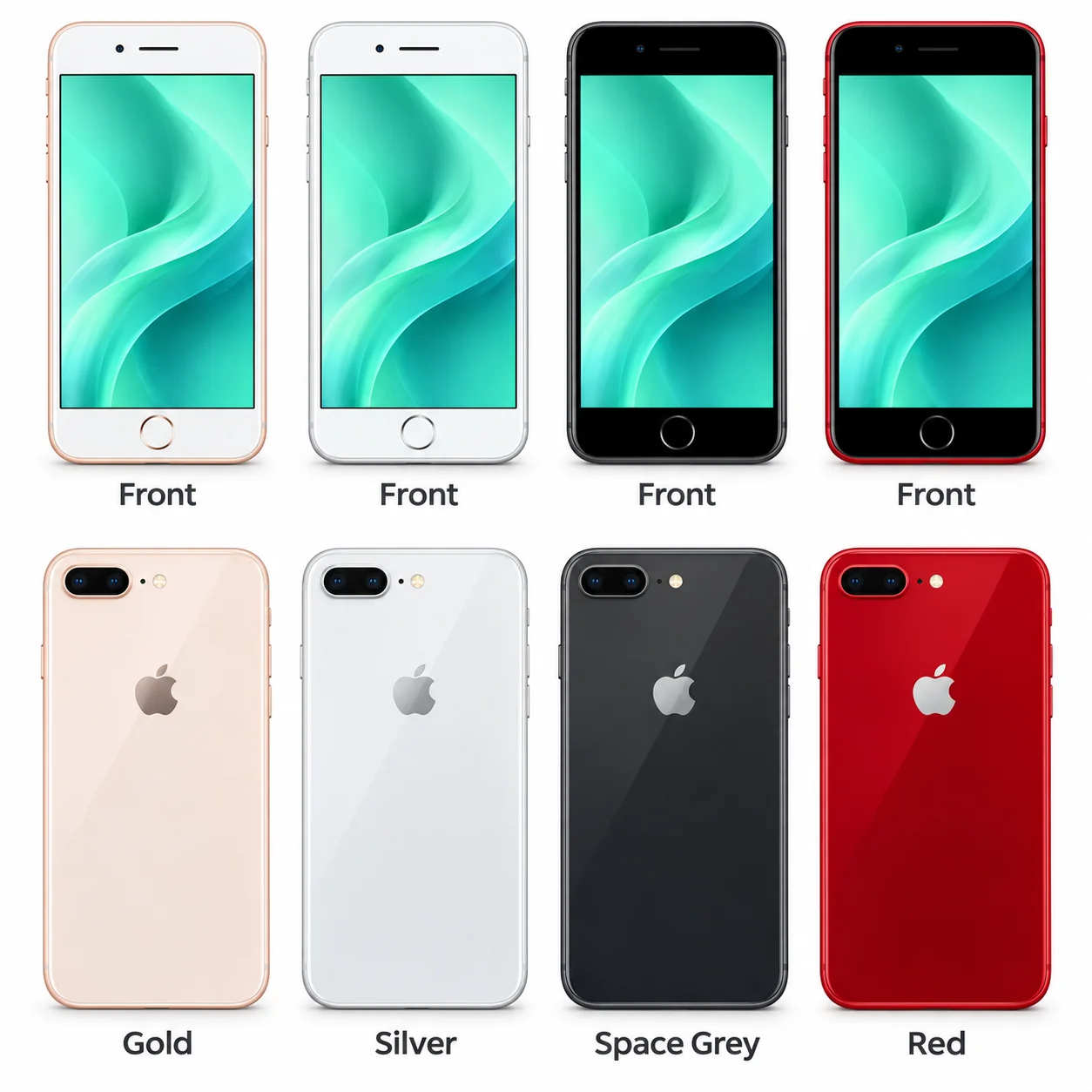
The iPhone 8 Plus is the larger Home-button model from 2017, with a 5.5-inch LCD and A11 Bionic chip.
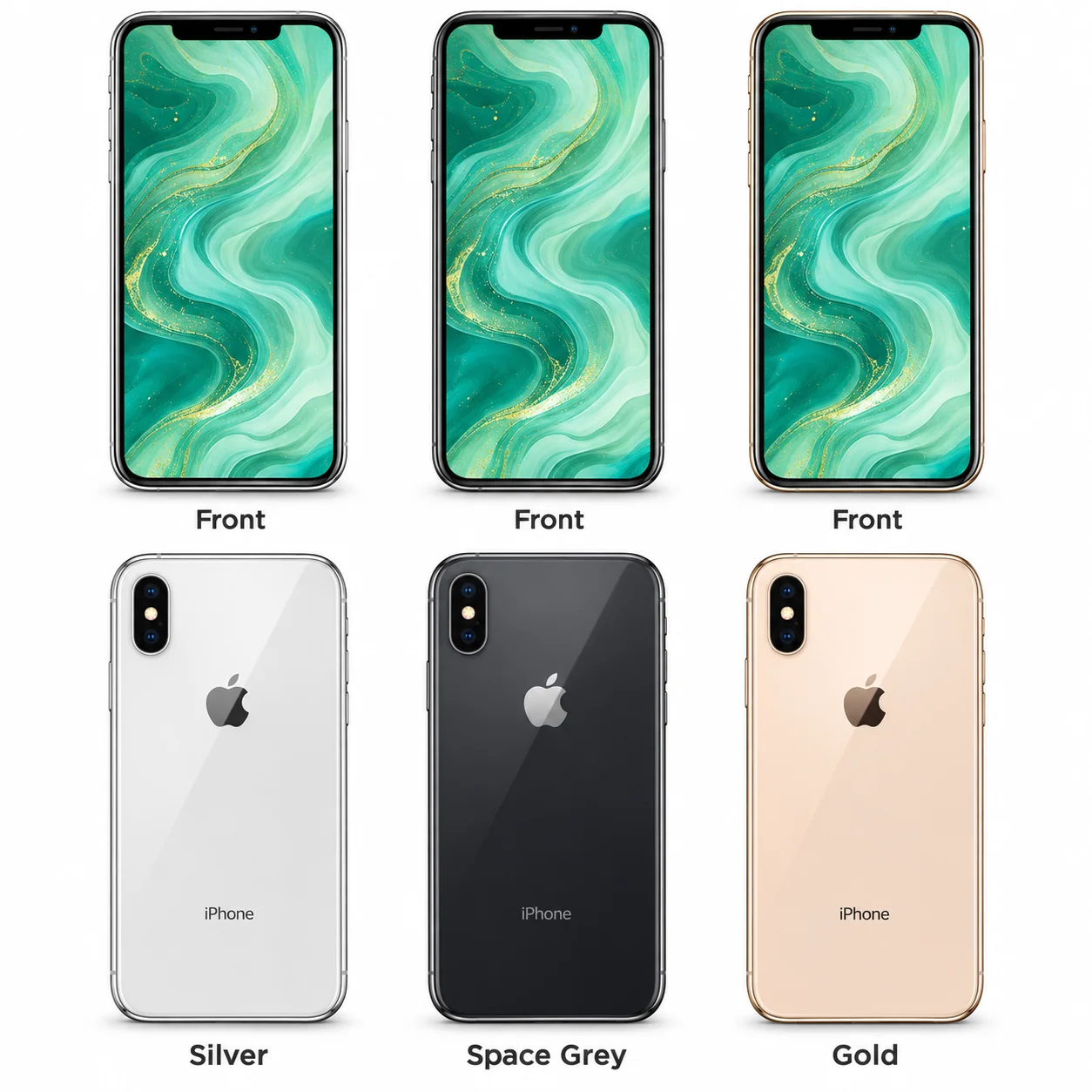
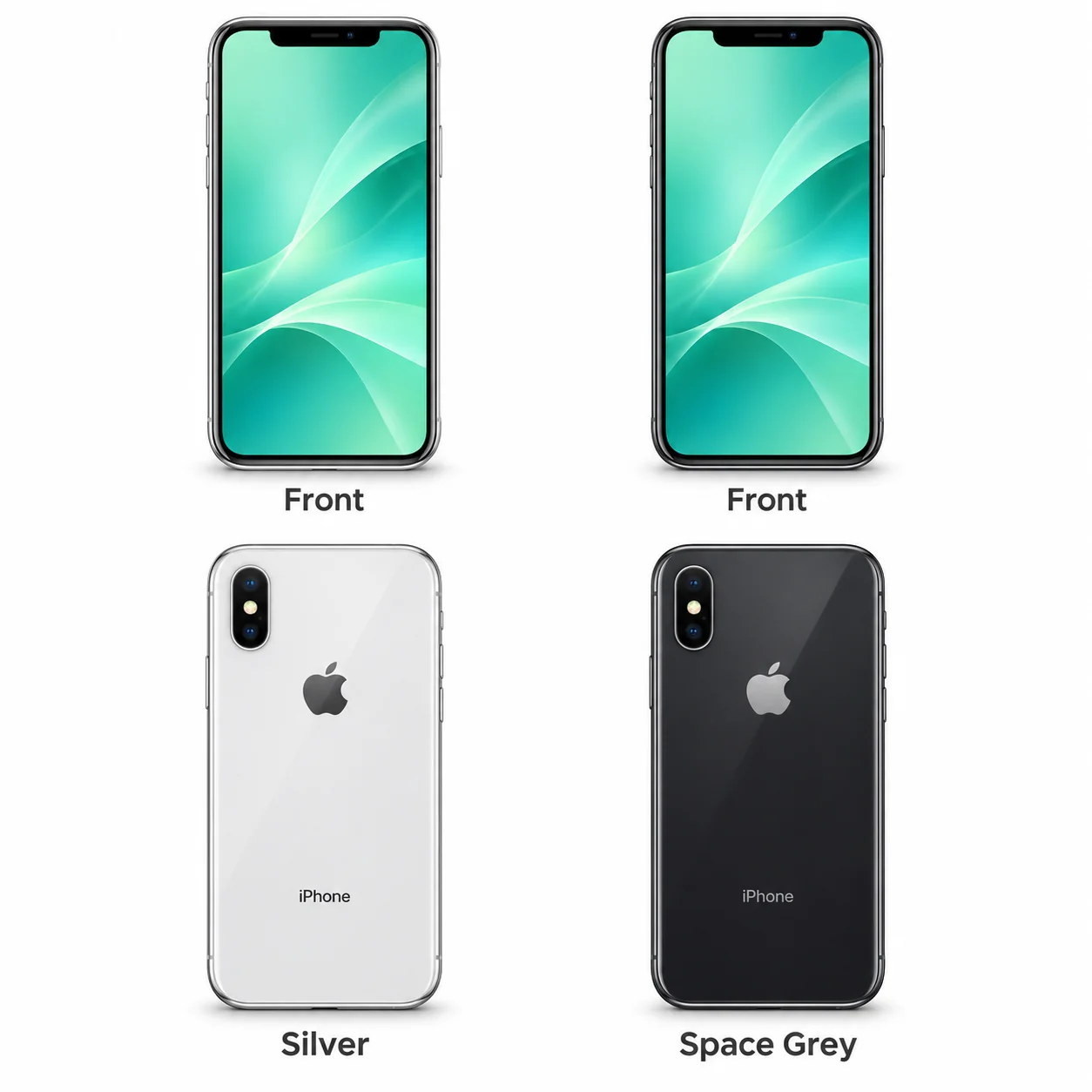
The iPhone X is Apple's 2017 model with a 5.8-inch OLED screen, A11 Bionic chip and stainless steel frame.
2016 · 9.7-inch · A9X. The smaller first-wave Pro.
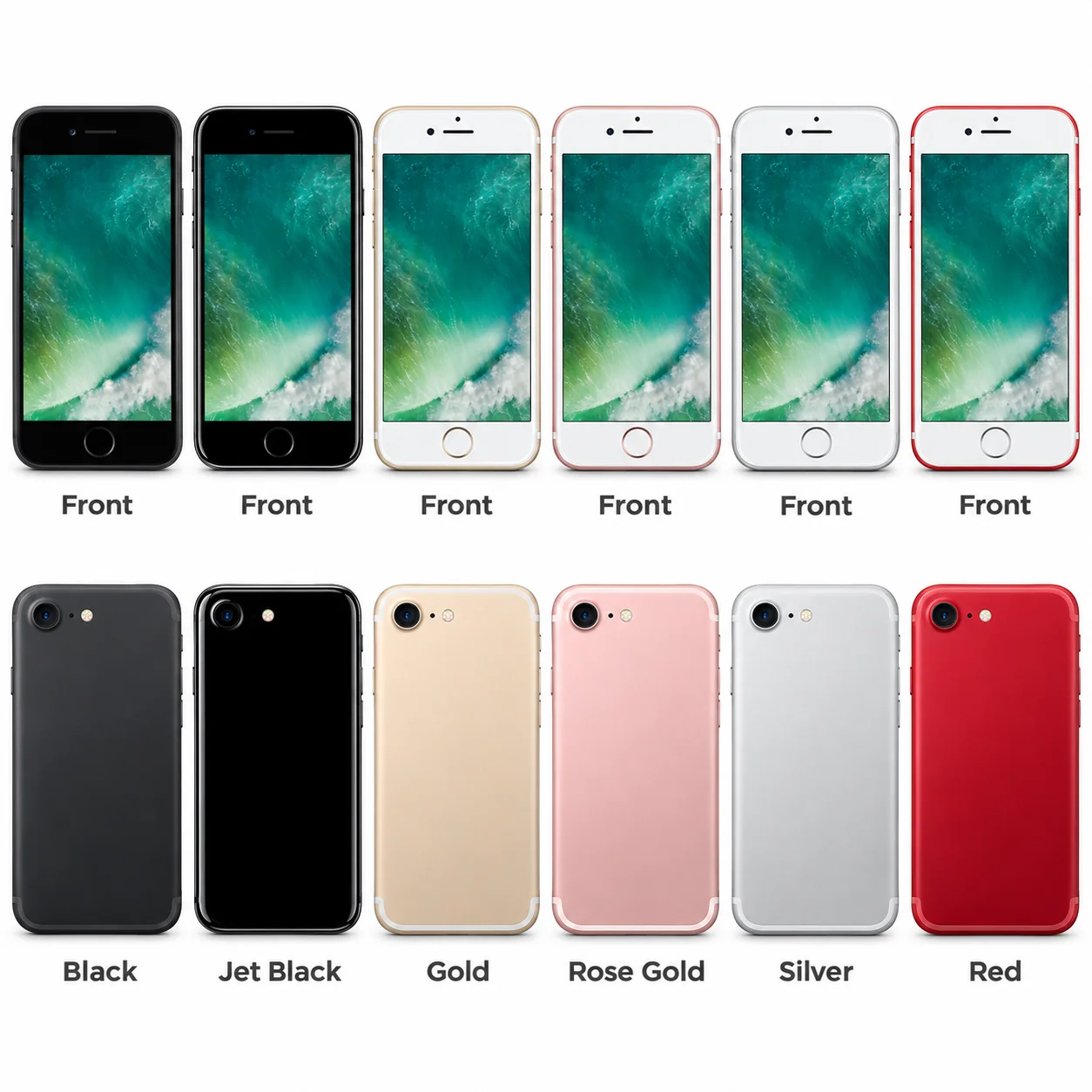
The iPhone 7 is Apple's 4.7-inch model from 2016, with an A10 Fusion chip and aluminium back.
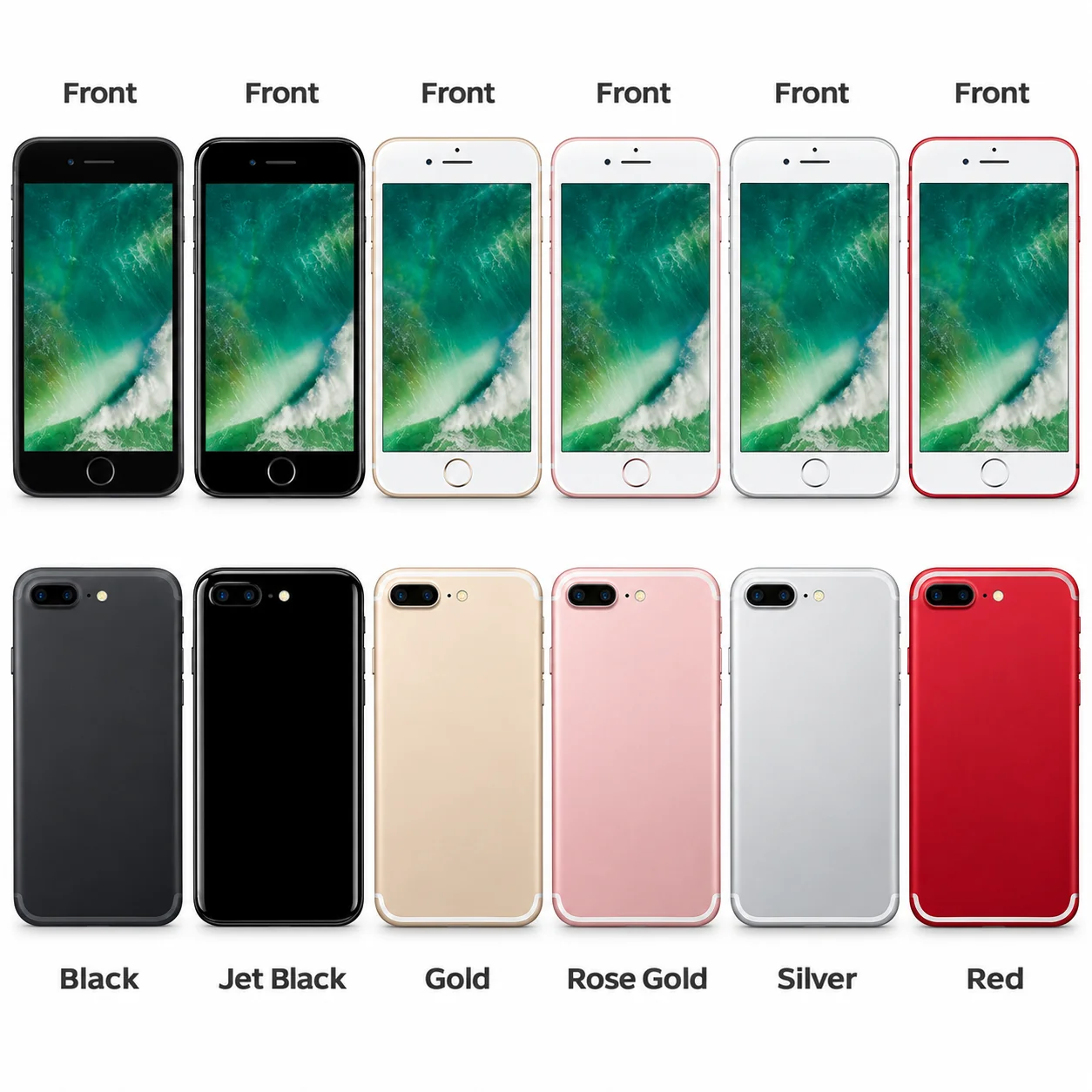
The iPhone 7 Plus is the larger 2016 model, with a 5.5-inch LCD and A10 Fusion chip.
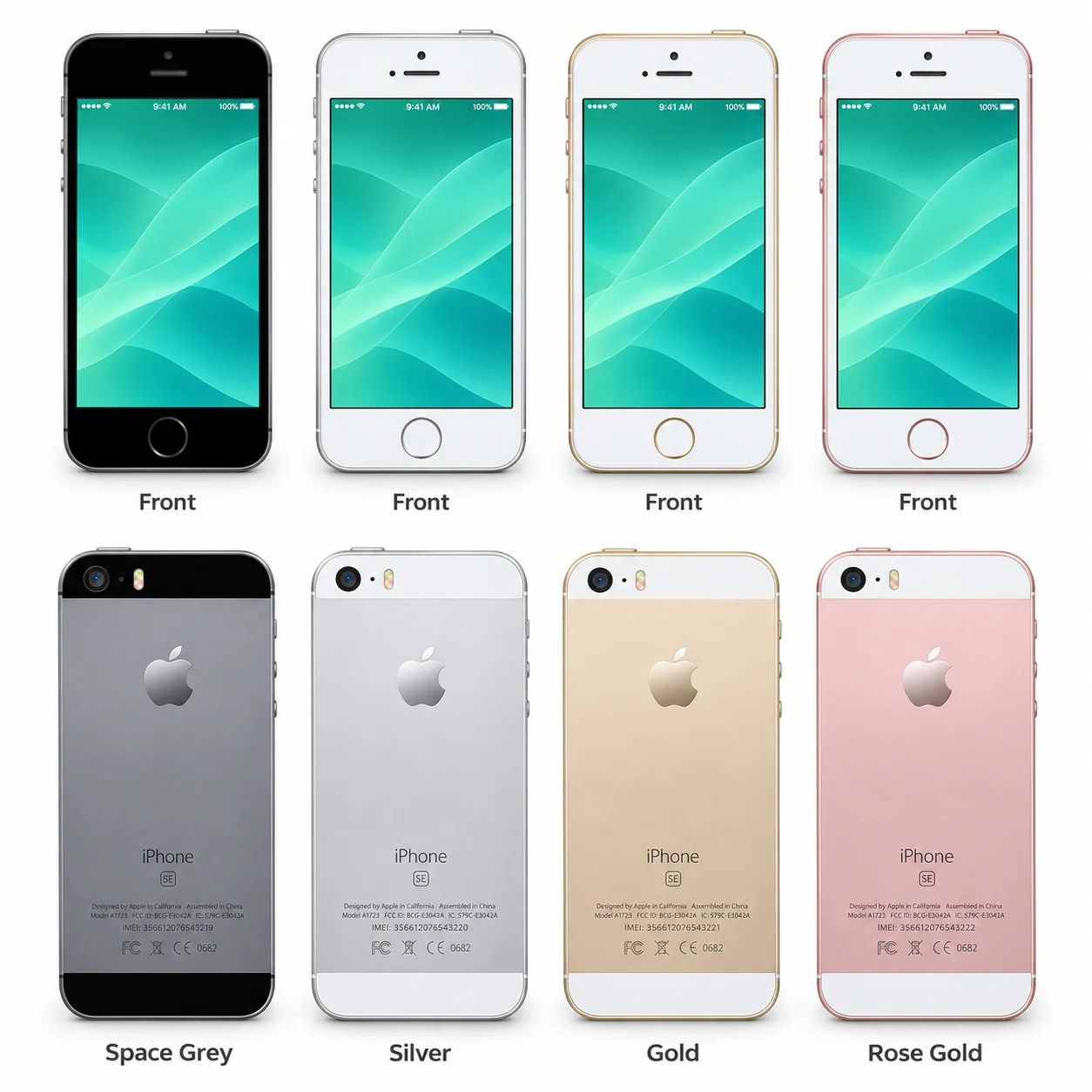
The first-generation iPhone SE is the compact 2016 model with a 4-inch display, flat aluminium body and A9 chip.
2015 · 7.9-inch · A8. A slimmer mini from 2015.
2015 · 12.9-inch · A9X. The original 12.9-inch Pro.
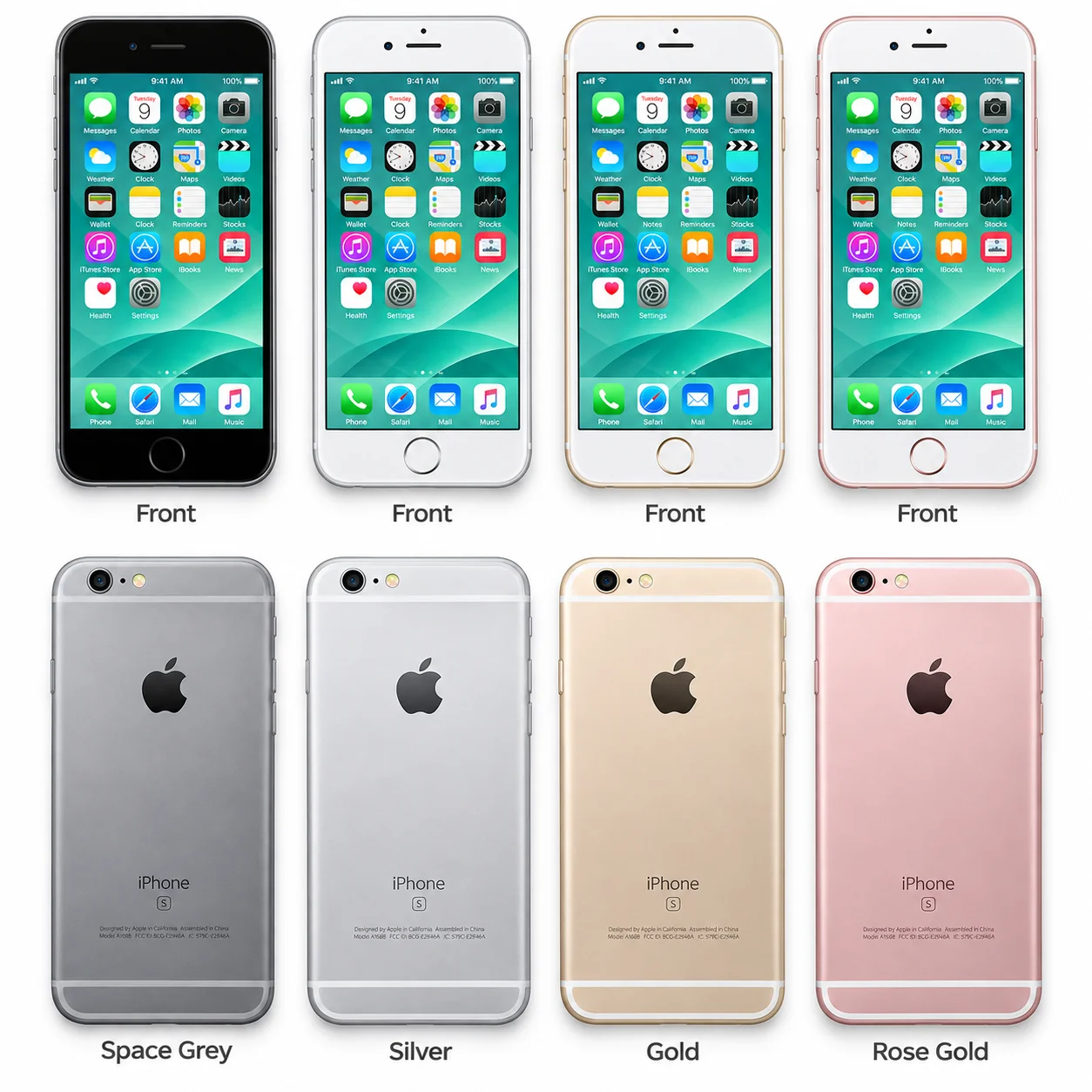
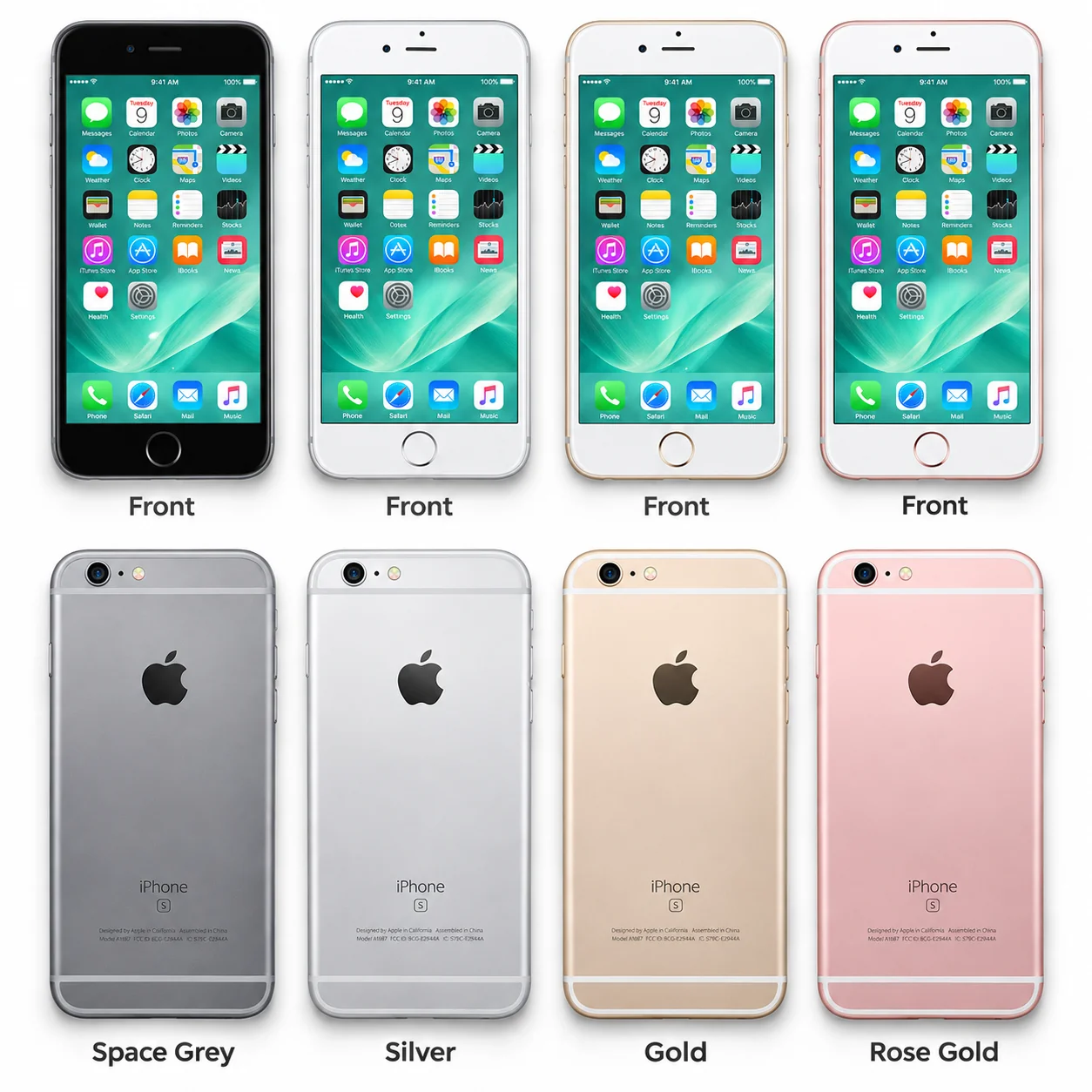
The iPhone 6s is the 4.7-inch 2015 model with an A9 chip and aluminium rear.
The iPhone 6s Plus is the 5.5-inch model from 2015, with an A9 chip and aluminium body.
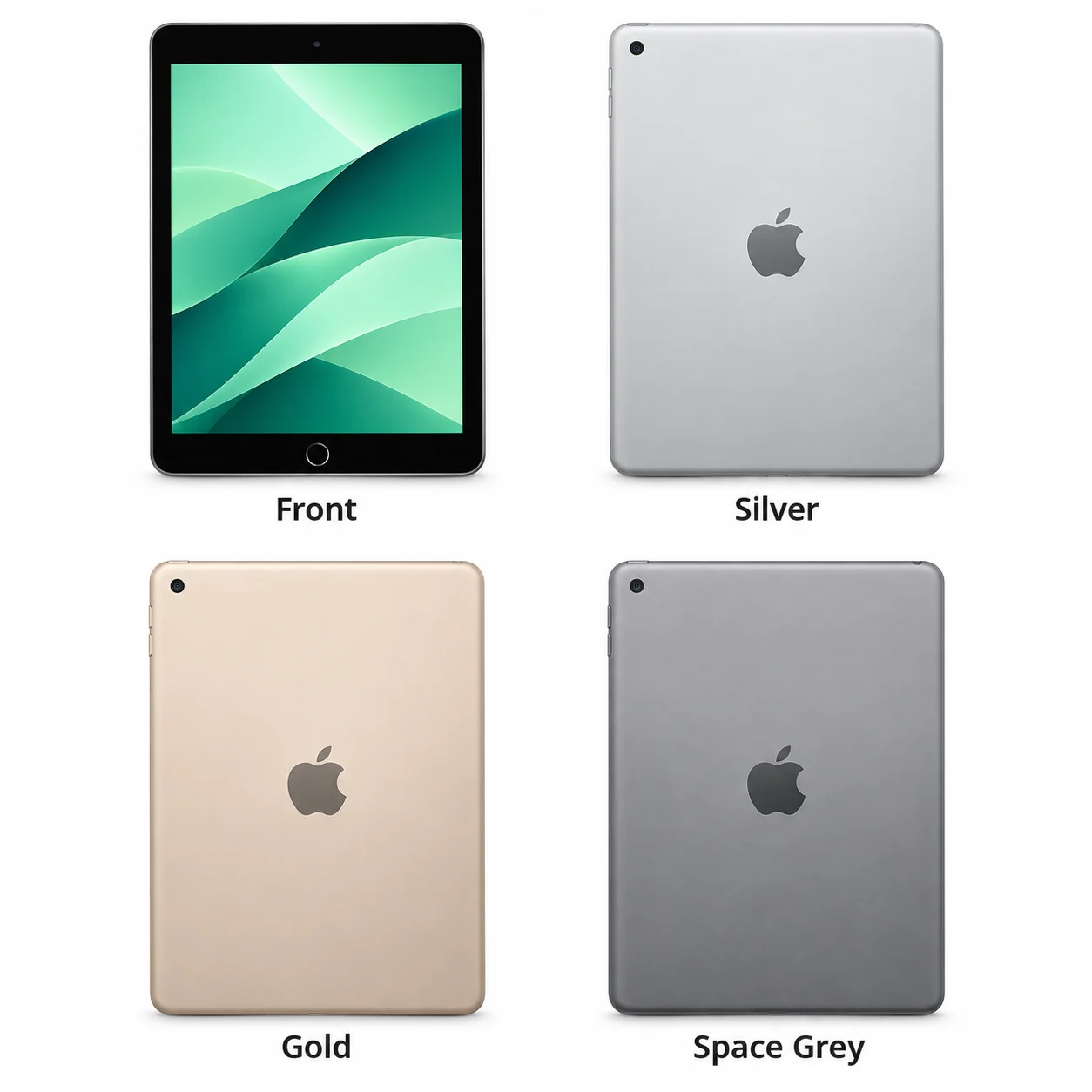
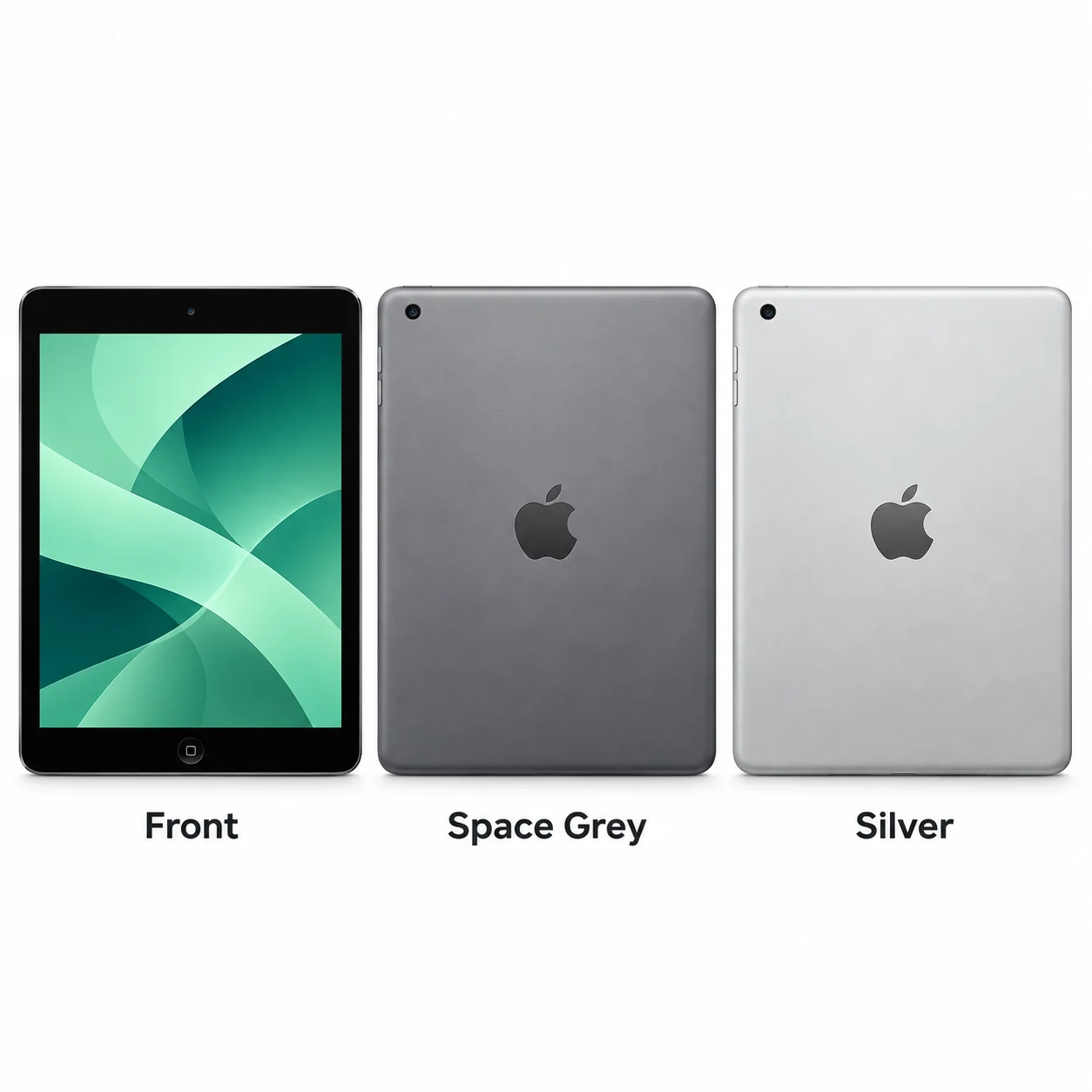
2014 · 9.7-inch · A8X. A thinner Air with Touch ID.
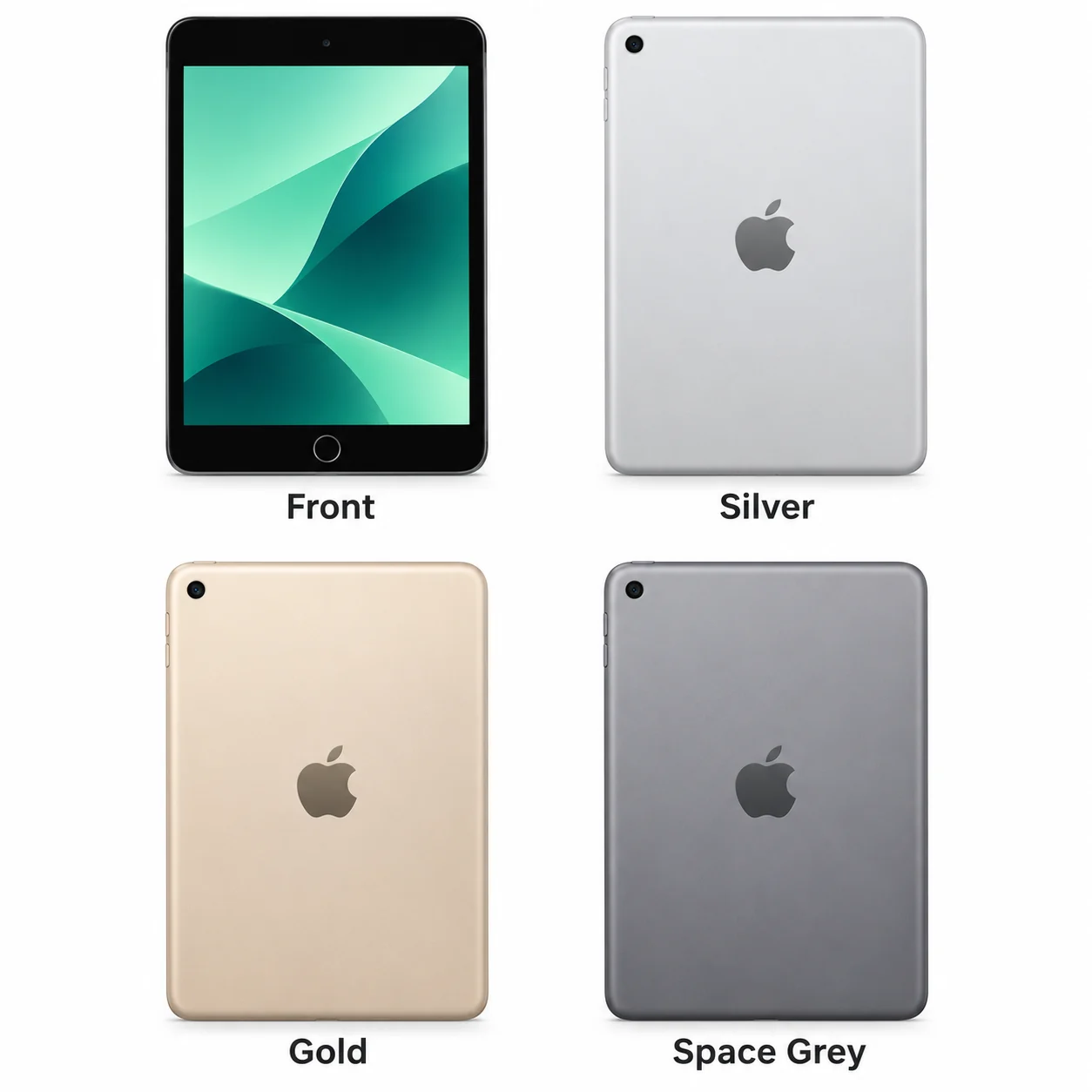
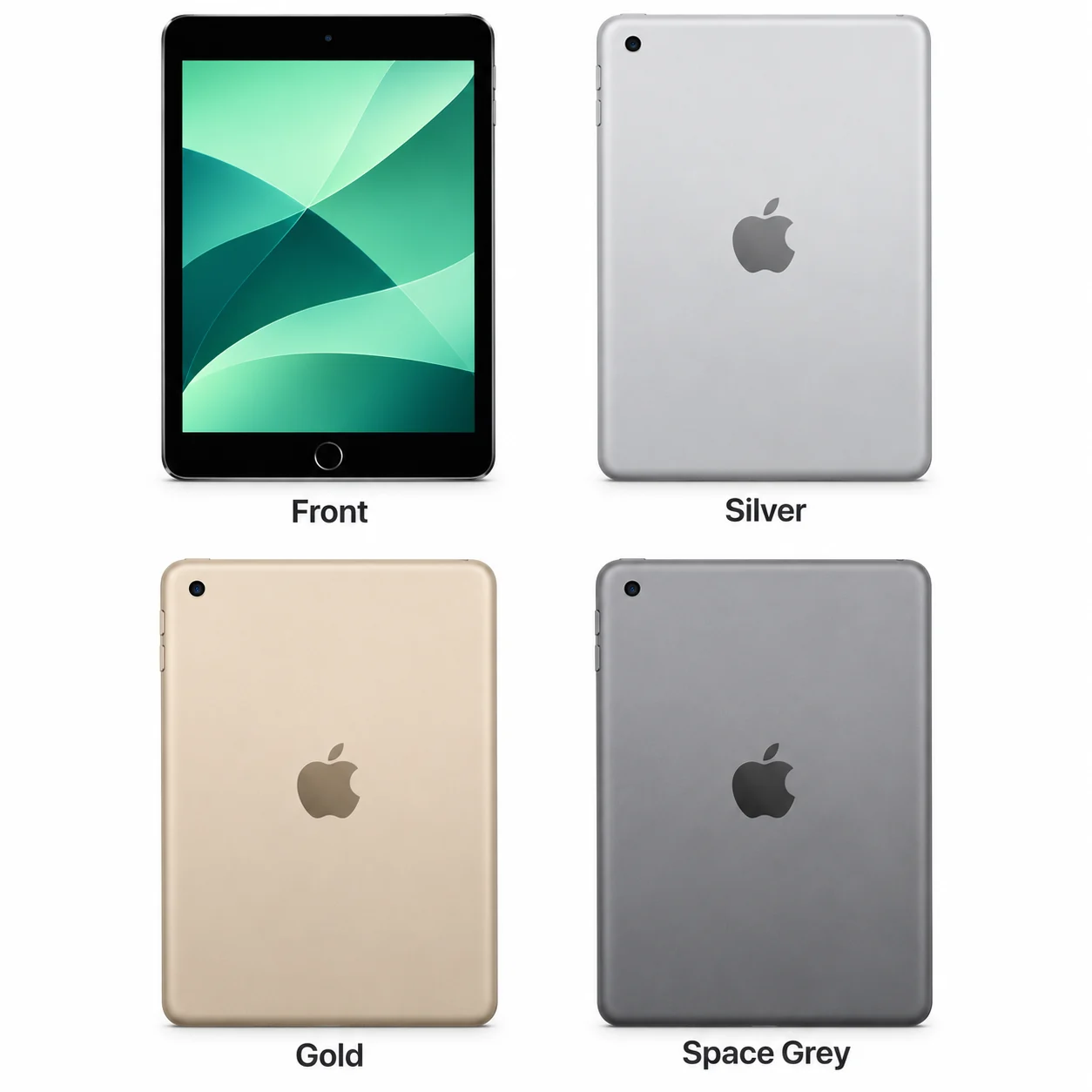
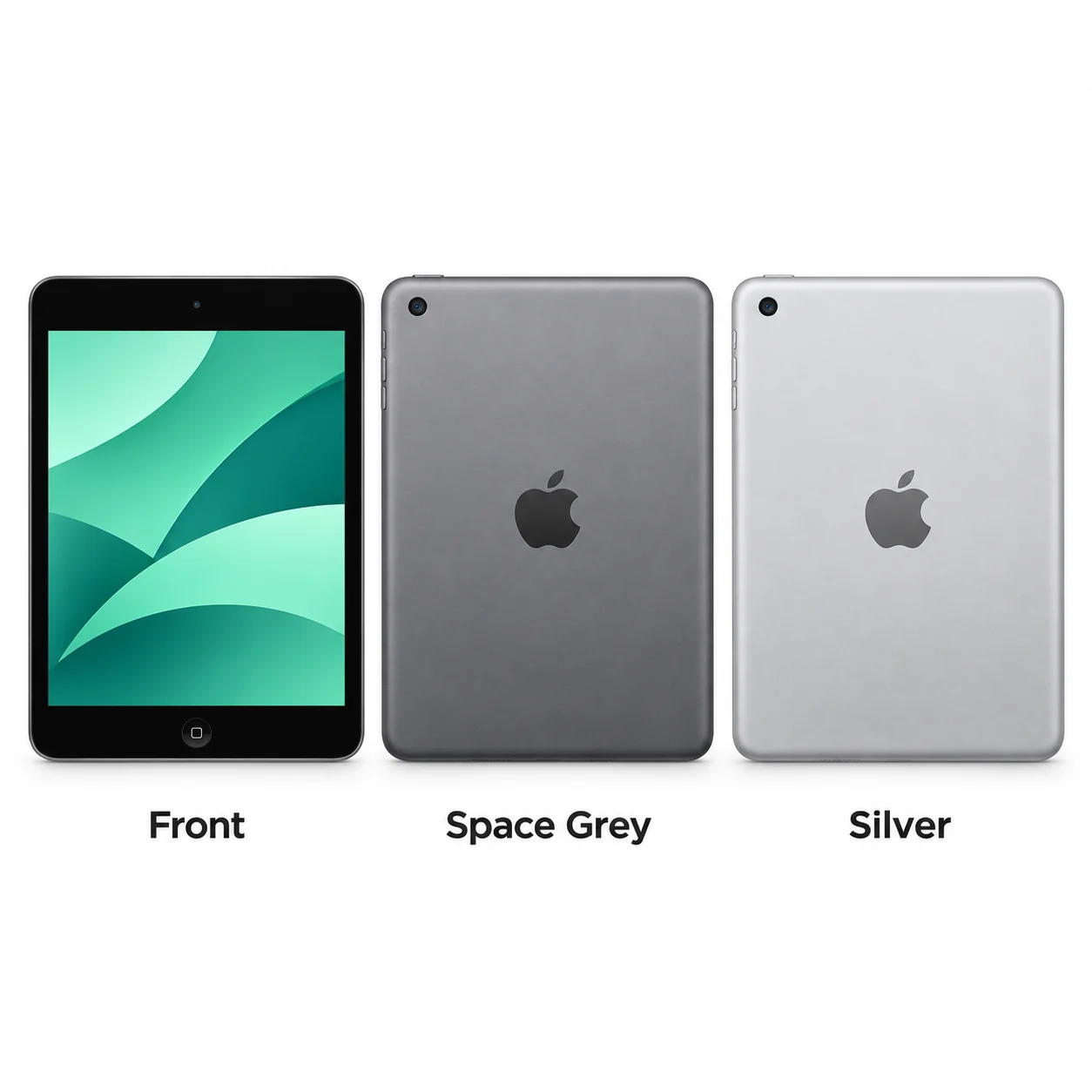
2014 · 7.9-inch · A7. Touch ID identifies mini 3.
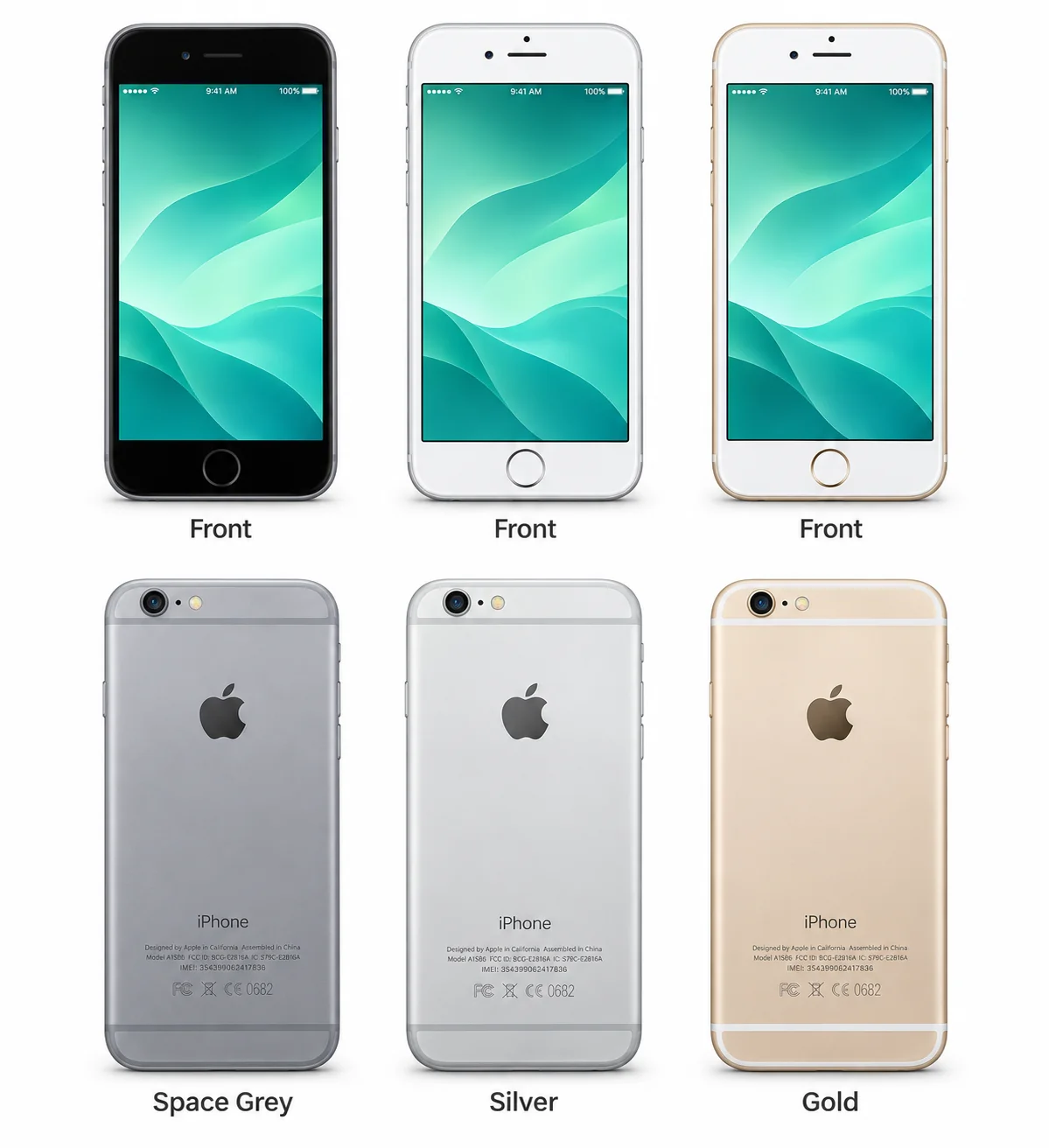
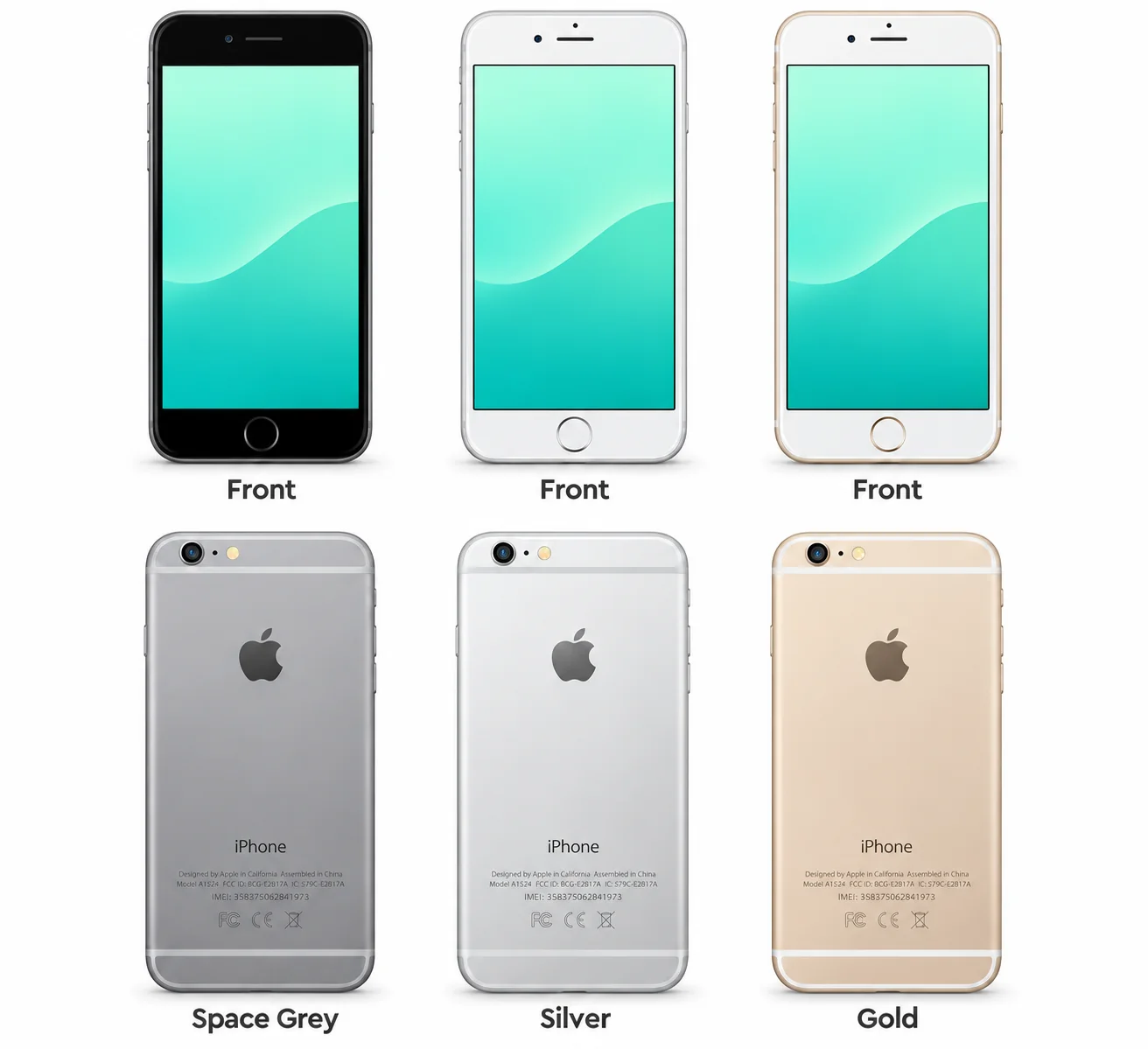
The iPhone 6 is Apple's 4.7-inch model from 2014, using an A8 chip and rounded aluminium body.
The iPhone 6 Plus is the larger 2014 iPhone, with a 5.5-inch Retina HD LCD and A8 chip.
2013 · 9.7-inch · A7. The original Air from 2013.
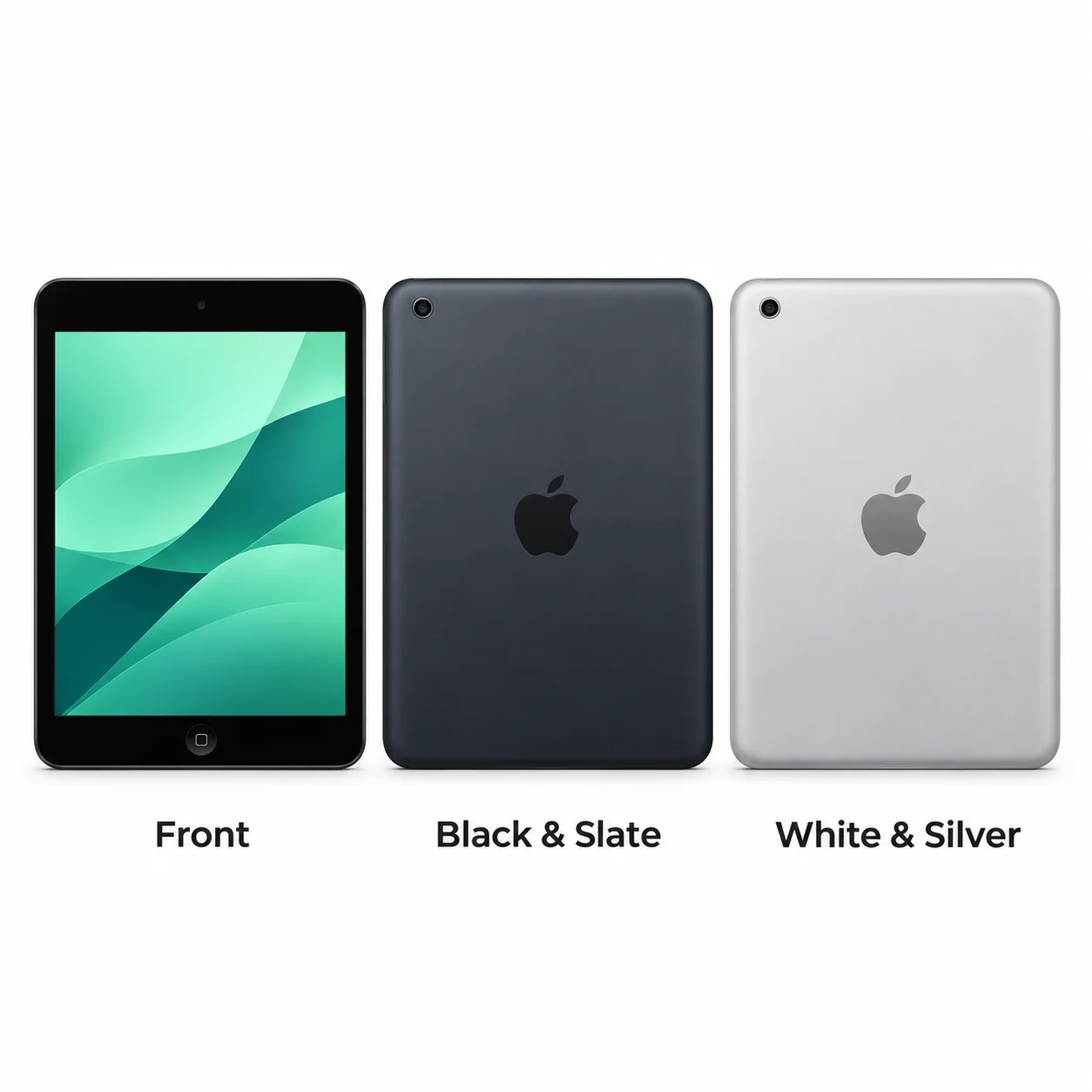
2013 · 7.9-inch · A7. The mini gains a Retina screen.
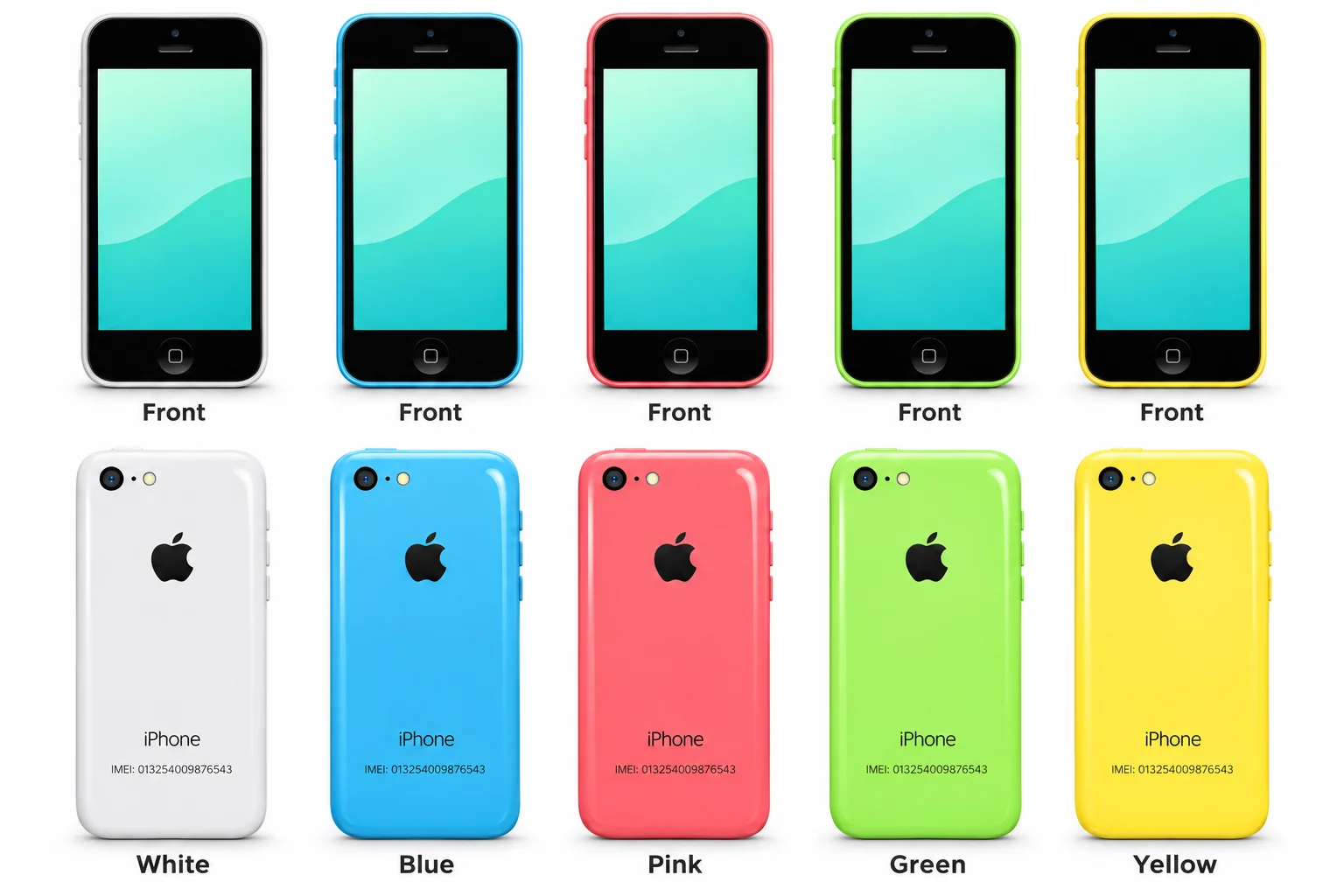
The iPhone 5c is the 4-inch 2013 model with an A6 chip and a coloured polycarbonate rear.
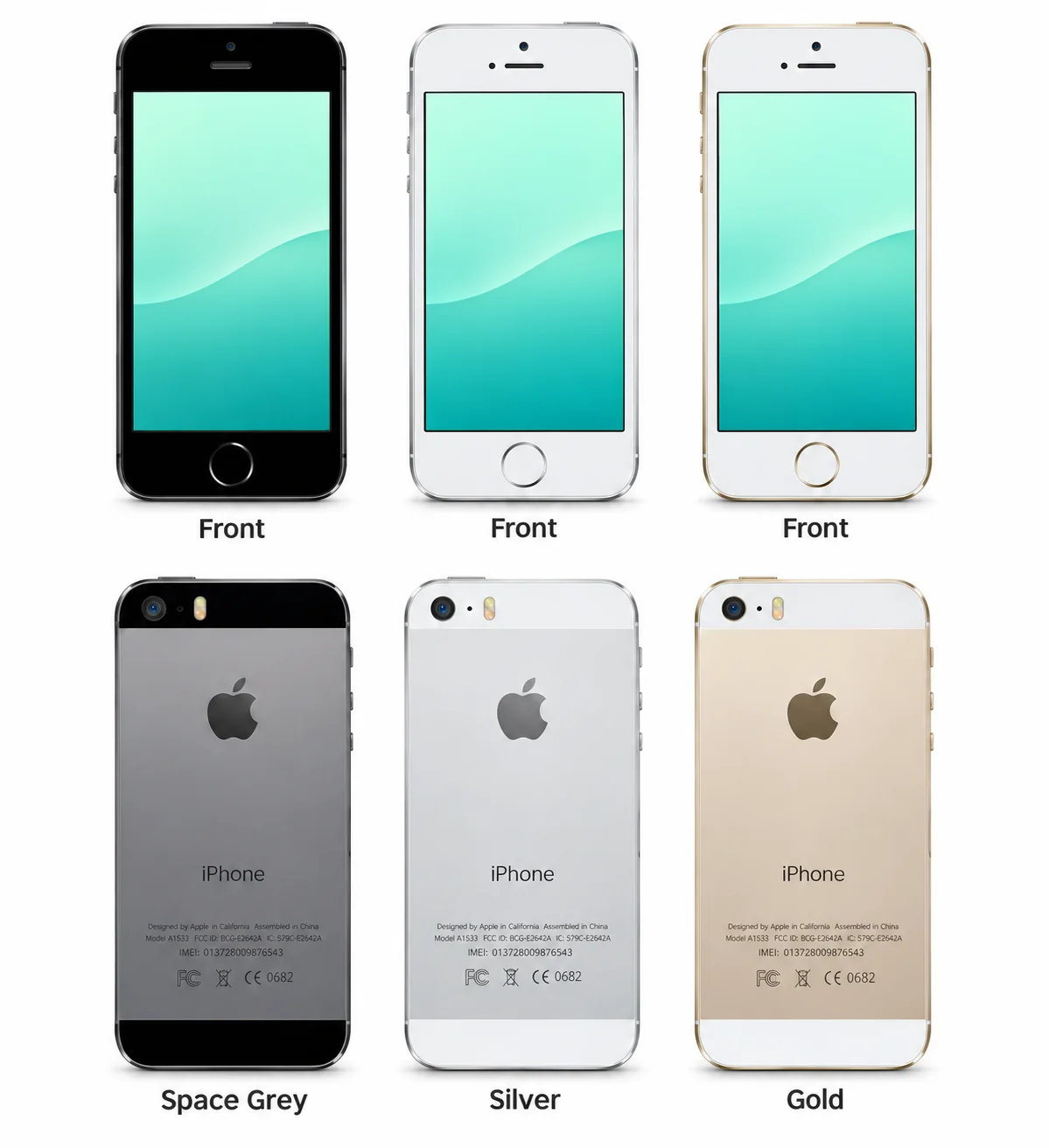
The iPhone 5s is the 4-inch model from 2013 with an A7 chip and flat aluminium body.
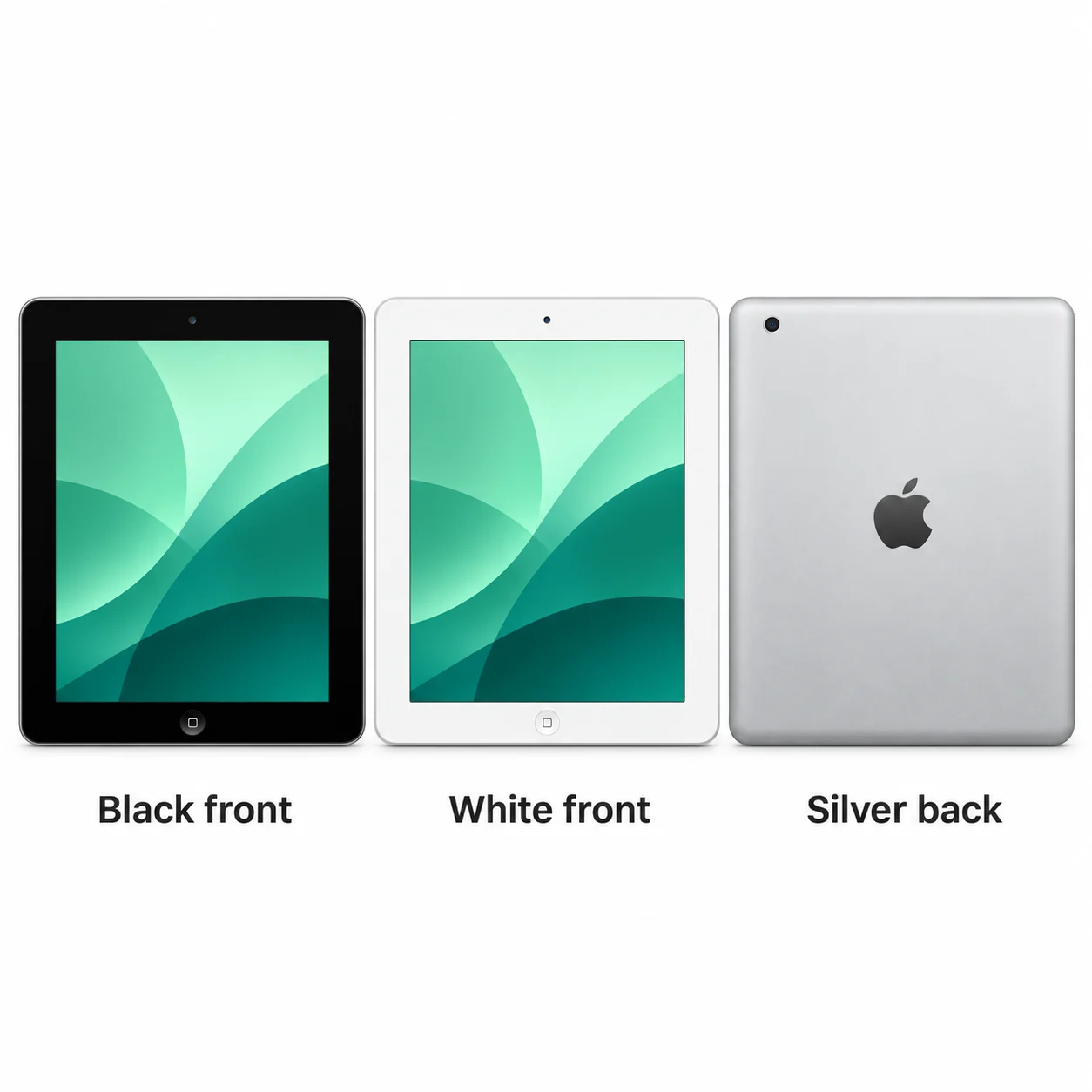
2012 · 9.7-inch · A5X. The first Retina iPad.
2012 · 9.7-inch · A6X. The Retina iPad switches to Lightning.
2012 · 7.9-inch · A5. The first compact iPad.
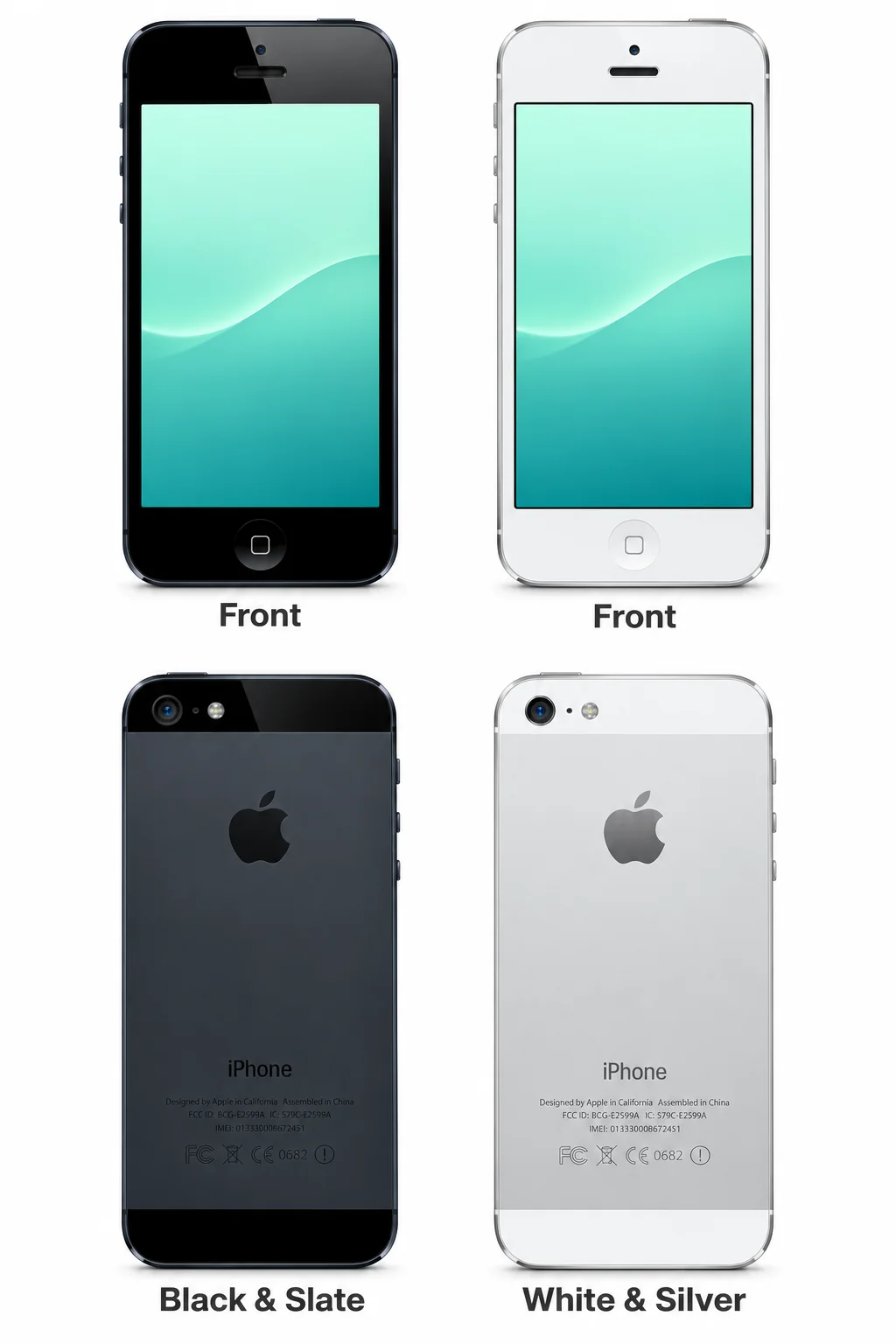
The iPhone 5 is Apple's 2012 model with a 4-inch Retina display, A6 chip and flat aluminium body.
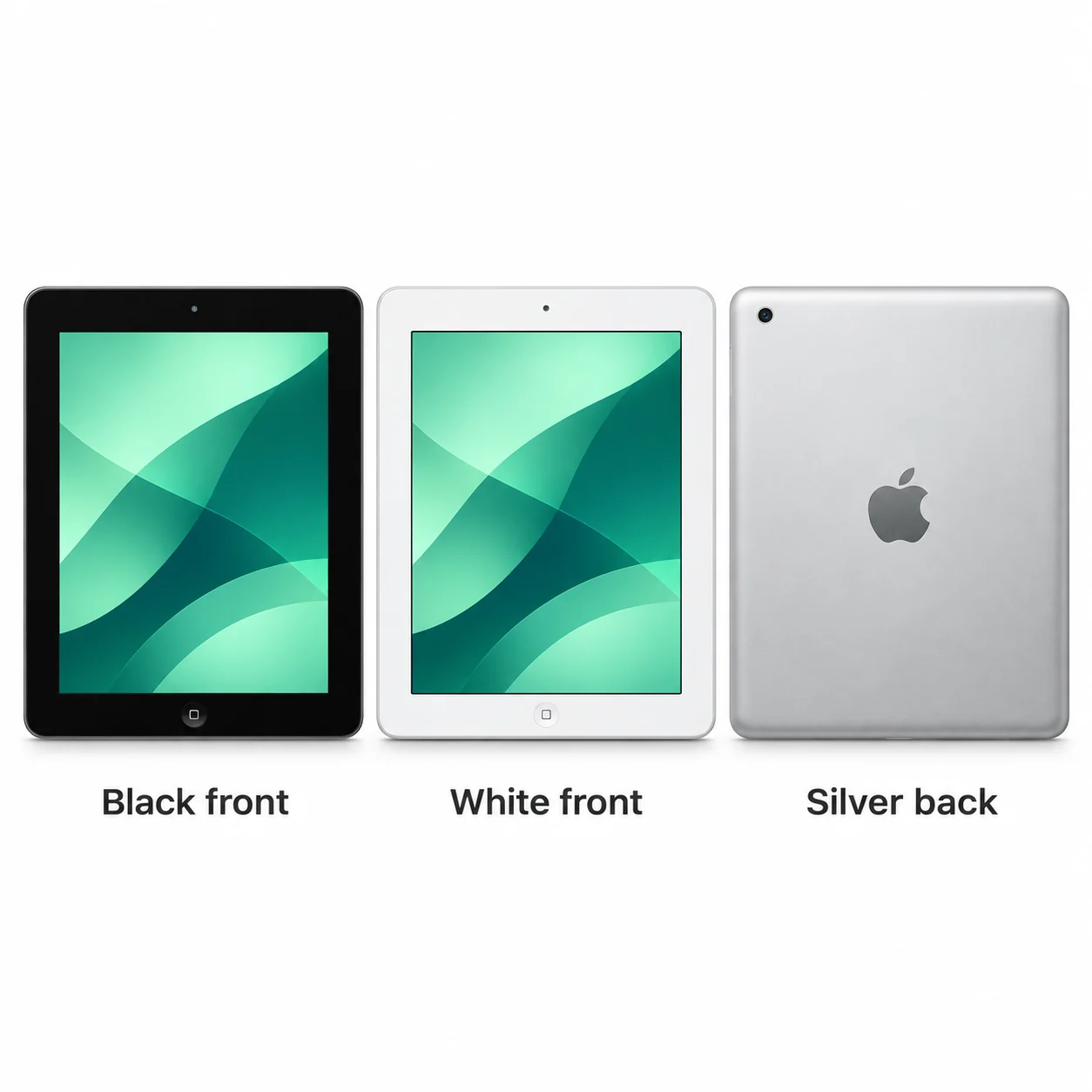
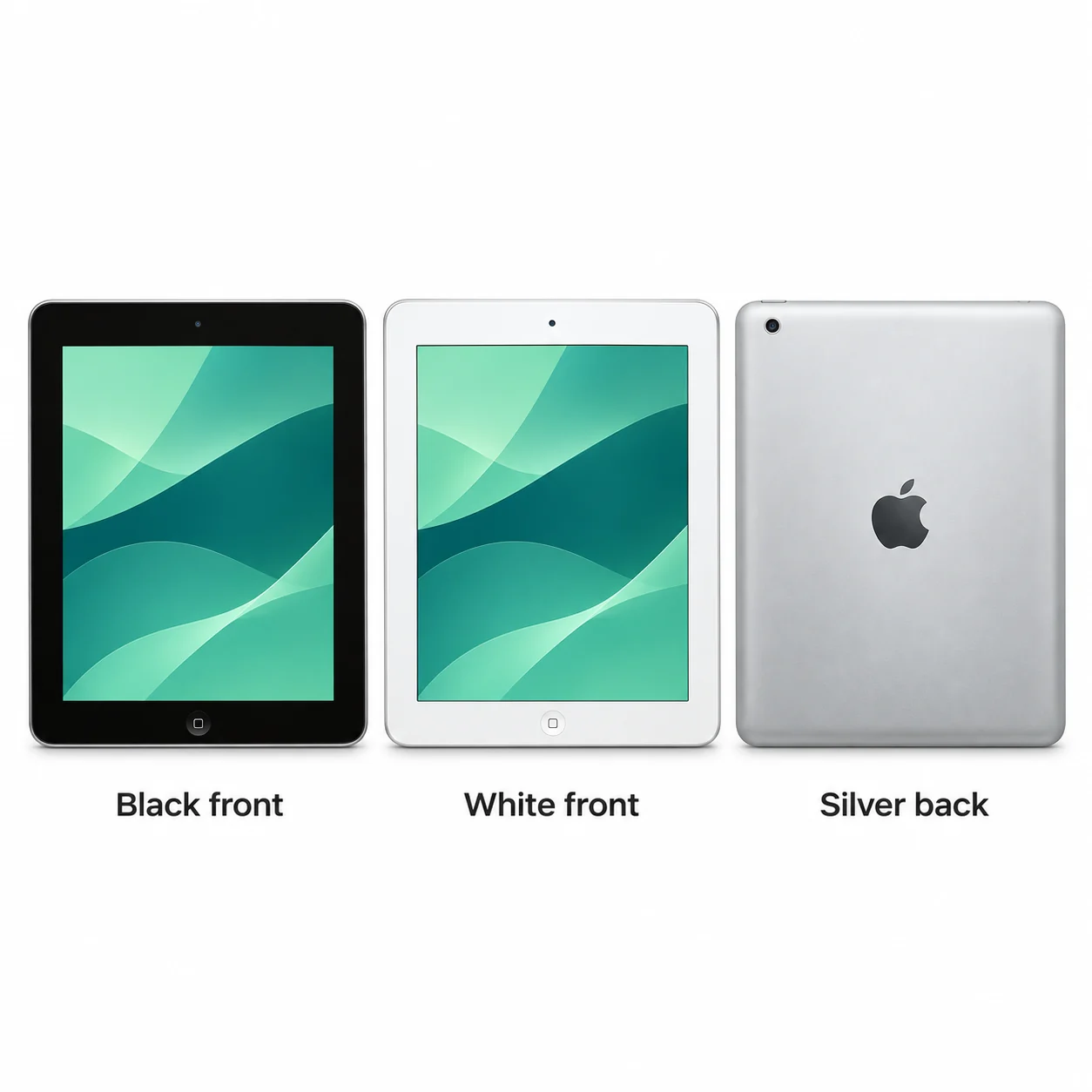
2011 · 9.7-inch · A5. The thinner second iPad.
The iPhone 4s is the 2011 model with a 3.5-inch Retina screen, A5 chip and flat glass front and rear.
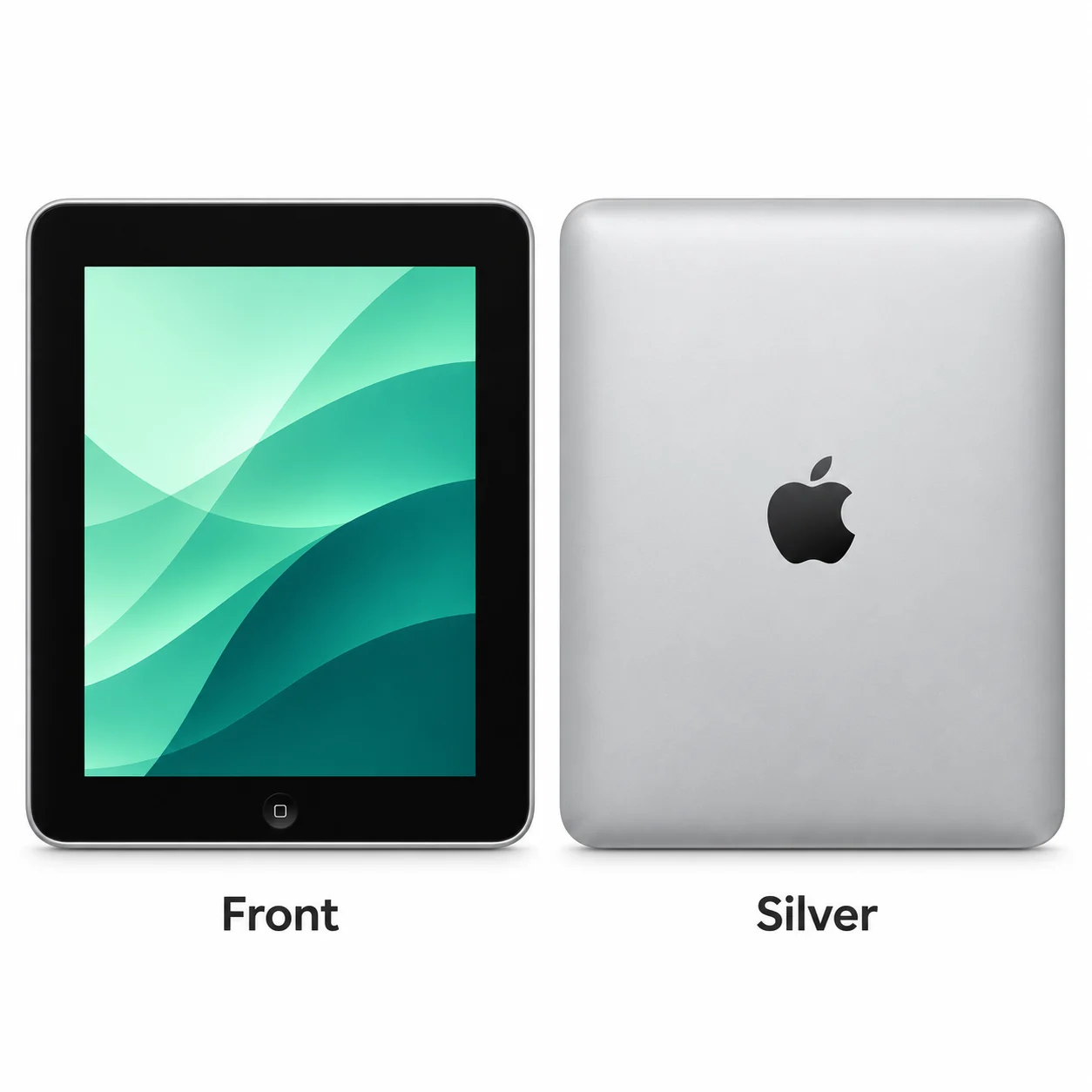
2010 · 9.7-inch · A4. The original iPad from 2010.
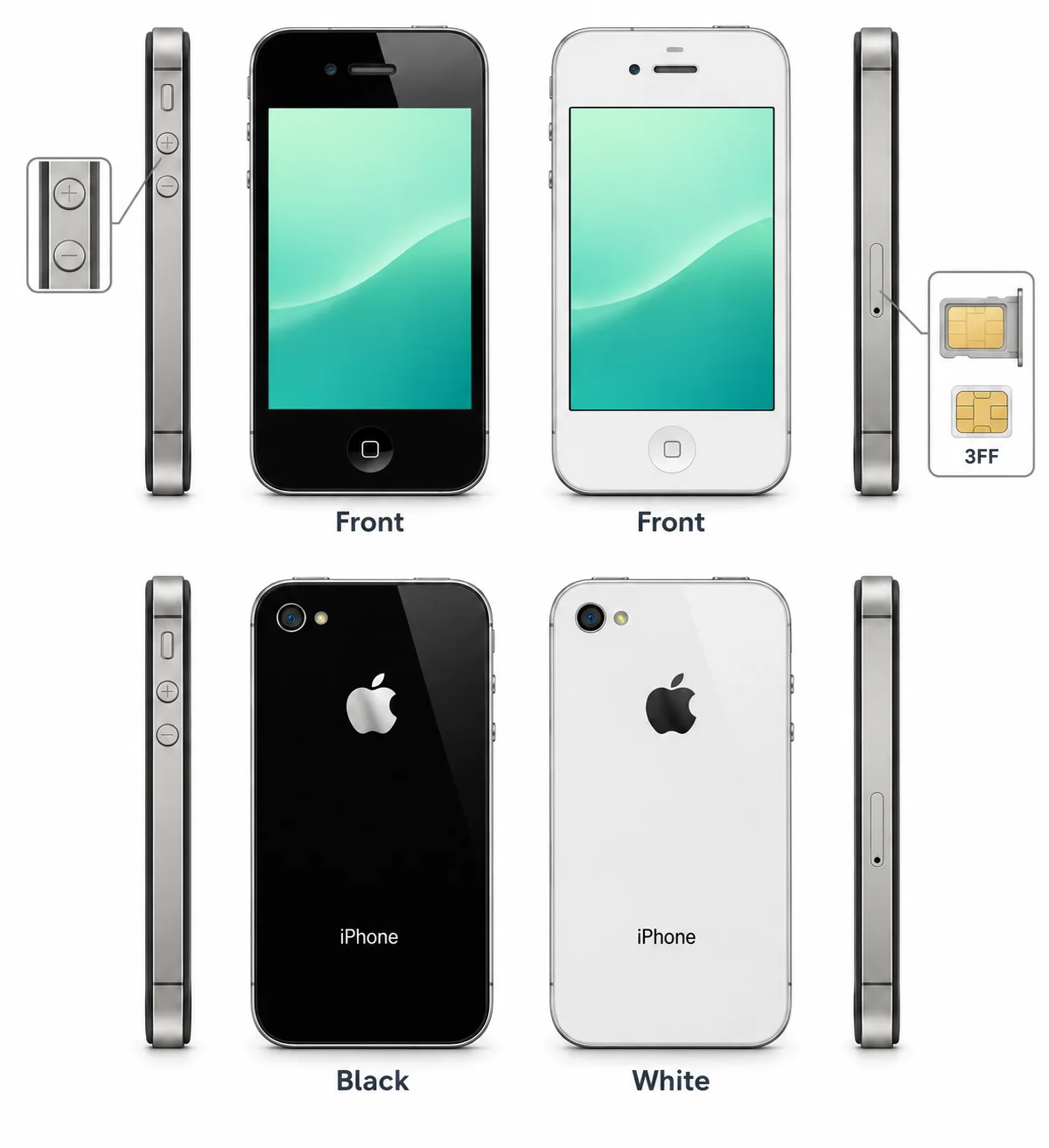
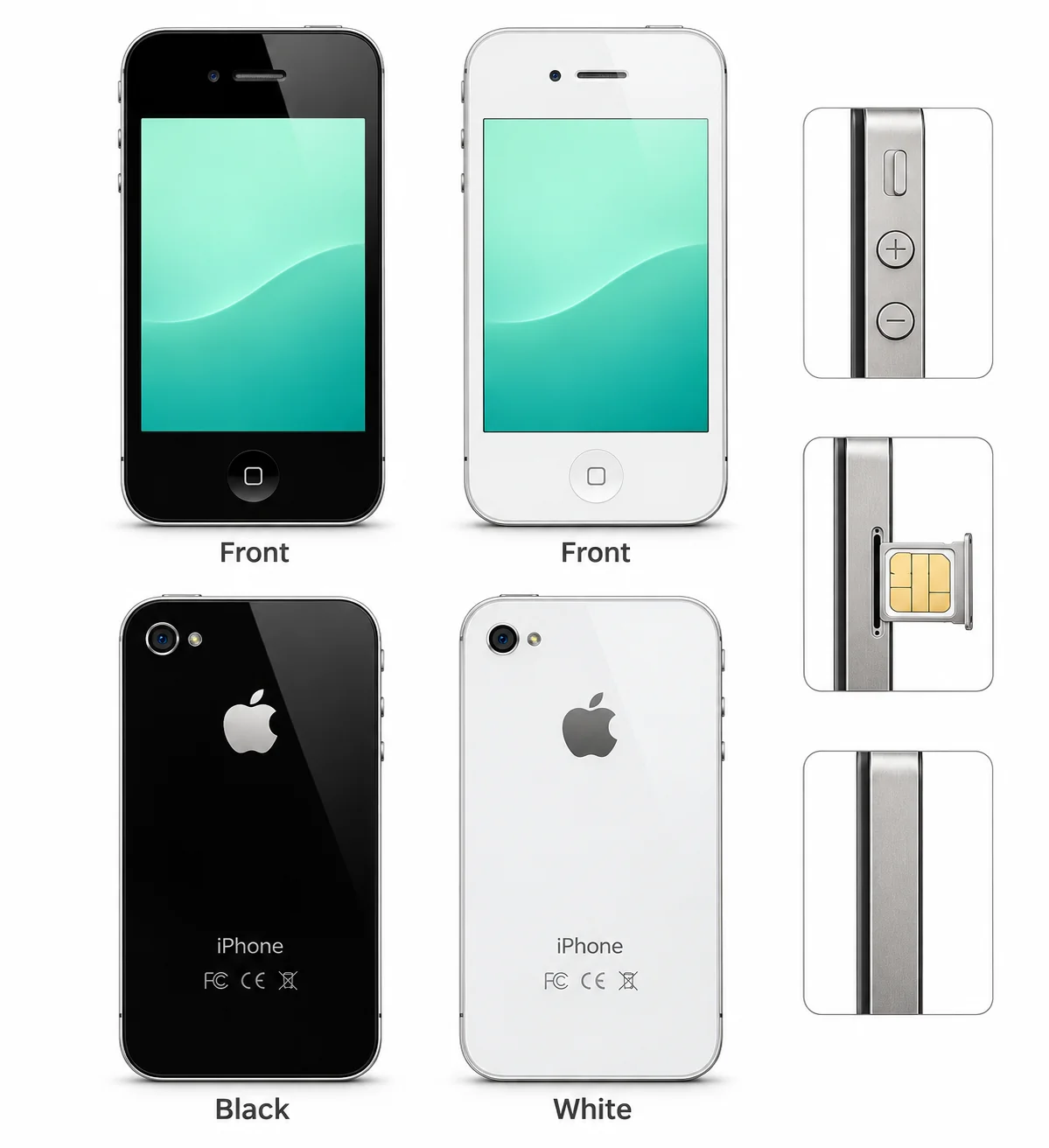
The iPhone 4 is Apple's 2010 model with a 3.5-inch Retina display, A4 chip and flat glass panels.
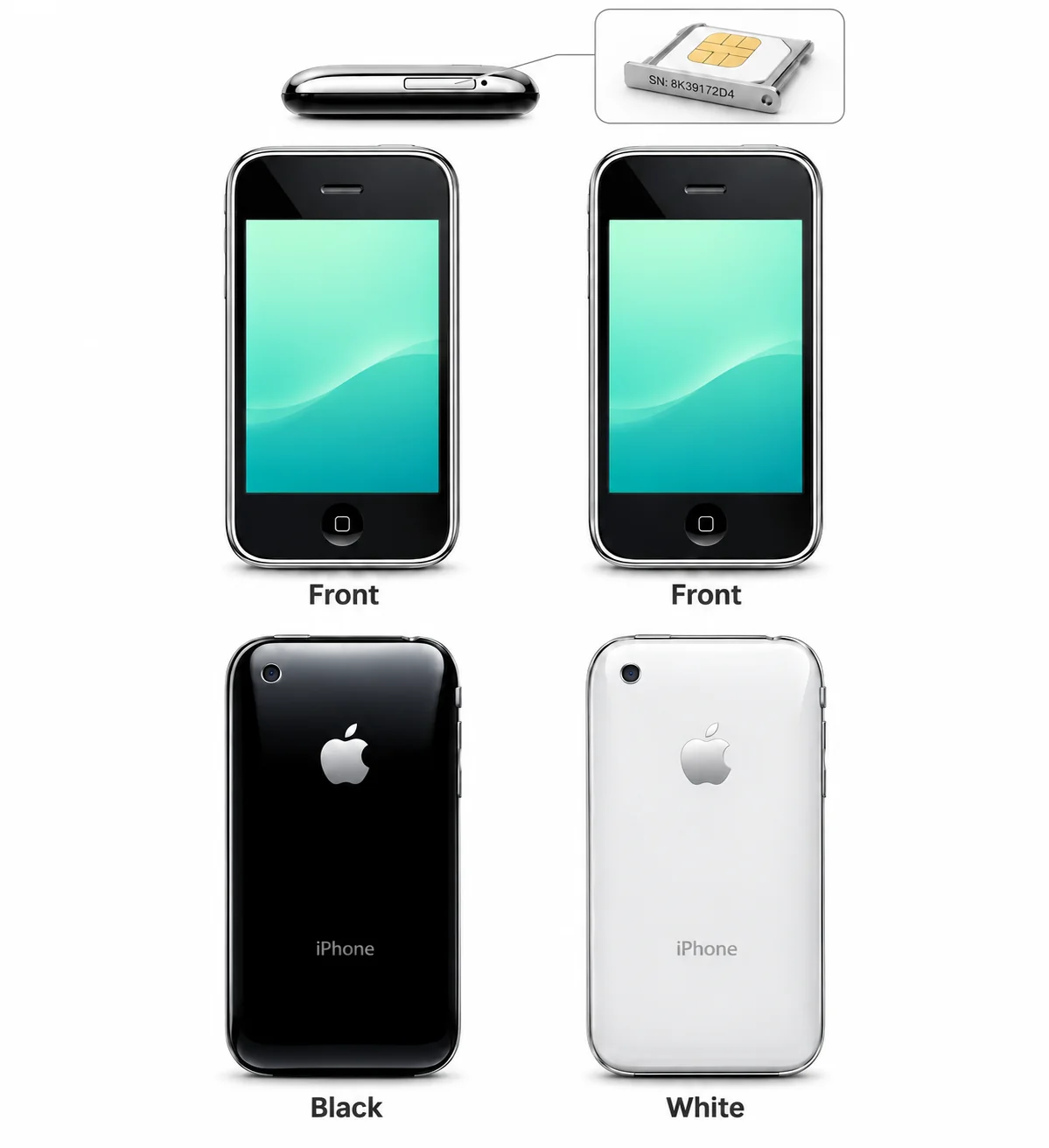
The iPhone 3GS is the 2009 model with a 3.5-inch screen and curved plastic rear.
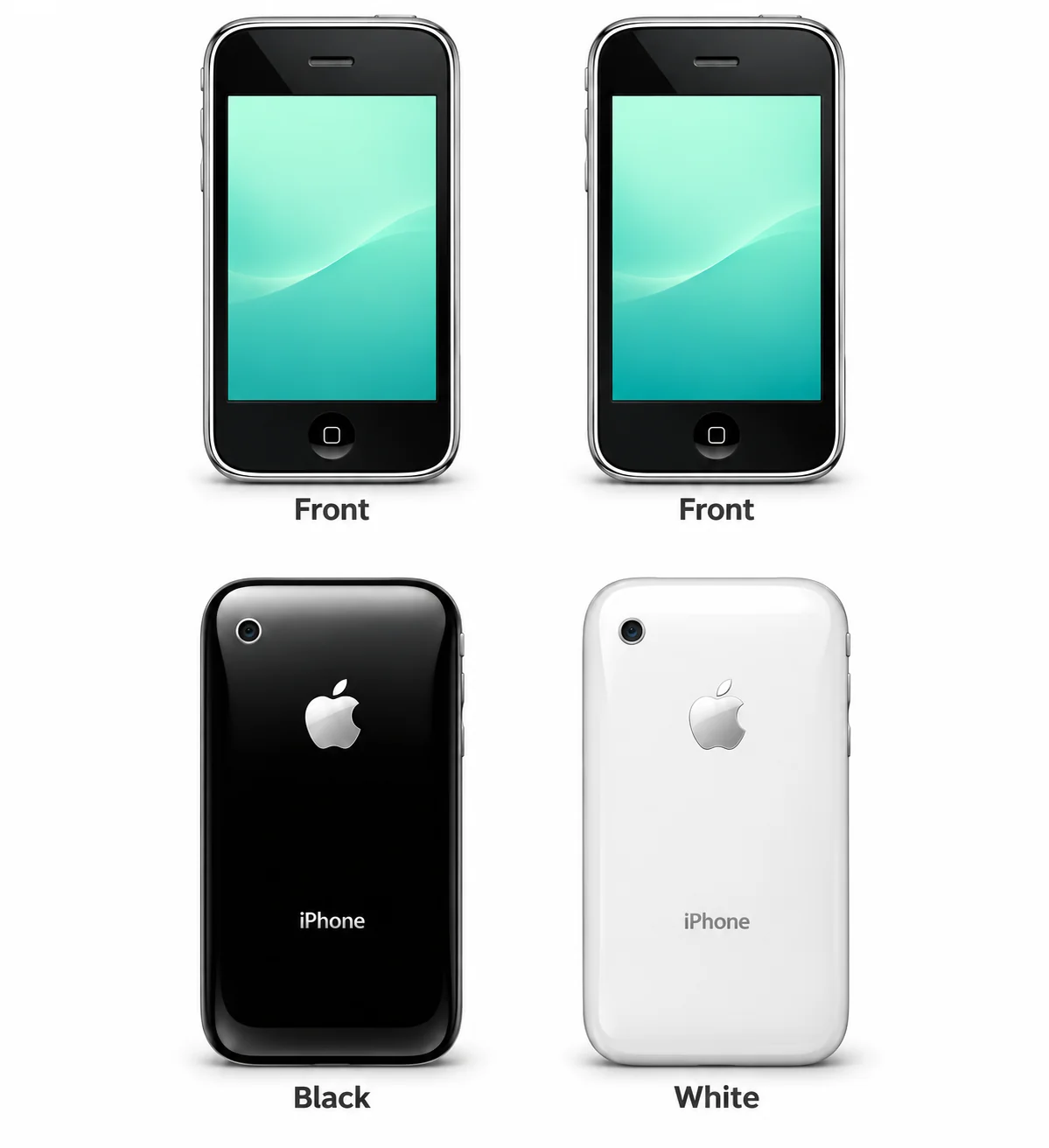
The iPhone 3G is Apple's 2008 model with a 3.5-inch screen and curved plastic rear.
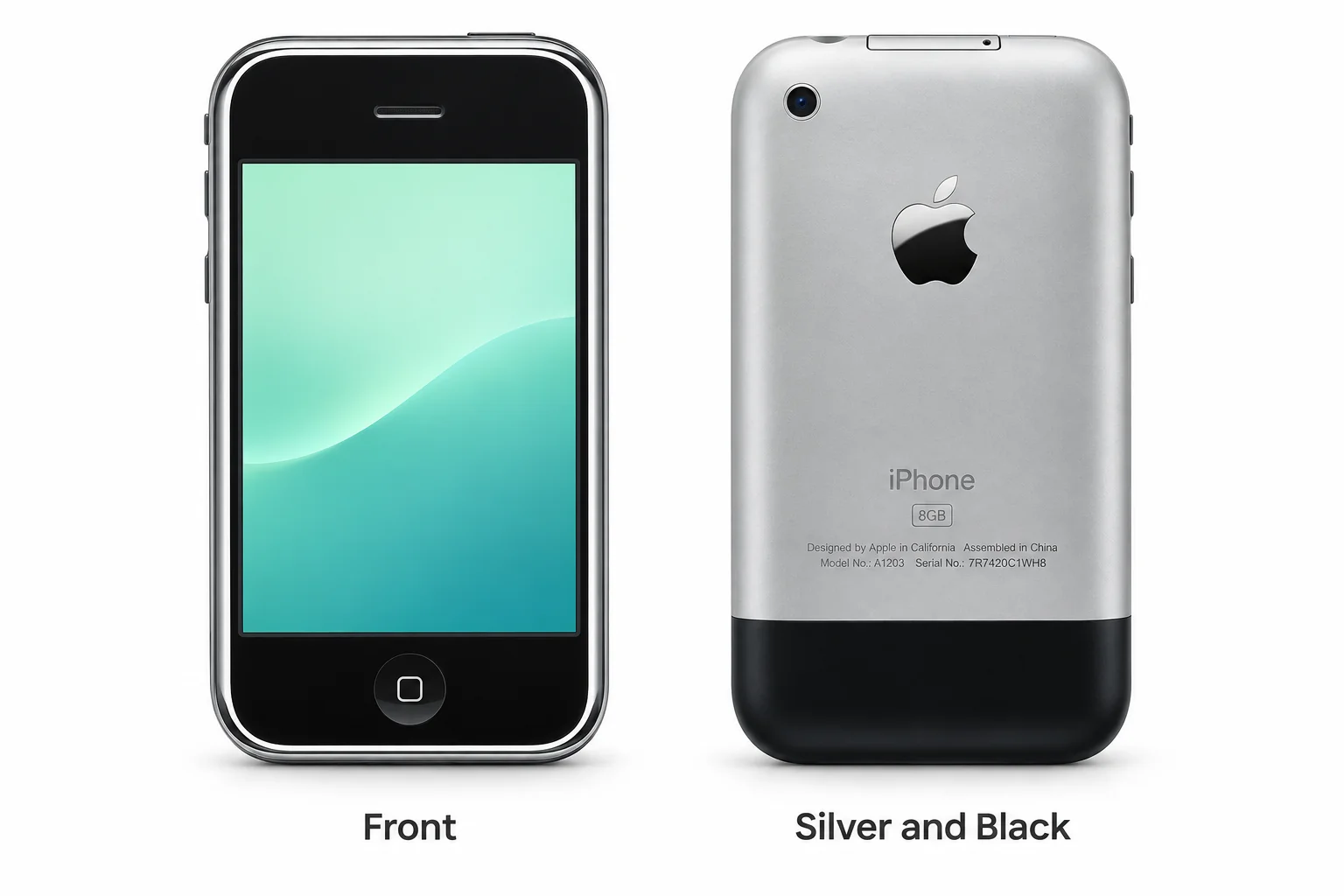
The original iPhone was introduced in 2007 and is identified by model number A1203.
Check the full model name or try its A-number or SM- model code. Clear the range filter to search all models on this page.
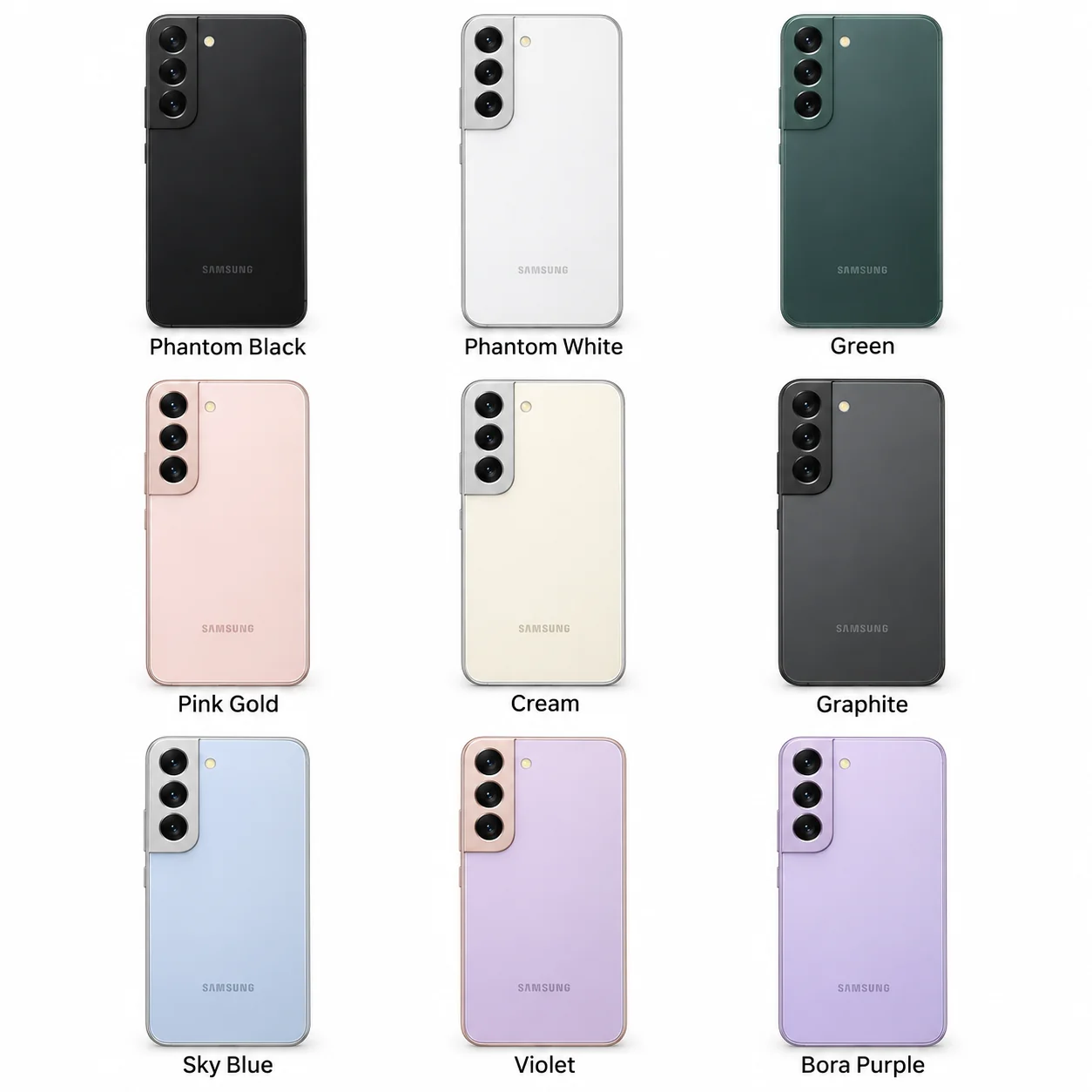
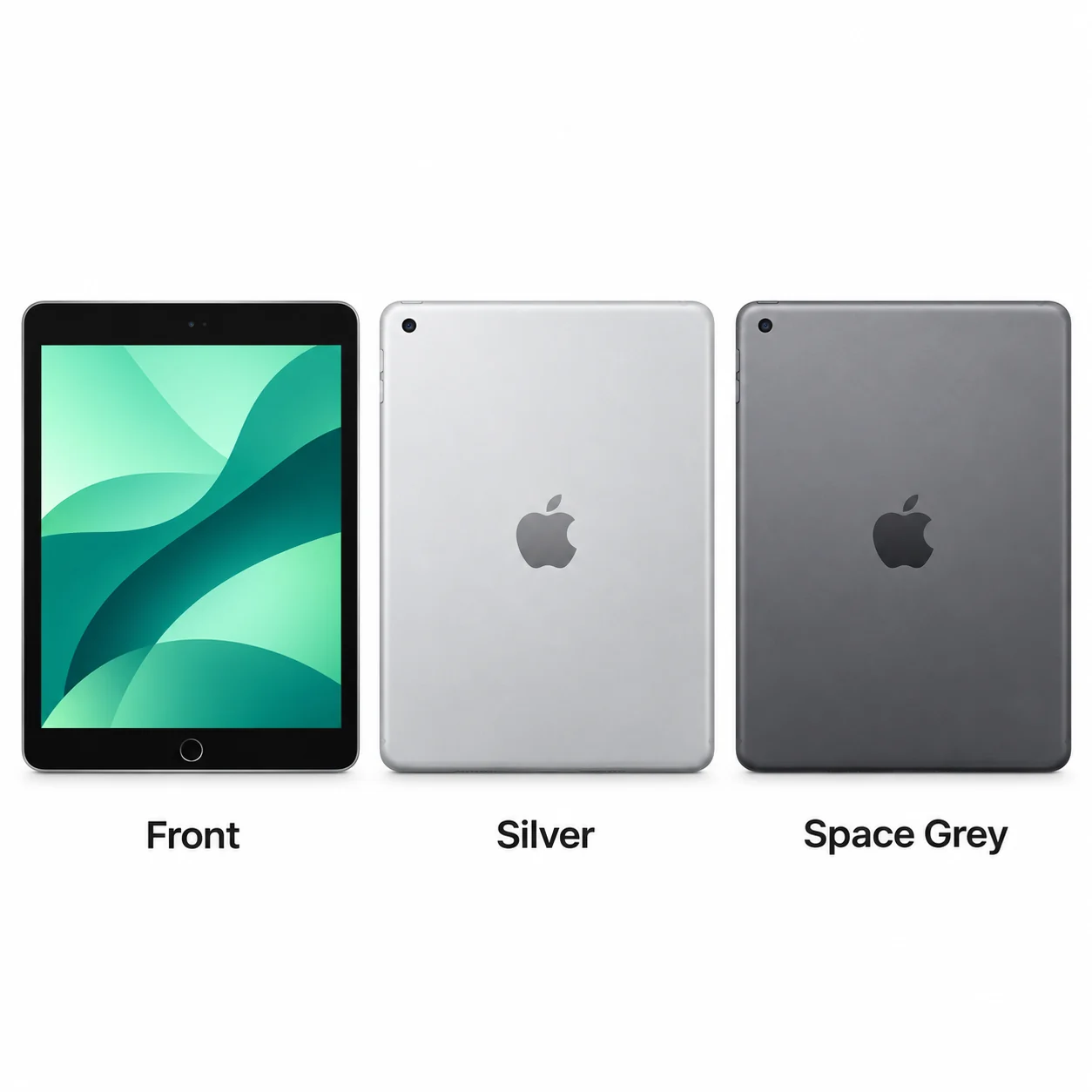
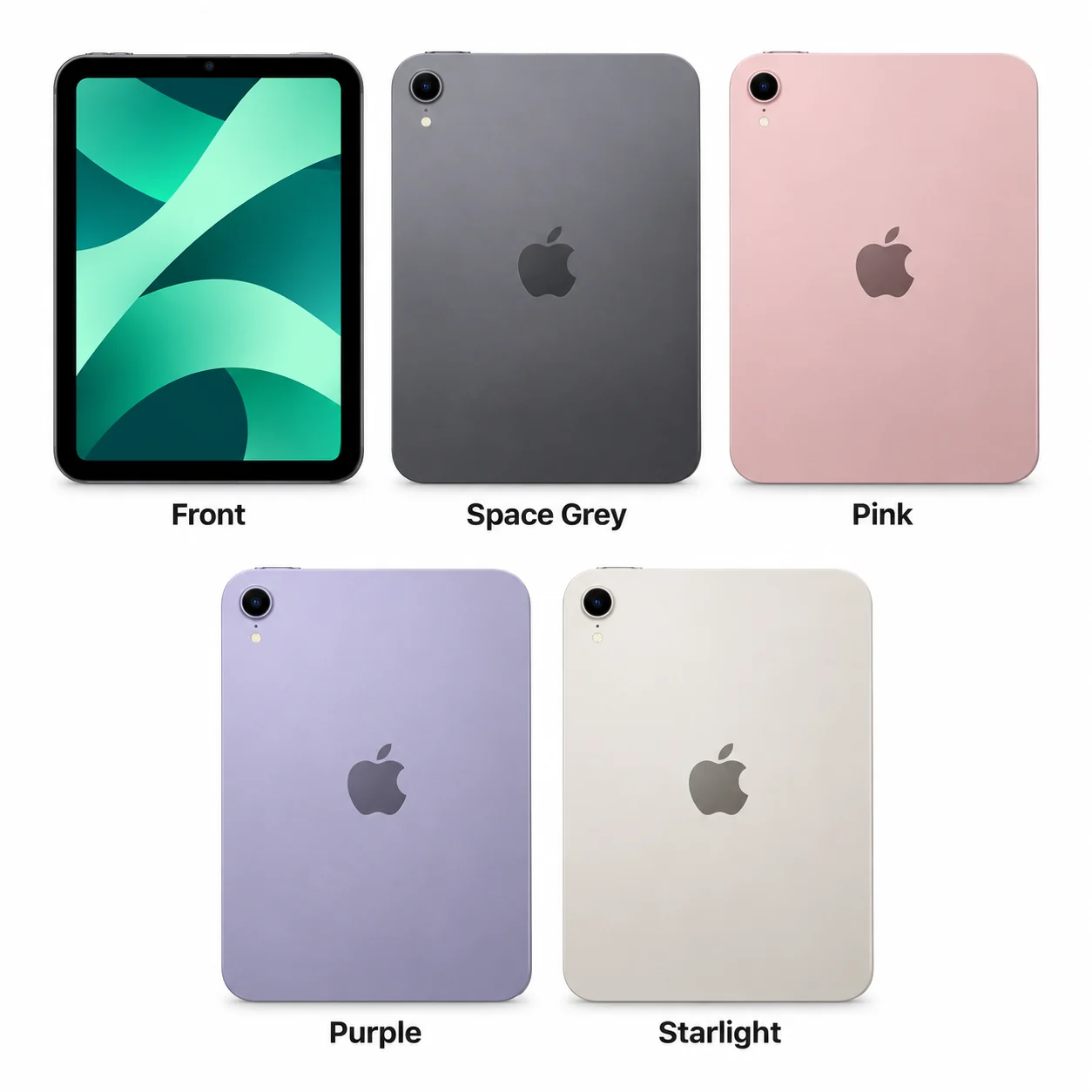
Colours and small details in the pictures are approximate. Confirm the model number in Settings before choosing accessories or replacement parts.
The name identifies the range. The model number identifies the hardware version.
Many devices share a model number. Your serial number identifies your individual device; mobile-network models also have an IMEI.