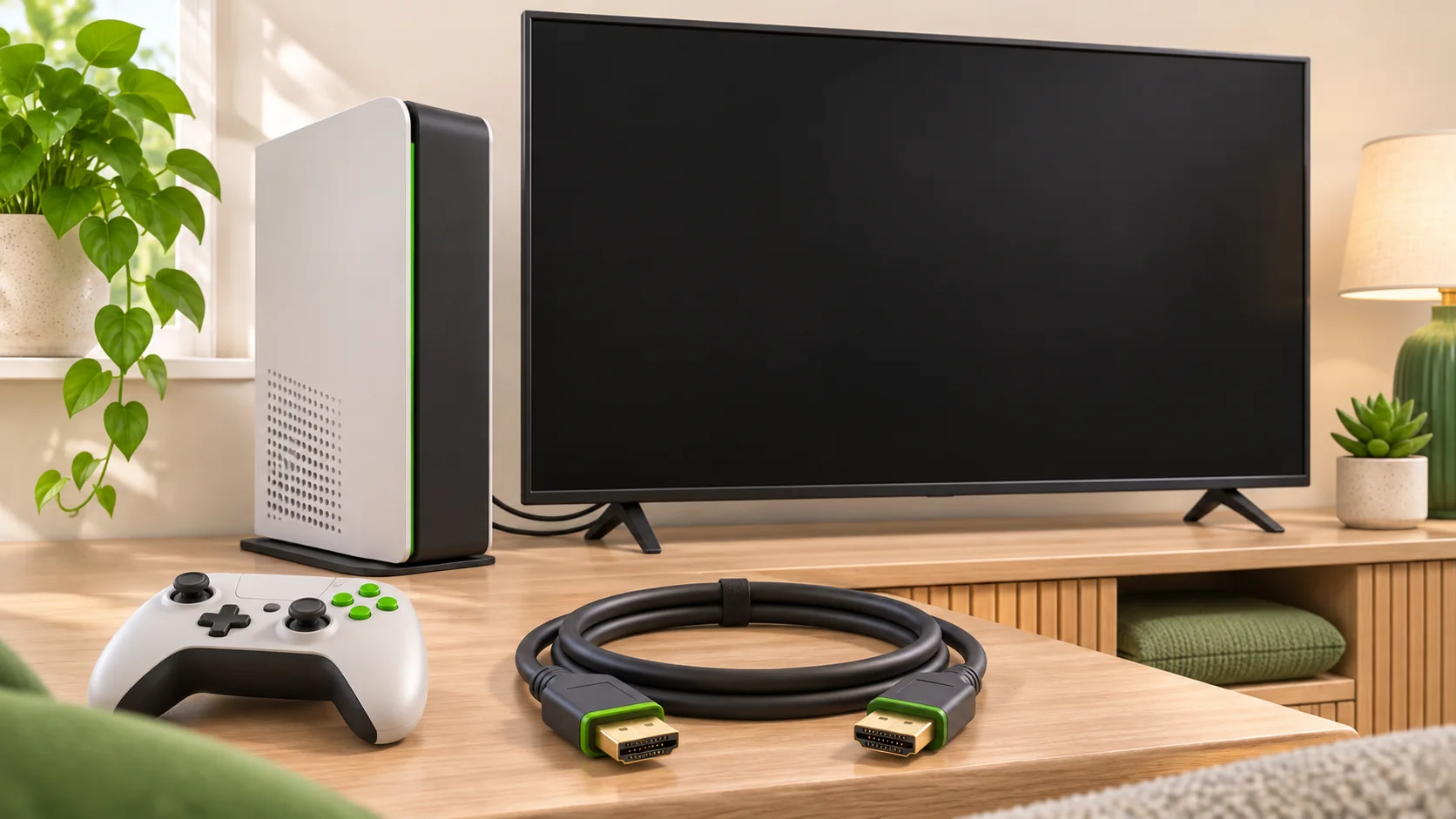
A PS5, PS4 or Xbox with no picture does not automatically need an HDMI port replacement. Start with the television input, cable and connection. Display settings and other equipment in the connection can also affect the picture. Work through one change at a time so you can explain the results if a repair is needed. [4]
HDMI is the connection that carries picture and sound from the console to your television or monitor. A problem anywhere along that route can look similar from the sofa.
Write down what you can see
Before changing anything, note whether the console turns on, whether its light changes, and what the screen displays. Is there a television message saying No Signal, a completely black screen, a brief logo, or a picture that disappears when a game starts?
Also note whether you can hear sound, whether the controller connects, and whether the problem started after moving the console or changing a setting. These observations help describe the fault; none proves that a particular part has failed.
If you would prefer someone to investigate, find an independent console repair shop through WeSolveAll and explain these symptoms before requesting a quote.
Check the television input first
Use the television remote to select the HDMI input that matches the socket being used. For example, a cable connected to HDMI 2 needs the corresponding input selected. Both PlayStation picture guides include checking the selected input and trying another television HDMI socket. [2]
If the television has several sockets, label or photograph the original connection before changing it. That makes it easier to put your setup back afterwards. Do not reach behind a wall-mounted television if doing so could loosen its mount or strain cables; get help accessing it.
Try one cable change at a time
Switch the equipment off before rearranging its connections. Look at the cable ends and sockets without pushing tools inside. Do not force a plug into a damaged or bent socket.
For PS5, Sony recommends the cable supplied with the console for its high-performance features, while noting that older HDMI cables can also work. For PS4, it specifies a compatible high-speed or premium high-speed HDMI cable. Try another suitable cable if you have one. [1,2]
For Xbox Series X, Microsoft's setup advice recommends its supplied Ultra High Speed HDMI cable. It also explains that advanced video features depend on the capabilities of the television socket and the rest of the connection. Check your television manual before assuming every HDMI input supports the same settings. [4]
A useful note is: “The original cable gives no picture, but a second cable works on the same television input.” You have narrowed the enquiry without buying a repair on the strength of a guess.
Connect the console directly to the screen
For this check, temporarily remove a soundbar, AV receiver, HDMI splitter, switch or capture device from the picture route. Connect the console directly to the television or monitor. Sony and Xbox both recommend simplifying the connection when investigating display problems. [1,4]
If that restores the picture, tell the repairer what equipment was previously between the console and screen. It is useful evidence about the setup; it does not identify a failed component on its own.
On Xbox One models with both HDMI In and HDMI Out connections, check the socket labels carefully and use the output for the television connection. Those are separate connections on the Xbox One family. [5]
Follow the guidance for your exact console
PS5: Sony's Safe Mode includes Change Video Output, with resolution and HDCP options that may help with a blank screen. HDCP is a compatibility system used for protected video content. Follow Sony's linked Safe Mode instructions if you are comfortable doing so; do not work through unrelated reset options. [3]
PS4: its Safe Mode has a different Change Resolution option, which restarts the console at 480p. That is a basic picture setting for troubleshooting. PS4 Pro has additional compatibility considerations, so use the instructions for your particular model. [3]
Xbox One or Xbox Series X or S: use Microsoft's official blank-screen troubleshooting guide and follow the instructions for your model. Do not copy a PlayStation button sequence or attempt menu changes you cannot see.
If you regain a usable picture, check the television manufacturer's guidance about firmware and supported video settings. Firmware means the software built into the television. Sony and Xbox both identify television software or compatibility as relevant checks. [1,4]
Keep a simple record of the results
If another suitable screen is available, note whether the console behaves differently when connected directly to it. Keep the test conditions simple. Changing the cable, screen and settings together makes it harder to understand which change mattered.
Record three things: what you changed, whether a picture appeared, and whether it stayed working. If the picture only fails in a particular game or video mode, include that detail.
Stop if you see physical damage, smell burning or notice unusual heat. Do not open the console, bend contacts or repeatedly move a plug around to make it connect. Leave suspected internal damage for someone qualified to assess.
Avoid an unnecessary reset
A factory reset is a major step. Sony warns that some Safe Mode options erase data, including Reset PS5 and Initialise PS4. Do not select them simply because a screen is blank. [3]
If a picture returns and you can safely access the console, check your backup arrangements before a repair. Sony provides a separate PS5 backup guide explaining what can be saved and what is excluded. If you cannot reach your saves, tell the repairer before authorising work. [6]
What to ask a console repair shop
An enquiry should describe the symptom rather than specify an unconfirmed repair. Ask the shop:
- Do you diagnose this exact console model and display problem?
- Is there an assessment charge, including if I decline the repair?
- What evidence would establish that the HDMI socket needs replacing?
- Does the quote include parts, labour and applicable taxes?
- Will you contact me before doing additional work?
- How will picture and sound be tested afterwards?
- What are the warranty terms for the work?
Tell the shop about drops, cable strain, previous repairs and the checks you tried. Ask whether it needs the console's cable or another accessory.
Frequently asked questions
Does No Signal mean the HDMI port is broken?
No. The input, cable, connection and display setup need checking too. A screen message alone is not a diagnosis. [1,2]
Can the HDMI cable cause the problem?
Yes. Trying another suitable cable is part of Sony's recommended checks. Record the result before arranging component replacement. [2]
Should I reset the console before taking it for repair?
Do not make that your first experiment. Agree preparation with the shop and protect your saved data before any step that could erase it. [3]
Can I get a reliable repair price from these symptoms alone?
A shop may provide an initial estimate, but ask whether it needs to inspect the console before confirming the fault and final price.
Find help with a console that has no picture
Use WeSolveAll to find an independent repair shop near you, then contact the shop directly. Give the exact console model, screen symptoms and test results. Confirm the assessment arrangements, proposed work and price before you agree to proceed.
Sources and further reading
- PlayStation Support — Troubleshoot picture and sound issues with PS5https://www.playstation.com/en-gb/support/hardware/ps5-picture-sound-issues/
- PlayStation Support — Troubleshoot picture and sound issues with PS4https://www.playstation.com/en-gb/support/hardware/ps4-picture-sound-issues/
- PlayStation Support — Safe Mode on PS5 and PS4https://www.playstation.com/en-gb/support/hardware/safe-mode-playstation/
- Xbox Wire — Television connections and compatibility for Xbox Series X and Shttps://news.xbox.com/en-us/2020/11/06/is-your-tv-ready-to-power-your-dreams/
- Xbox — Xbox One family specificationshttps://news.xbox.com/en-us/wp-content/uploads/sites/2/Xbox_One_Spec_Sheet.pdf
- PlayStation Support — Back up and restore PS5 console datahttps://www.playstation.com/en-ie/support/hardware/back-up-ps5-data-USB/