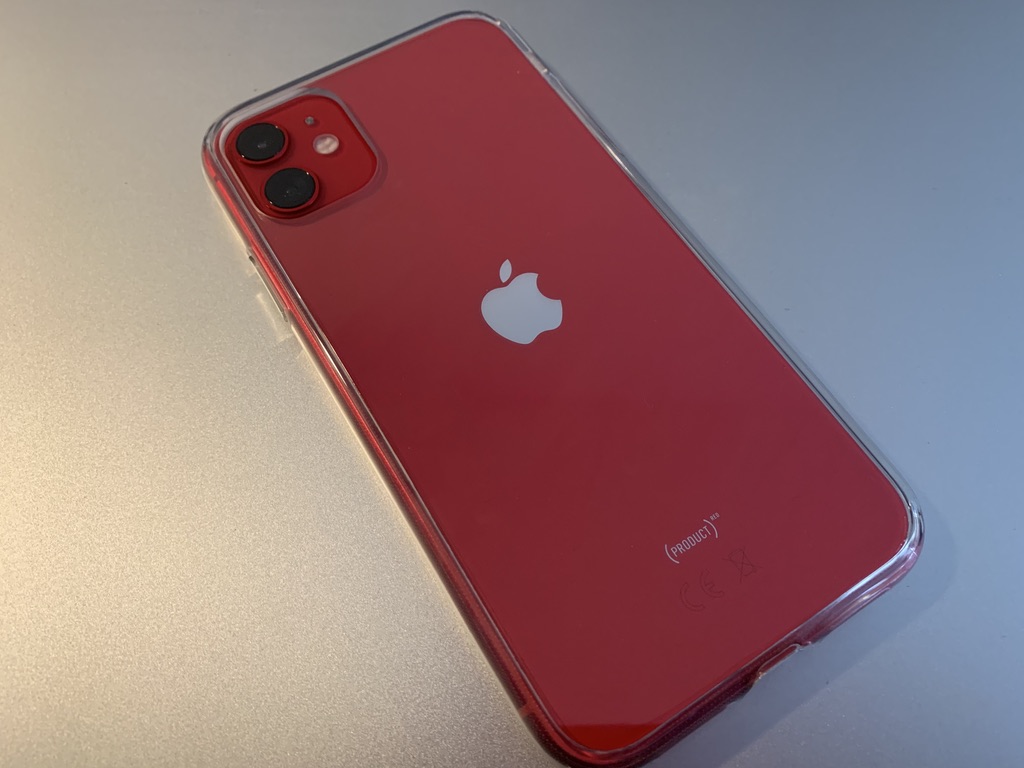

There have been so many different iPhones released that it can be confusing to know which model you actually have. The problem is increasingly common if you are buying a phone on the second hand market. Furthermore, if you want to sell your iPhone to someone else or give it to a family member and you have lost the original box. So how do you tell what iPhone do i have?
Common problems when you don’t know the iPhone model number
Identify the iPhone model before enquiring about a repair so the business can give advice for the correct device.
Another frustrating part of not knowing which iPhone model you have is when your favourite app or game on your iPhone is not longer working after the latest iOS update.
One of the more common problems for owners of older iPhones is updating the YouTube app. There are many apps that are unsupported for older iPhone models. As a result this can prove problematic.
In January 2020 it caused a lot of inconvenience when it was announced that Whats app would no longer be supported on the iPhone 4 models.
We understand the difficulties that our customers can encounter in identifying their iPhone. Therefore, the team at We Solve All have compiled an easy to read guide on where to find the model number of your iPhone.
How do I tell which model of iPhone I have?
We have compiled an easy to read guide on what iPhone do i have? What’s more, where and how to find the model number.
Once you have found the model number, our iPhone model ladder will let you know exactly which iPhone you have.
To find out your iPhone you will need to click the ‘settings’ icon on your home screen. Once inside the ‘settings’ menu you will need to scroll down and click ‘general.’ You will then need to click the ‘about’ option.
In the ‘about’ section of this screen you will see the ‘Model Number’ displayed, this number will begin with an M or N.
How to tell what iPhone do i have from the settings about screen.
Tap on this number and you will see a number starting with an A followed by 4 numbers. The A number tells you the iPhone that you have. You can correlate the A number to get the iPhone model in the list below.
How to locate the iPhone model “A” number in the settings screen.
What iPhone model do I have?
We have compiled a list that is displayed from the newest to oldest iPhone. The team at We Solve All have also tried to make this as easy as possible and have included all model numbers available for the iPhone.
Apple usually releases two to three iPhones per year, so we expect this list to grow as the years go on.
Up to and including iPhone 7 you can also locate your model number on the back of your device. So, this includes the iPhone 5, iPhone 5c, iPhone 5s, iPhone SE, iPhone 6, iPhone 6 Plus, iPhone 6s, iPhone 6s Plus, iPhone 7 and iPhone 7 Plus.
Where to locate your iPhone model
- iPhone 13 Pro Max model number – found in Settings>General>About in your iPhone 13 Pro Max.
- iPhone 12 Pro model number – found in Settings>General>About in your iPhone 13 Pro.
- iPhone 13 Mini model number – found in Settings>General>About in your iPhone 13 Mini.
- iPhone 13 model number – found in Settings>General>About in your iPhone 13.
- iPhone 12 Pro Max model number – found in Settings>General>About in your iPhone 12 Pro Max.
- iPhone 12 Pro model number – found in Settings>General>About in your iPhone 12 Pro.
- iPhone 12 Mini model number – found in Settings>General>About in your iPhone 12 Mini.
- iPhone 12 model number – found in Settings>General>About in your iPhone 12.
- iPhone 11 model number – found in Settings>General>About in your iPhone 11.
- iPhone 11 Pro model number found in Settings>General>About in your iPhone 11 Pro.
- iPhone 11 Pro Max model number found in Settings>General>About in your iPhone 11 Pro Max.
- iPhone XS model number – found in Settings>General>About in your iPhone XS.
- iPhone XS Max model number – found in Settings>General>About in your iPhone XS Max.
- iPhone XR model number found in Settings>General>About in your iPhone XR.
- iPhone X model number – found in Settings>General>About in your iPhone X.
- iPhone 8 model number – found in Settings>General>About in your iPhone 8.
- iPhone 8 Plus model number – found in Settings>General>About in your iPhone 8 Plus.
- iPhone 7 model number – Found on the back of the iPhone 7 and in Settings>General>About in your iPhone 7.
- iPhone 7 Plus model number – Found on the back of the iPhone 7 Plus and in Settings>General>About.
- iPhone 6s model number – Found on the back of the iPhone 6s and in Settings>General>About.
- iPhone 6s Plus model number – Found on the back of the iPhone 6s Plus and in Settings>General>About.
- iPhone 6 model number – Found on the back of the iPhone 6 and in Settings>General>About.
- iPhone 6 Plus model number – Found on the back of the iPhone 6 Plus and in Settings>General>About.
- iPhone SE (1st generation) model number – Found on the back of the iPhone SE and in Settings>General>About.
- iPhone 5s model number – Found on the back of the iPhone 5s and in Settings>General>About.
- iPhone 5c model number – Found on the back of the iPhone 5c and in Settings>General>About.
- iPhone 5 model number – Found on the back of the iPhone 5c and in Settings>General>About.
- iPhone 4s model number – Found on the back of the iPhone 4s and in Settings>General>About.
- iPhone 4 model number – Found on the back of the iPhone 4 and in Settings>General>About.
- iPhone 3GS model number Found on the back of the iPhone 3GS and in Settings>General>About.
- iPhone 3G model number Found on the back of the iPhone 3 and in Settings>General>About.
- Original iPhone model number Found on the back of the iPhone and in Settings>General>About.
What iPhone do I have model ladder
iPhone Model Name | iPhone Model Number |
IPhone 13 Pro Max | A2643, A2484, A2641, A2644, A2645 |
IPhone 13 Pro | A2638, A2483, A2636, A2639, A2640 |
IPhone 13 Mini | A2399, A2176, A2398, 2400, A2630 |
IPhone 13 | A2633, A2482, A2631, A2634, A2635 |
iPhone 12 Pro Max | A2411, A2342, A2410, A2412 |
iPhone 12 Pro | A2407, A2341, A2406, A2408 |
iPhone 12 Mini | A2399, A2176, A2398, A2400 |
iPhone 12 | A2403, A2172, A2402, A2404 |
iPhone SE 2022 | A2783, A2595, A2785, A2782, A2784 |
iPhone SE 2020 | A2275, A2296, A2298 |
iPhone 11 Pro Max | A2161, A2218, A2220 |
iPhone 11 Pro | A2160, A2215, A2217 |
iPhone 11 | A2111, A2223, A2221 |
iPhone XS Max | A1921, A2101, A2102, A2103, A2104 |
iPhone XS | A1920, A2097, A2098, A2099, A2100 |
iPhone XR | A1984, A2105, A2106, A2107, A2108 |
iPhone X | A1865, A1901, A1902 |
iPhone 8 Plus | A1864, A1897, A1898 |
iPhone 8 | A1863, A1905, A1906 |
iPhone 7 Plus | A1661, A1784, A1785 |
iPhone 7 | A1660, A1778, A1779 |
iPhone 6s Plus | A1634, A1687, A1699 |
iPhone 6s | A1633, A1688, A1700 |
iPhone 6 Plus | A1522, A1524, A1593 |
iPhone 6 | A1549, A1586, A1589 |
iPhone SE (1st generation) | A1662, A1723, A1724 |
iPhone 5s | A1453, A1457, A1518, A1528, A1530, A1533 |
iPhone 5c | A1456, A1507, A1516, A1529, A1532 |
iPhone 5 | A1428, A1429, A1442 |
iPhone 4s | A1387, A1431 |
iPhone 4 | A1332, A1349 |
iPhone 3GS | A1303, A1325 |
iPhone 3G | A1241, A1324 |
iPhone | A1203 |
What iPhone do I have conclusion
It’s easy to find out what iPhone do I have by simply looking at the back of your handset prior to iPhone 8. On newer iPhones this detail can be found in the settings menu.