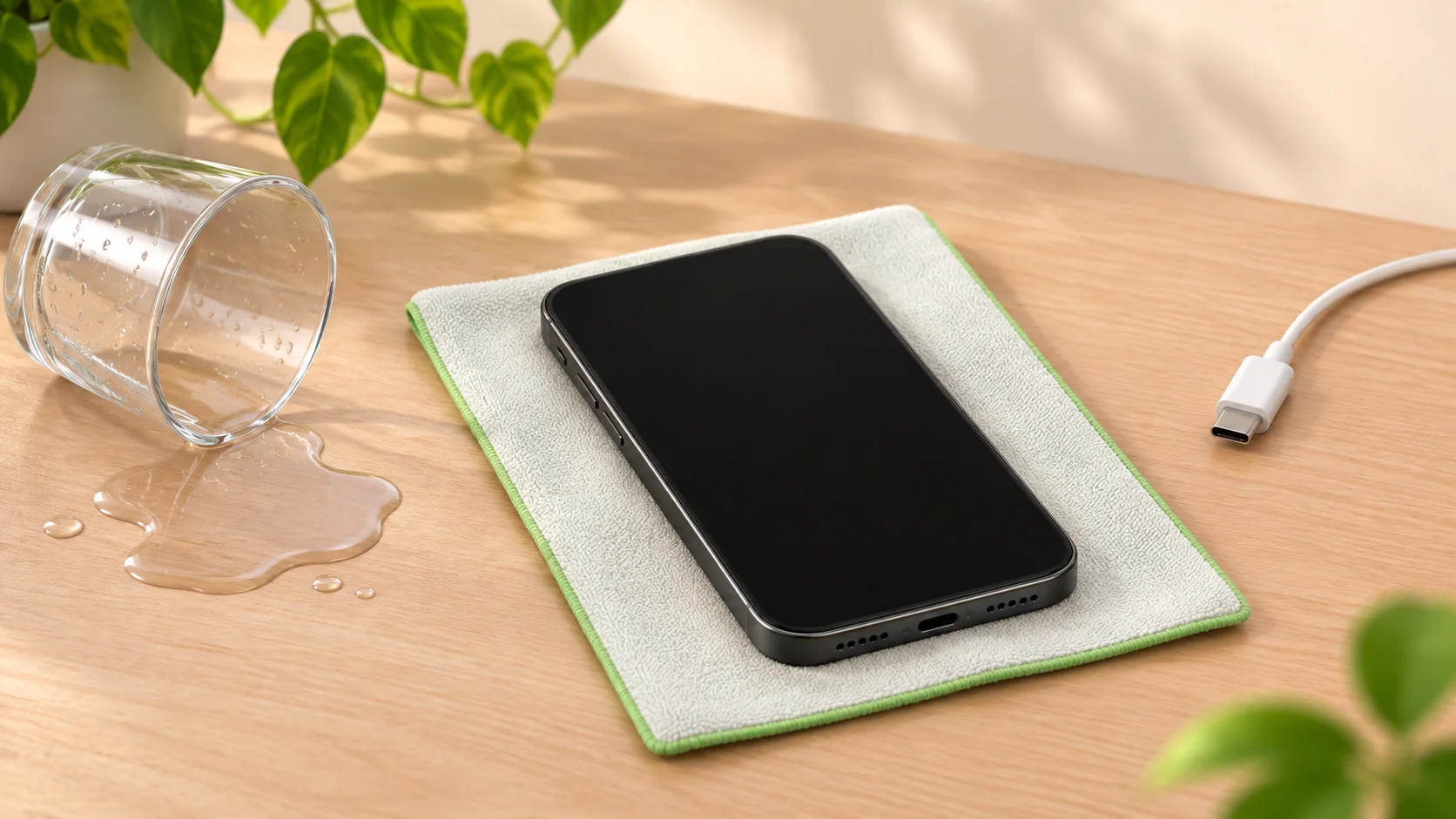
If you drop your phone in water, remove it only when safe, switch it off if you can do so safely and stop charging it. Gently dry the outside and follow the guidance for your exact model. Do not keep turning it on to see whether it has recovered. Google's Pixel guidance starts with switching off, wiping with a soft cloth and drying at room temperature. [1]
If there has been substantial immersion, a spill involving another liquid or unusual behaviour afterwards, arrange a repair assessment. You can find an independent phone repair shop through WeSolveAll using another device and contact it directly for advice.
Make the area safe before handling anything
If the phone is connected to a charger, deal with the electricity risk first. Do not reach into water around equipment connected to mains power or handle a wet plug or socket. Disconnect power only when it is safe. Samsung advises against handling a charging device, charger or cable with wet hands. [2]
If the device or cable is very hot, avoid touching it. Google's USB warning guidance says the cable may be hot and advises using another device to contact support if the phone is too hot to touch. [3]
If the case is bulging, the screen is lifting or you suspect battery damage, stop using and charging the phone. Do not open it, press the case back together or attempt battery work. Apple says to discontinue use when damage is suspected and to use a trained technician for battery repair. [4]
Switch off and dry the outside gently
If it is safe to handle, turn the phone off using its normal controls. If it is already off, leave it off. If you cannot switch it off because the display is unresponsive, explain that to the repairer rather than repeatedly pressing buttons or opening the case.
Wipe the outside gently with a soft cloth, then leave it on a flat surface at room temperature. These are Google's first steps for a wet Pixel. [1] Keep the device away from a radiator, hairdryer or other heat source.
Do not open the phone to reach the battery. Do not poke inside charging or headphone sockets. Samsung's moisture guidance specifically warns against inserting objects into the charging port because they can damage it. [2]
Avoid the familiar fixes that can make matters worse
Do not put the phone in rice. Apple's liquid-alert instructions advise against rice, external heat, compressed air and inserting items such as cotton buds or paper towels into the connector. [5]
Do not plug it into a computer to check whether it works. That still creates a cable connection. Do not use wireless charging as a workaround for a phone that may be damaged internally. For suspected liquid damage, the sensible next step is an assessment before adding power.
Avoid shaking the phone vigorously. Samsung warns that excessive force can damage the device. [6] Opening the case or trying to clean internal parts is not an appropriate first-aid step for a general reader.
A moisture warning and an immersed phone are different situations
An iPhone liquid alert concerns moisture detected in the connector, cable or accessory. Apple says charging should wait until these are dry, and connector drying can take up to 24 hours. That is guidance for the alert; it is not a promise that an immersed phone will be safe or repaired after a day. [5]
On supported Samsung devices, a water-drop warning can stop charging to help protect the device. Samsung notes that high humidity may trigger the warning even without a known spill. If the warning persists, follow the instructions for the exact model or ask for help. [6]
On a Pixel, a liquid or debris warning concerns the USB port. Google advises not putting anything into the port and obtaining help if it looks burnt, melted or corroded. [3]
A phone that fell into a bath, toilet, pool or drink needs its exposure explained to the repairer. Do not treat a disappearing warning as proof that every internal component is unaffected.
There is no universal drying time
A dry-looking case does not establish that the inside is dry. Samsung's guidance for waterlogged devices warns that moisture can remain after drying and recommends assessment before powering the device back on. [7]
This is why a fixed wait of a few hours or a bag of drying material cannot guarantee recovery. Use the manufacturer's guidance for a minor splash or connector warning, and seek an assessment for immersion, suspected internal damage or continuing faults.
Tell the shop what liquid was involved. Fresh water, seawater, pool water and drinks are different exposures; Samsung highlights that salt and other impurities can accelerate corrosion. [7] Do not apply rinsing advice from a different phone model to yours. Ask the manufacturer or repairer what is appropriate for the device's condition.
Water resistance does not remove the risk
A water-resistance rating describes specified test conditions. It does not mean you should deliberately submerge the device or ignore a spill. Apple says resistance is not permanent and may reduce with normal wear; its guidance also advises avoiding swimming, bathing and high-pressure water exposure with an iPhone. [8]
Check your exact model's guidance. A previous impact, visible crack or uncertain repair history is another reason to tell the repairer the full story instead of relying on a rating alone.
Explain your data priorities before work starts
If photographs or messages matter more to you than returning the phone to everyday use, say so immediately. Ask the shop to explain the proposed work, the risk to stored information and whether it offers the kind of assessment you need. Do not assume that every repair shop provides specialist data recovery.
From another trusted device, check which files are already available in your existing cloud account or backup. Avoid turning on a wet phone simply to create a new backup. Do not authorise a reset until you understand its effect on the information you want to preserve.
Give the repair shop useful details
Prepare a short account of what happened:
- The phone's make and model.
- The liquid involved and approximately how long it was exposed.
- Whether it was charging at the time.
- Whether it has been switched on or charged since.
- Any heat, warning, display, sound or charging problem.
- Whether a backup exists and which files matter most.
Ask about the assessment charge, what happens if repair is not worthwhile, and how further work would be agreed. Keep the expected cost and likely outcome open until the device has been assessed.
Frequently asked questions
It still works after the spill. Can I keep using it?
Do not assume working means undamaged. After immersion or suspected internal moisture, switch it off if safe and arrange an assessment. [7]
Will rice repair a wet phone?
Apple advises against it. Rice particles can cause damage, and putting a phone in a container does not establish whether it needs repair. [5]
Can a repair shop guarantee it will work again?
Ask for an assessment and an explanation of what can reasonably be established. Avoid relying on a guaranteed outcome before the phone has been inspected.
Does a water-drop warning always mean the phone was submerged?
No. Samsung says high humidity can also trigger a moisture warning. Report the actual history and follow the device-specific guidance. [6]
Find help with a water damaged phone
Use www.wesolveall.com to find an independent repair shop, then contact it directly. Say that the phone has had liquid exposure and ask whether it can assess the device. Bring your notes about the incident and agree the next step before authorising repairs.
Sources and further reading
- Google Pixel Help — Prevent water damage and respond to a wet phonehttps://support.google.com/pixelphone/answer/7533279?hl=en-GB
- Samsung UK — Moisture in a water-resistant phone or tablethttps://www.samsung.com/uk/support/mobile-devices/what-to-do-if-your-water-resistant-phone-or-tablet-detects-moisture-in-the-charging-port/
- Google Pixel Help — USB liquid and temperature warningshttps://support.google.com/pixelphone/answer/9280079?hl=en-GB
- Apple Support — Important safety information for iPhonehttps://support.apple.com/en-gb/guide/iphone/iph301fc905/ios
- Apple Support — Liquid detection alerts on iPhonehttps://support.apple.com/en-gb/102643
- Samsung UK — Water-drop icon and moisture detectionhttps://www.samsung.com/uk/support/mobile-devices/my-device-displays-a-water-drop-icon-and-will-not-charge/
- Samsung UK — A device dropped in waterhttps://www.samsung.com/uk/support/mobile-devices/i-dropped-my-device-in-water/
- Apple Support — Splash water and dust resistancehttps://support.apple.com/en-gb/108039