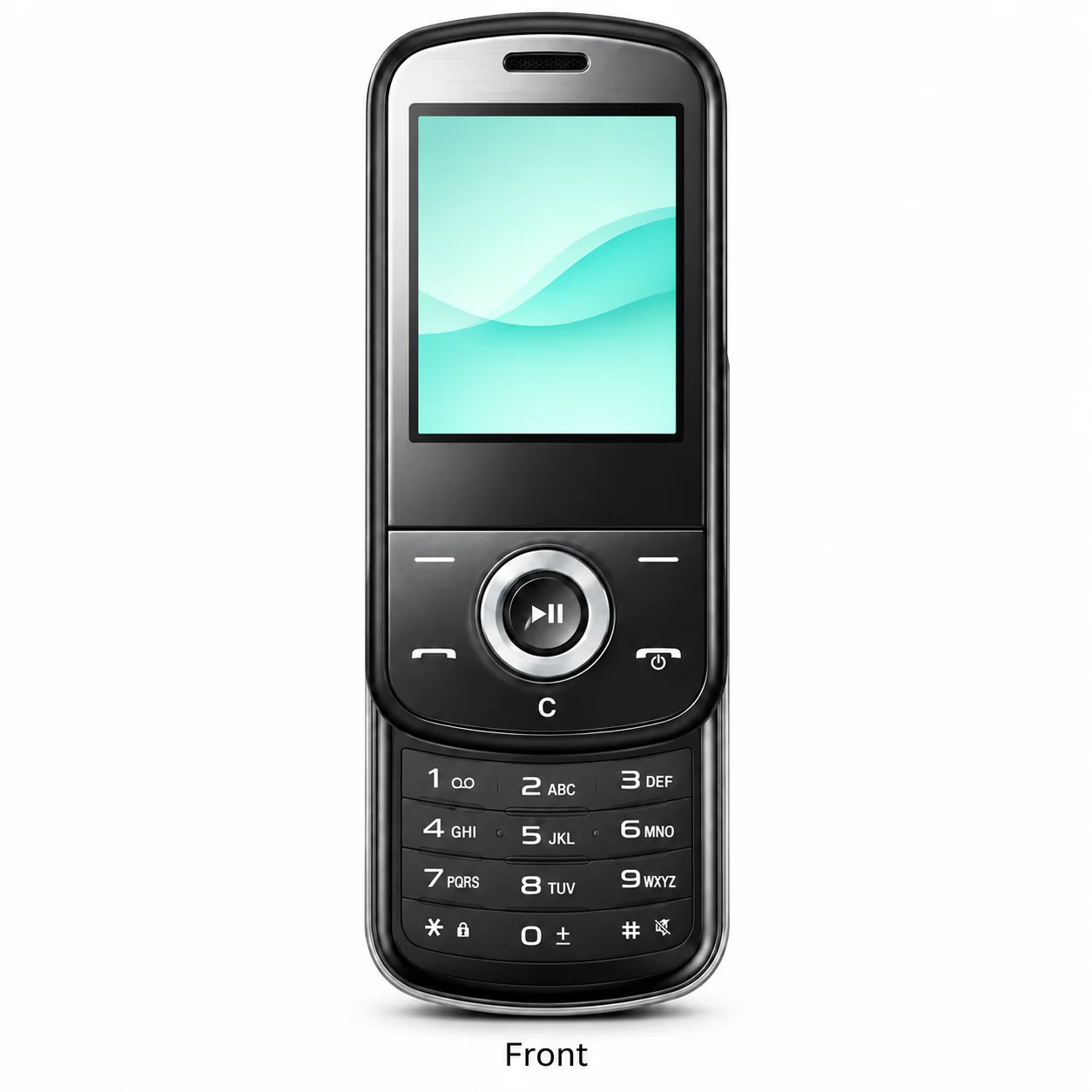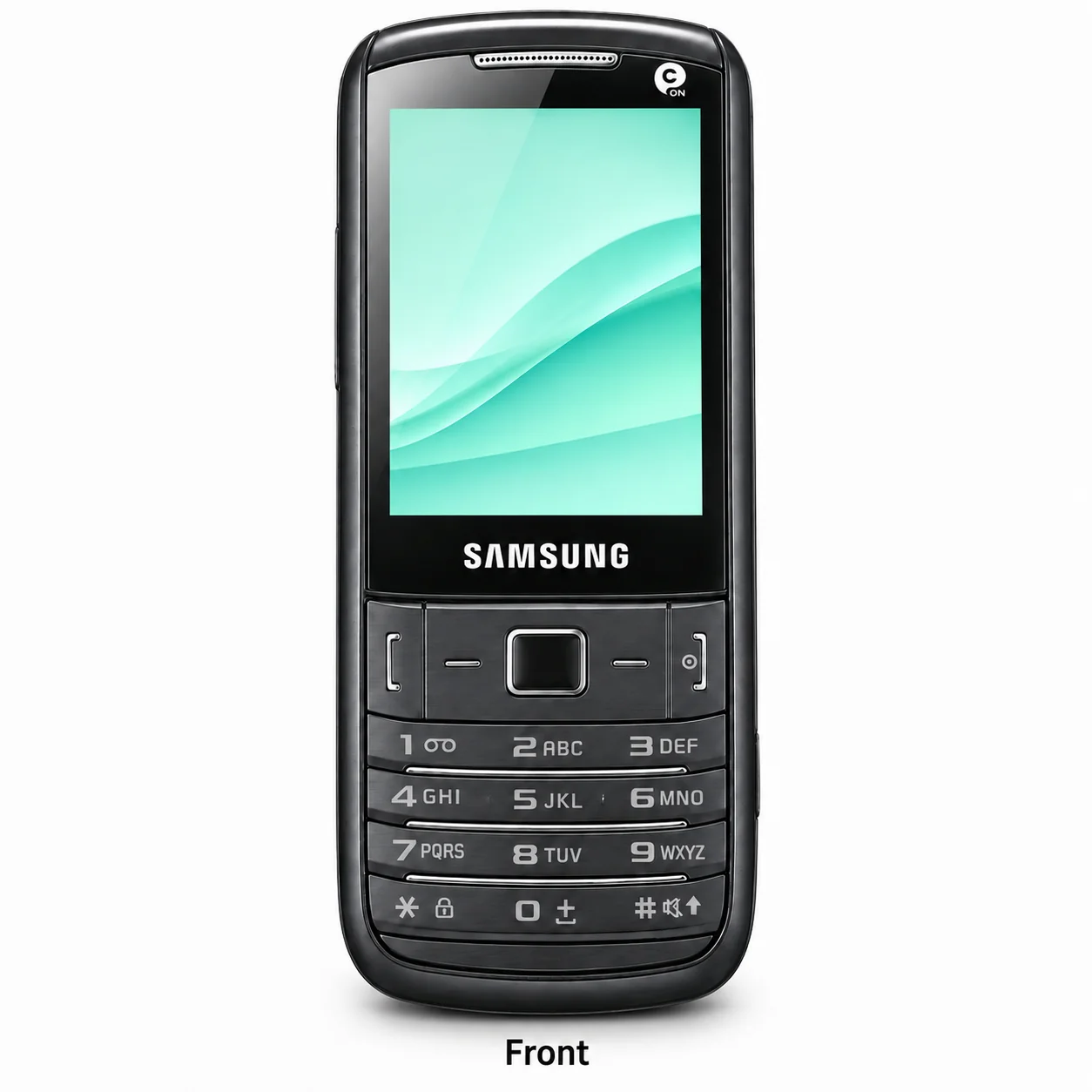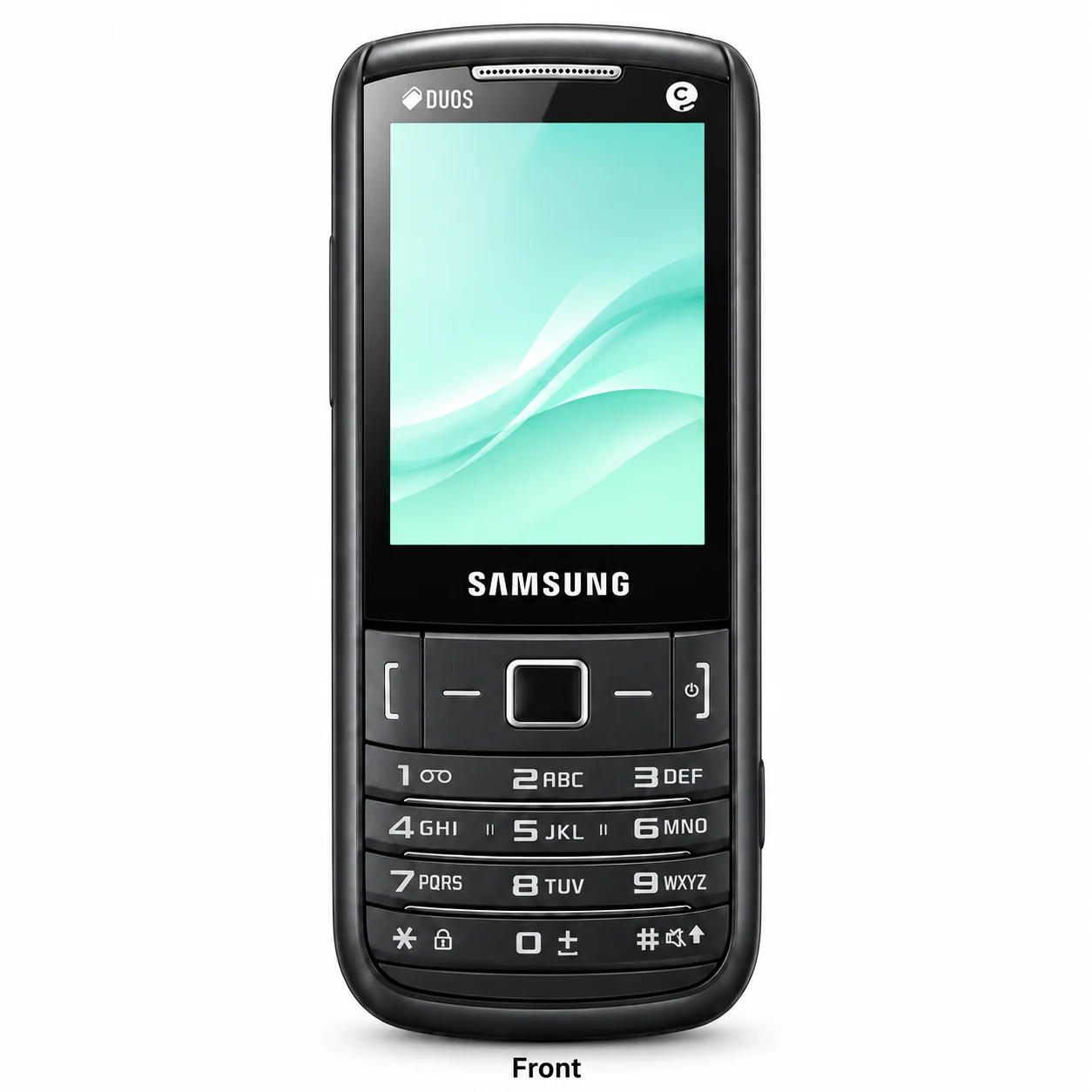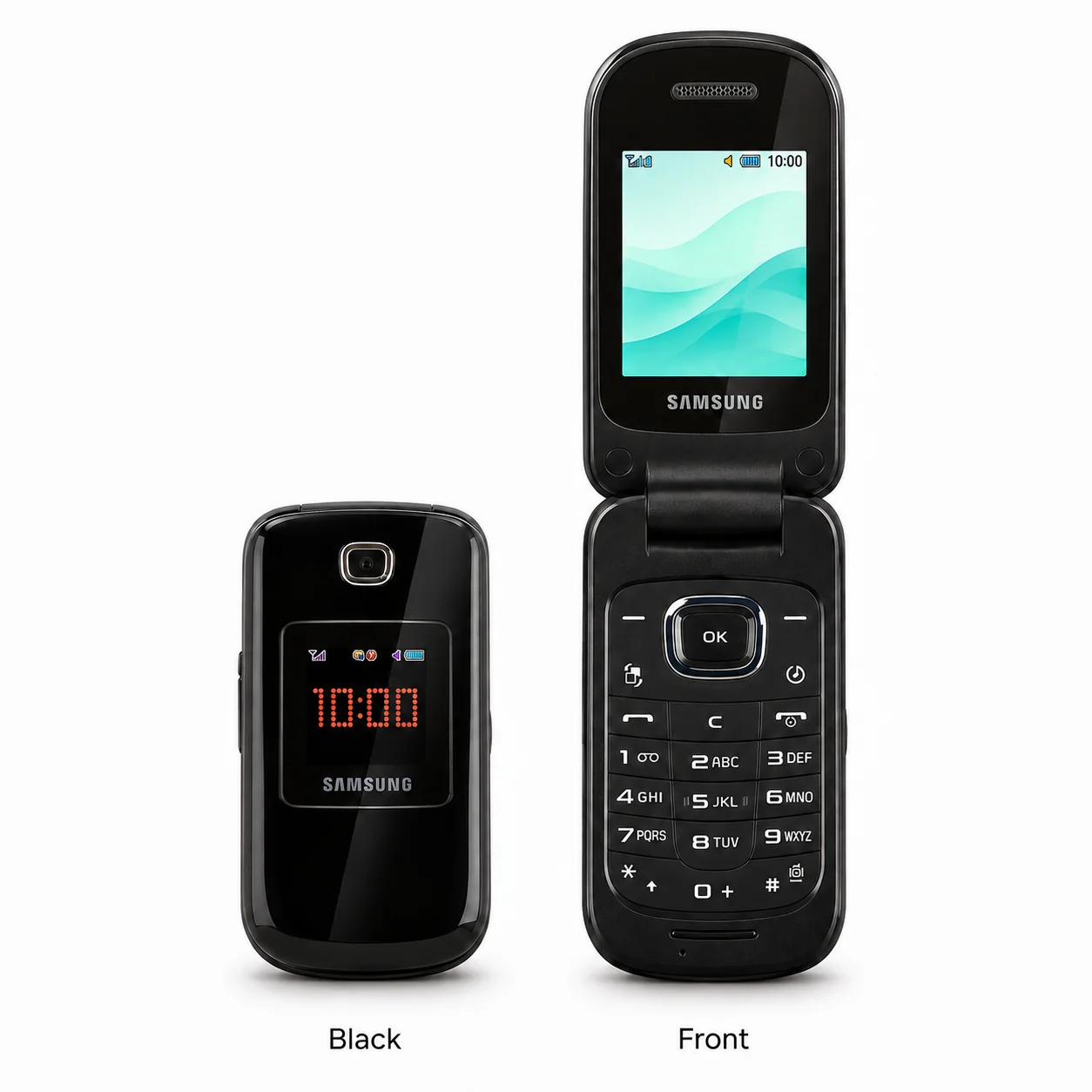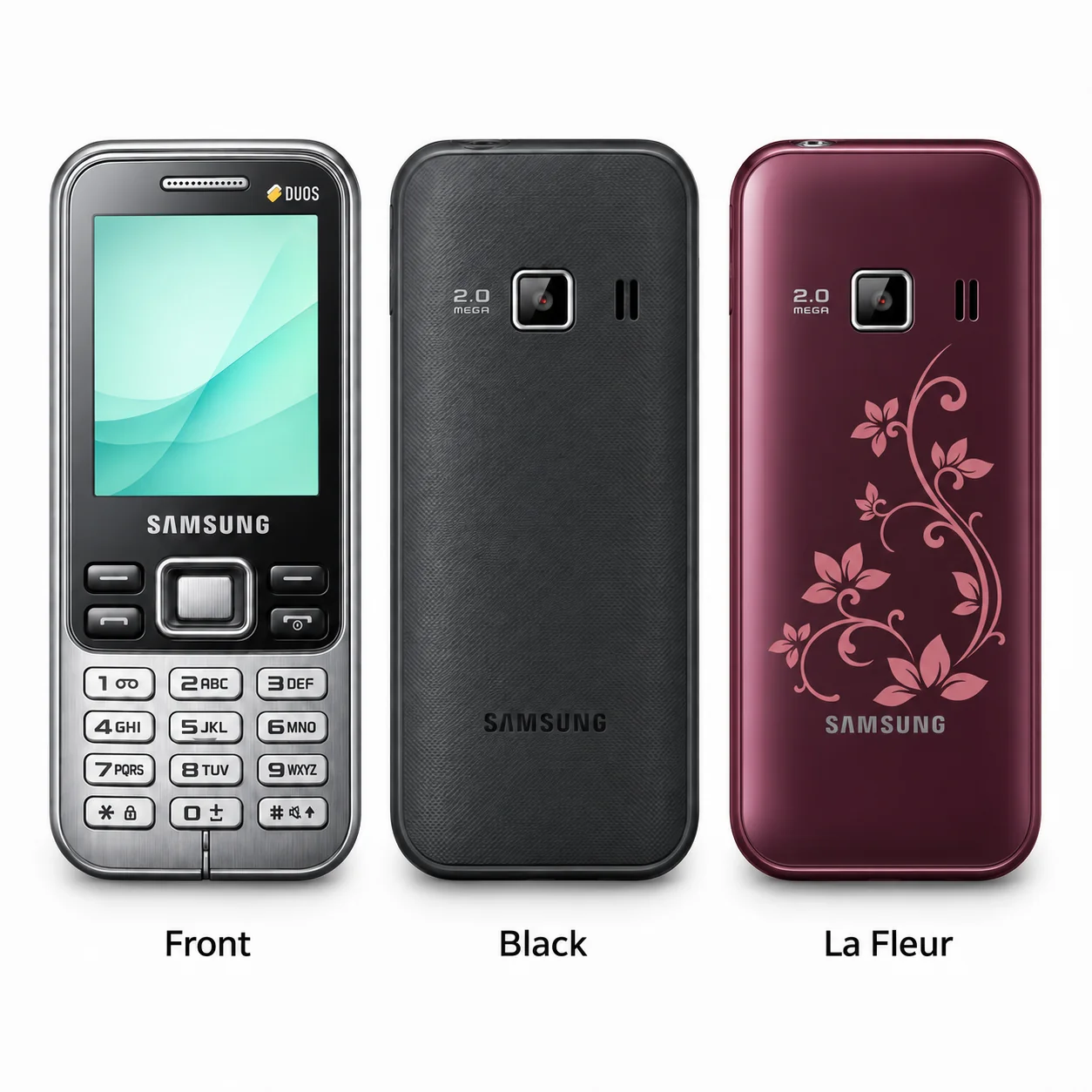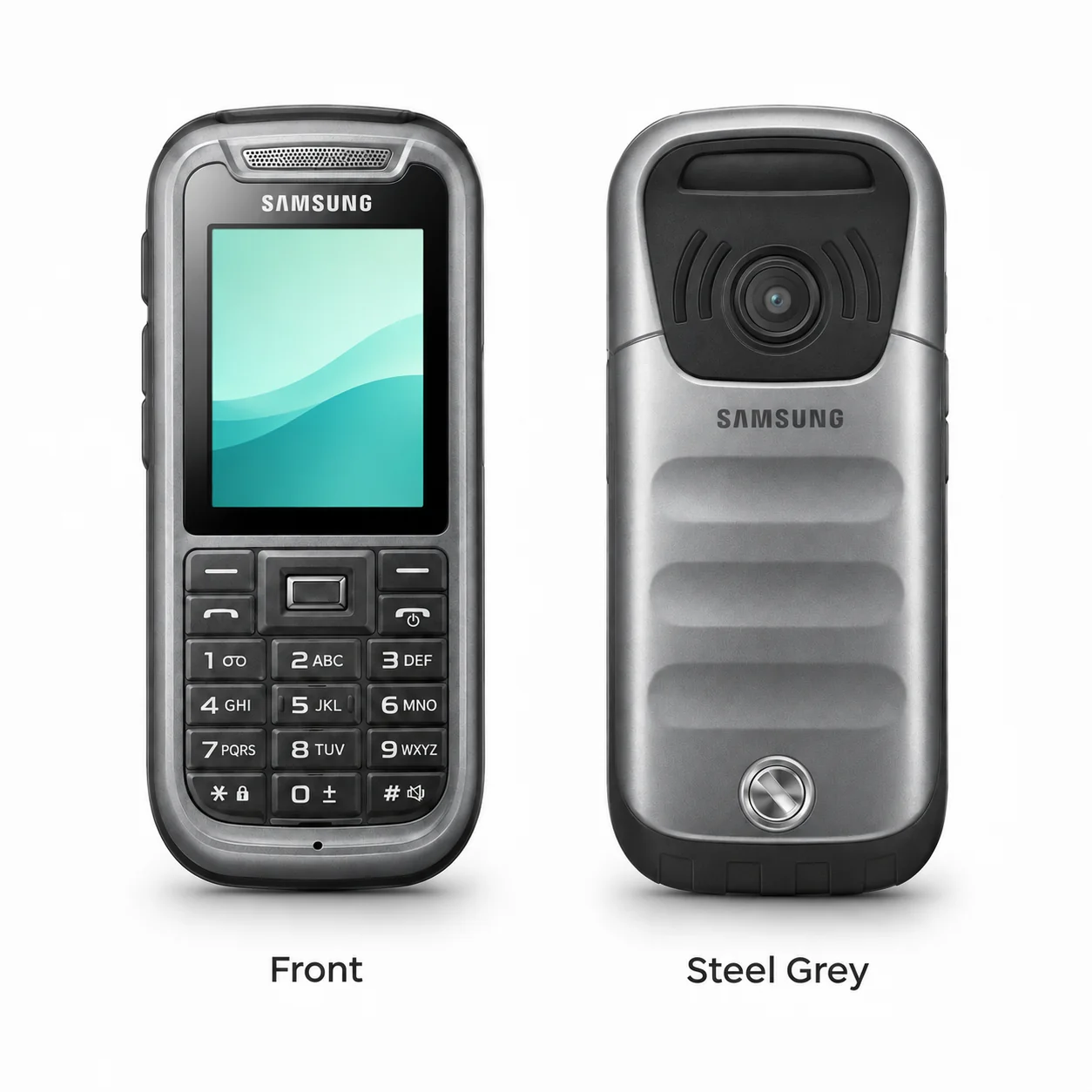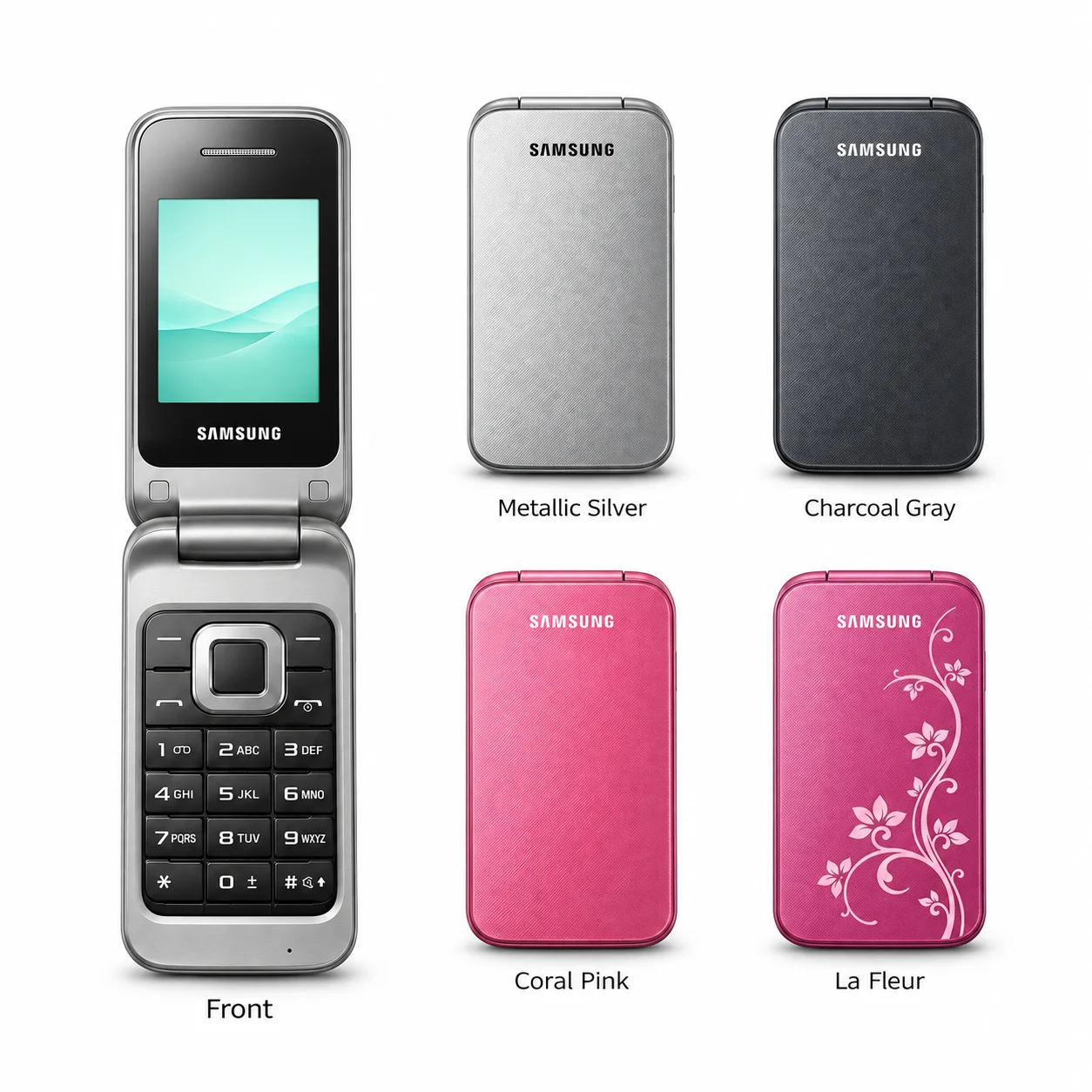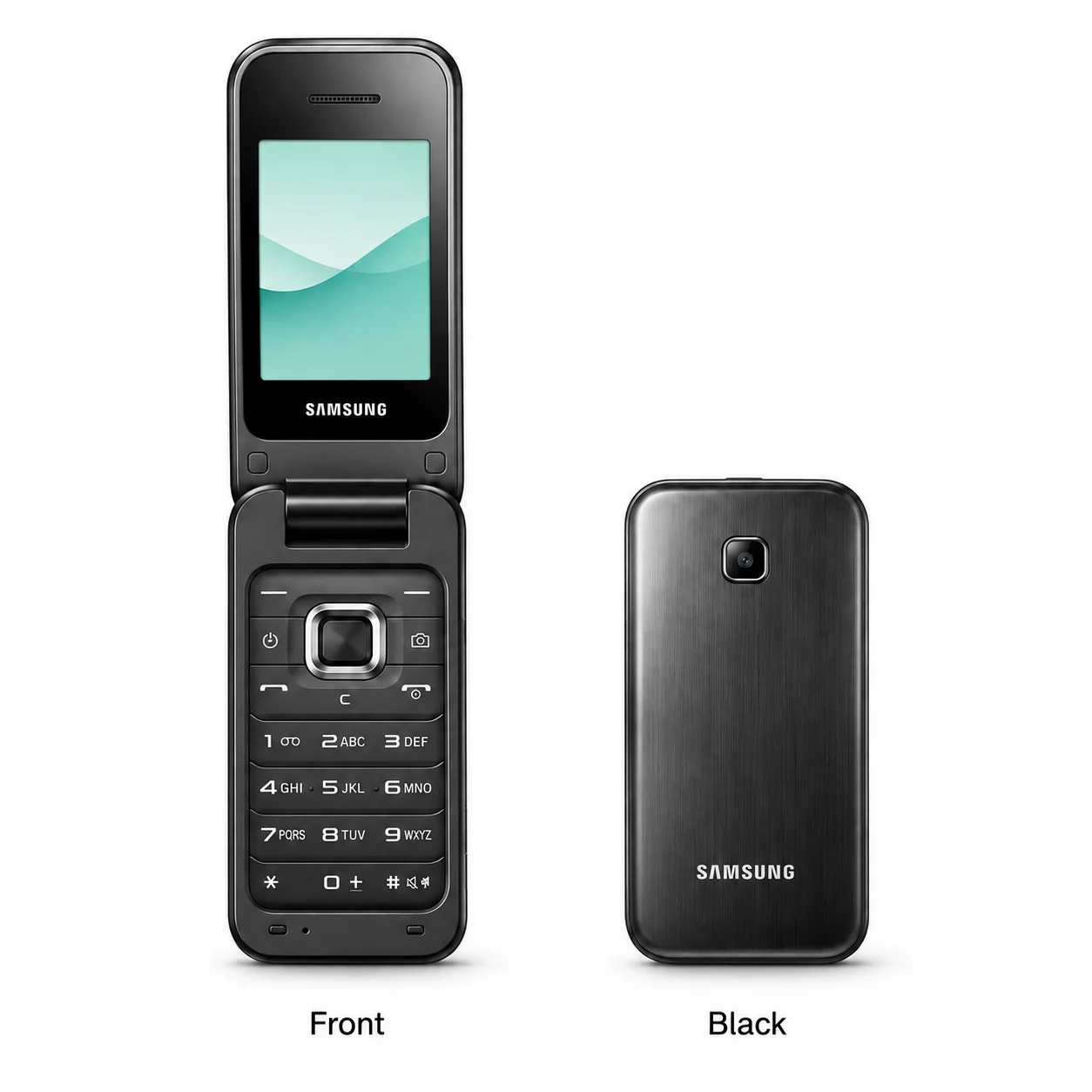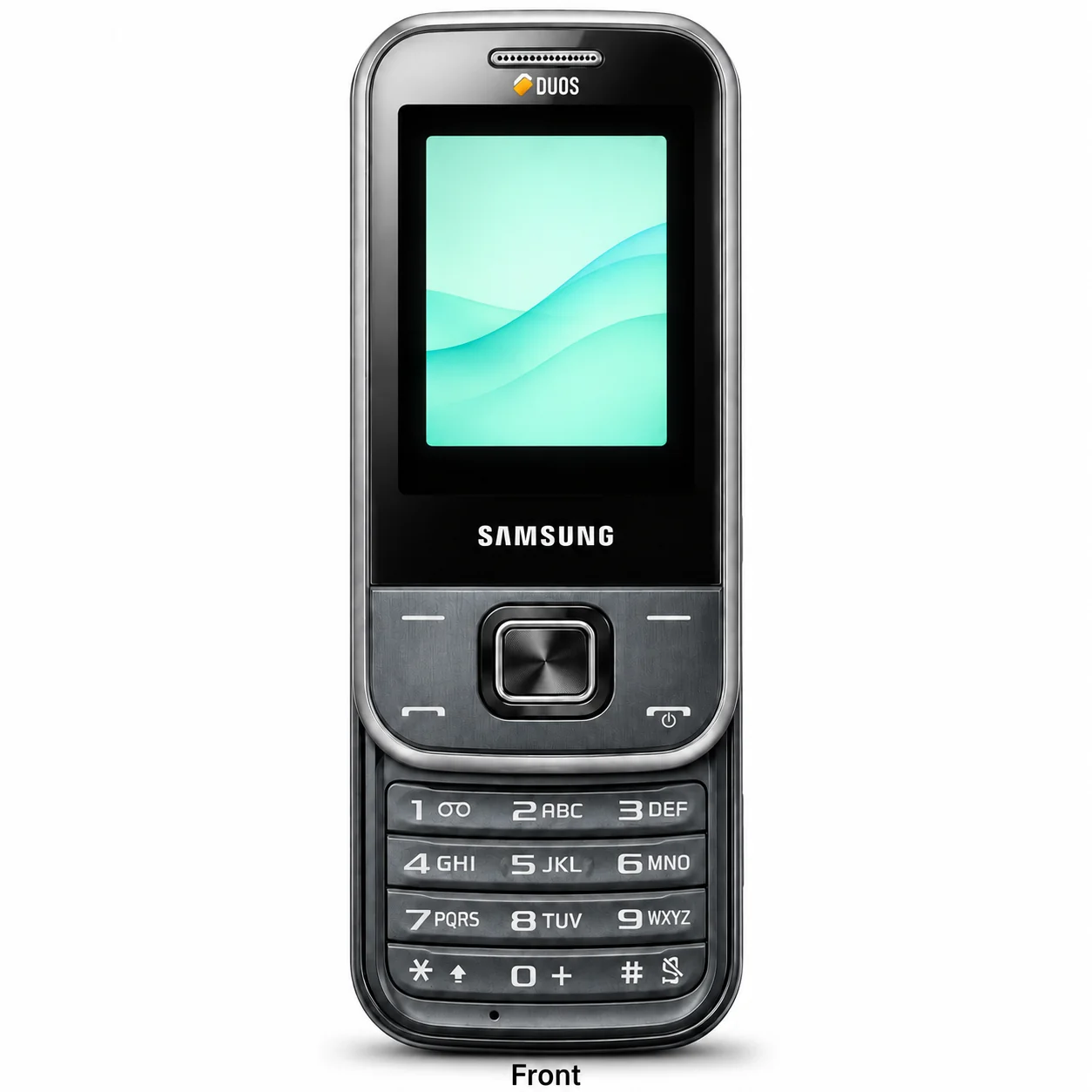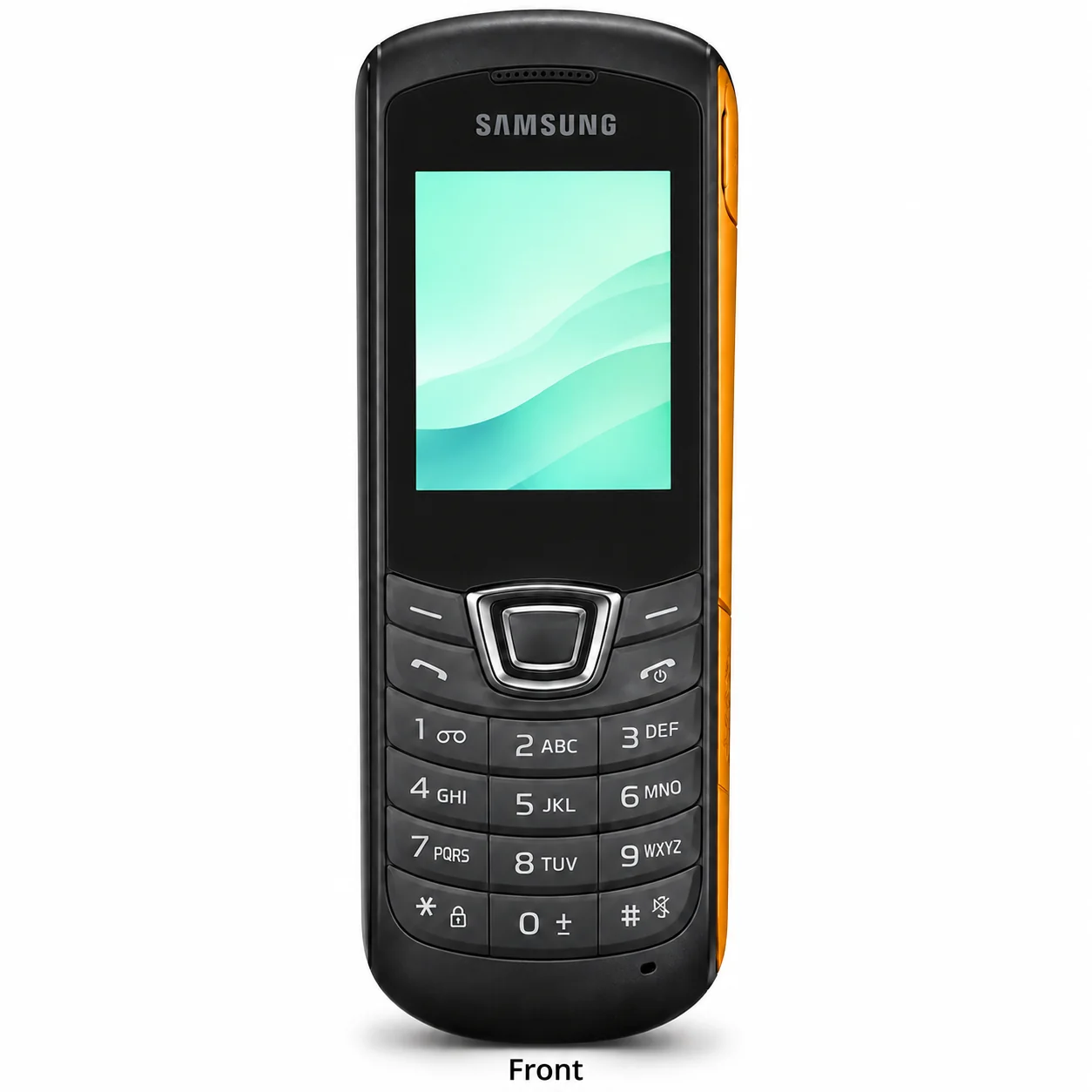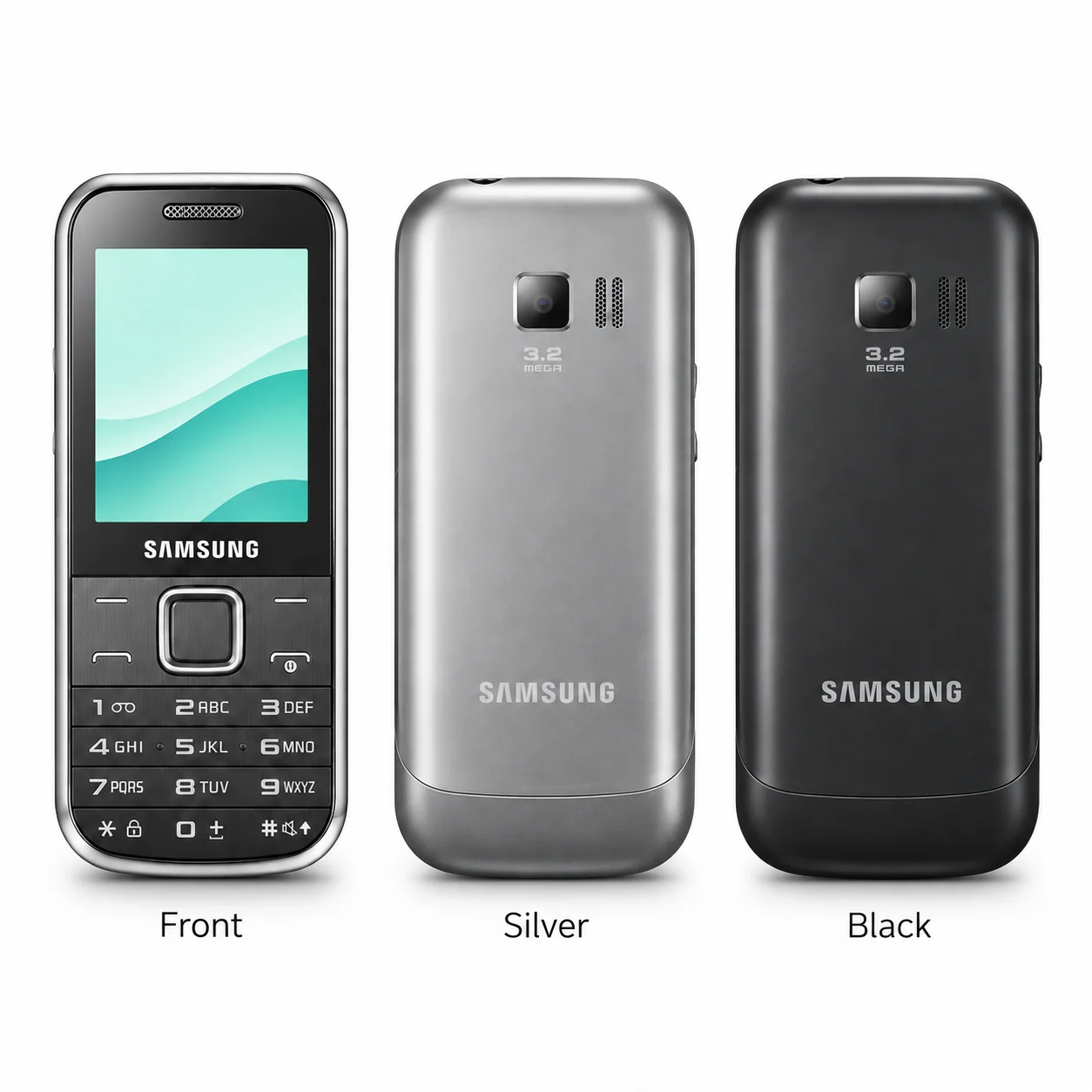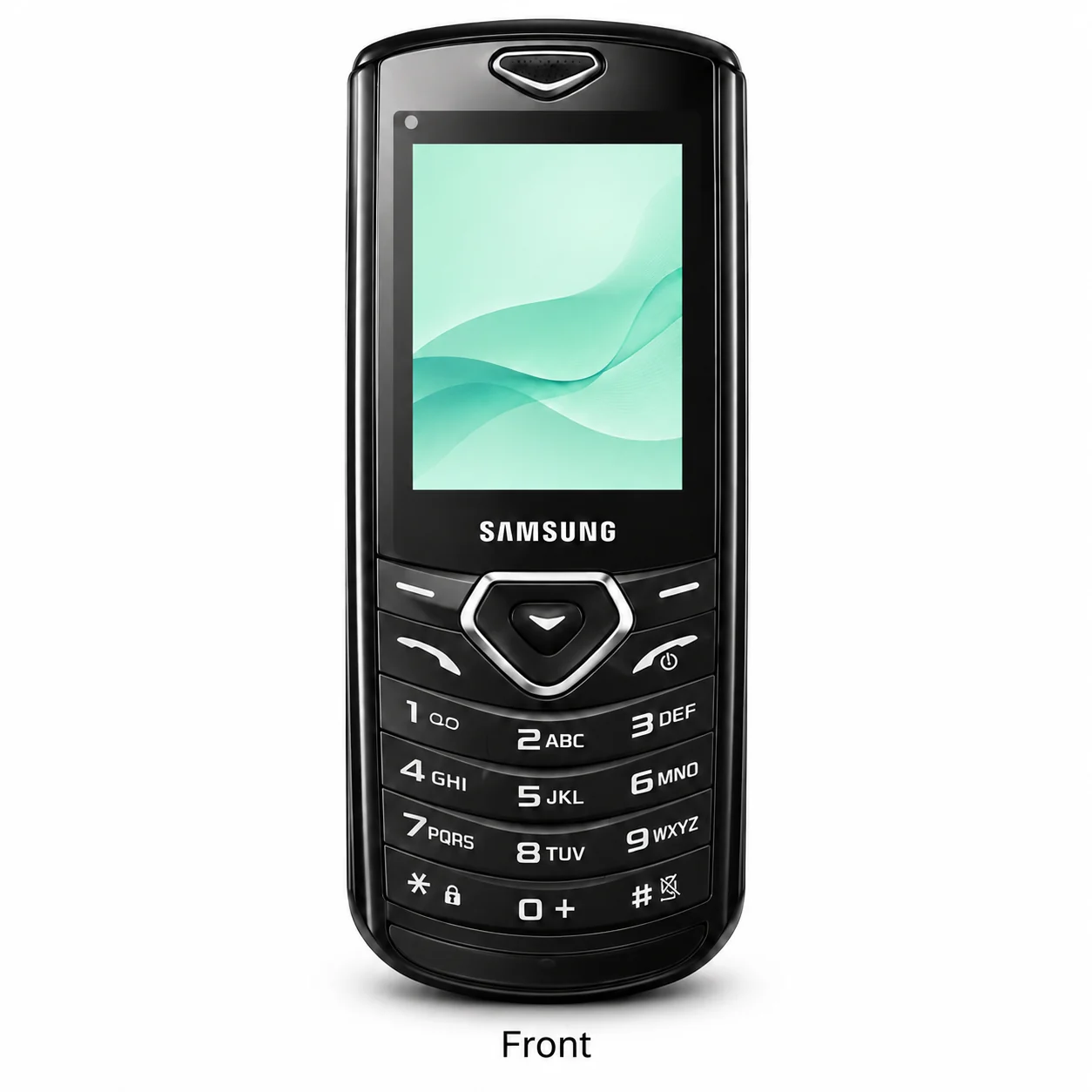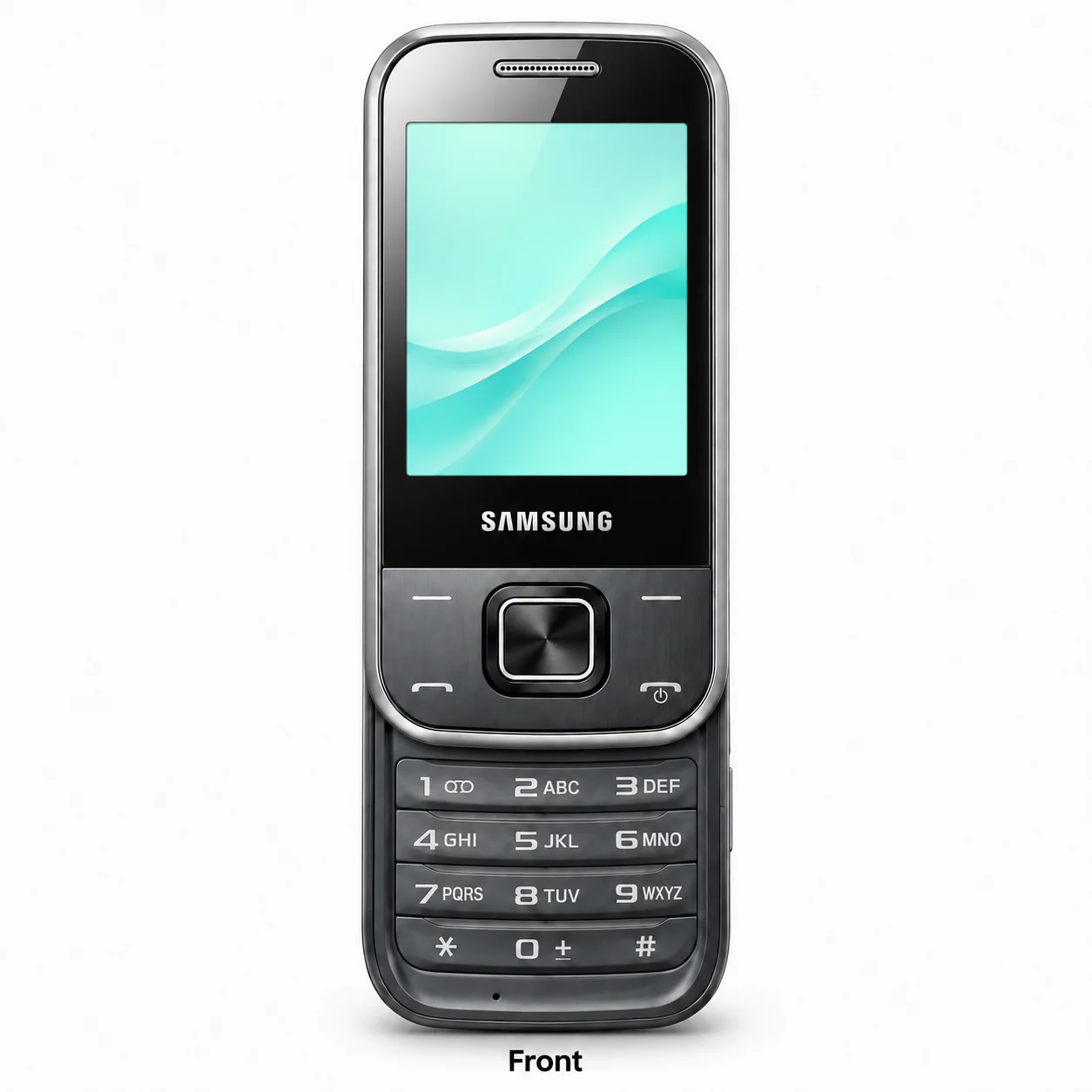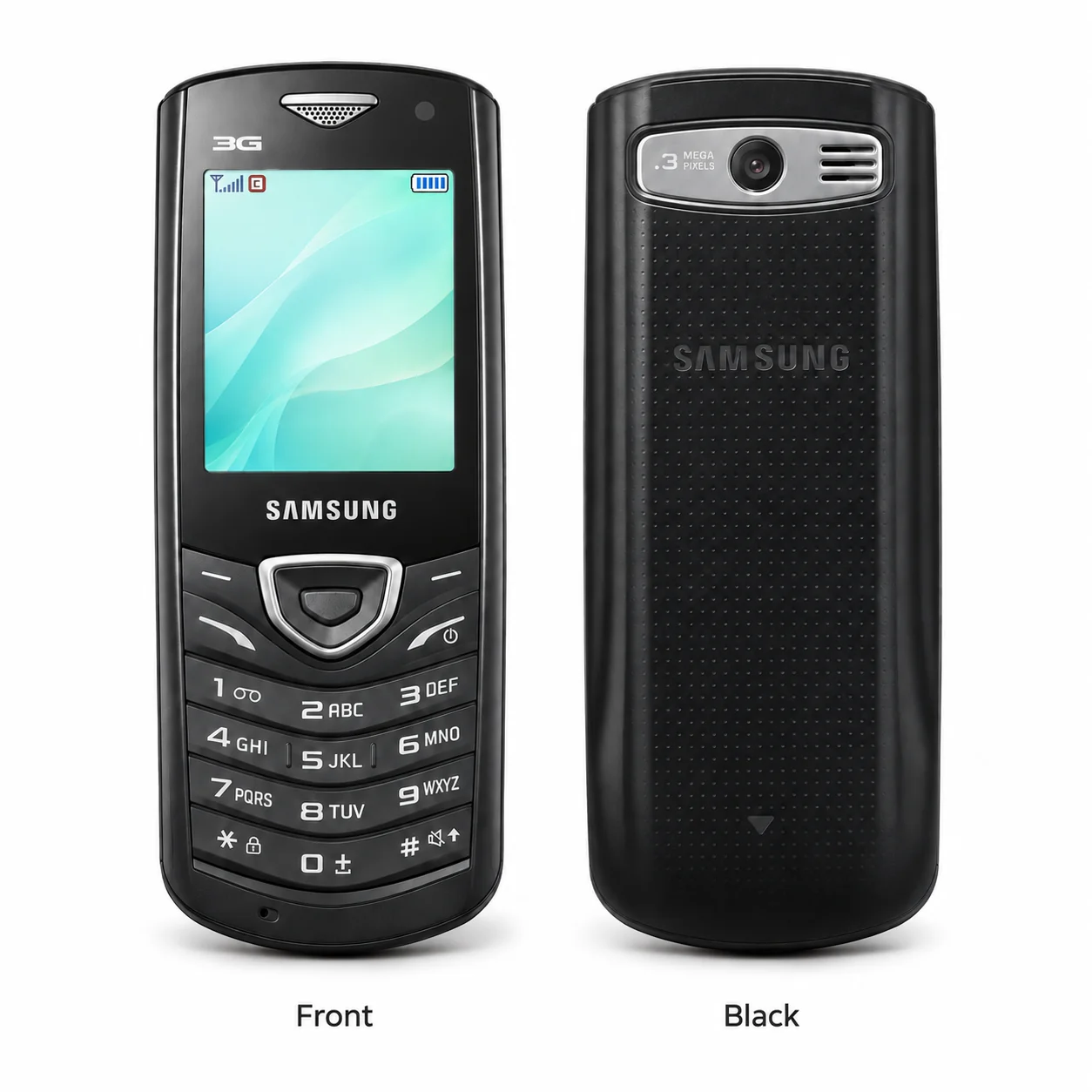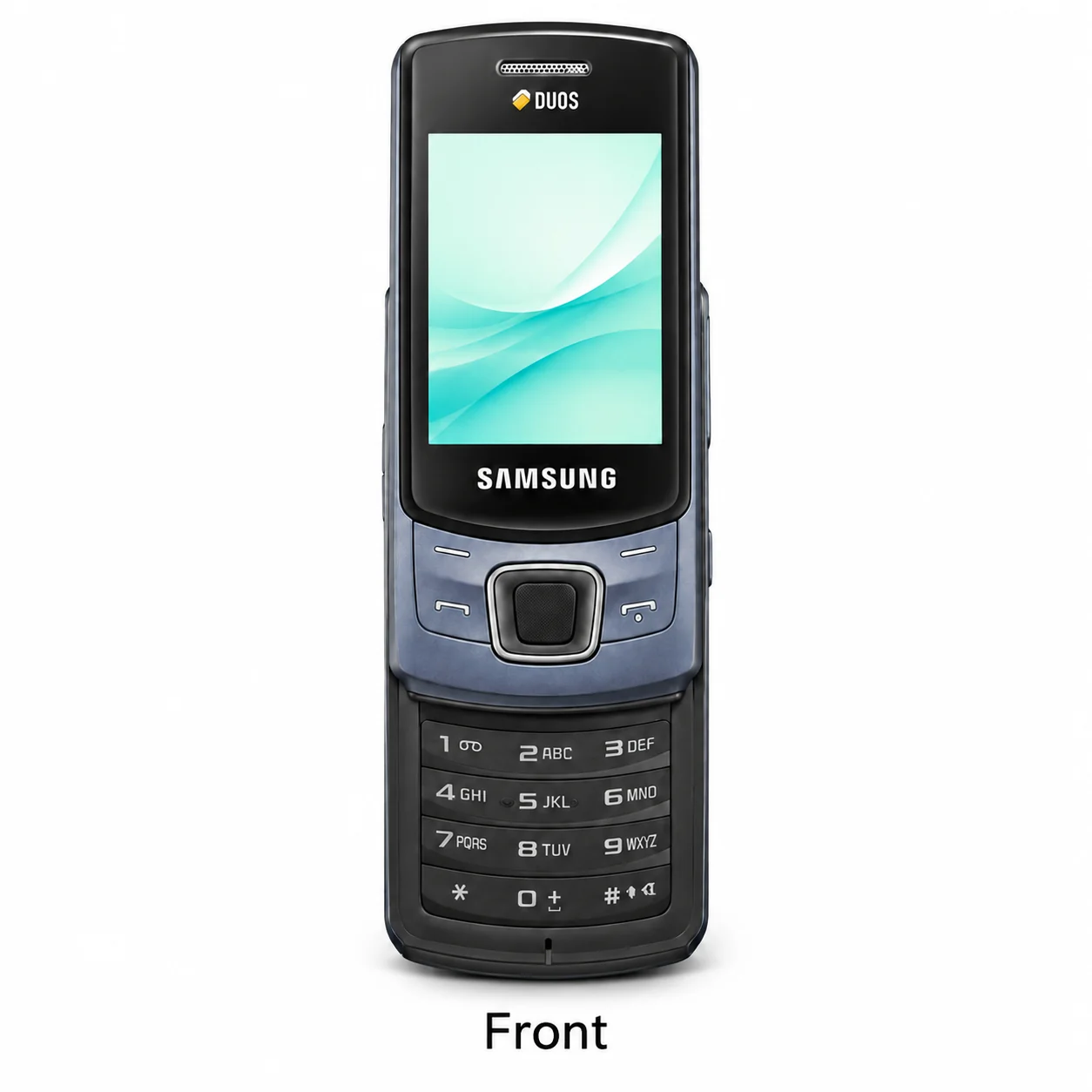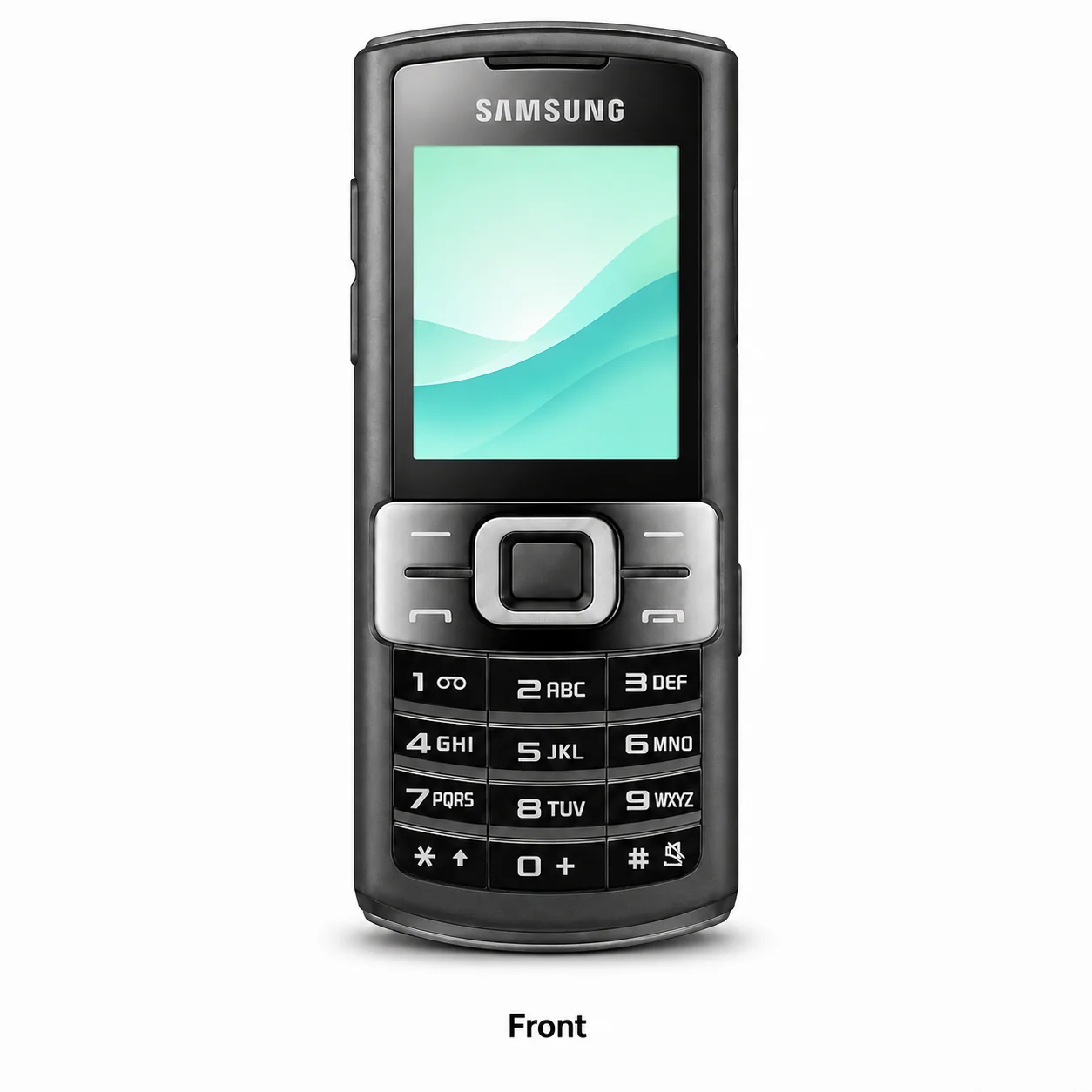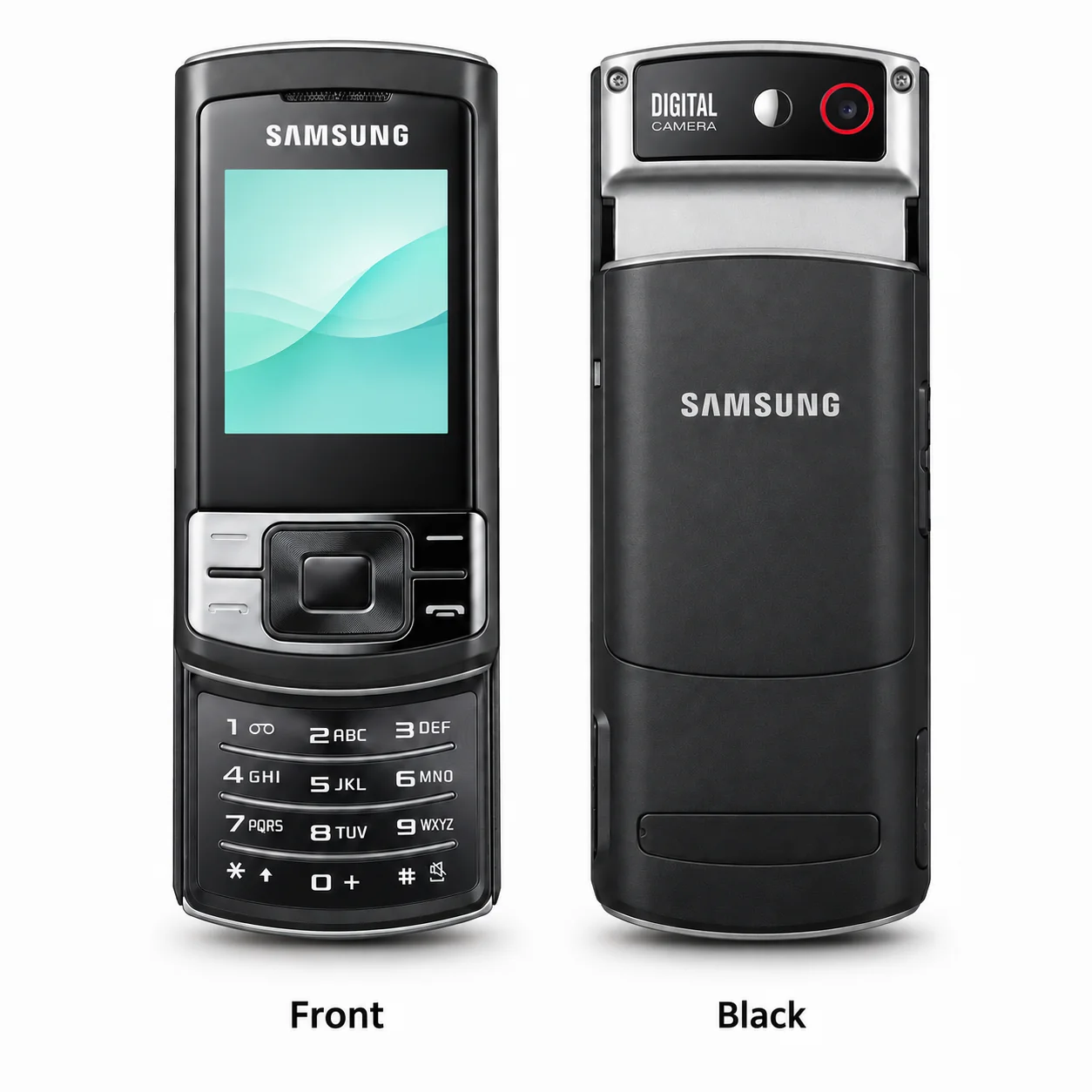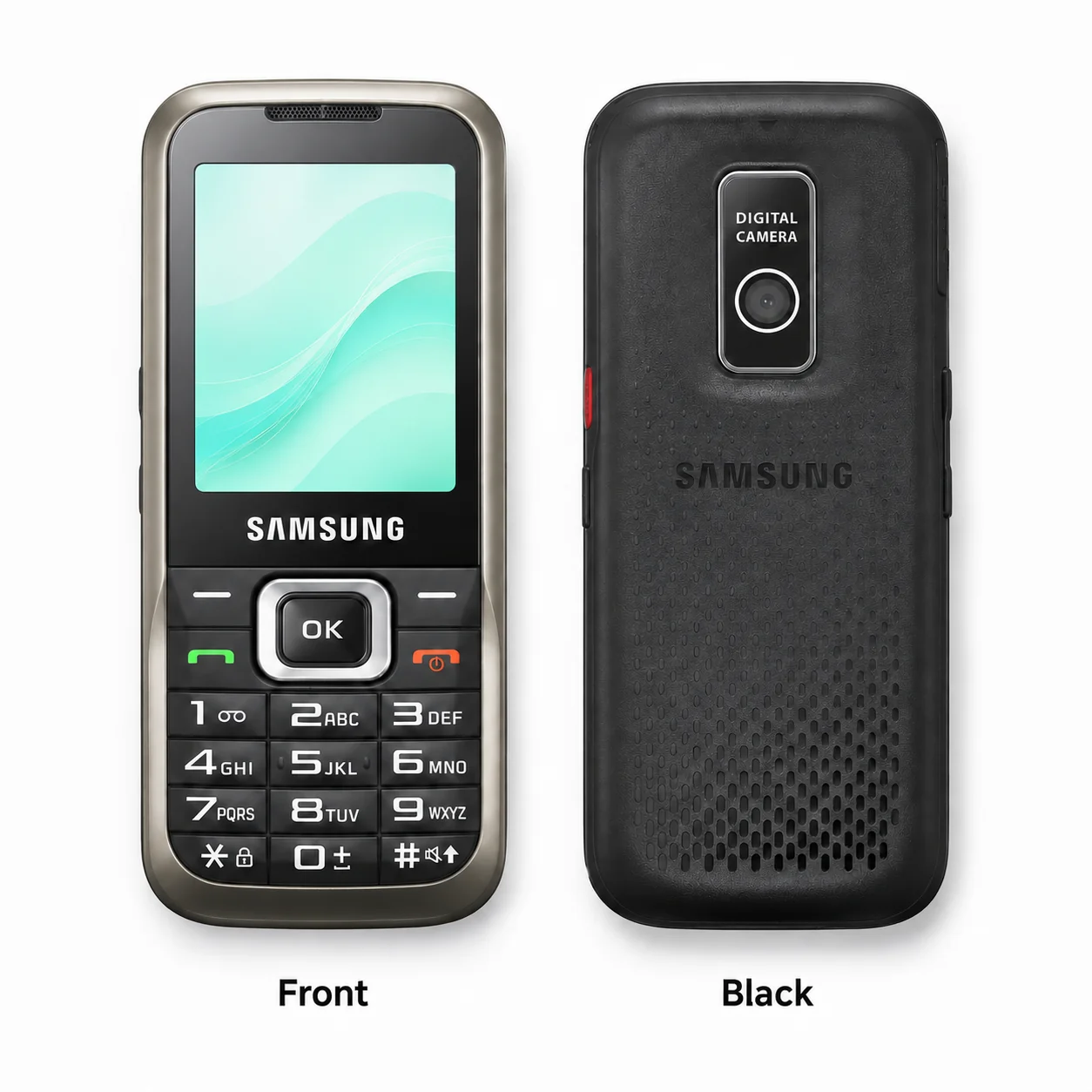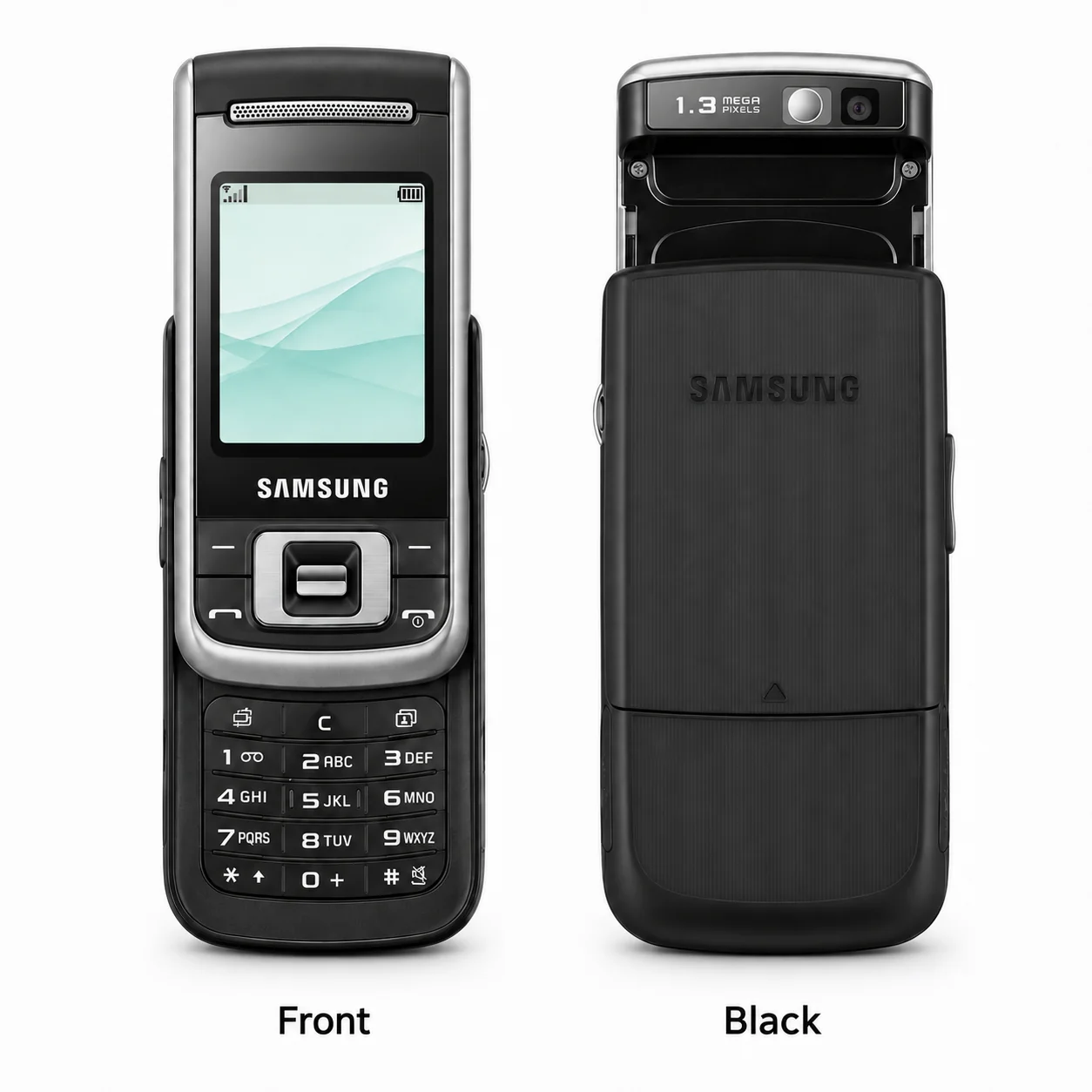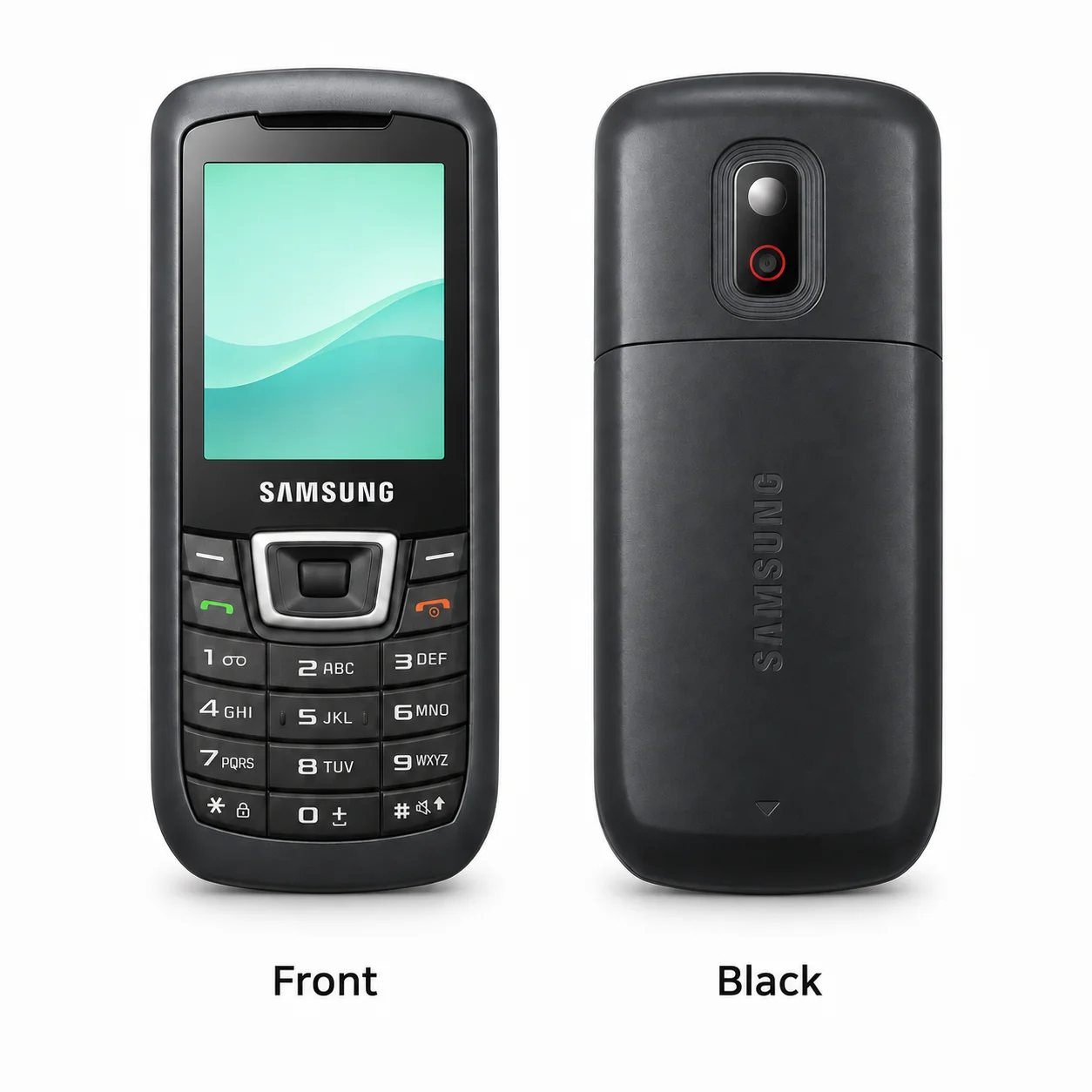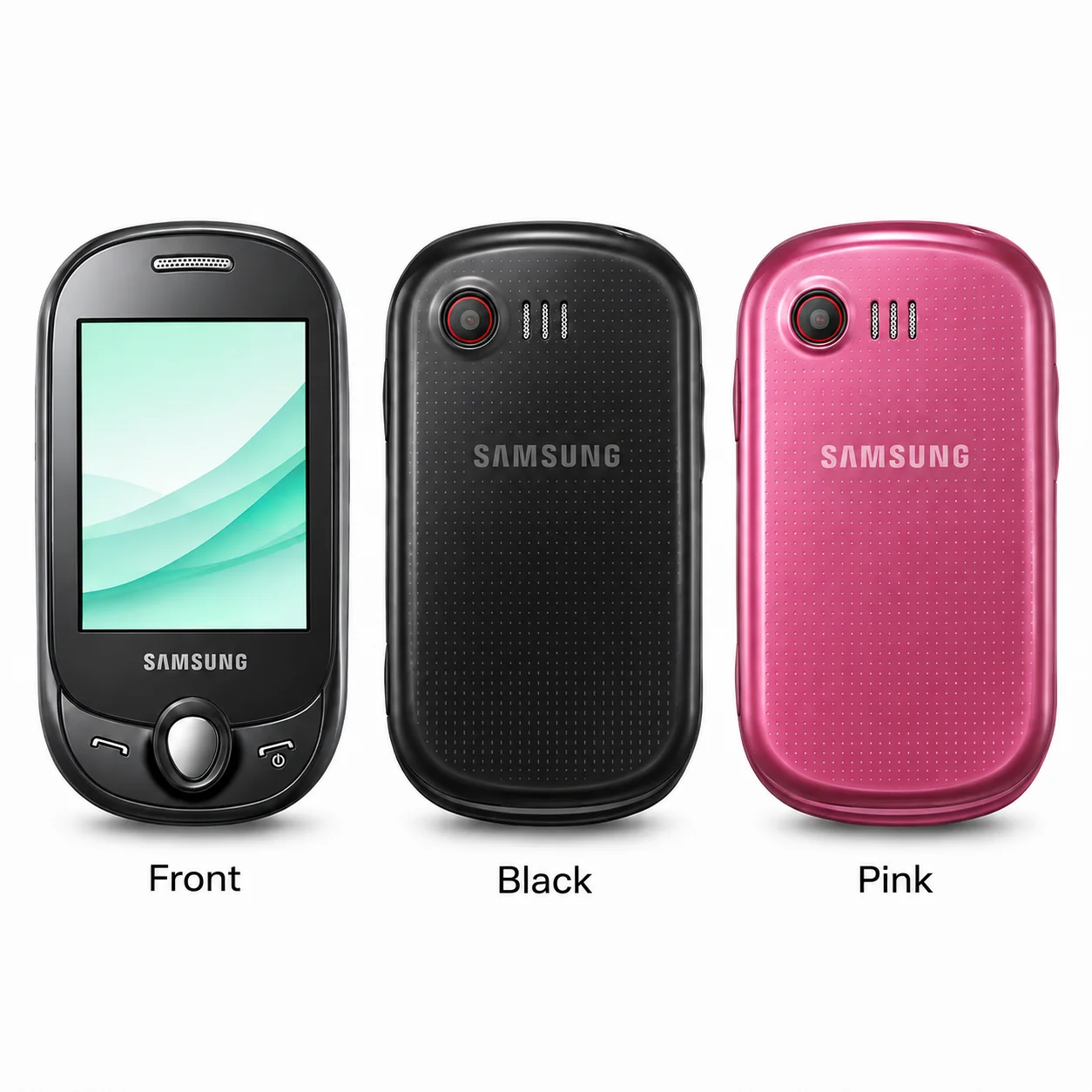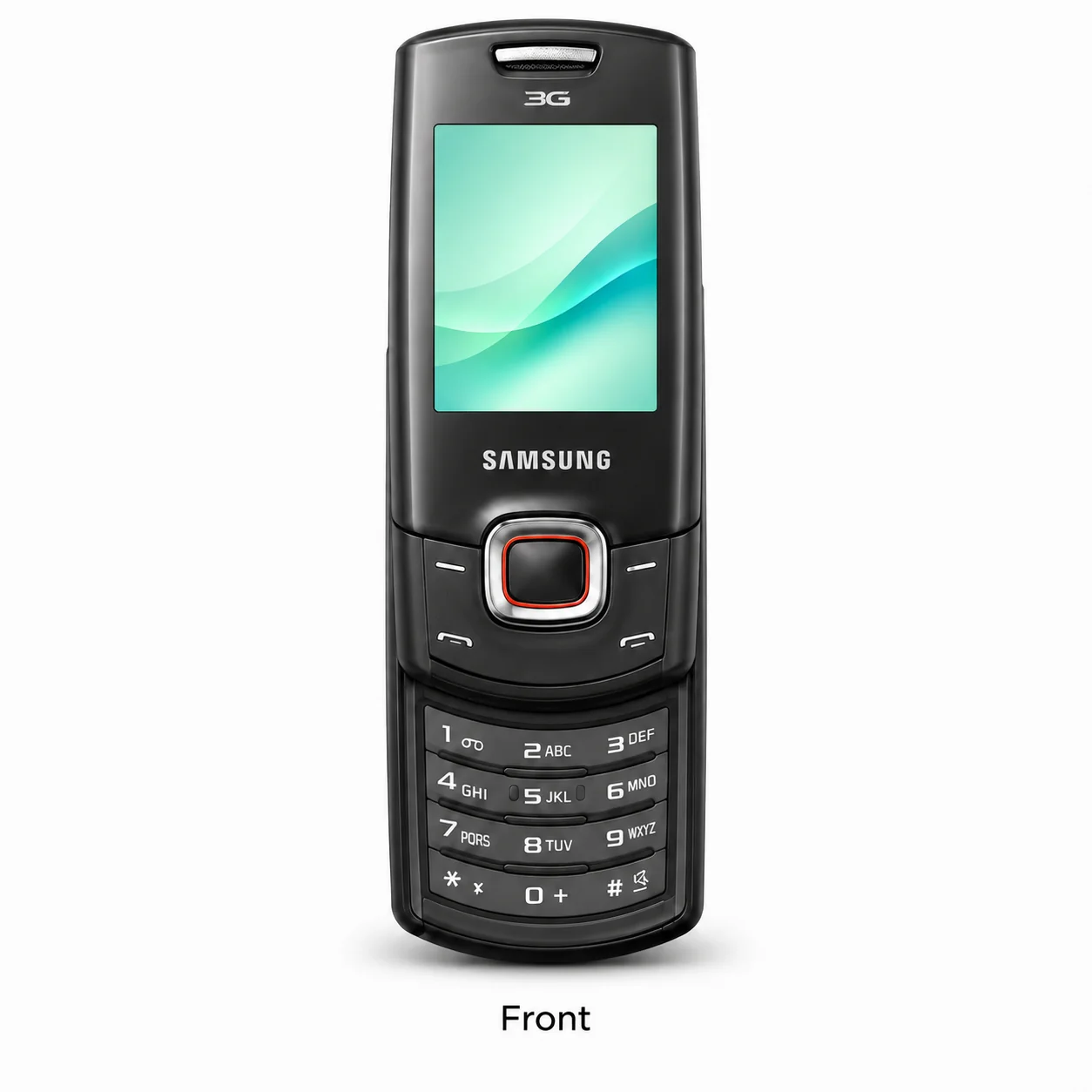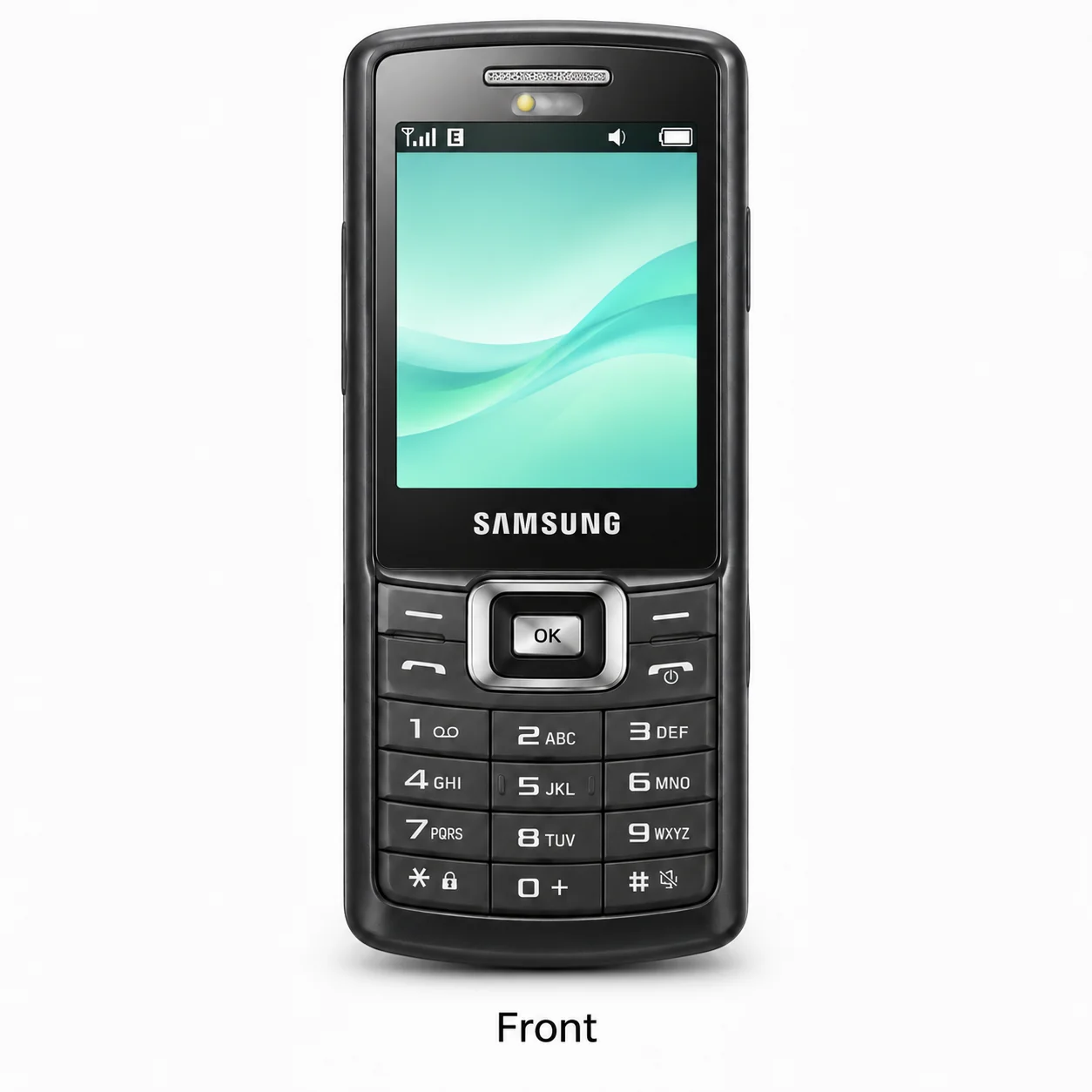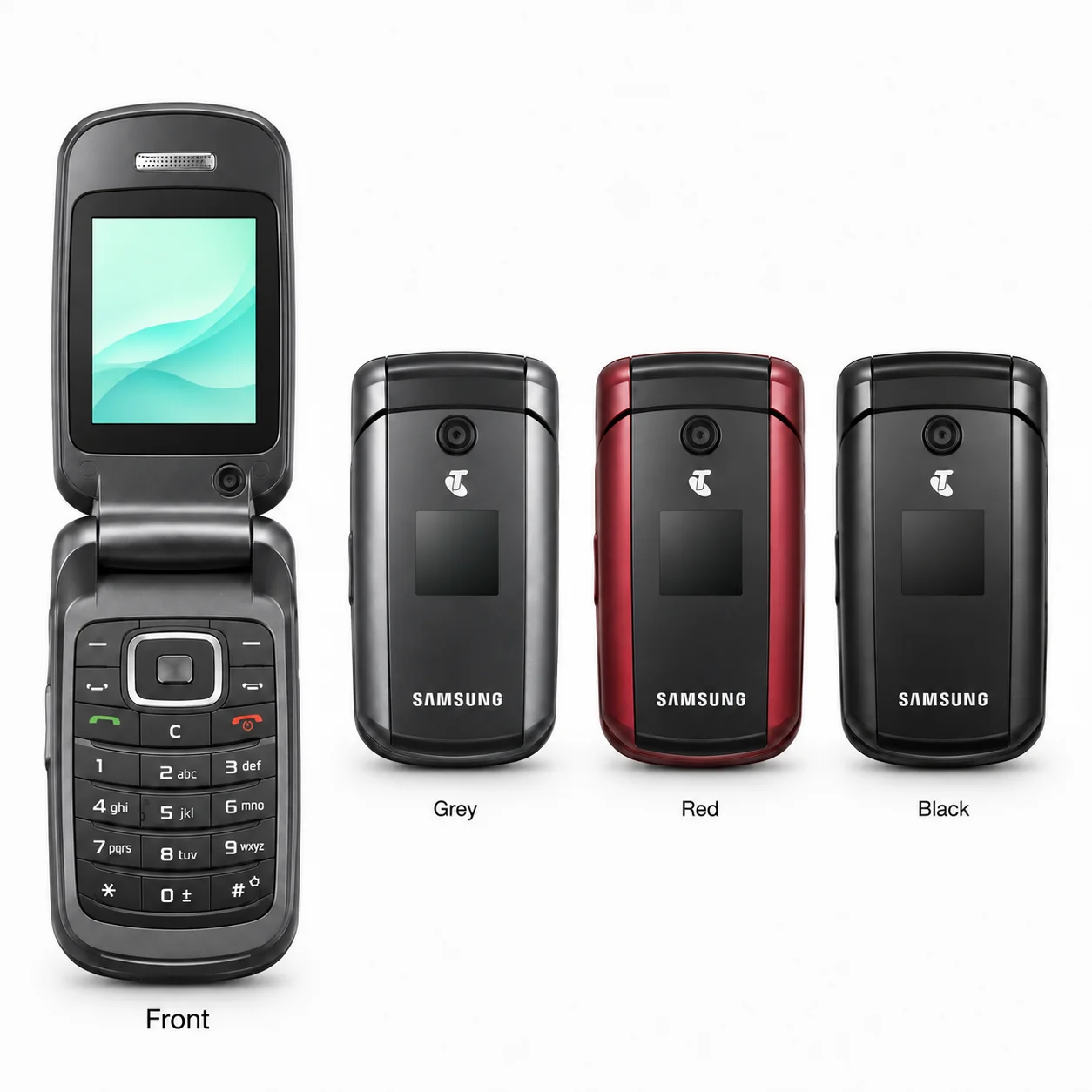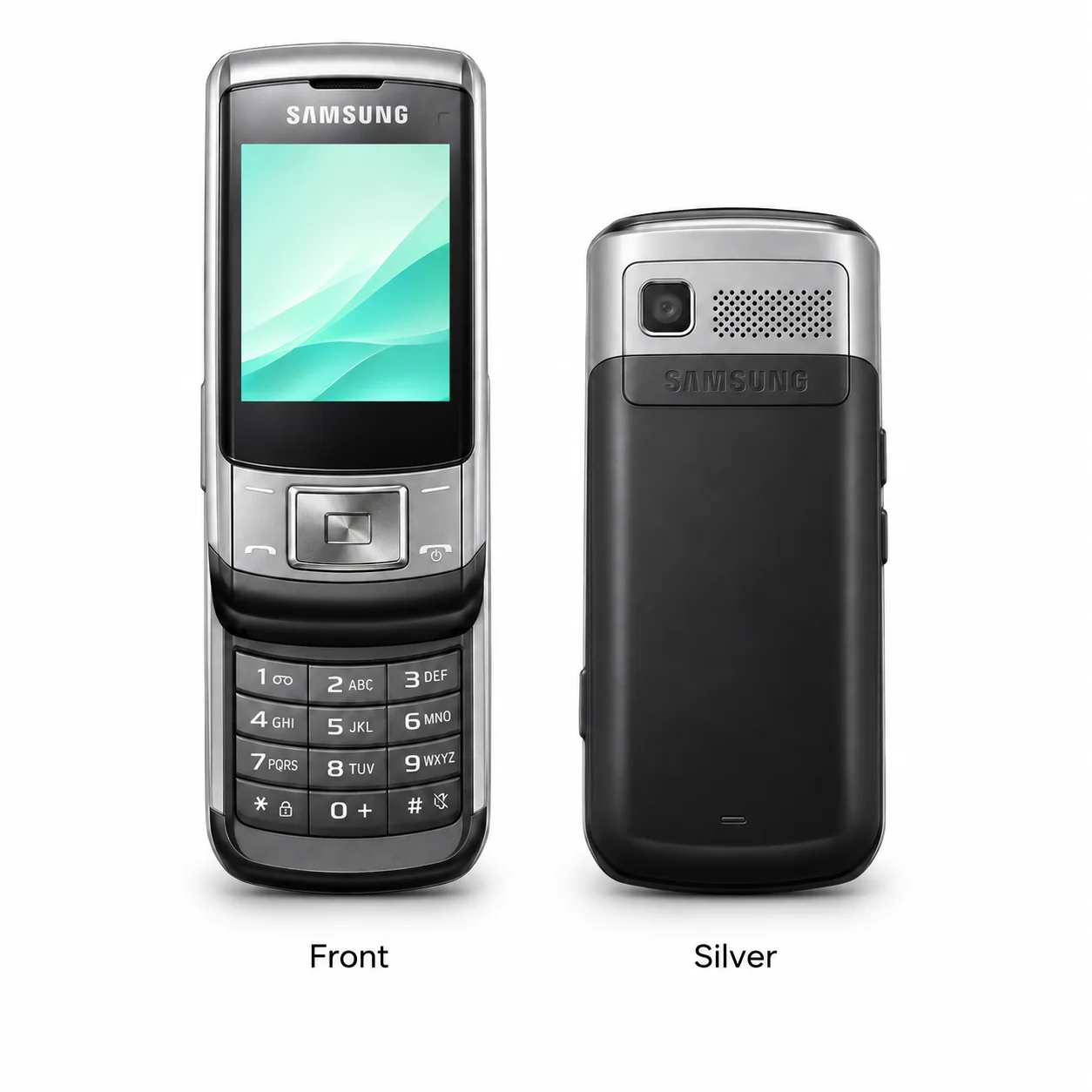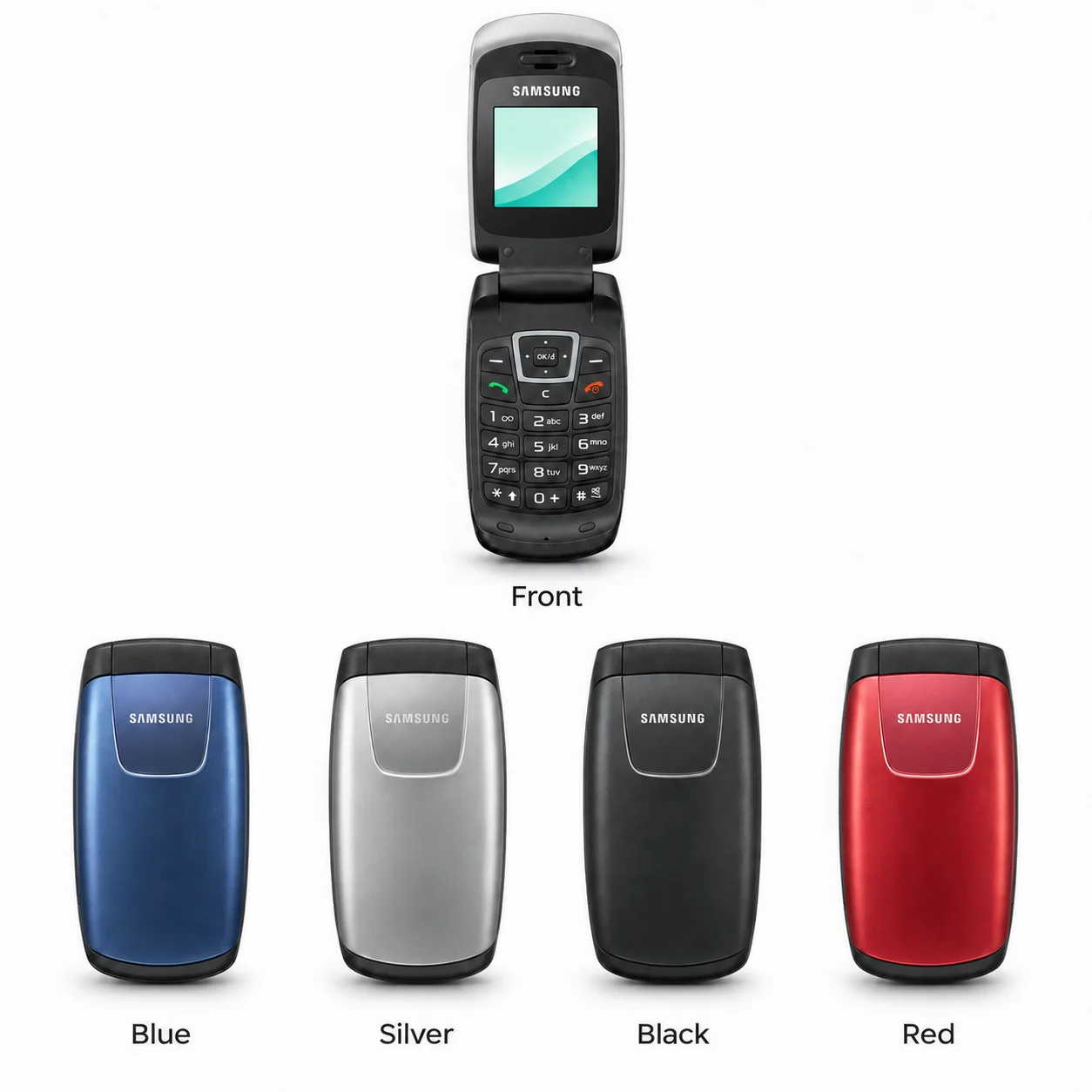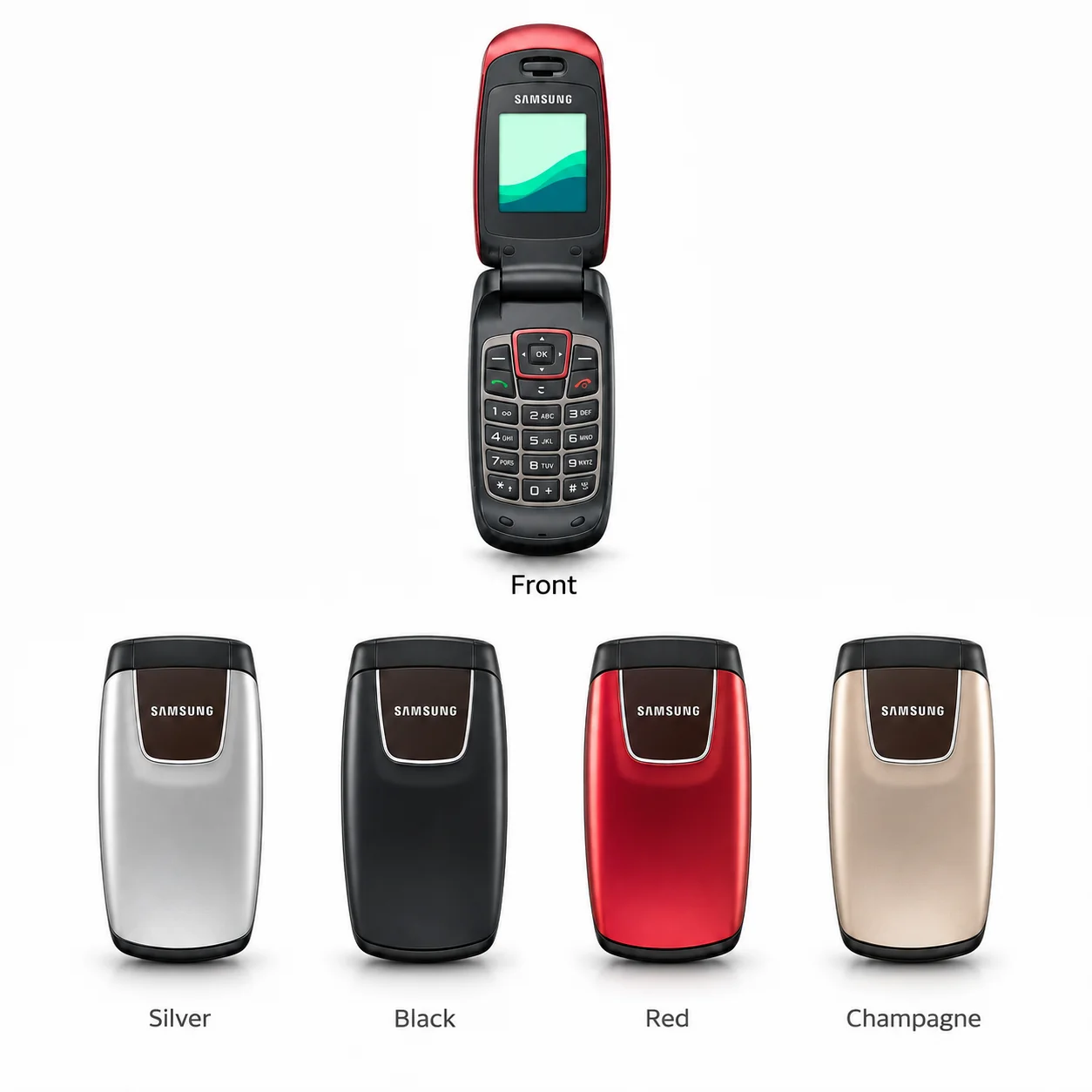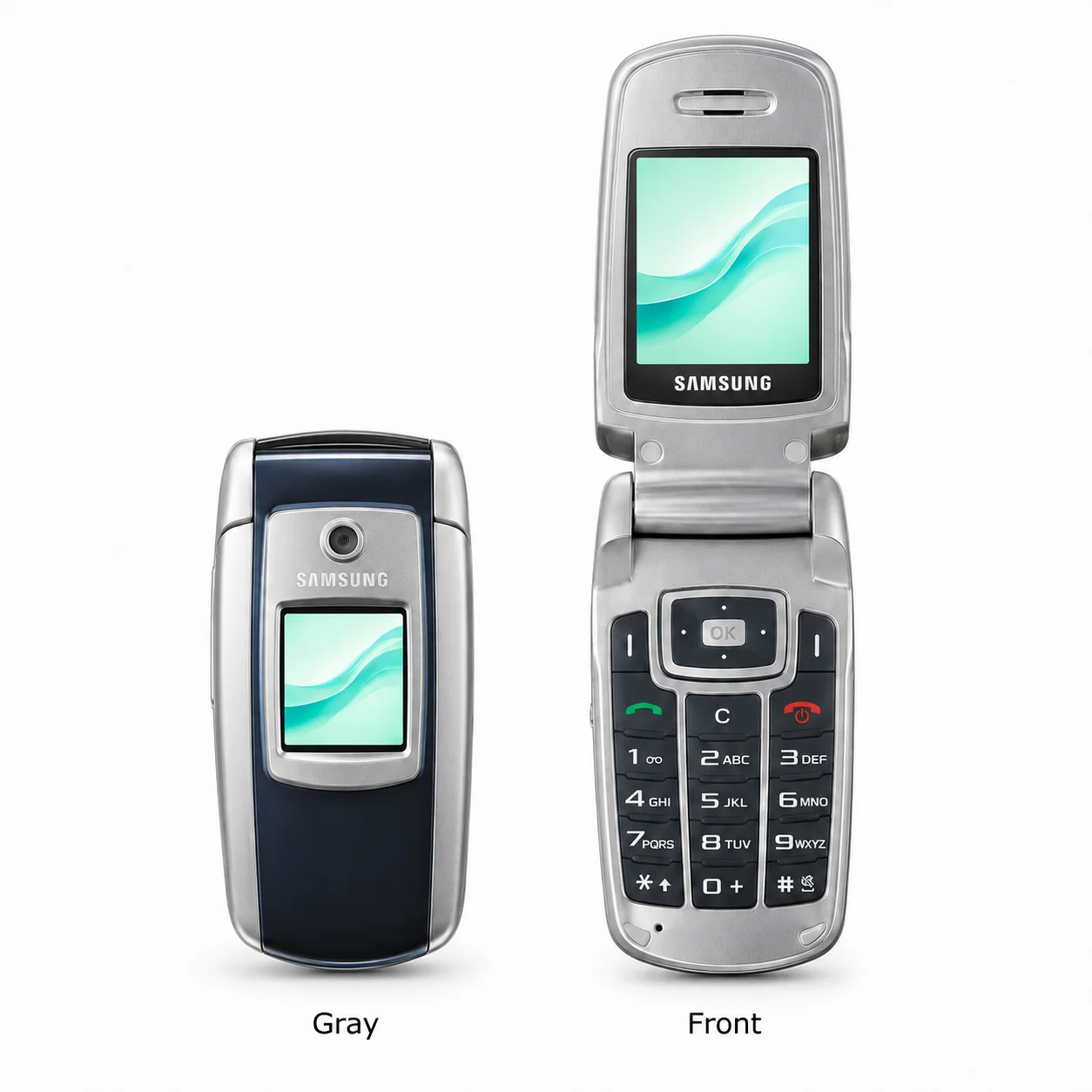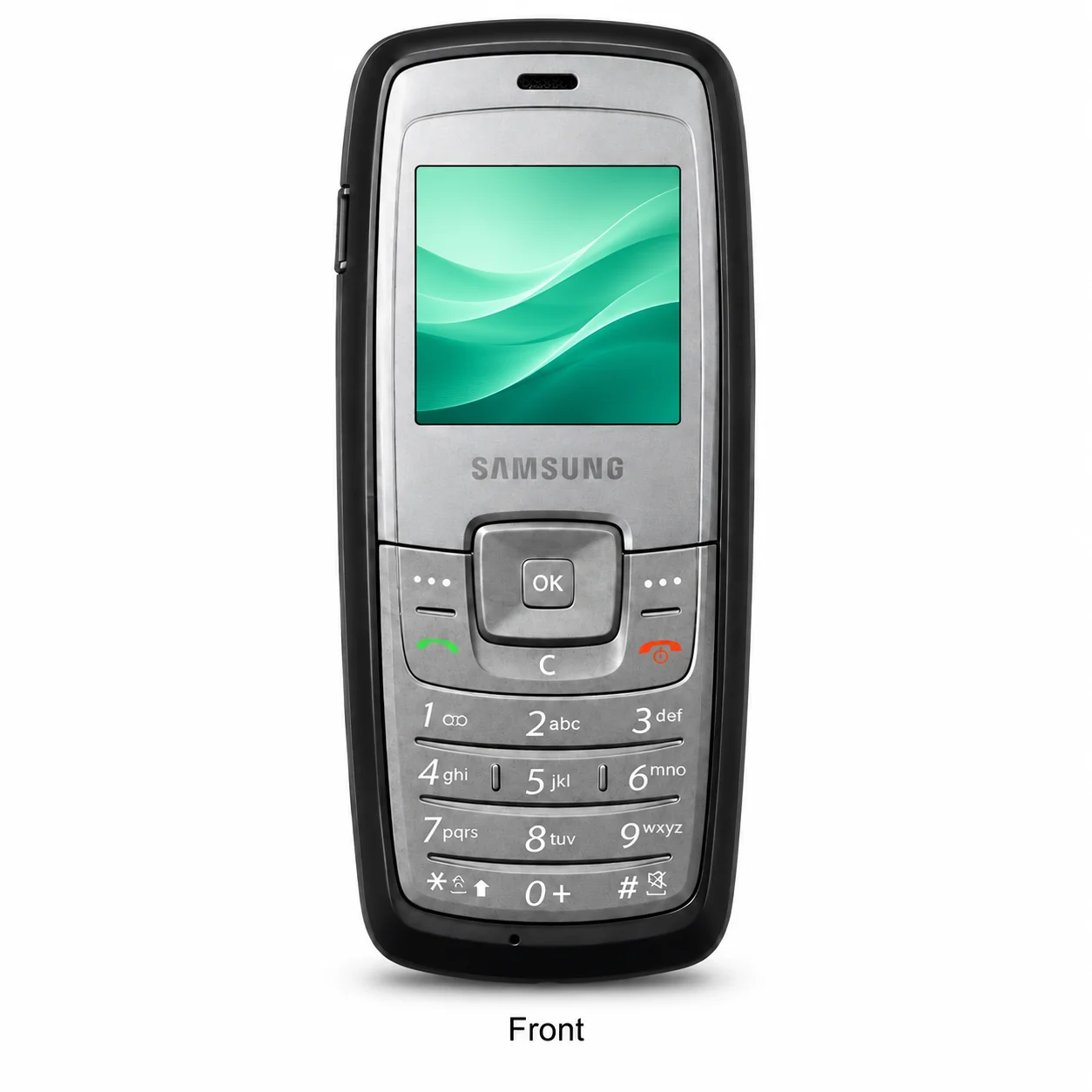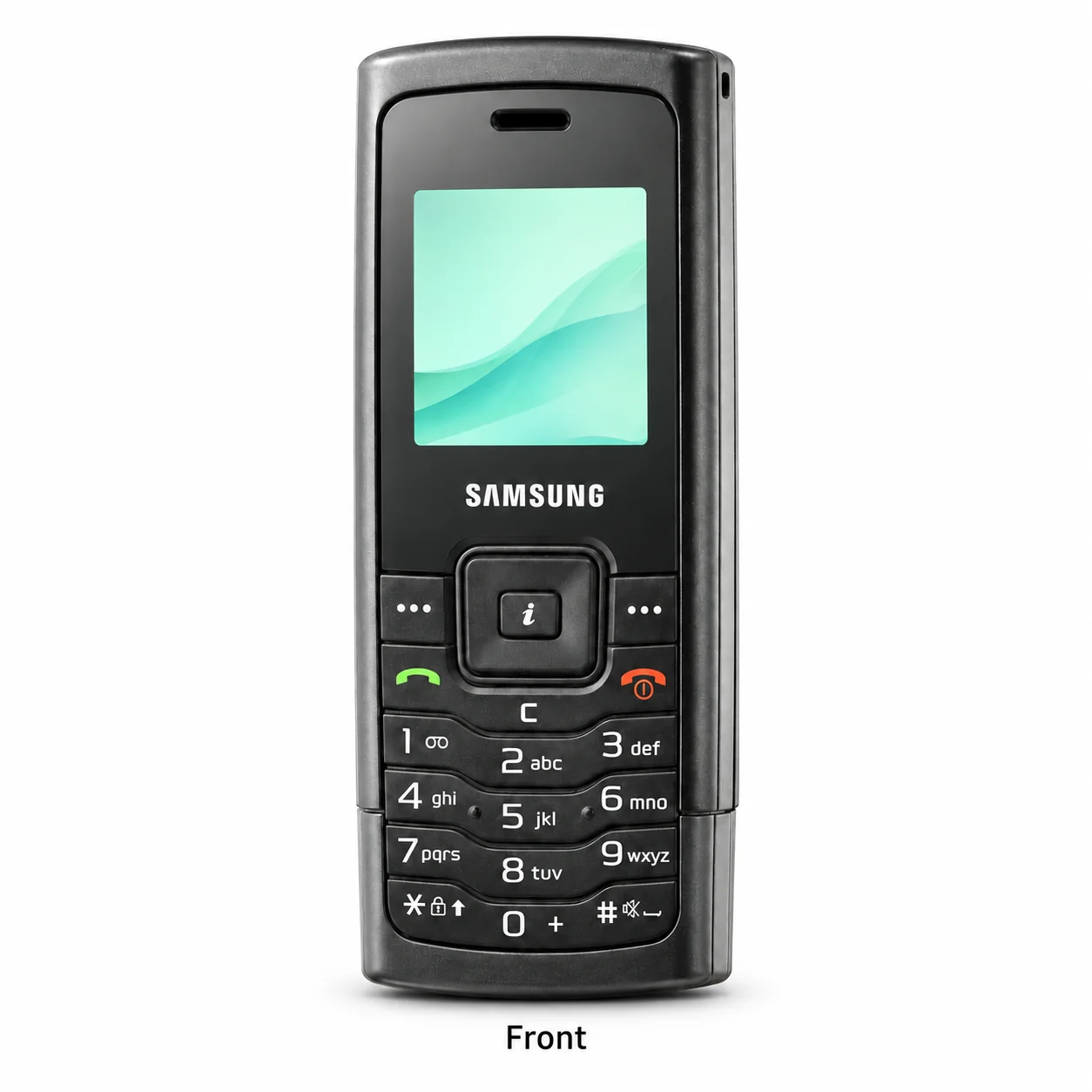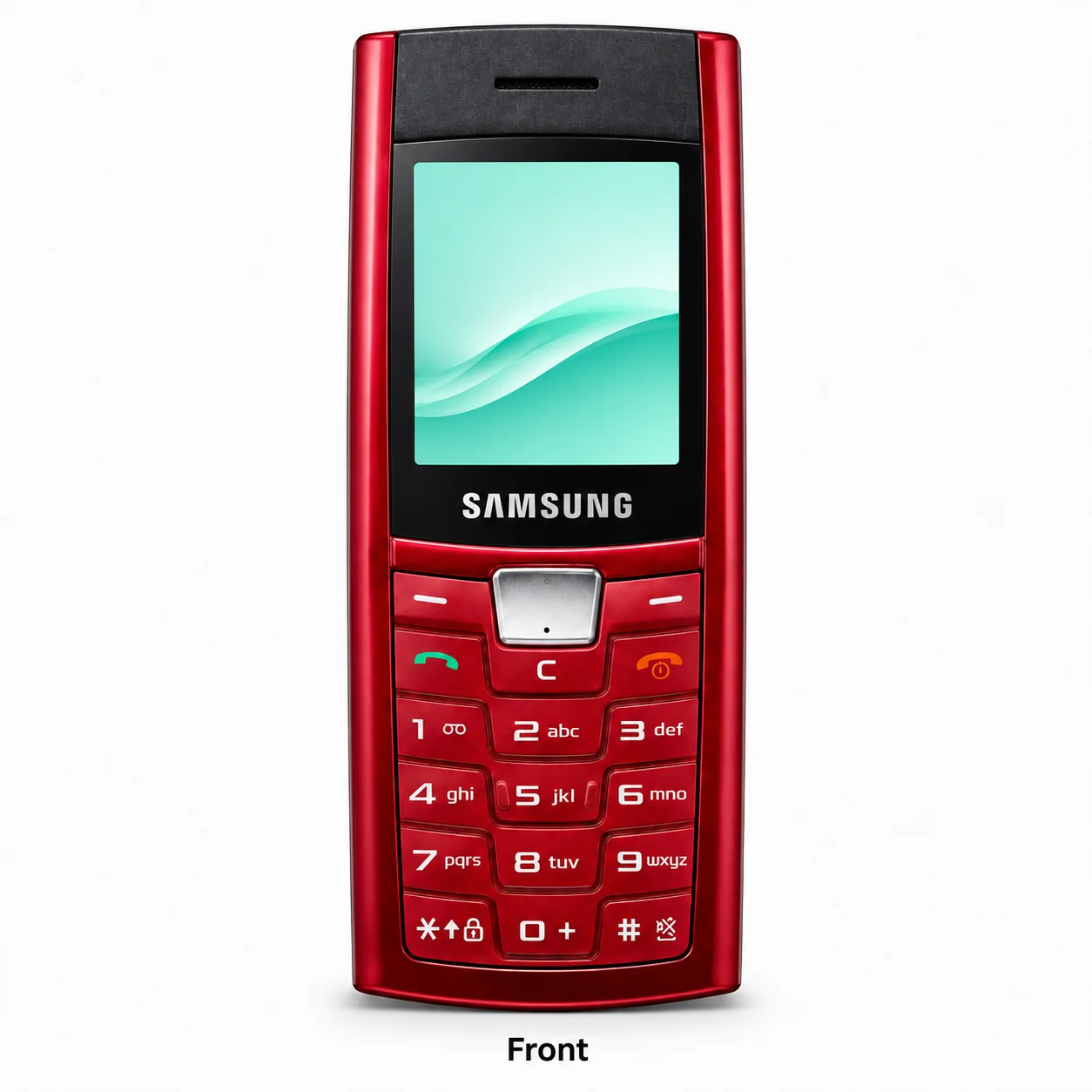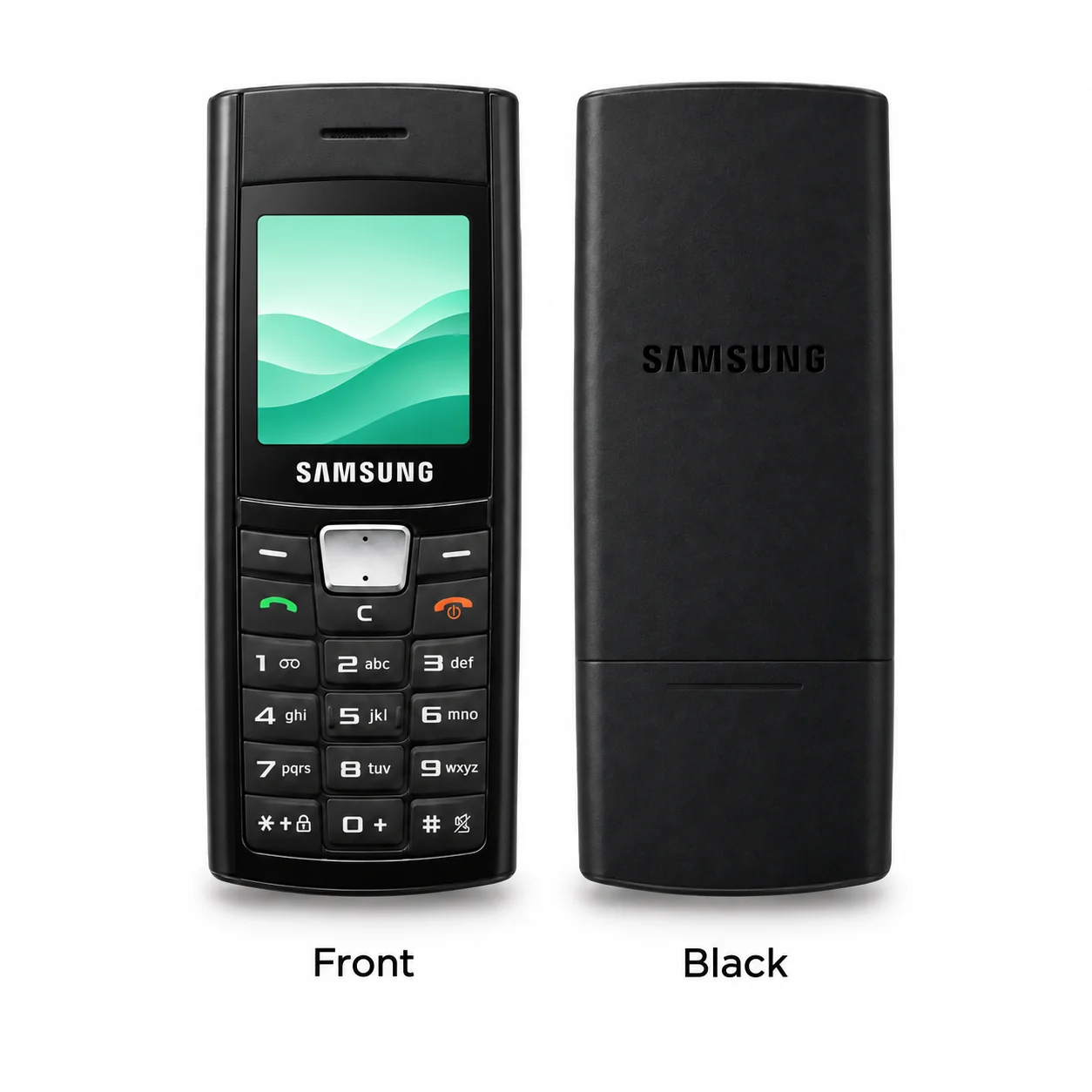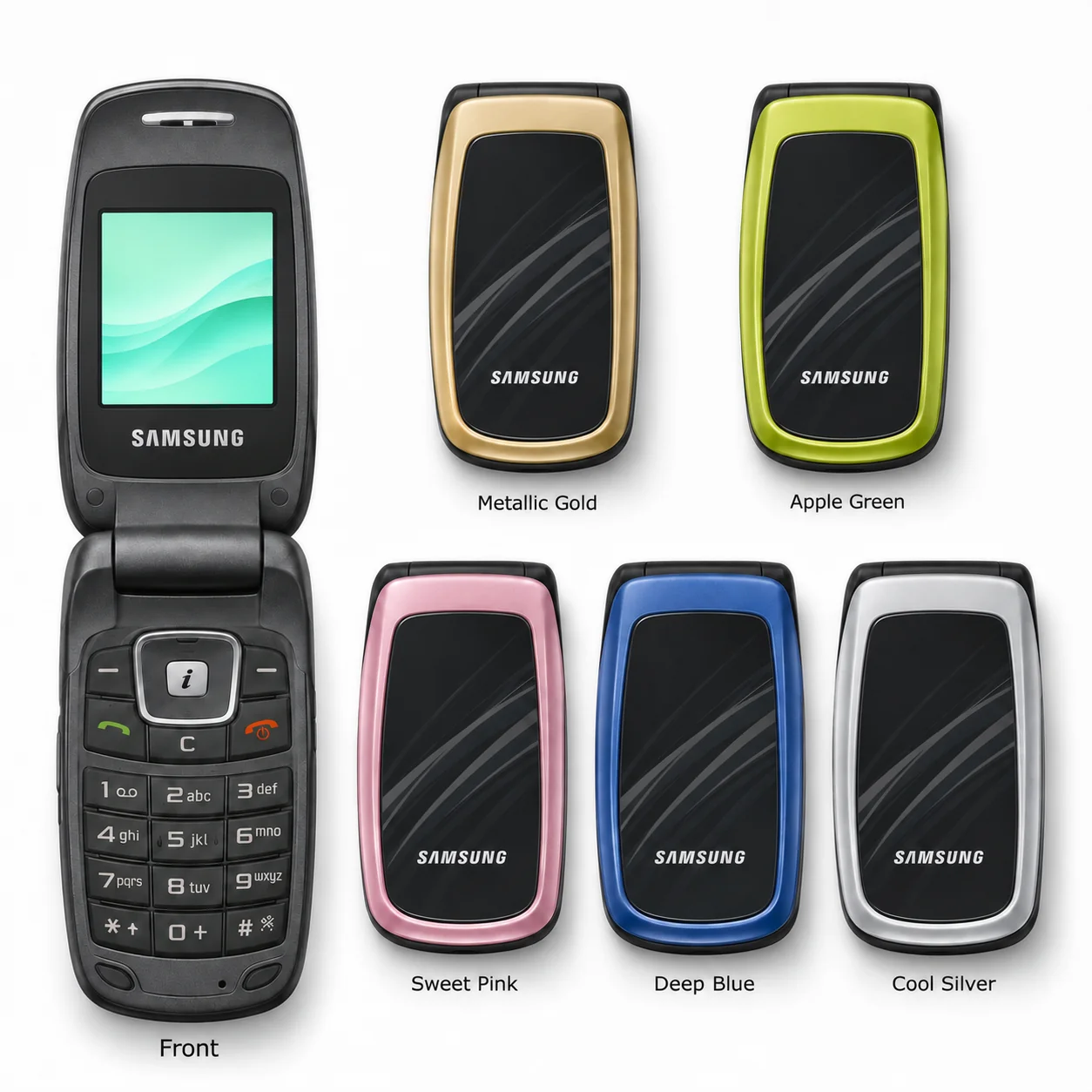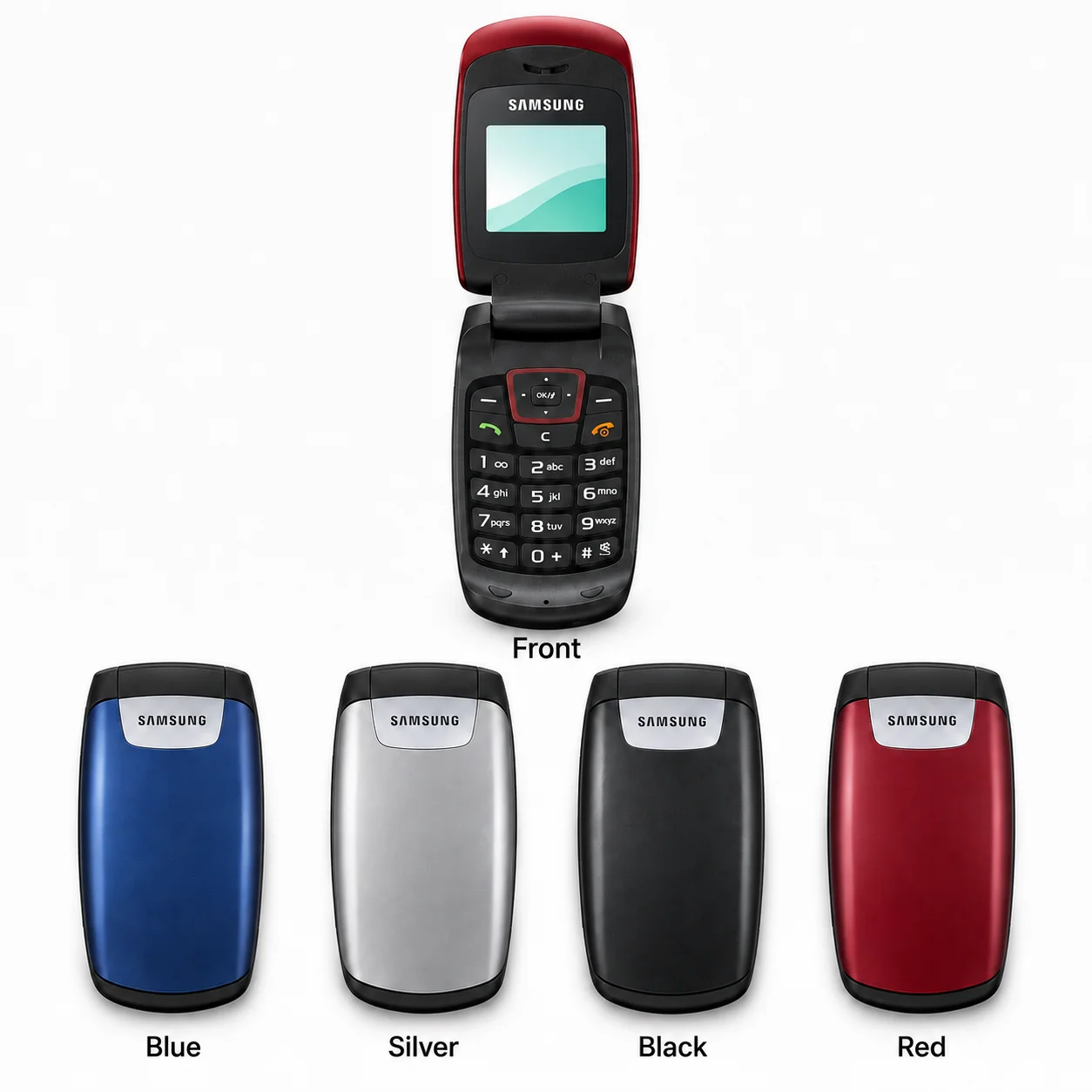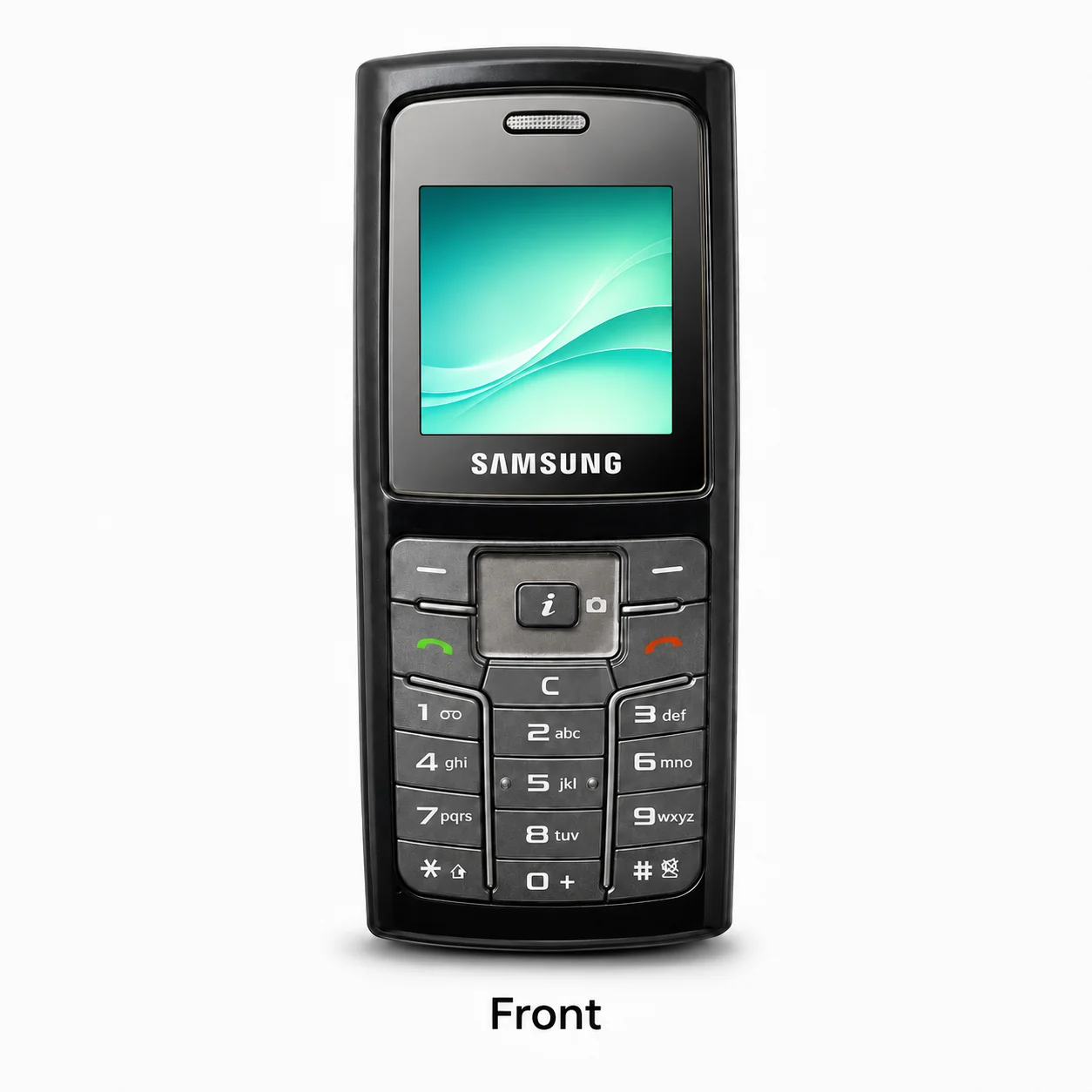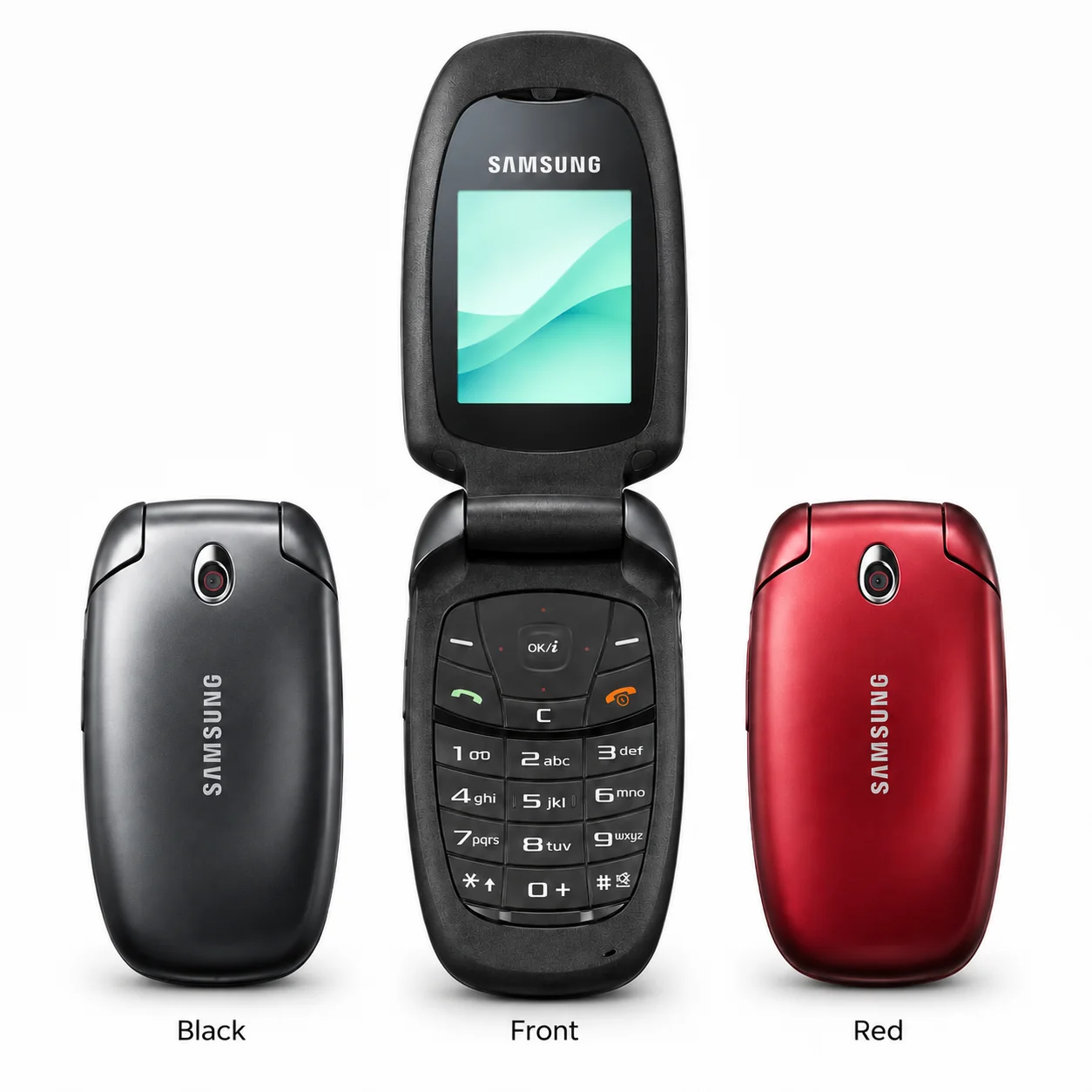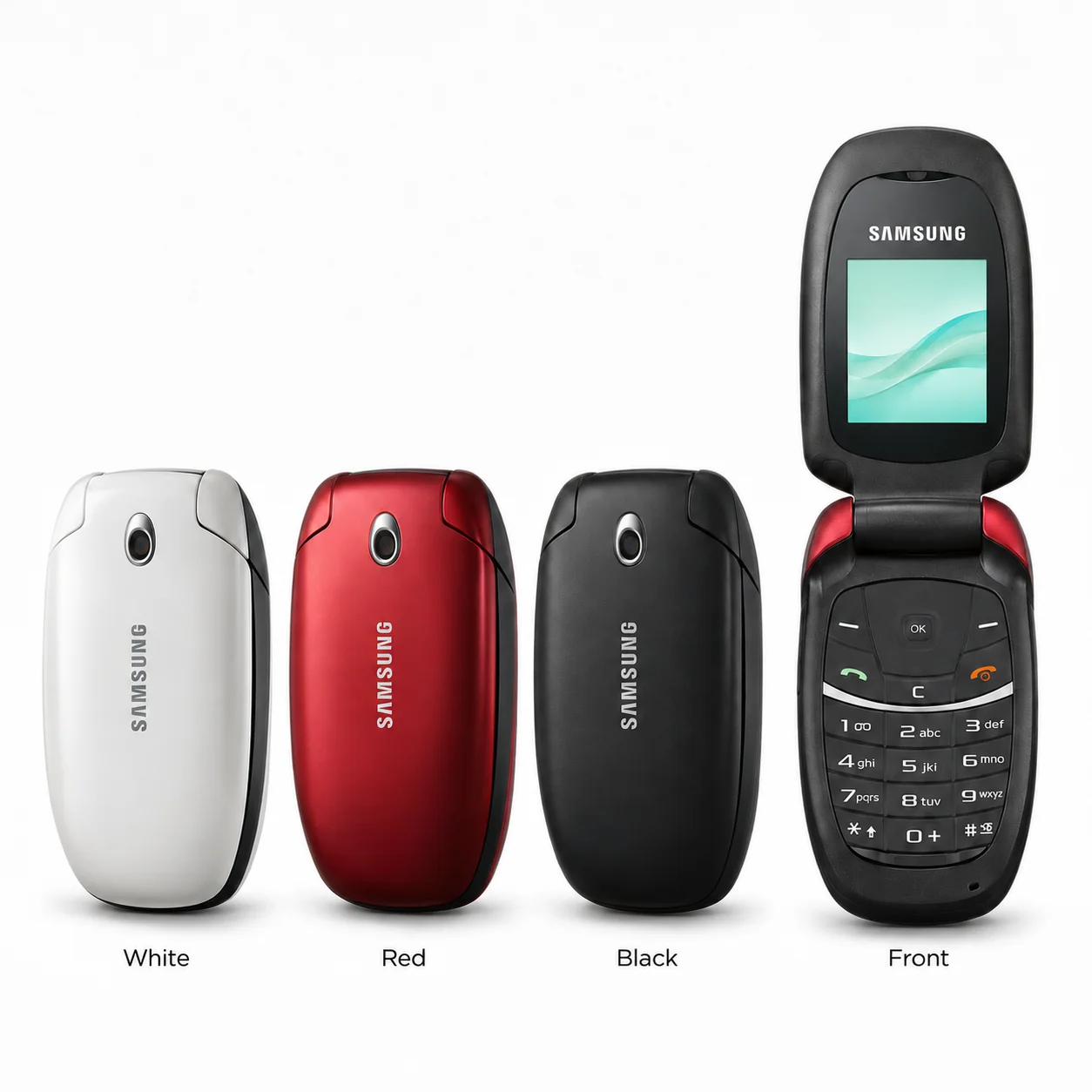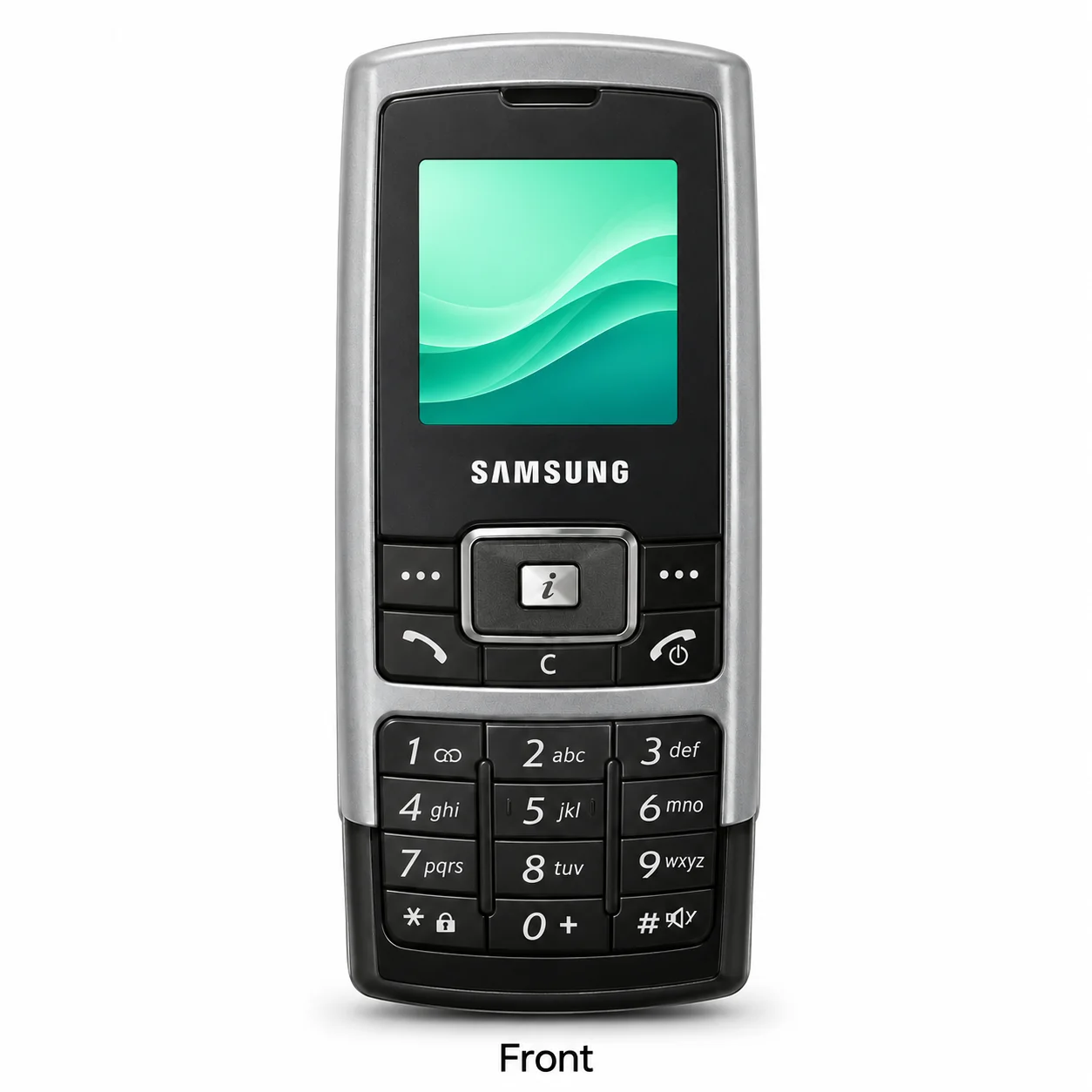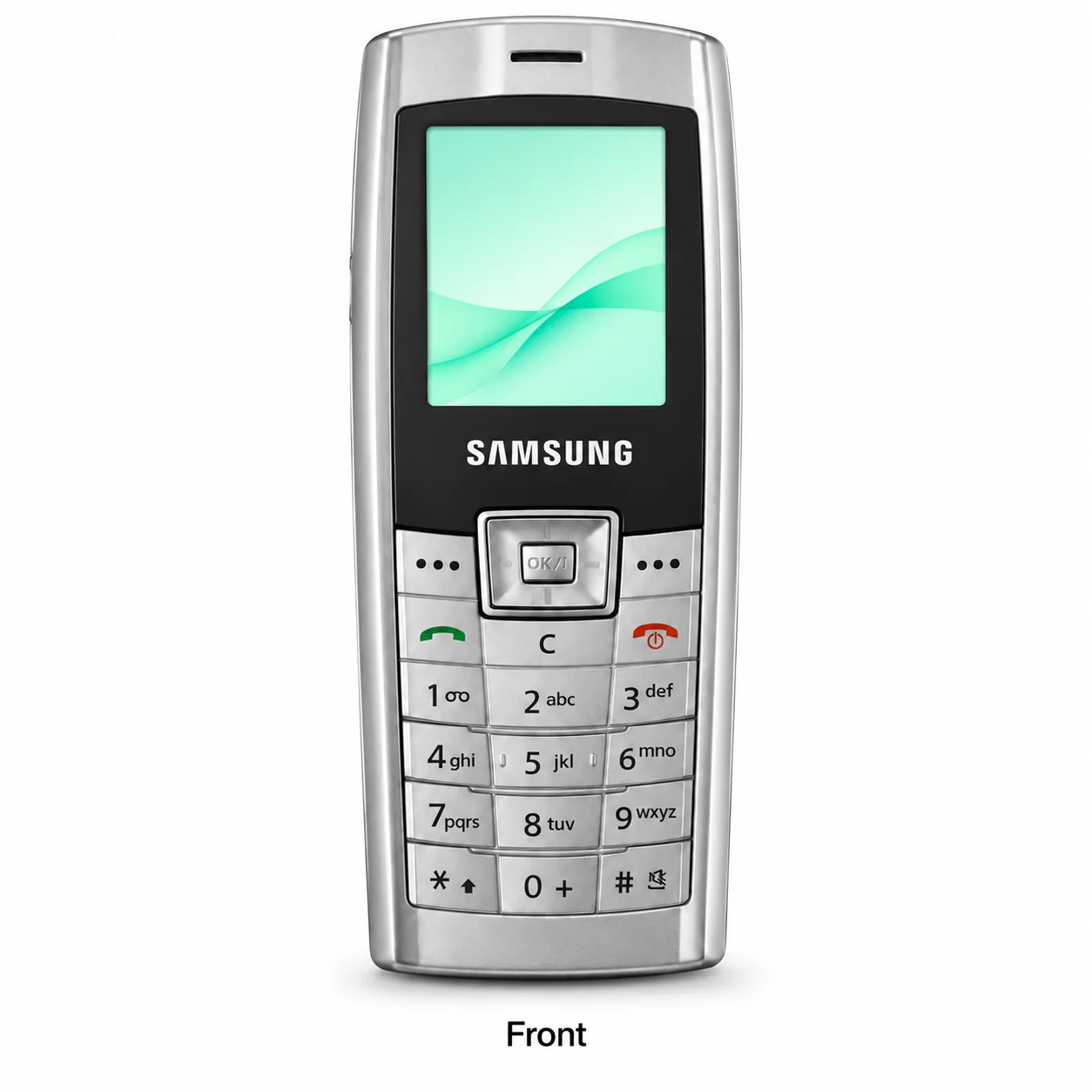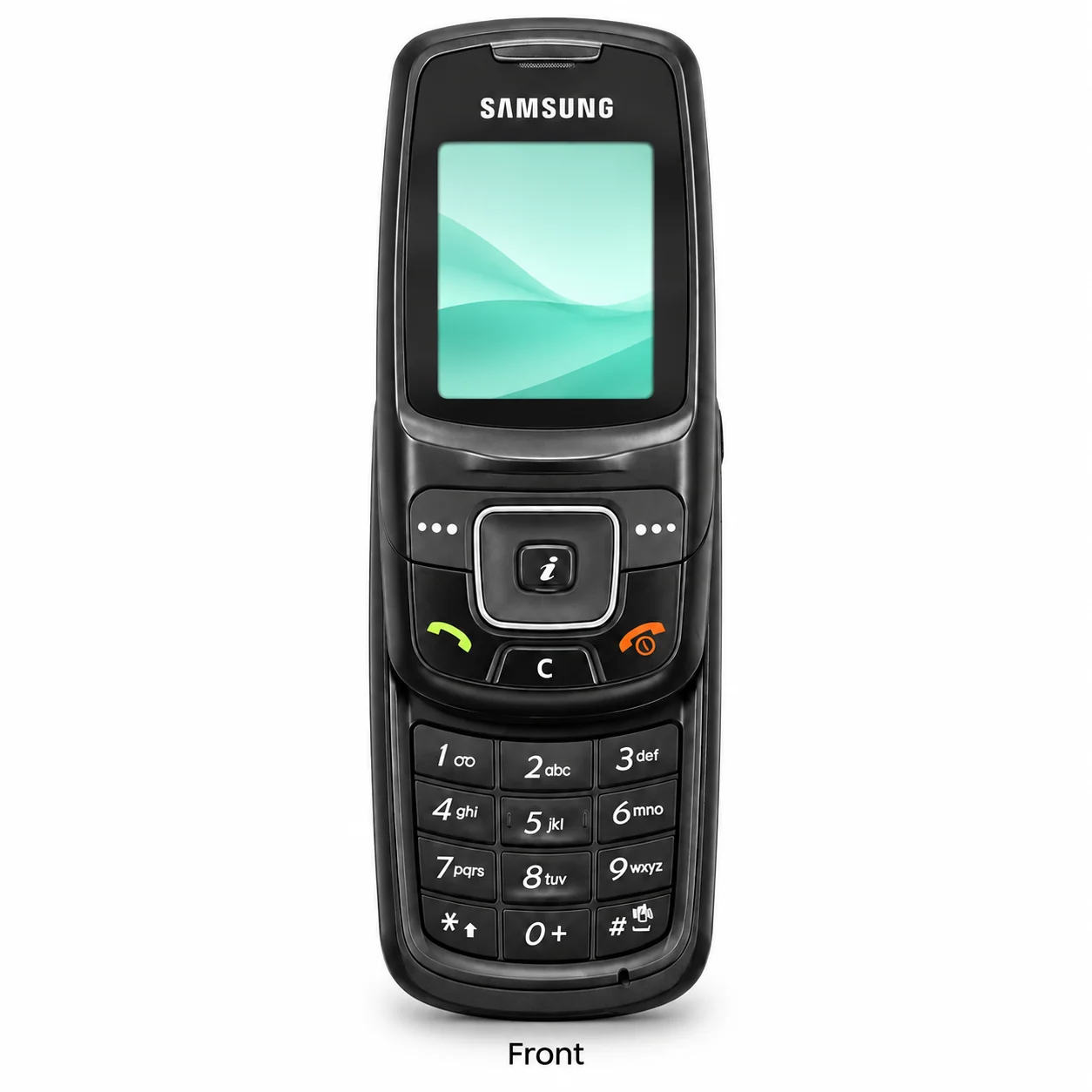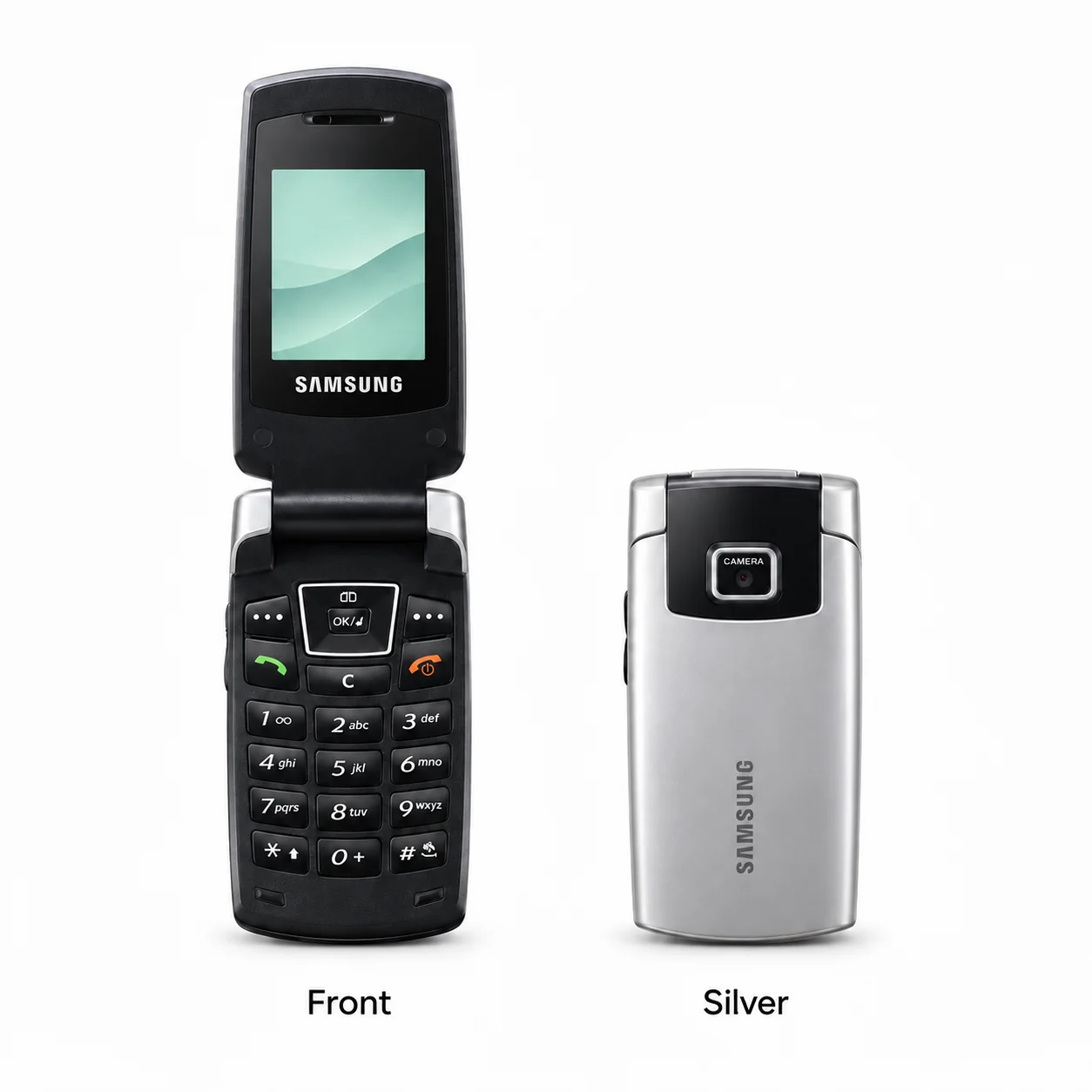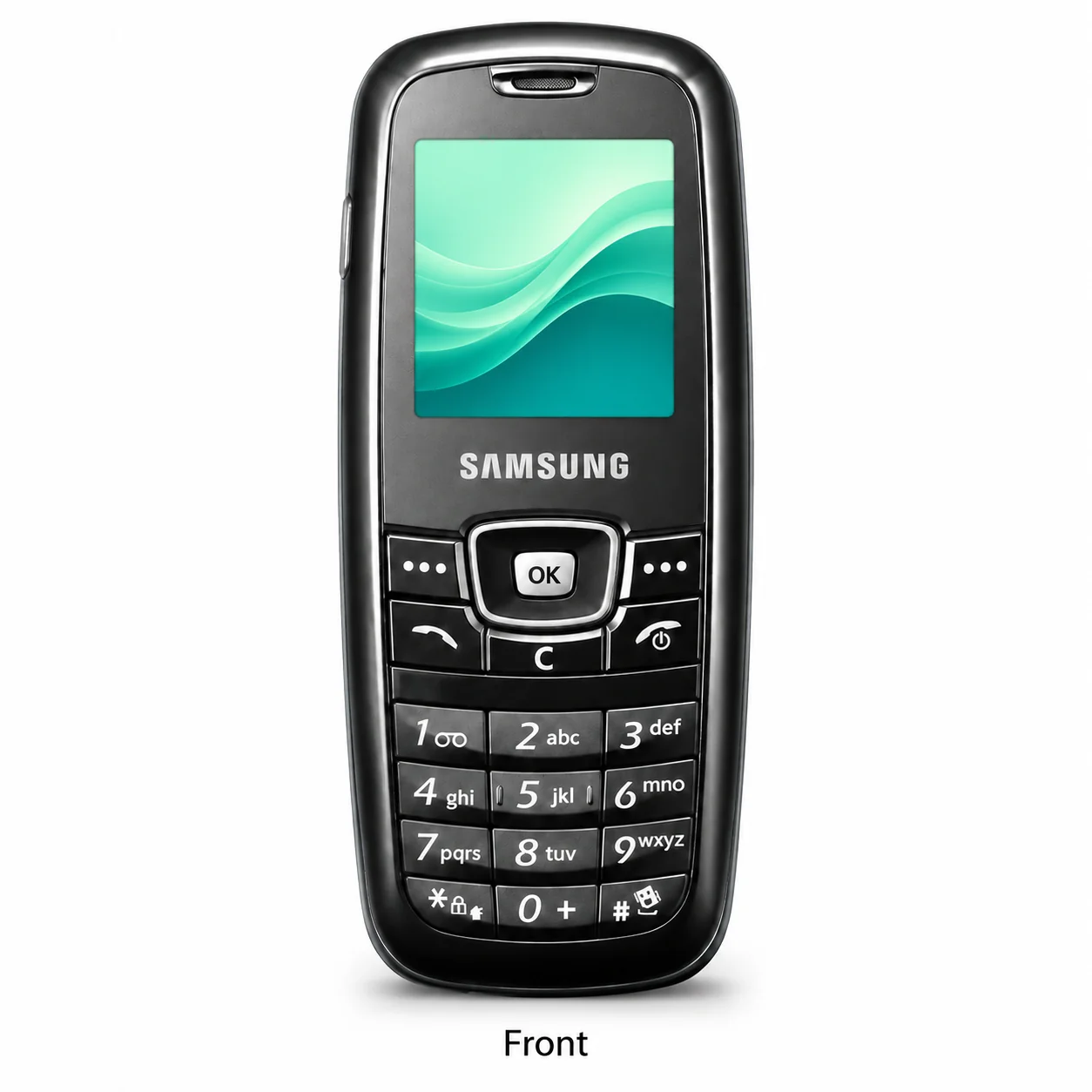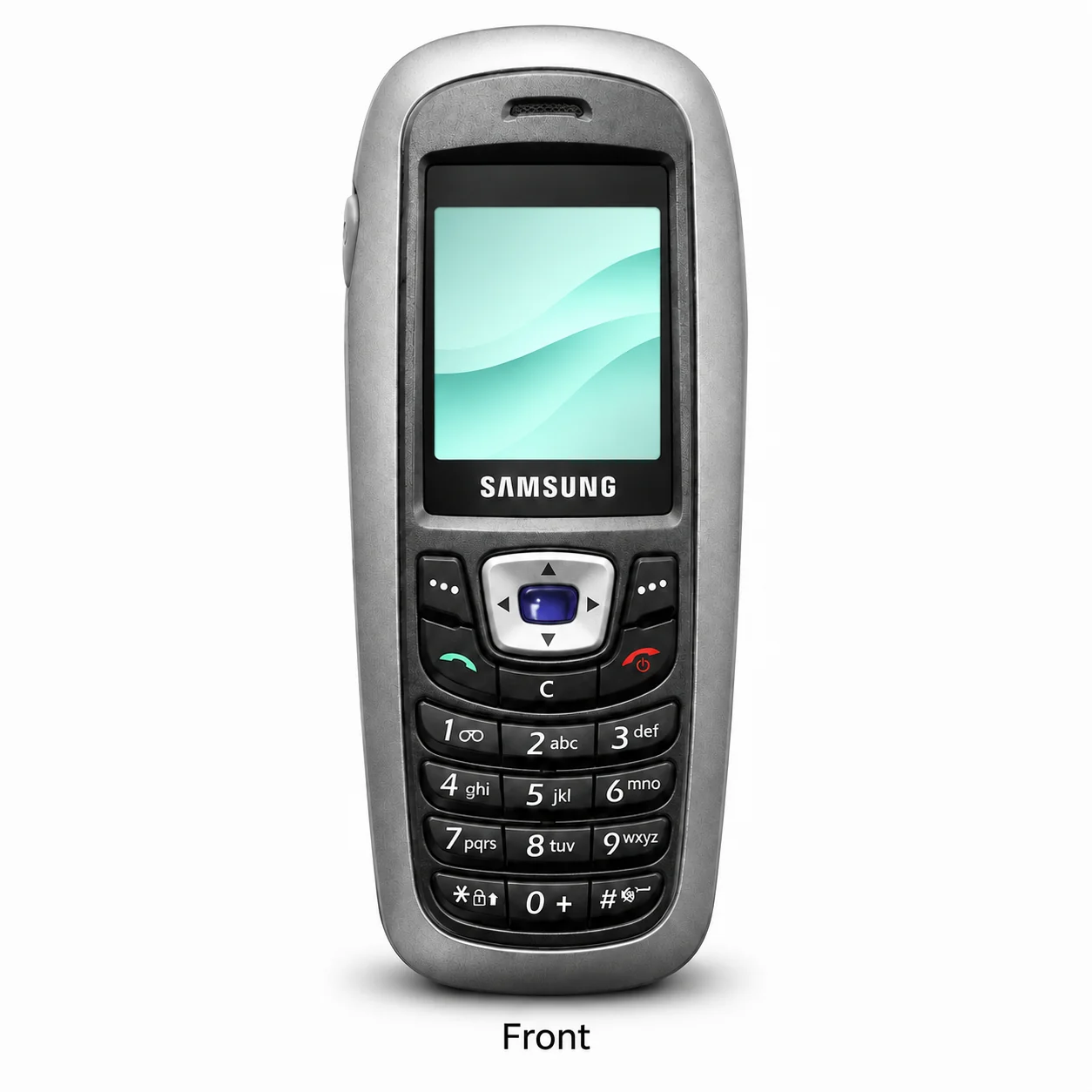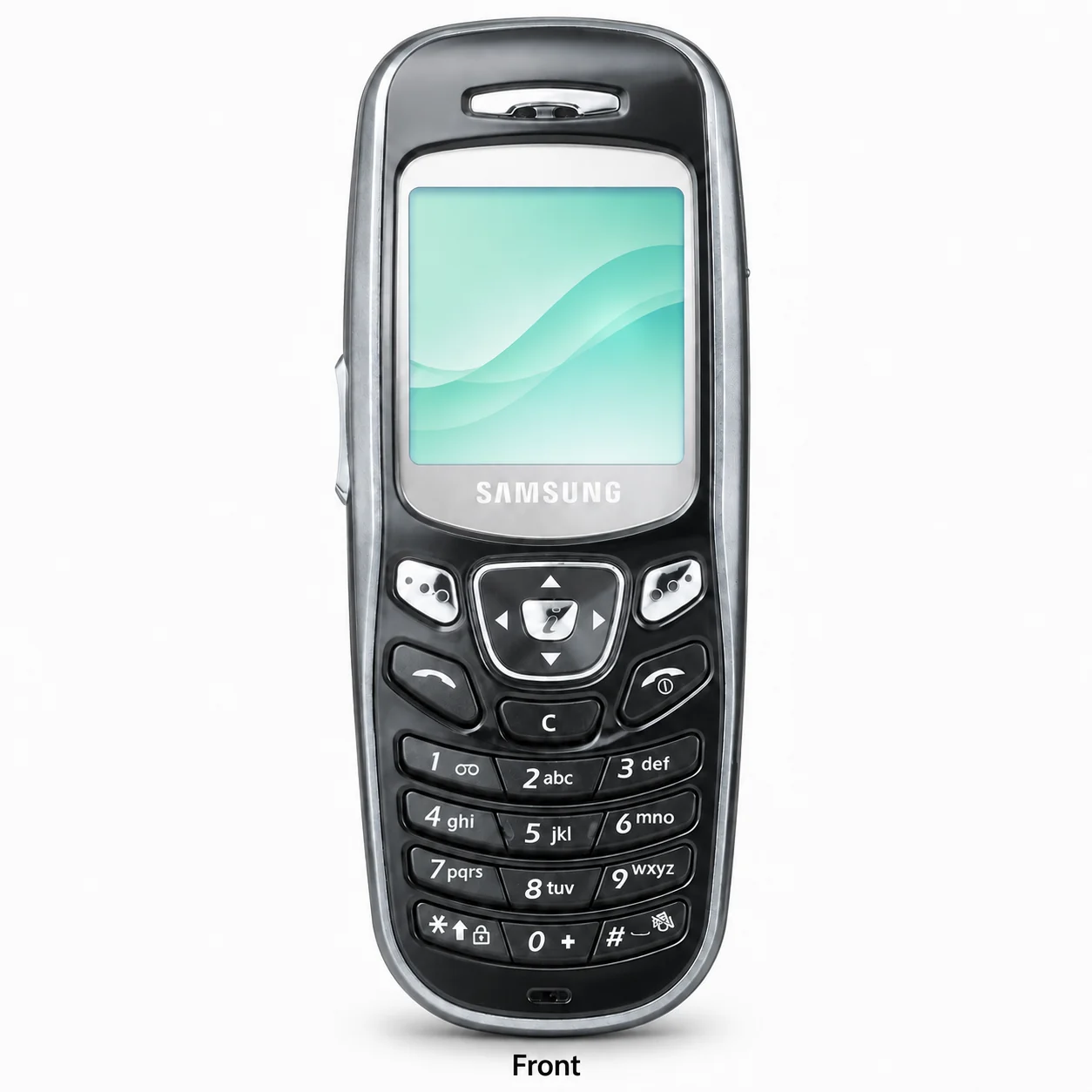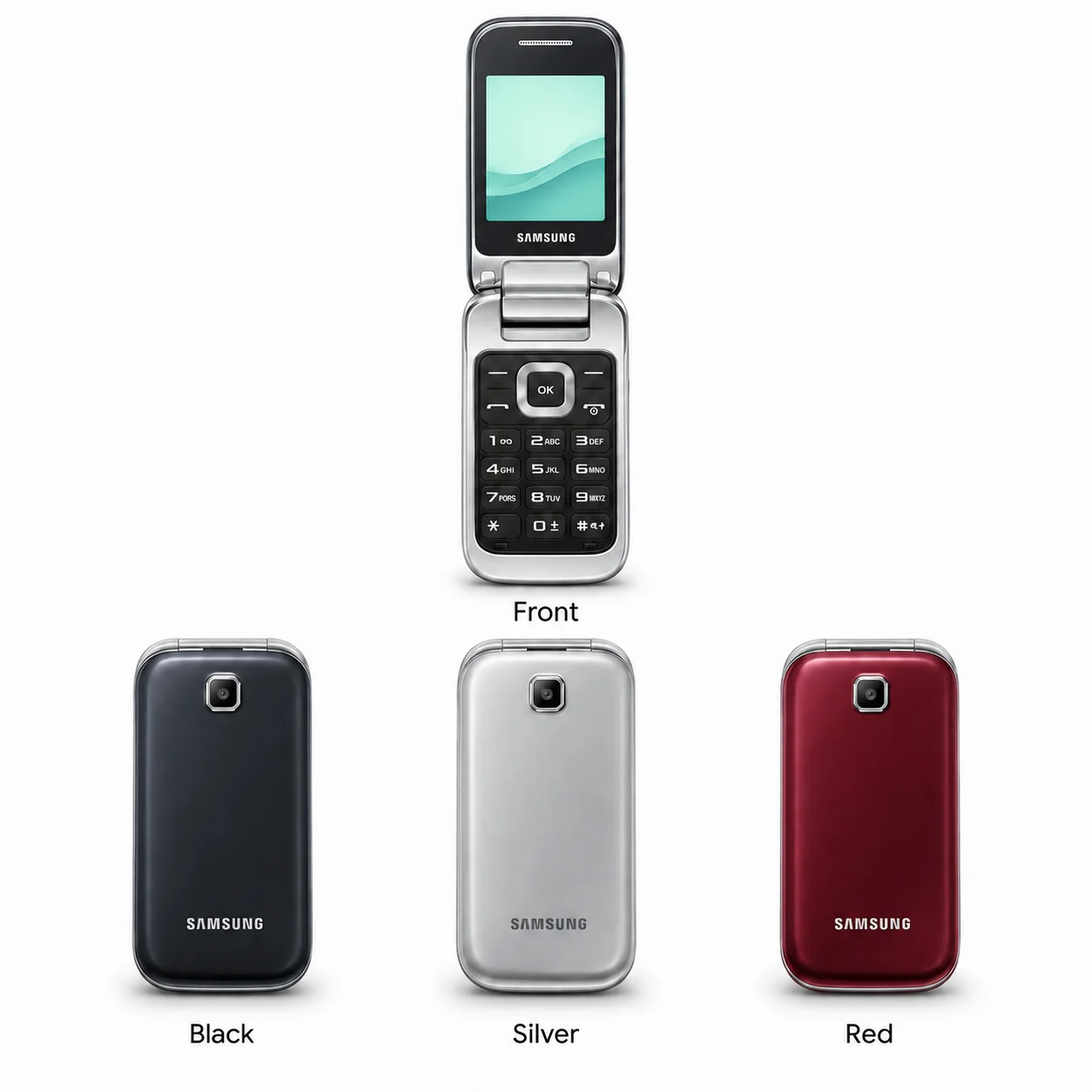
Samsung C3590
2.4-inch TFT; 3G. Compare the model marking and original hardware.
Model numbers
GT-C3595GT-C3592
- Screen
- 2.4-inch TFT
- Network
- 3G
- Introduced
- 2013
Colours & model codes inside
Explore Classic C series generations and variants. Each guide brings model identifiers, recorded colours, device views and specifications together.
Choose the exact model, compare its colours and understand the specifications.
2.4-inch TFT; 3G. Compare the model marking and original hardware.
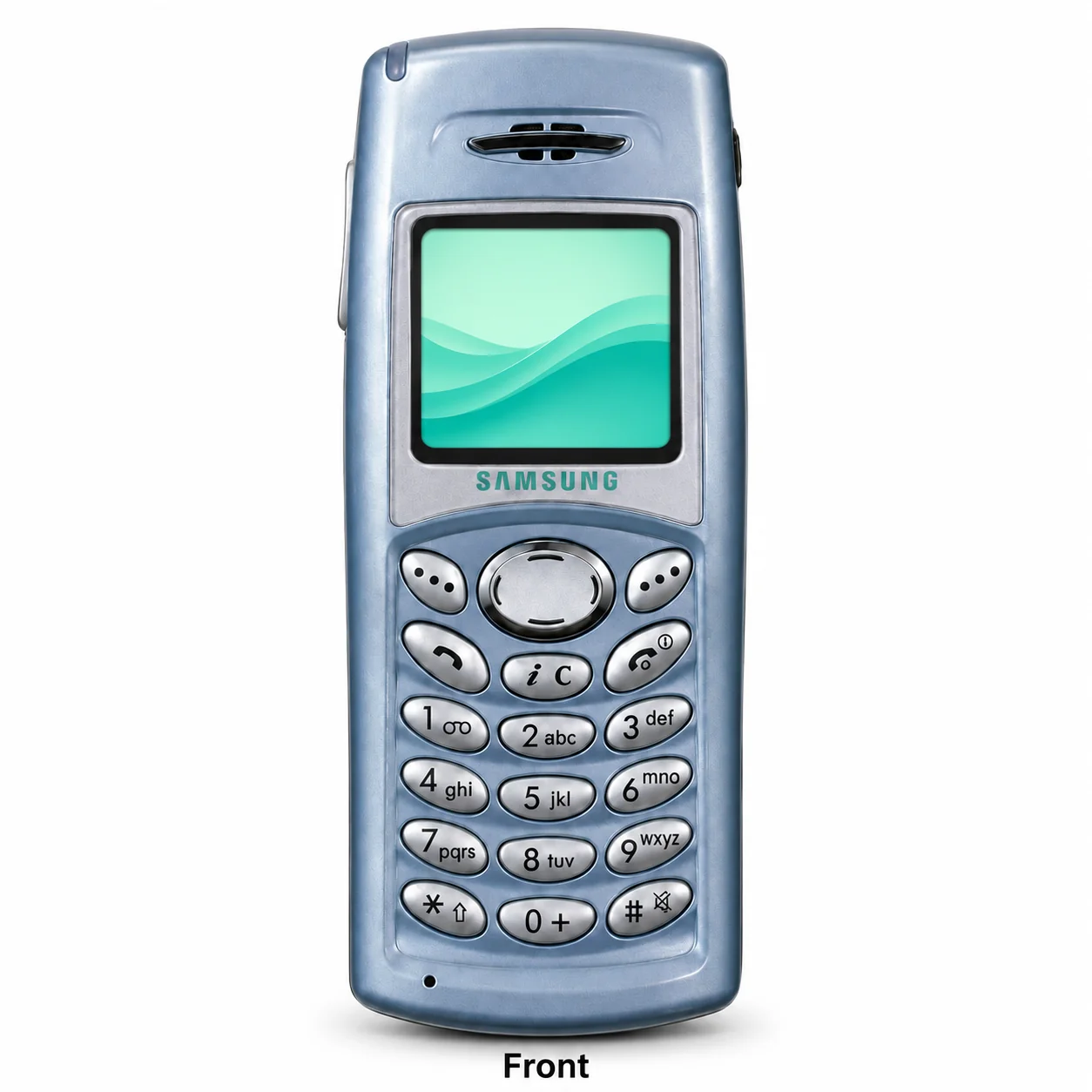
2.2-inch TFT; 3G. Compare the model marking and original hardware.
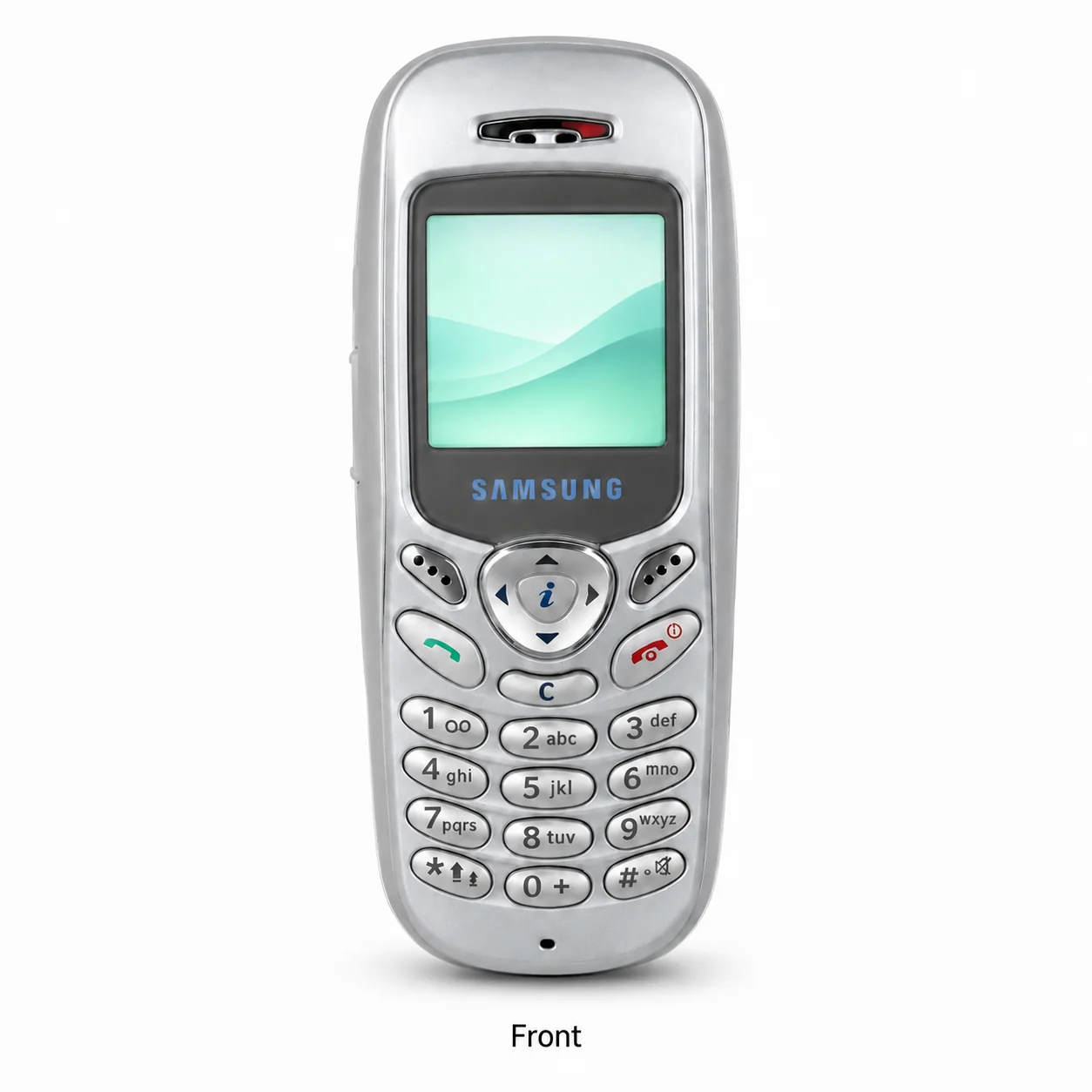
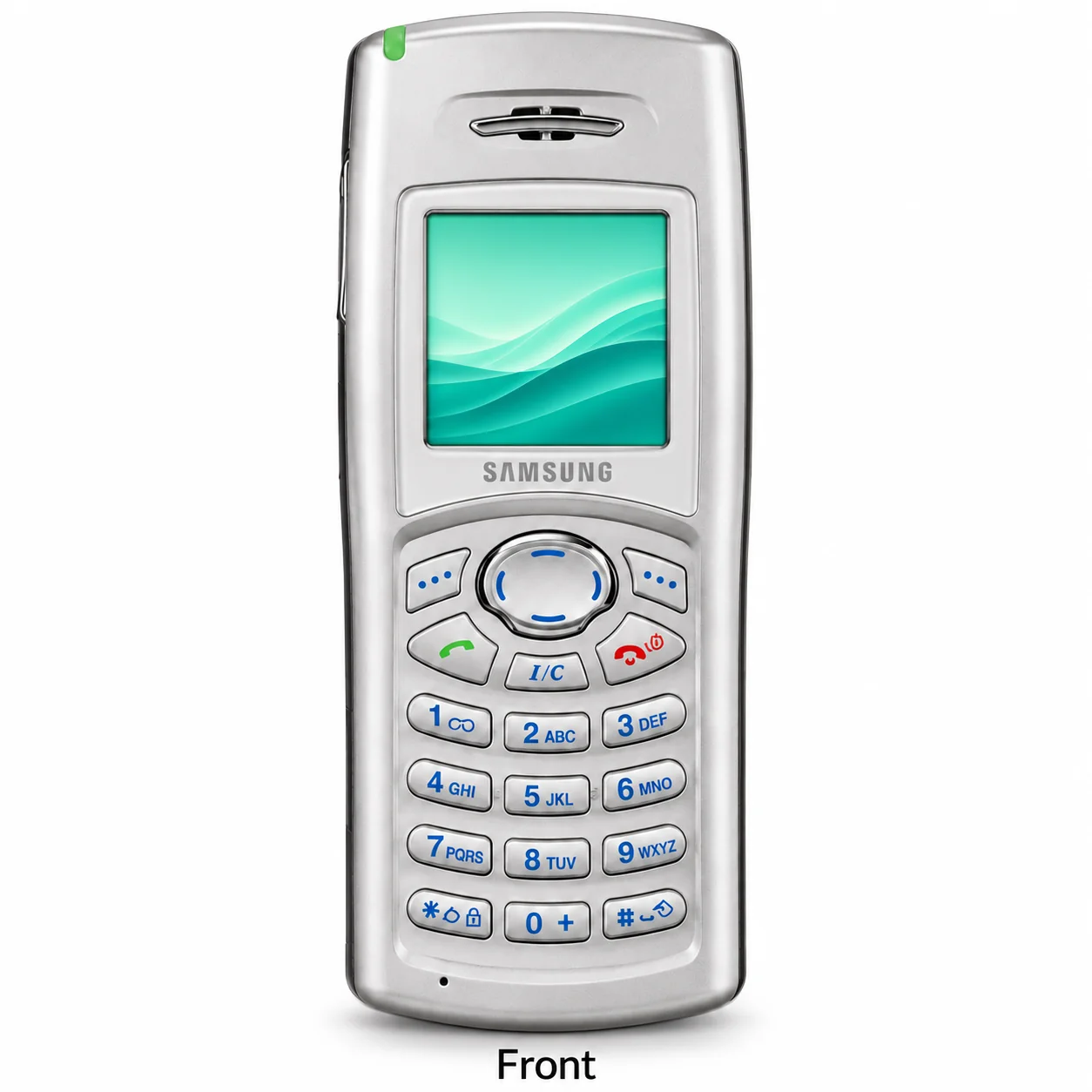
2.4-inch TFT; GSM. Compare the model marking and original hardware.
2.4-inch TFT; GSM. Compare the model marking and original hardware.
2.2-inch TFT; 3G. Compare the model marking and original hardware.
2.2-inch TFT; GSM. Compare the model marking and original hardware.
2.2-inch TFT; GSM. Compare the model marking and original hardware.
2.4-inch TFT; GSM. Compare the model marking and original hardware.
2.2-inch TFT; GSM. Compare the model marking and original hardware.
2.4-inch TFT; GSM. Compare the model marking and original hardware.
2.0-inch TFT; GSM. Compare the model marking and original hardware.
2.2-inch TFT; GSM. Compare the model marking and original hardware.
2.2-inch TFT; GSM. Compare the model marking and original hardware.
2.4-inch TFT; GSM. Compare the model marking and original hardware.
2.0-inch TFT; 3G. Compare the model marking and original hardware.
2.4-inch TFT; GSM. Compare the model marking and original hardware.
2.0-inch TFT; GSM. Compare the model marking and original hardware.
2.0-inch TFT; GSM. Compare the model marking and original hardware.
2.2-inch TFT; GSM. Compare the model marking and original hardware.
2.0-inch TFT; GSM. Compare the model marking and original hardware.
2.0-inch TFT; GSM. Compare the model marking and original hardware.
2.8-inch TFT; GSM. Compare the model marking and original hardware.
2.0-inch TFT; 3G. Compare the model marking and original hardware.
2.2-inch TFT; GSM. Compare the model marking and original hardware.
2.0-inch TFT; 3G. Compare the model marking and original hardware.
2.2-inch TFT; 3G. Compare the model marking and original hardware.
1.5-inch CSTN; GSM. Compare the model marking and original hardware.
1.5-inch CSTN; GSM. Compare the model marking and original hardware.
1.67-inch CSTN; GSM. Compare the model marking and original hardware.
1.6-inch UFB; GSM. Compare the model marking and original hardware.
1.5-inch CSTN; GSM. Compare the model marking and original hardware.
1.52-inch CSTN; GSM. Compare the model marking and original hardware.
1.52-inch CSTN; GSM. Compare the model marking and original hardware.
CSTN; GSM. Compare the model marking and original hardware.
1.5-inch UFB; GSM. Compare the model marking and original hardware.
1.52-inch TFT; GSM. Compare the model marking and original hardware.
1.77-inch TFT; GSM. Compare the model marking and original hardware.
1.67-inch TFT; GSM. Compare the model marking and original hardware.
1.6-inch CSTN; GSM. Compare the model marking and original hardware.
1.6-inch UFB; GSM. Compare the model marking and original hardware.
1.8-inch CSTN; GSM. Compare the model marking and original hardware.
TFT; GSM. Compare the model marking and original hardware.
1.6-inch CSTN; GSM. Compare the model marking and original hardware.
1.5-inch UFB; GSM. Compare the model marking and original hardware.
1.5-inch UFB; GSM. Compare the model marking and original hardware.
1.5-inch UFB; GSM. Compare the model marking and original hardware.
1.6-inch UFB; GSM. Compare the model marking and original hardware.
UFB; GSM. Compare the model marking and original hardware.
Try a shorter model name, a keyword or the beginning of its model code. Clear the range filter to search all models on this page.
Colours and small details in the pictures are approximate. Confirm the model marking in the device information, on its label or on the original packaging before choosing accessories or replacement parts.
The name identifies the range. The model number identifies the hardware version.
Many devices share a model number. A serial number identifies an individual device. Depending on its mobile network, a cellular device may also have an IMEI, MEID or ESN.