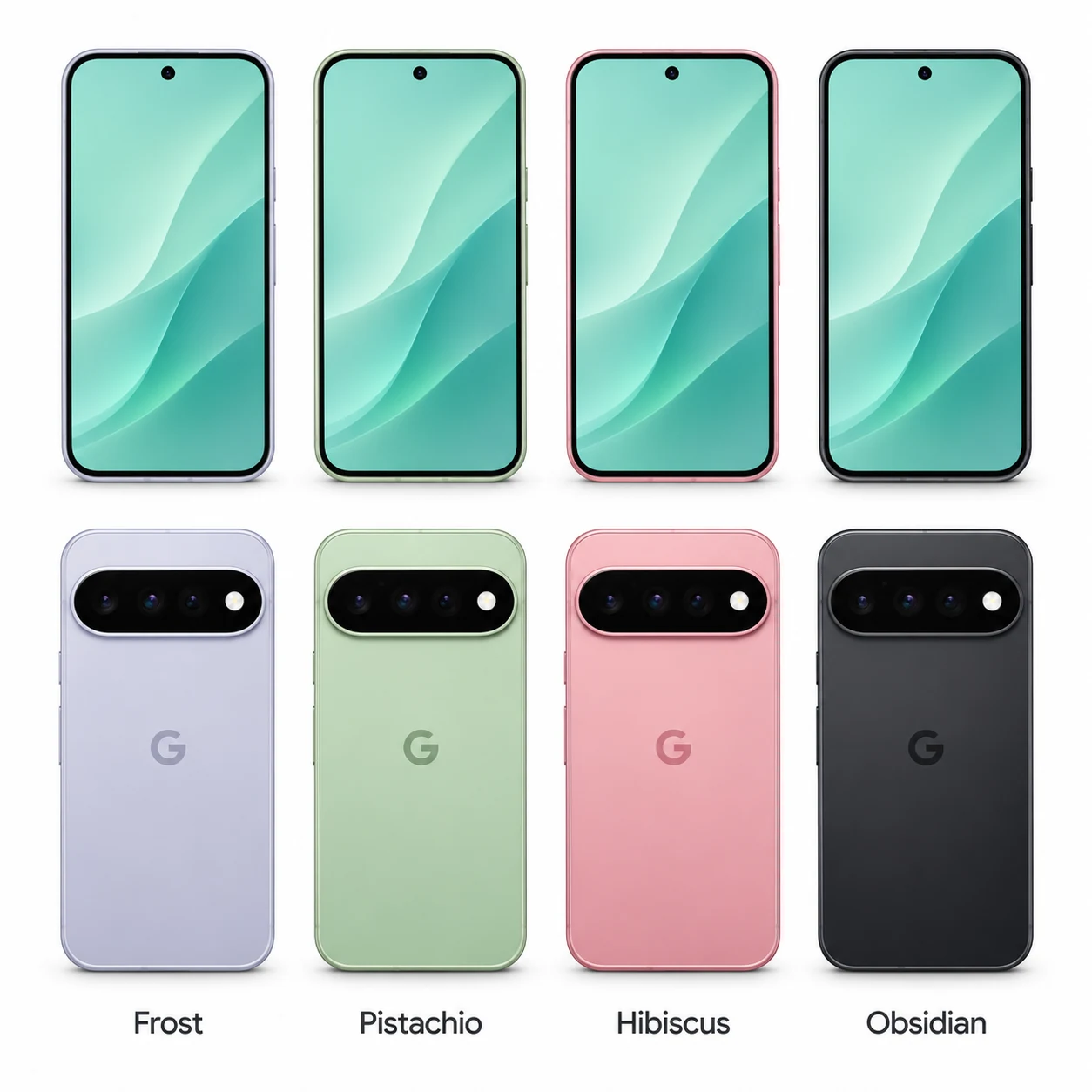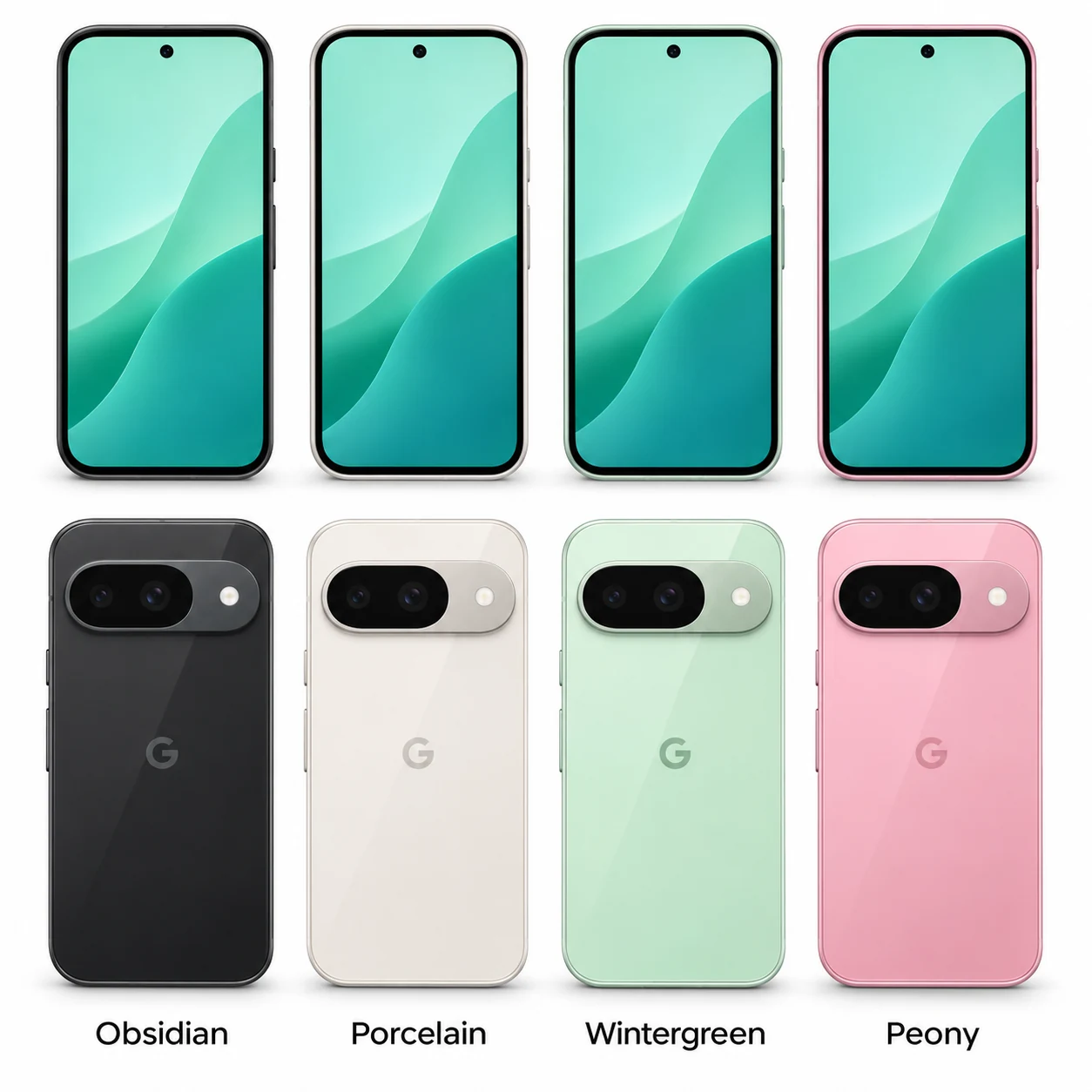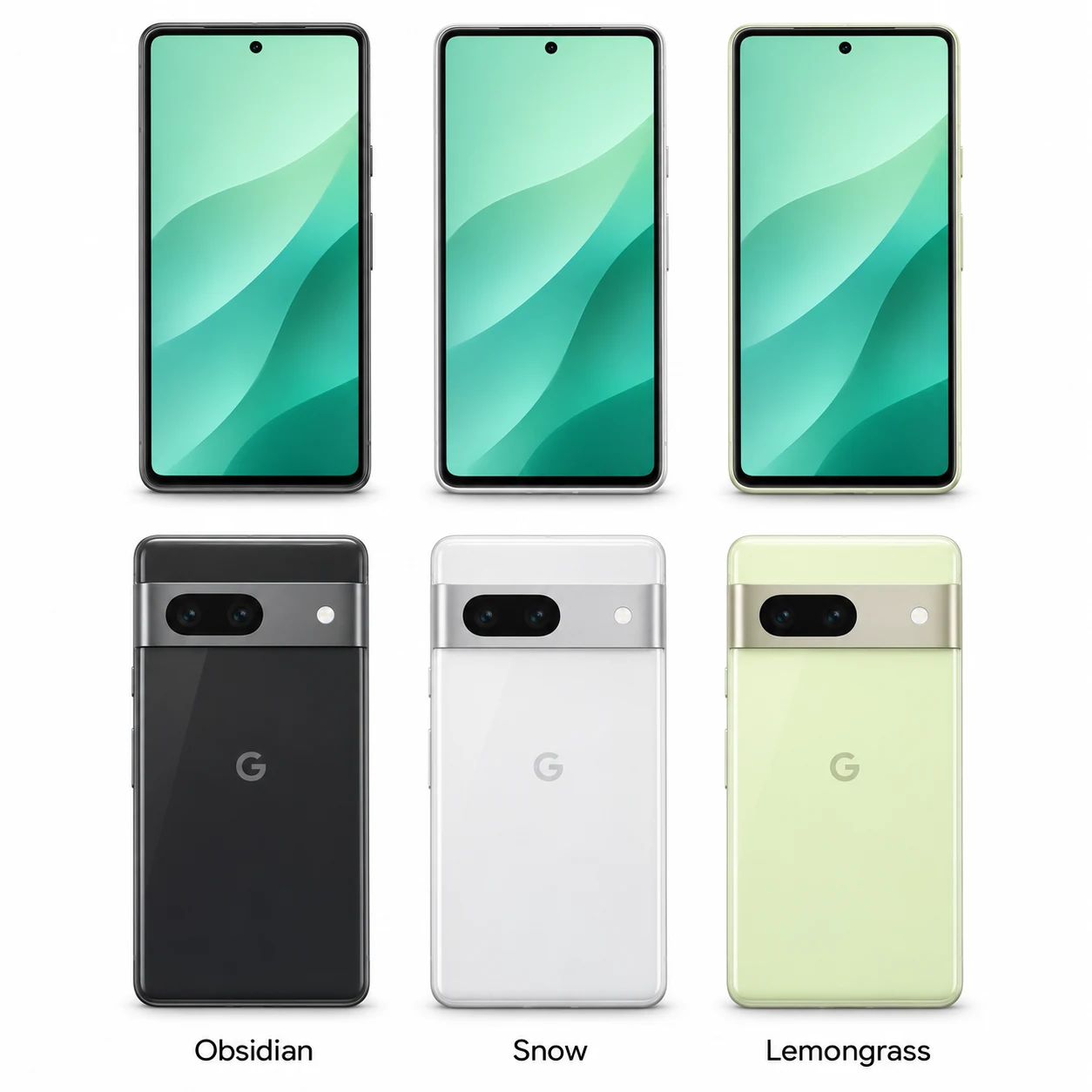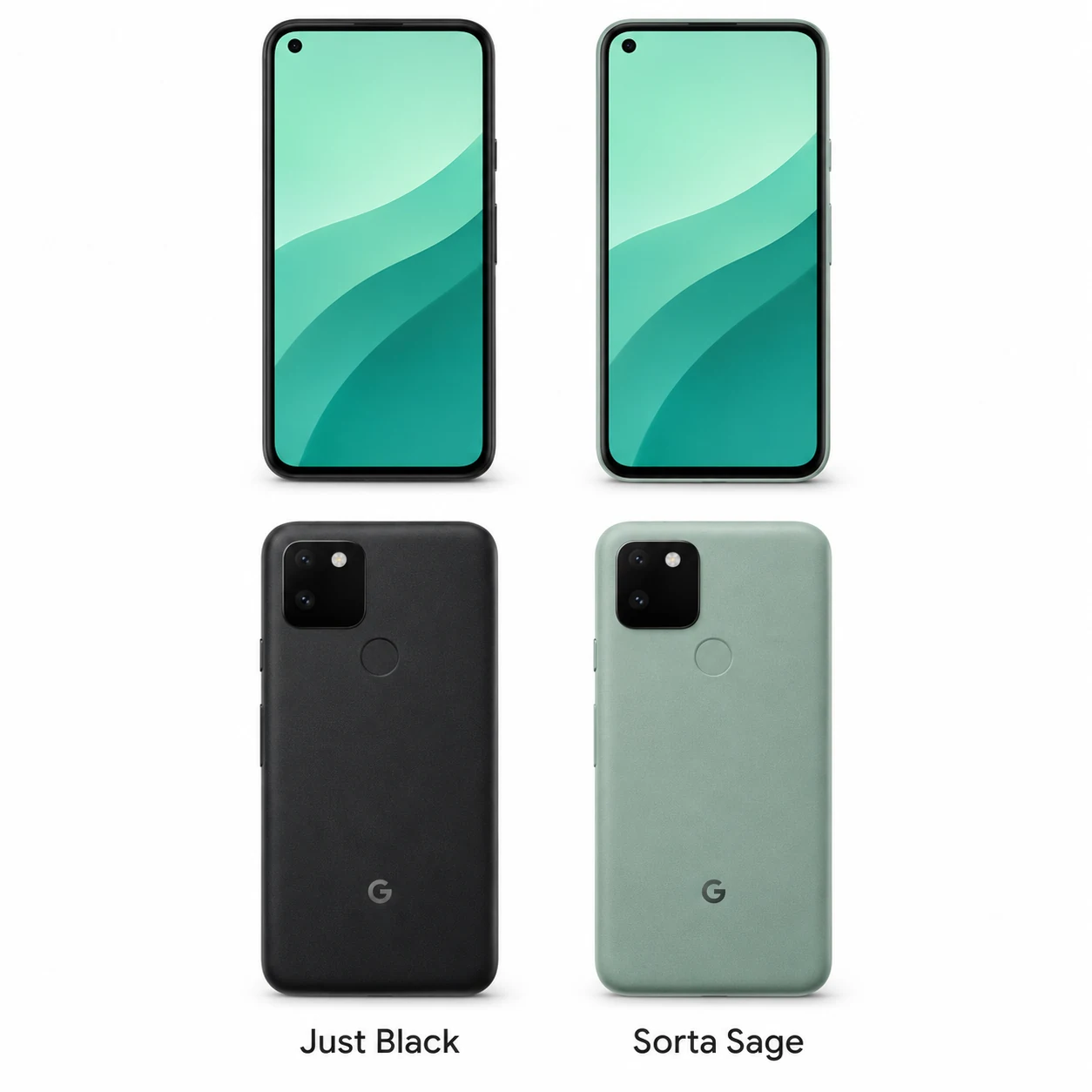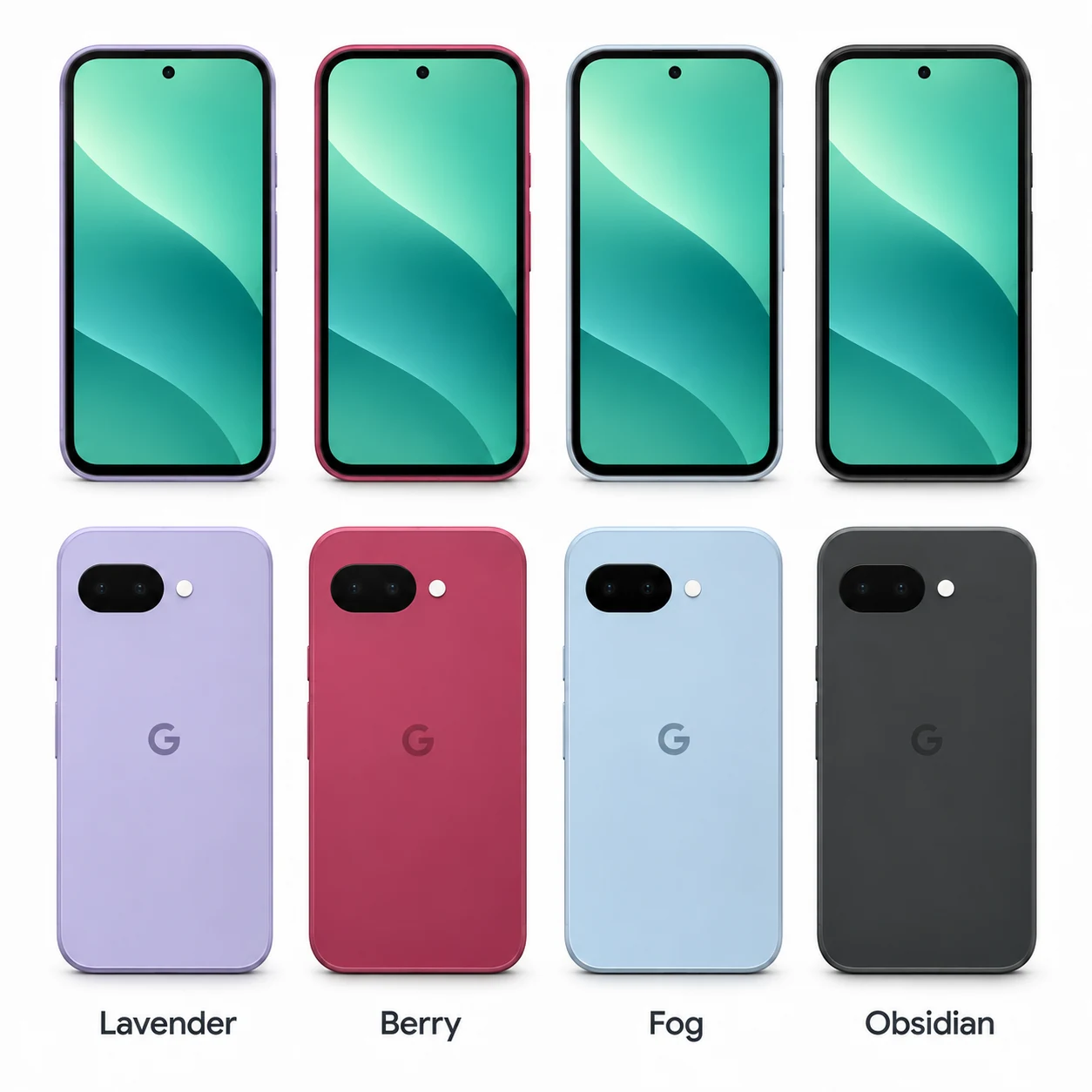
Google Pixel 10a
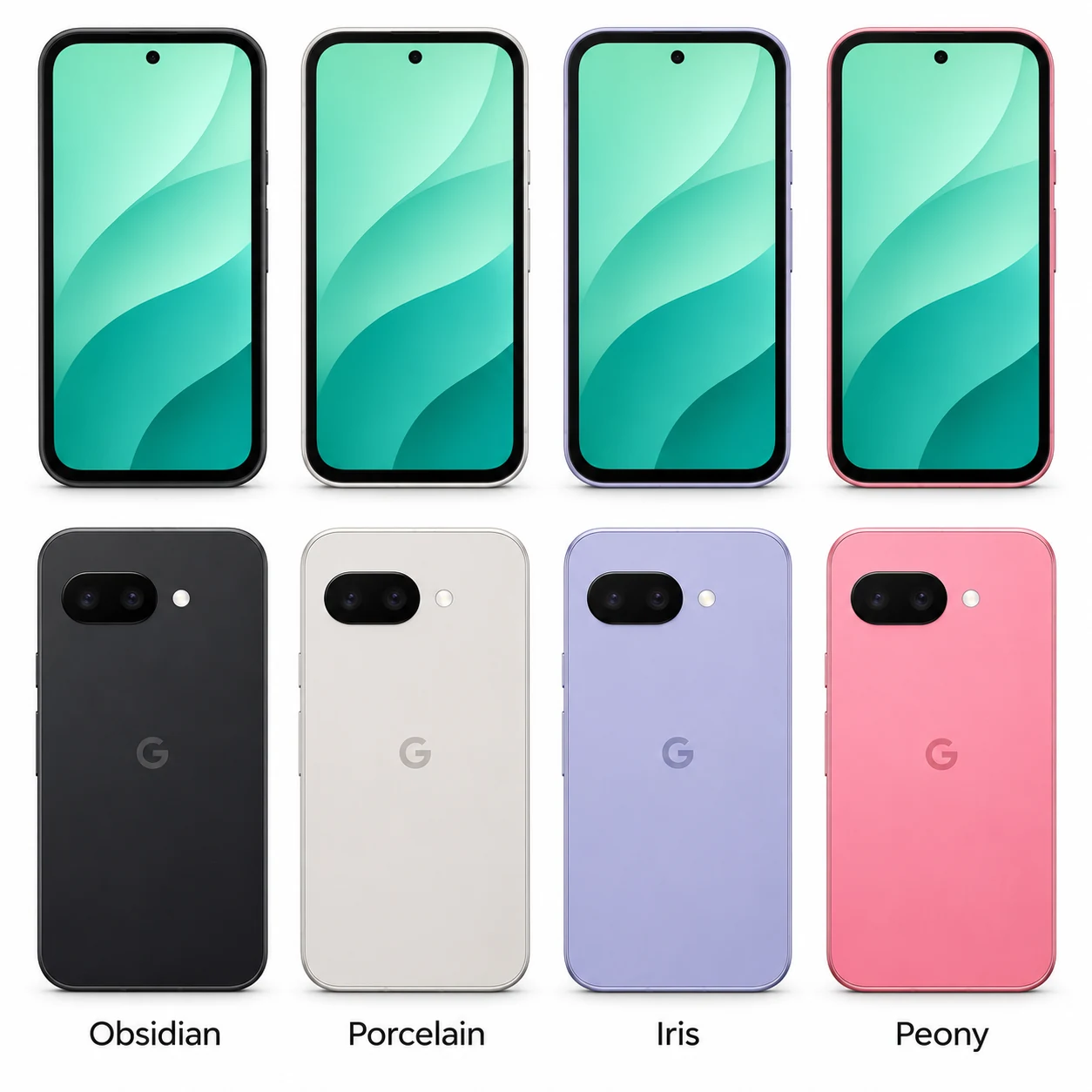
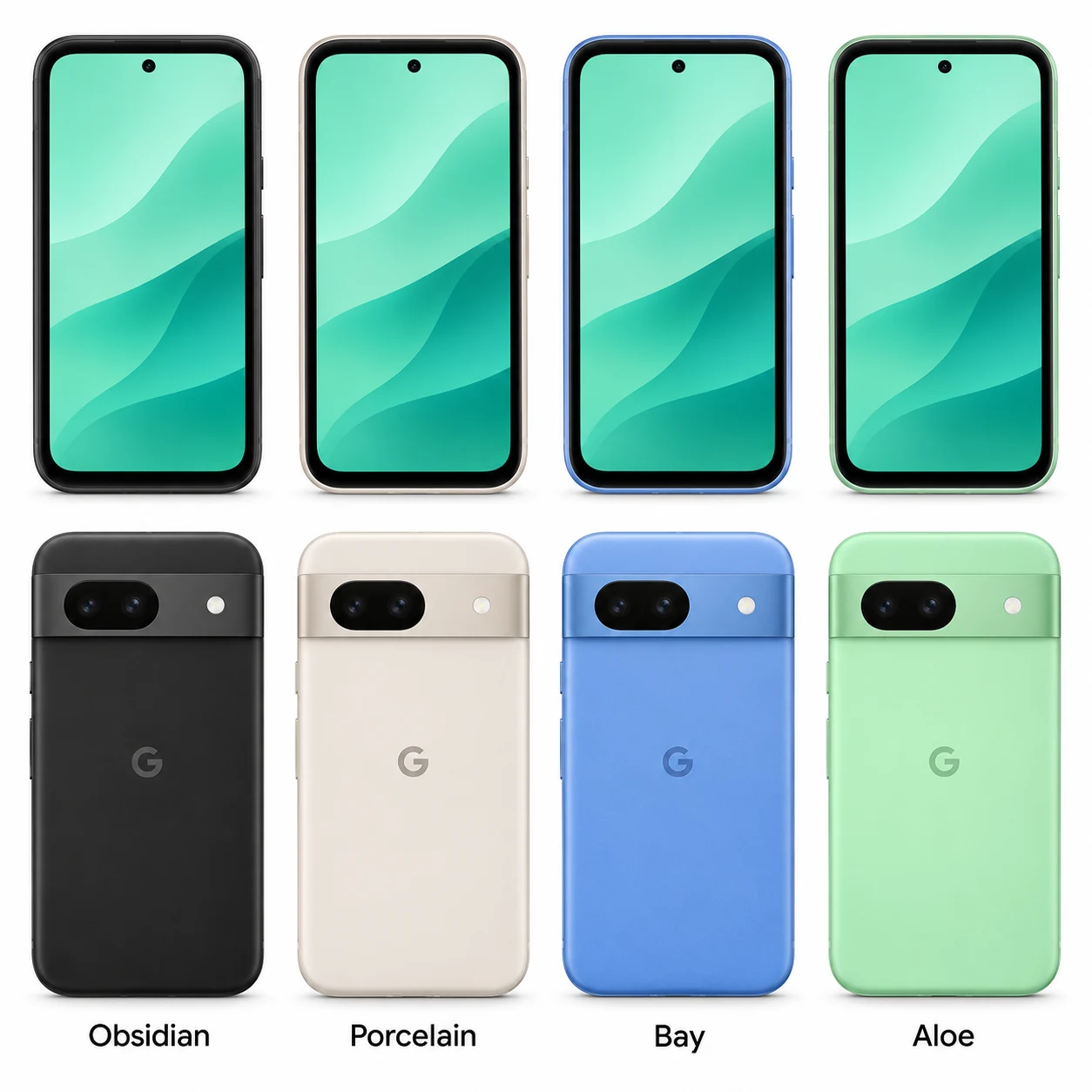
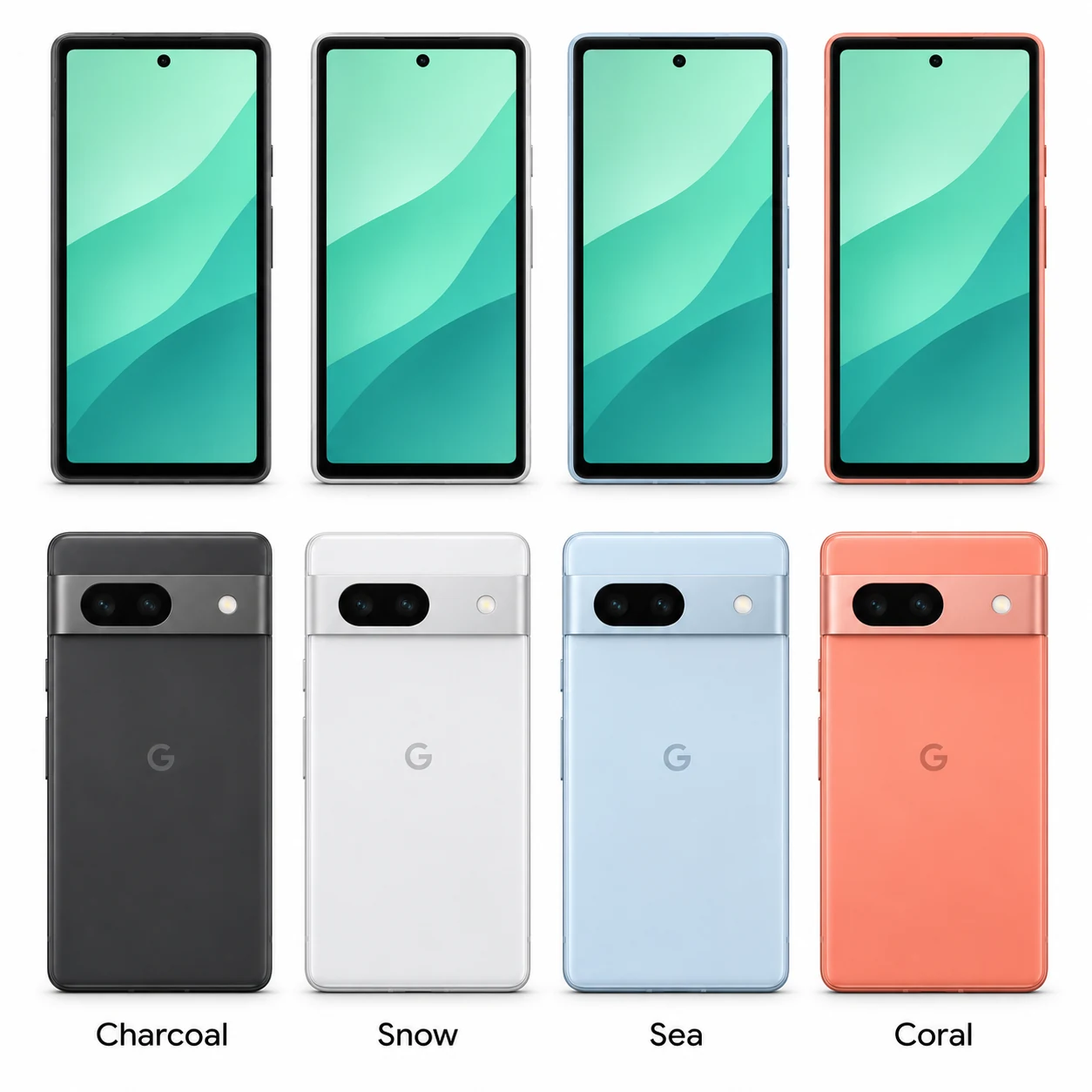
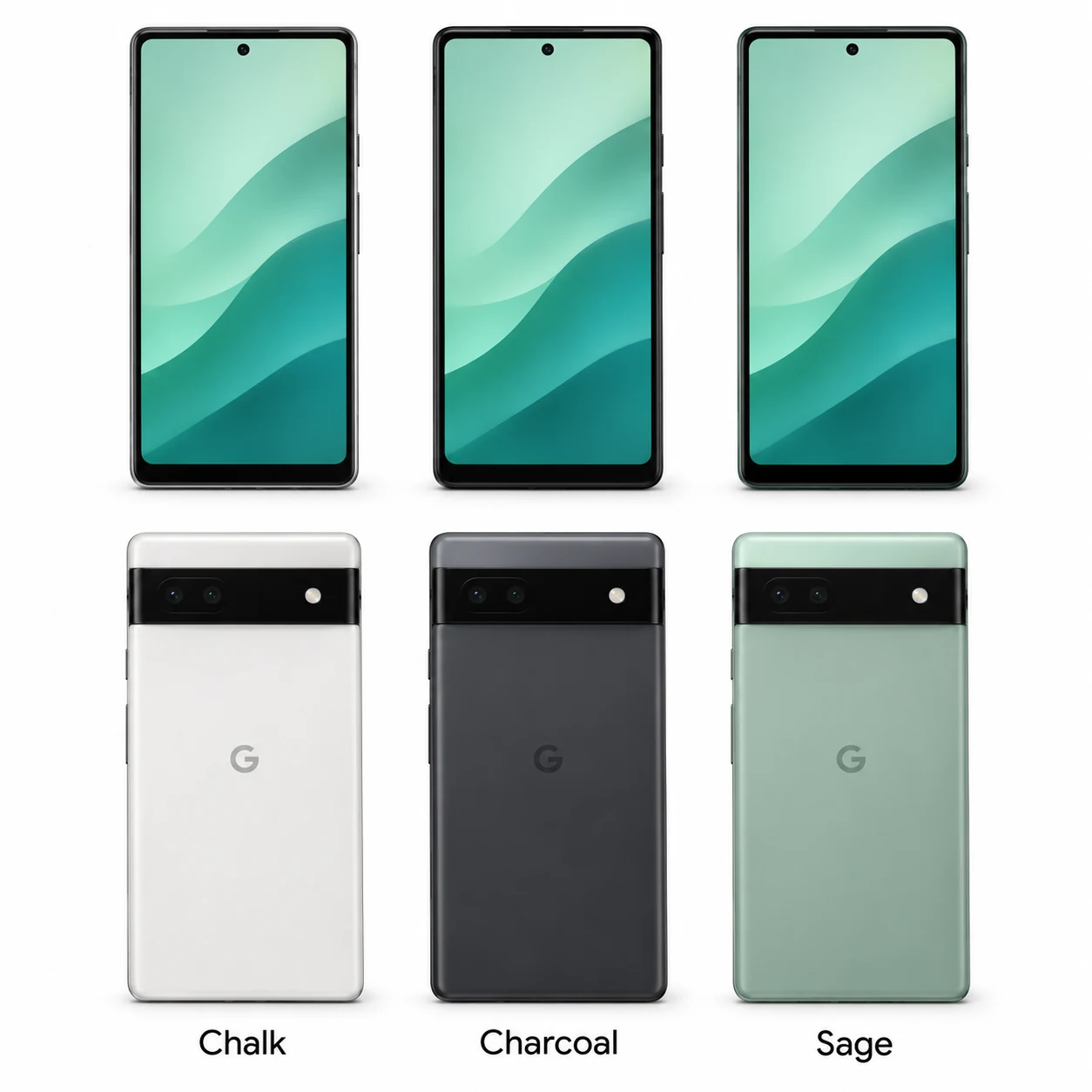
2026 a-series Pixel with Tensor G4, dual rear cameras and a 5,100mAh battery.
UK & Ireland model numbers
G4H7L
- Screen
- 6.3-inch pOLED
- Storage
- 128GB, 256GB
- Connector
- USB-C
Colours & model codes inside
Browse Pixel phones, folding Pixels, tablets and Pixel Watch, alongside the earlier Nexus range. Start with the exact name, then compare the hardware code, colours and practical specifications.
Pixel, a-series, Pro, XL and Fold names describe different hardware. Record the full name and generation: a Pixel 9a, Pixel 9 Pro XL and Pixel 9 Pro Fold need different accessories and repair parts.
Google worked with manufacturers including HTC, Samsung, LG, ASUS, Motorola and Huawei on Nexus devices. These older phones and tablets are grouped here too. Samsung-made Nexus models link to their existing guides.
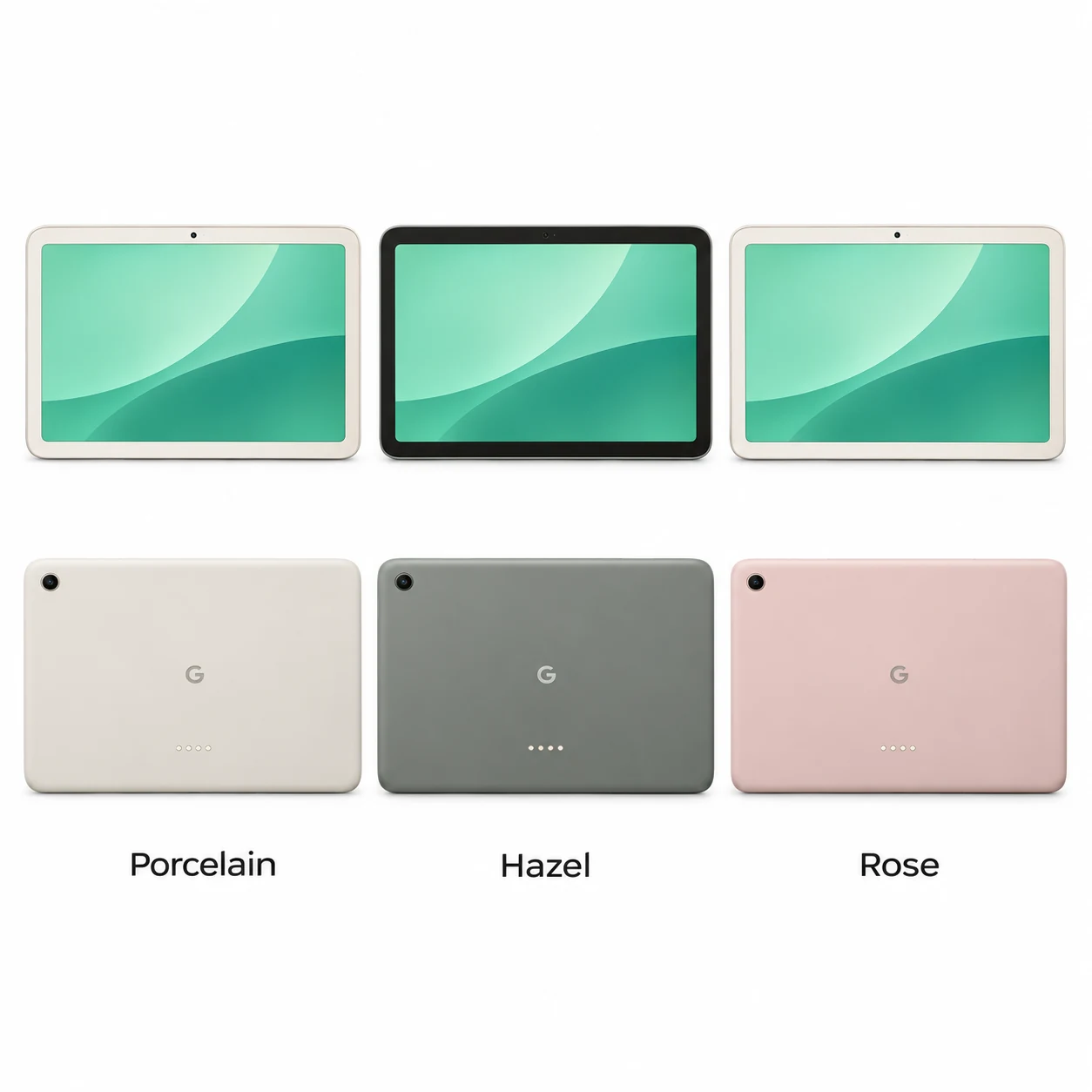
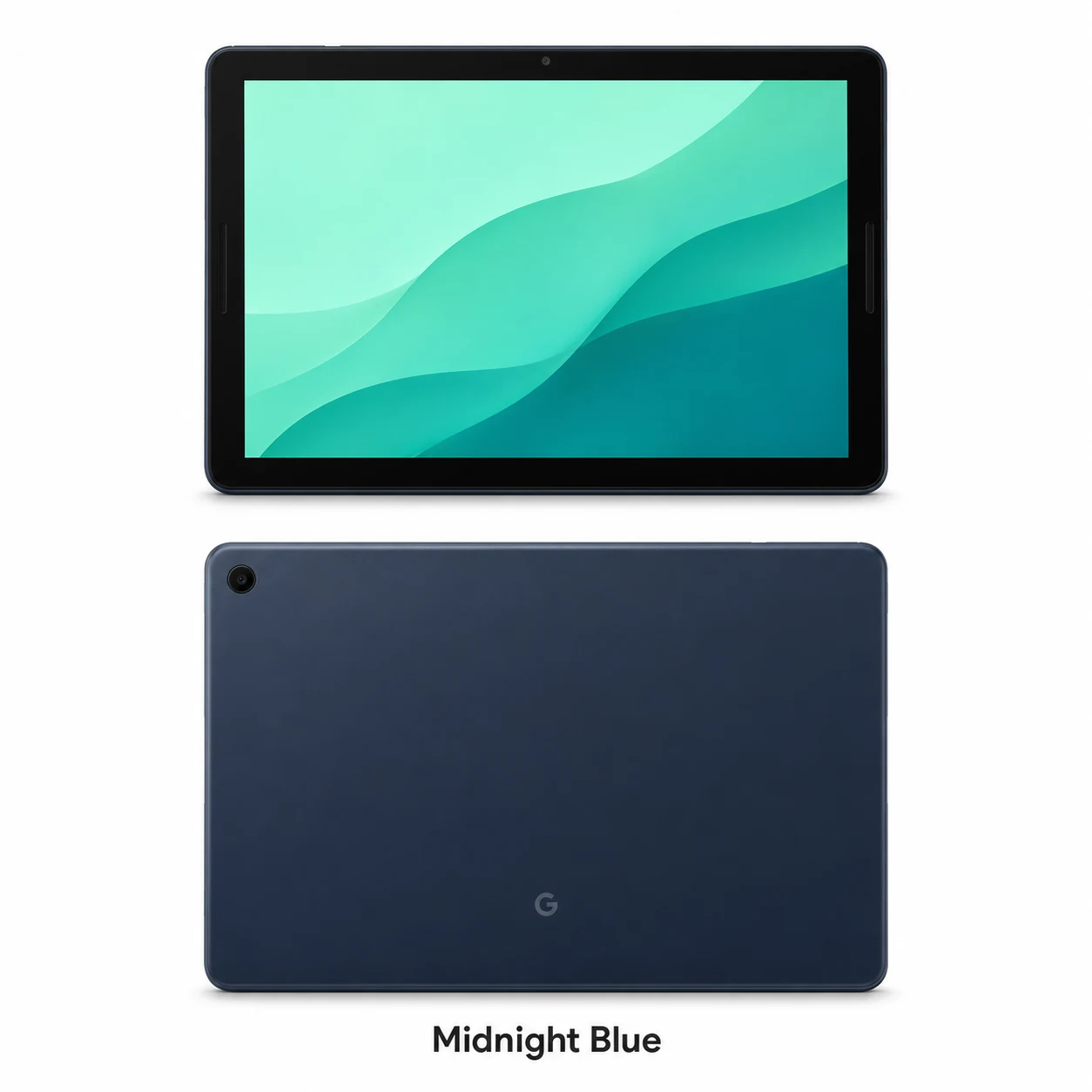
Google tablets include Android models and the ChromeOS Pixel Slate. Check the model code, connector, screen size and update support before choosing accessories, installing apps or booking a repair.
Pixel generations, a-series, Pro, XL and folding phones, plus the earlier Nexus range. Compare the exact model and hardware code.
Browse google phonesPixel Tablet, Pixel Slate, Pixel C and Nexus tablets. Distinguish screen sizes, generations, Wi-Fi or cellular hardware and Android or ChromeOS.
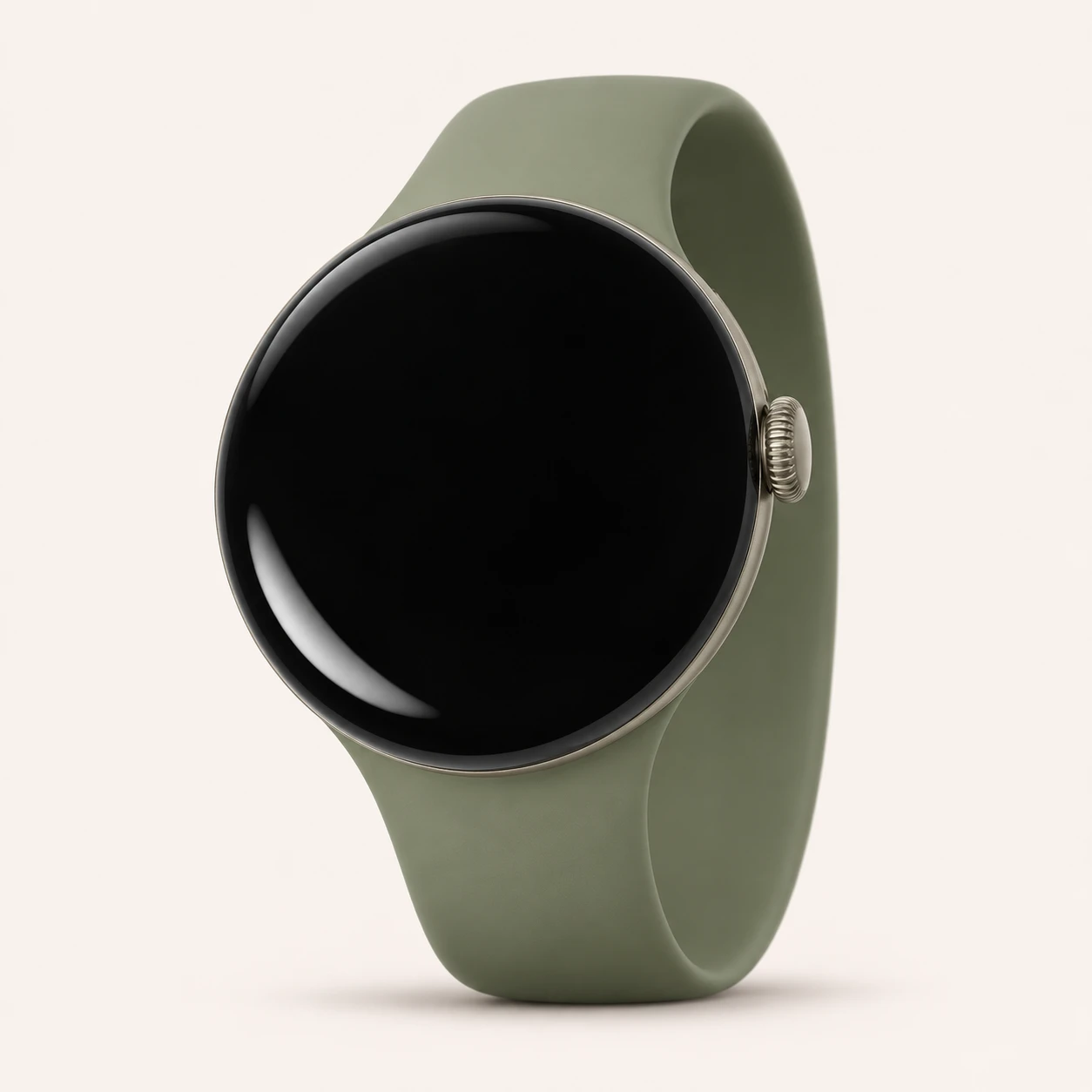
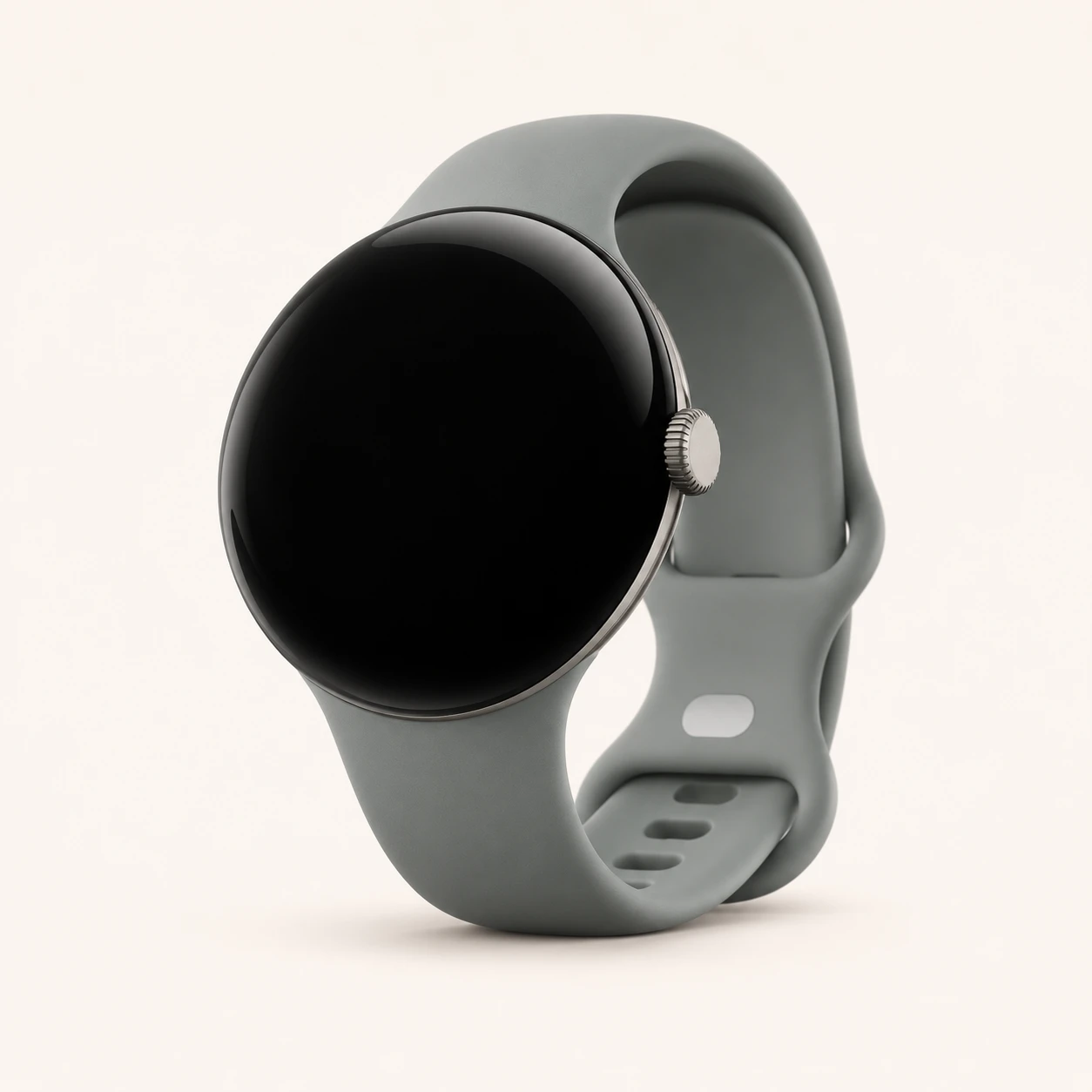
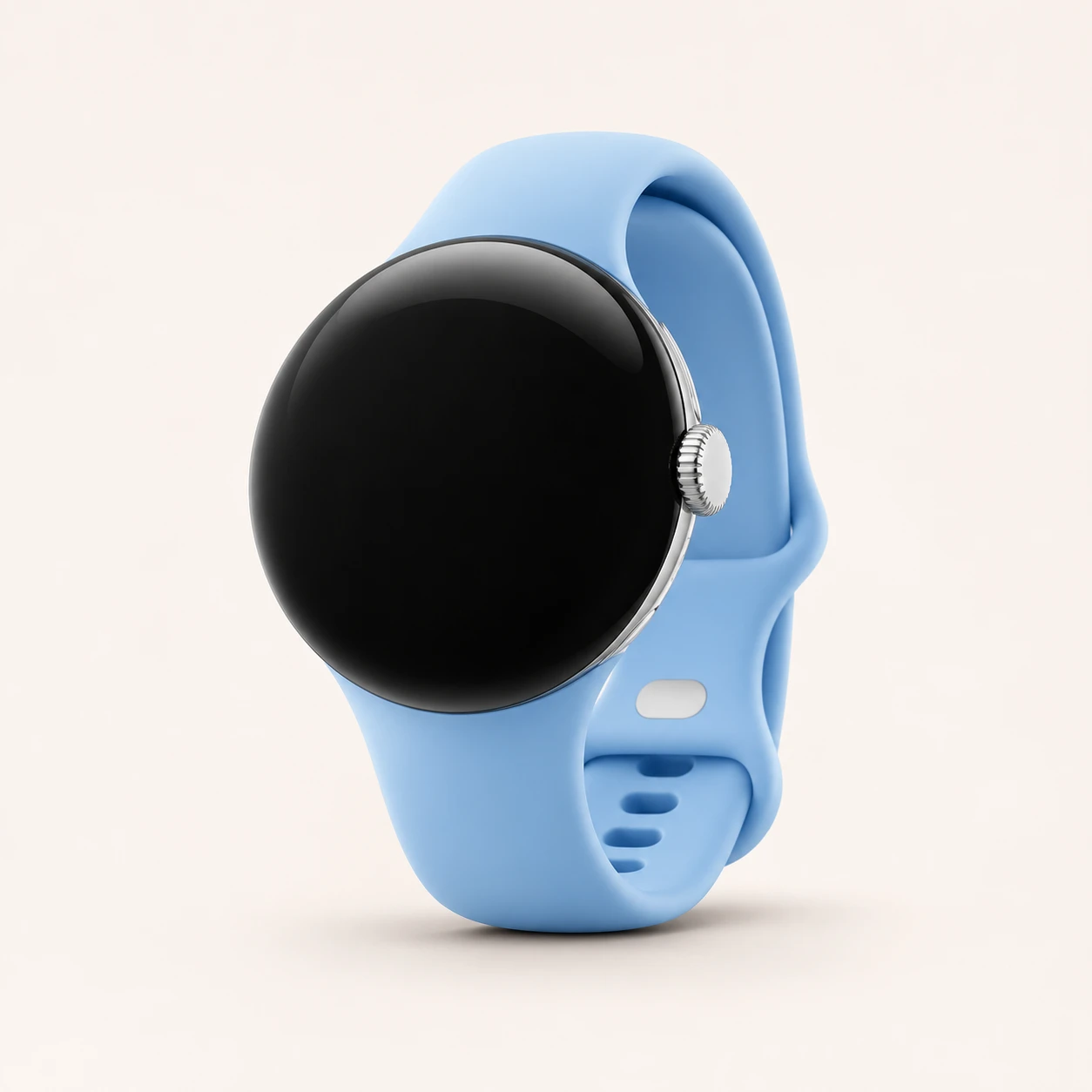
Browse google tabletsPixel Watch generations, with 41 mm and 45 mm case sizes where offered. Compare G-codes, LTE and Bluetooth/Wi-Fi hardware, charging and compatible Android phones.
Browse google pixel watchChoose the exact model, compare its colours and understand the specifications.
2026 a-series Pixel with Tensor G4, dual rear cameras and a 5,100mAh battery.
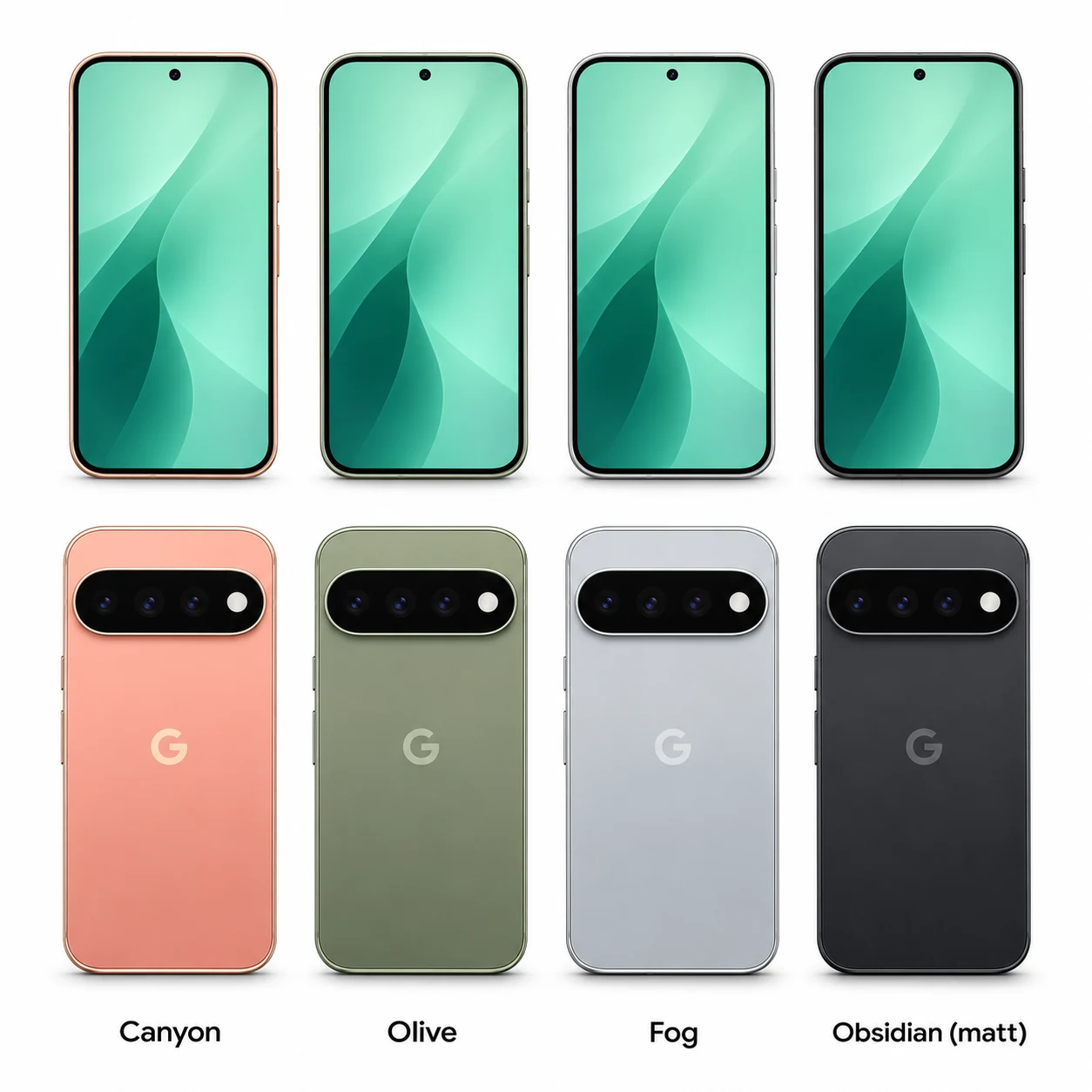
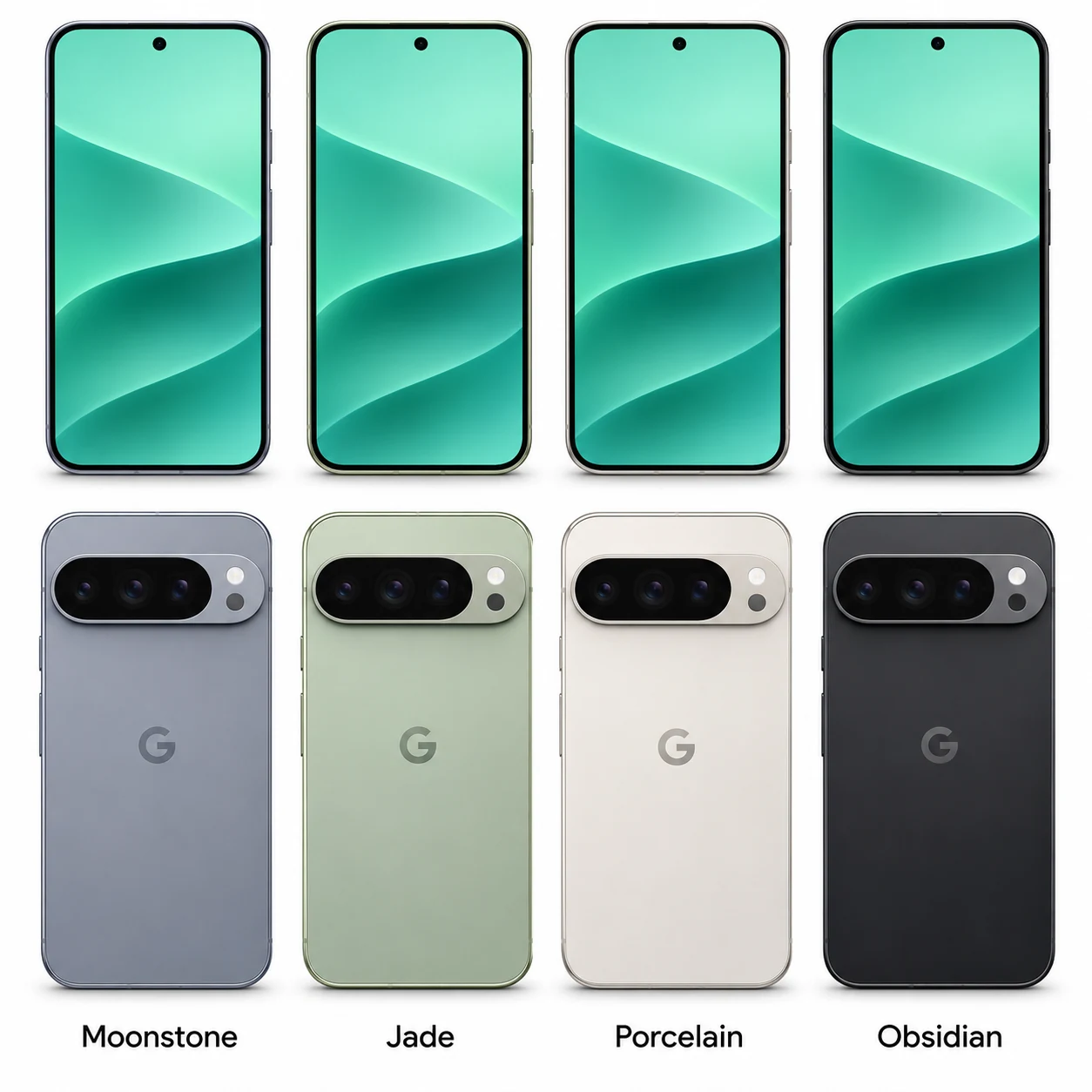
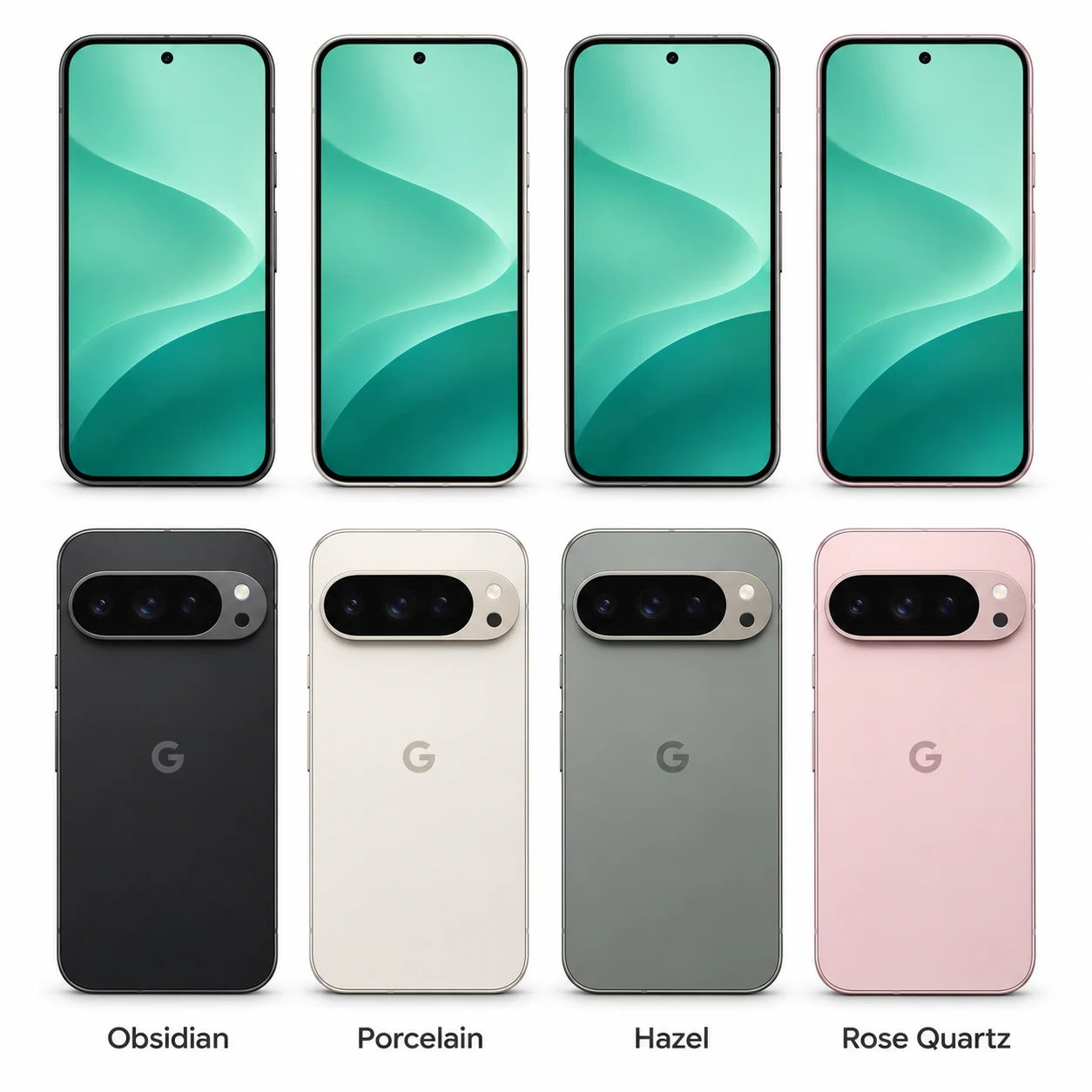
Standard Tensor G6 Pixel with three rear cameras and up to 25W Qi2.2 charging.
Compact Tensor G6 Pro; RAM capacity varies with the storage version.
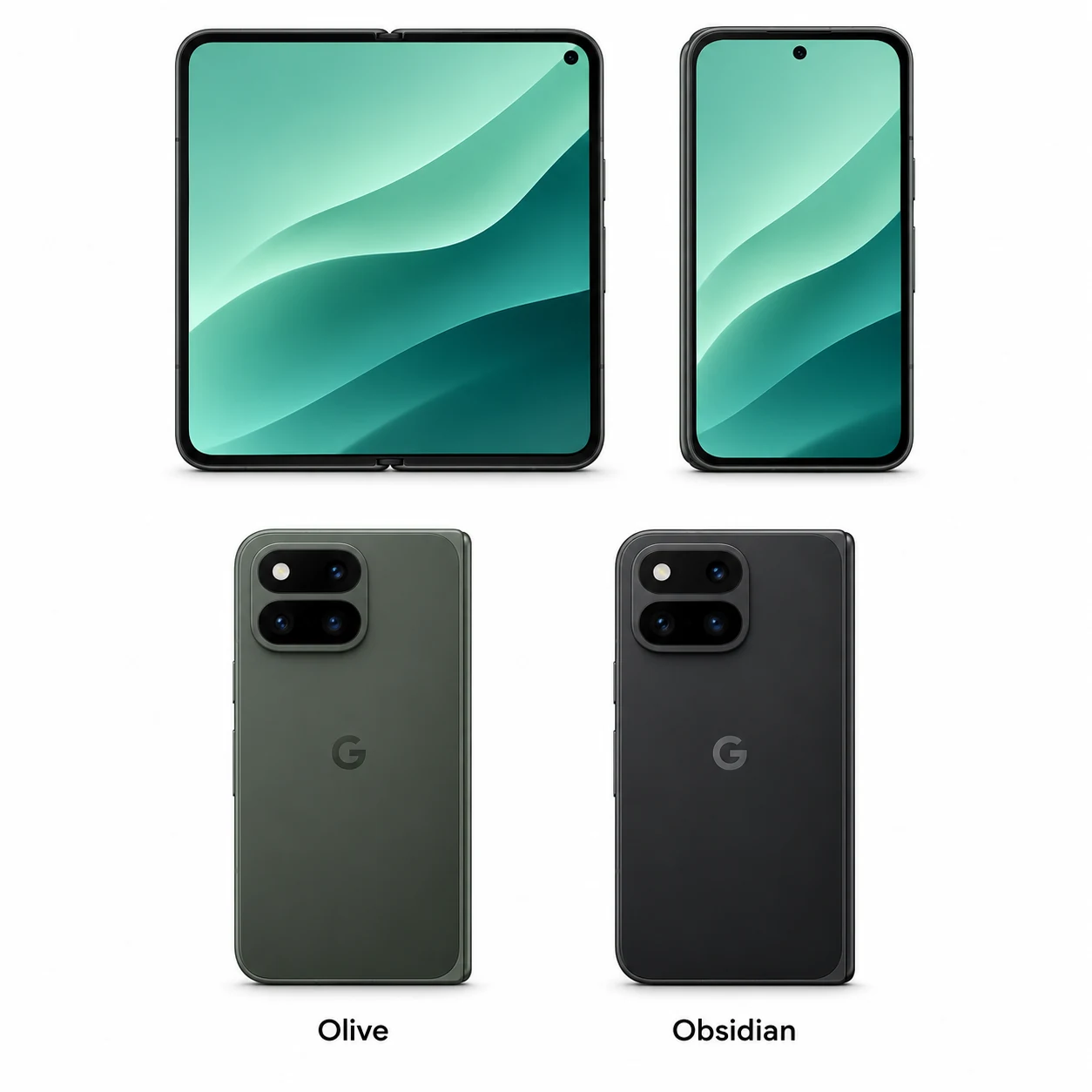
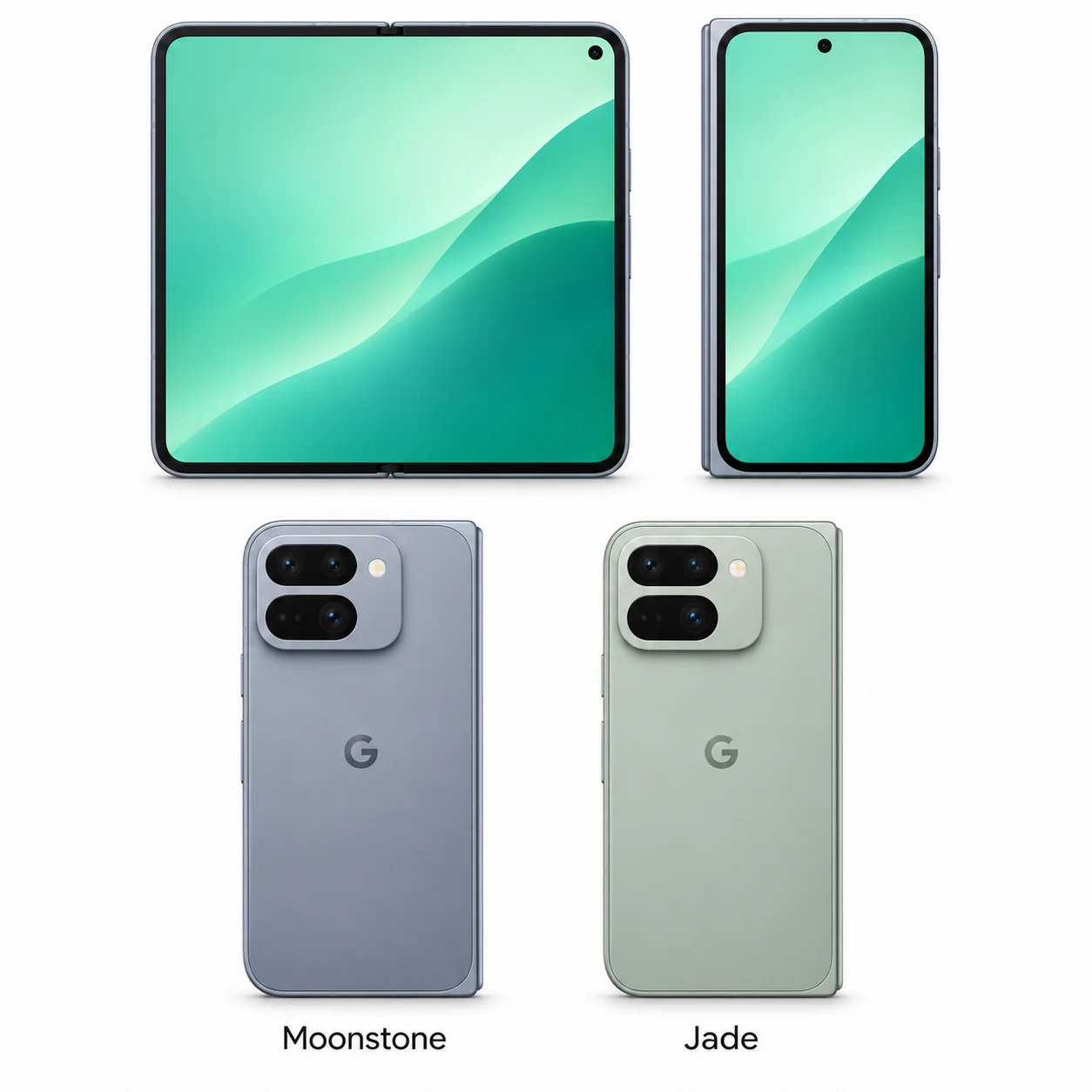
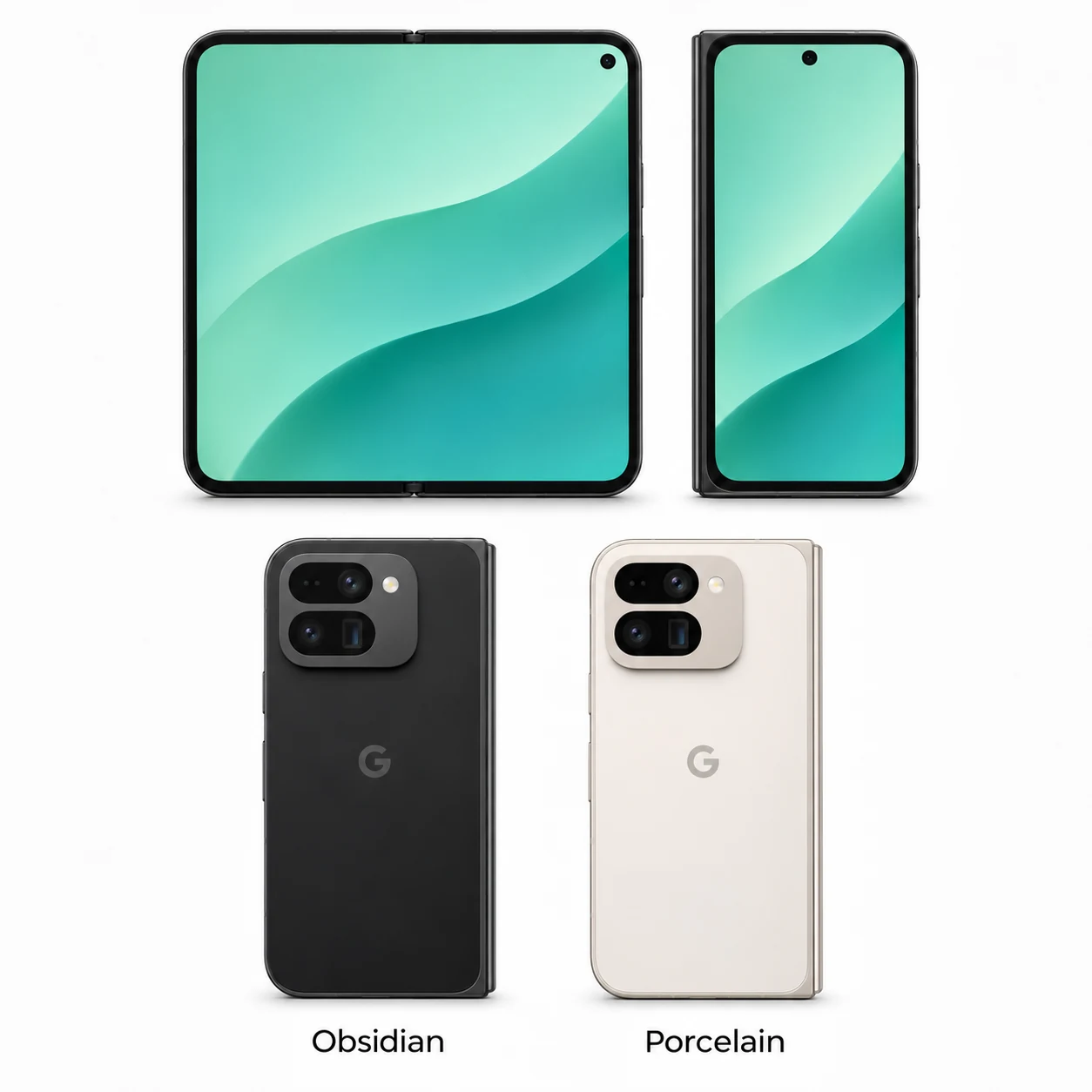
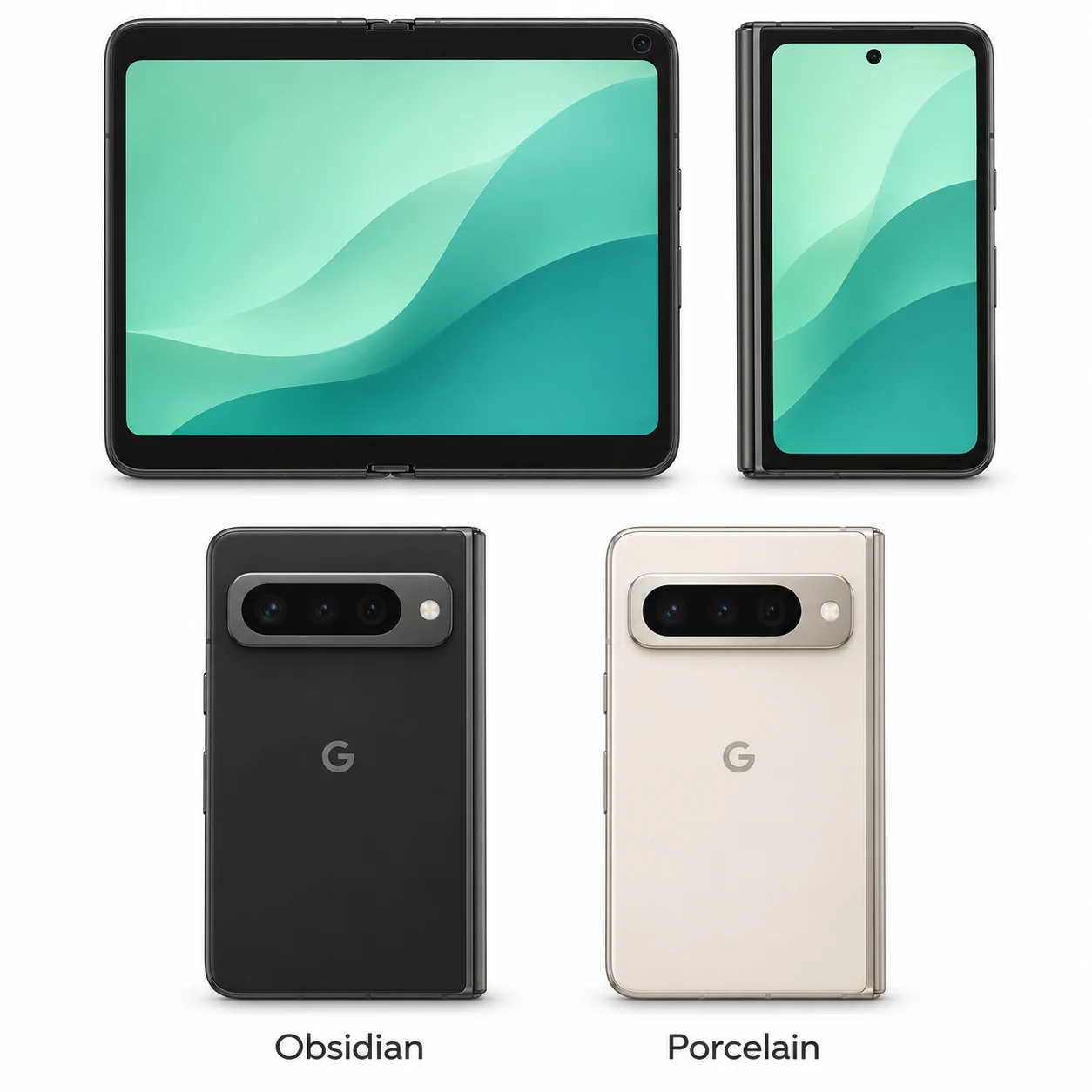
Tensor G6 foldable with 6.5-inch outer and 8-inch inner displays.
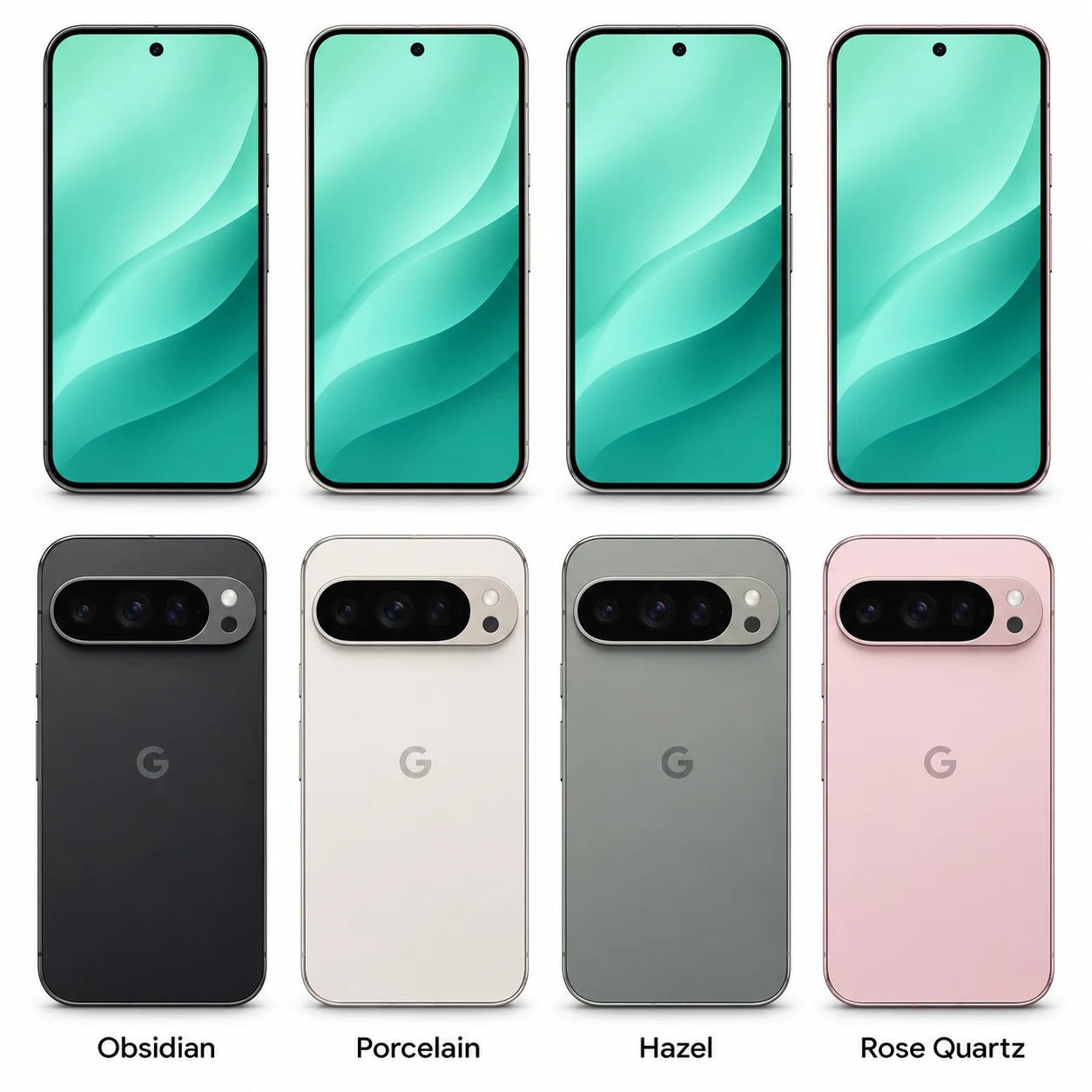
Large Tensor G6 Pro with a 6.8-inch screen and storage-dependent RAM capacity.
2026 generation; 64GB storage; new Satin Pyrite case finish.
Tensor G4 a-series phone with a near-flat rear camera unit and 5,100mAh battery.
Standard Tensor G5 Pixel with three rear cameras and magnetic Qi2 charging.
Compact Tensor G5 Pro with an LTPO display, 16GB RAM and magnetic Qi2 charging.
Tensor G5 foldable with an 8-inch inner screen and magnetic Qi2 charging.
Large Tensor G5 Pro with a 6.8-inch screen and up to 25W Qi2 wireless charging.
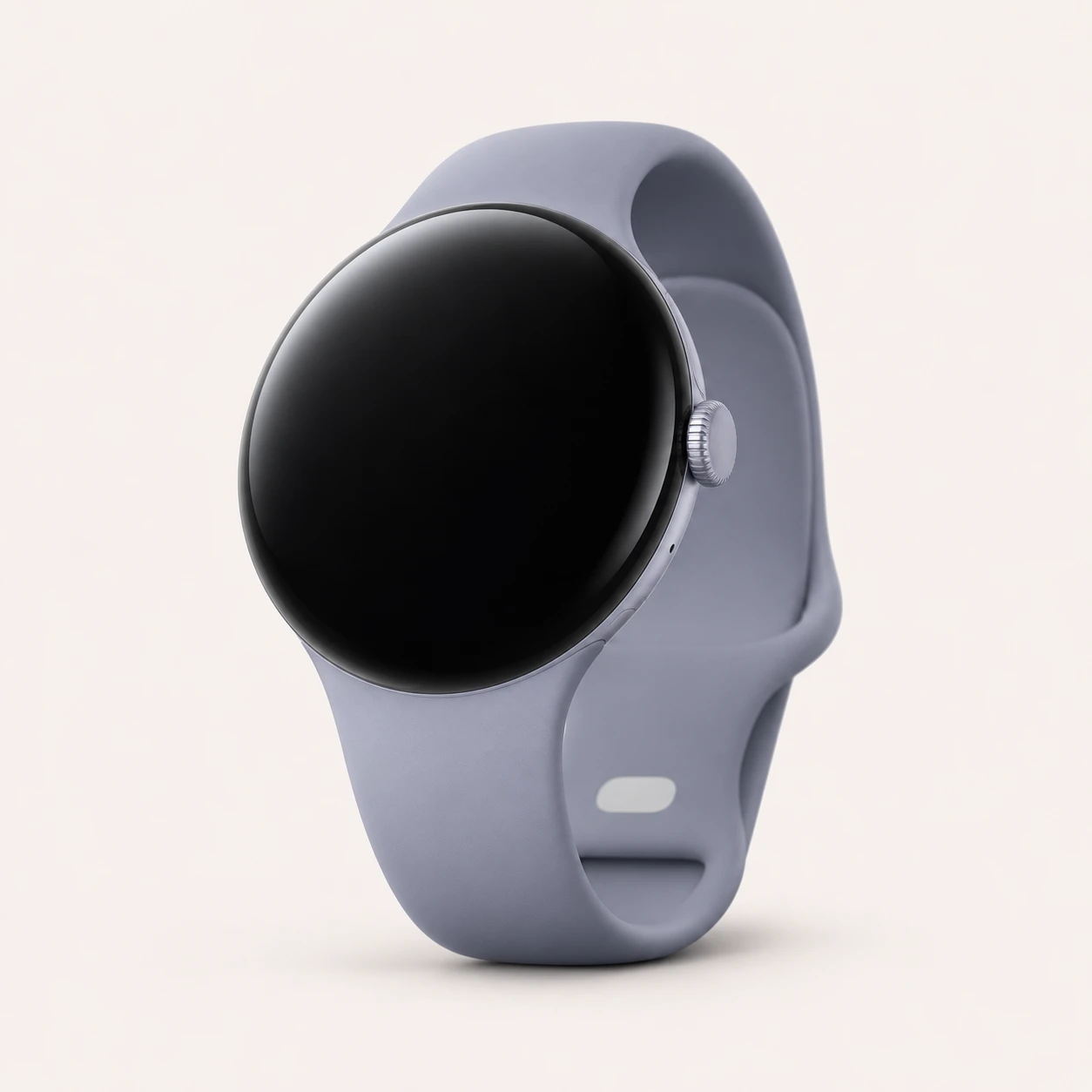
Actua 360 dome; Quick Charge Dock; 41 mm and 45 mm variants.
Rounded 6.1-inch a-series Pixel with Tensor G3 and a 120Hz OLED display.
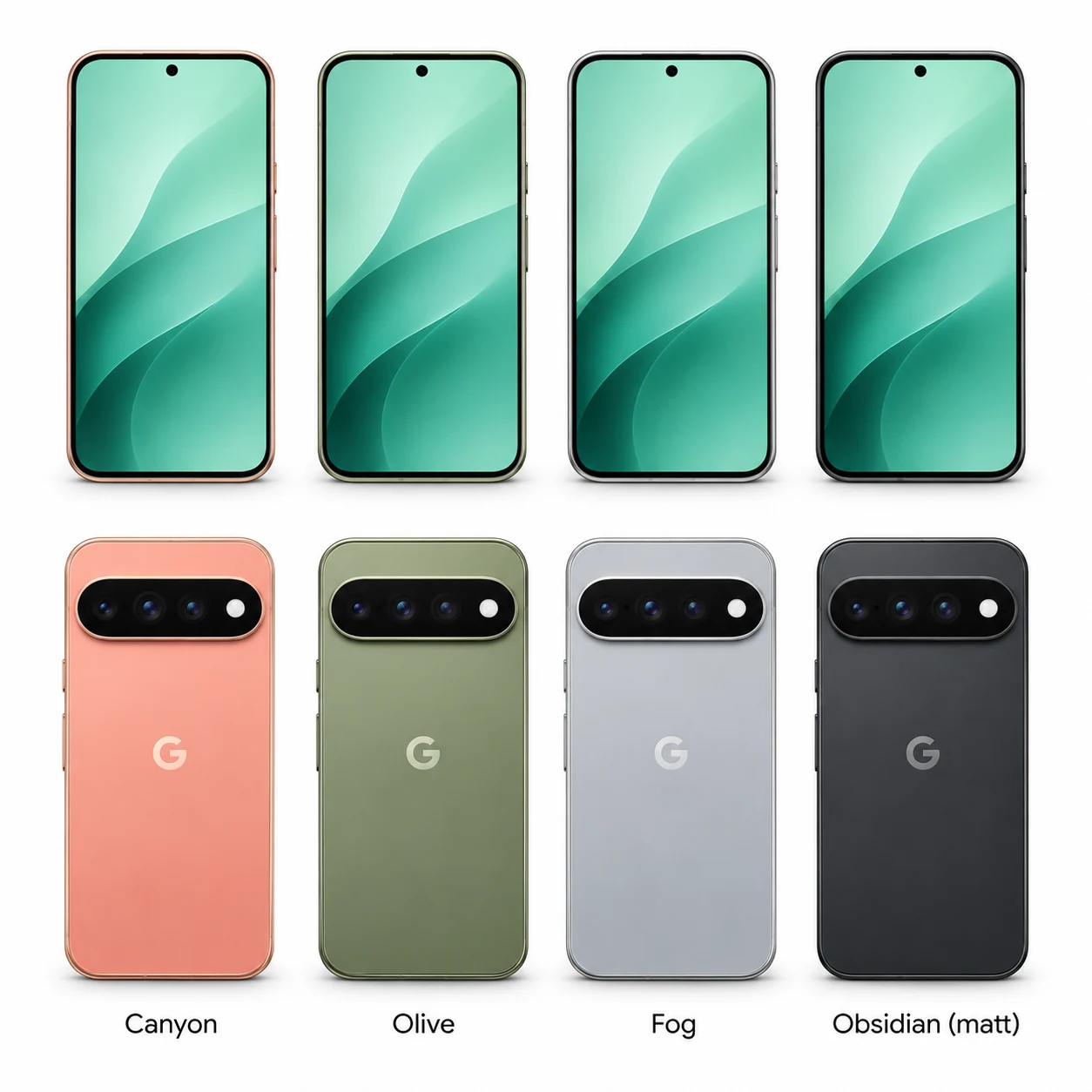
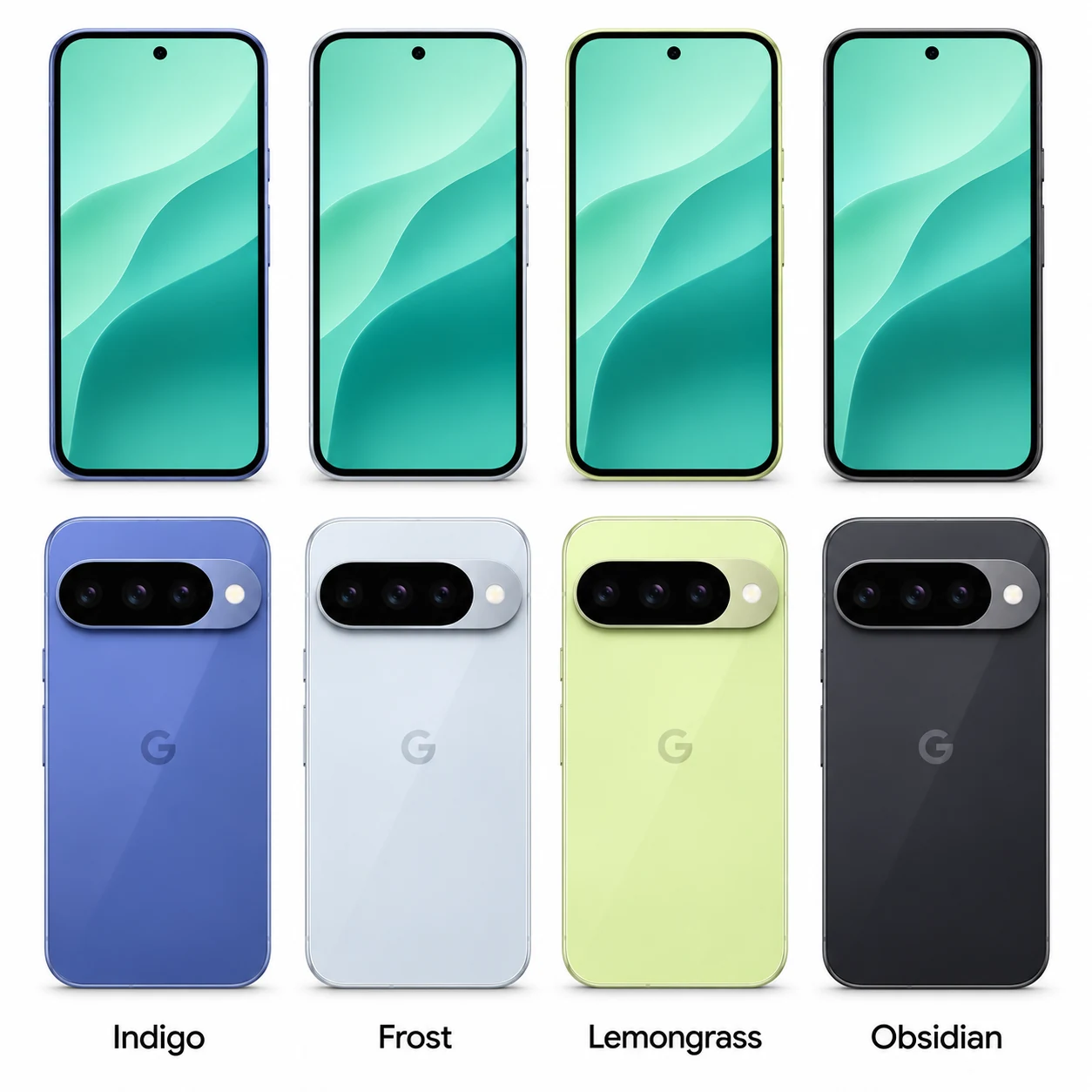
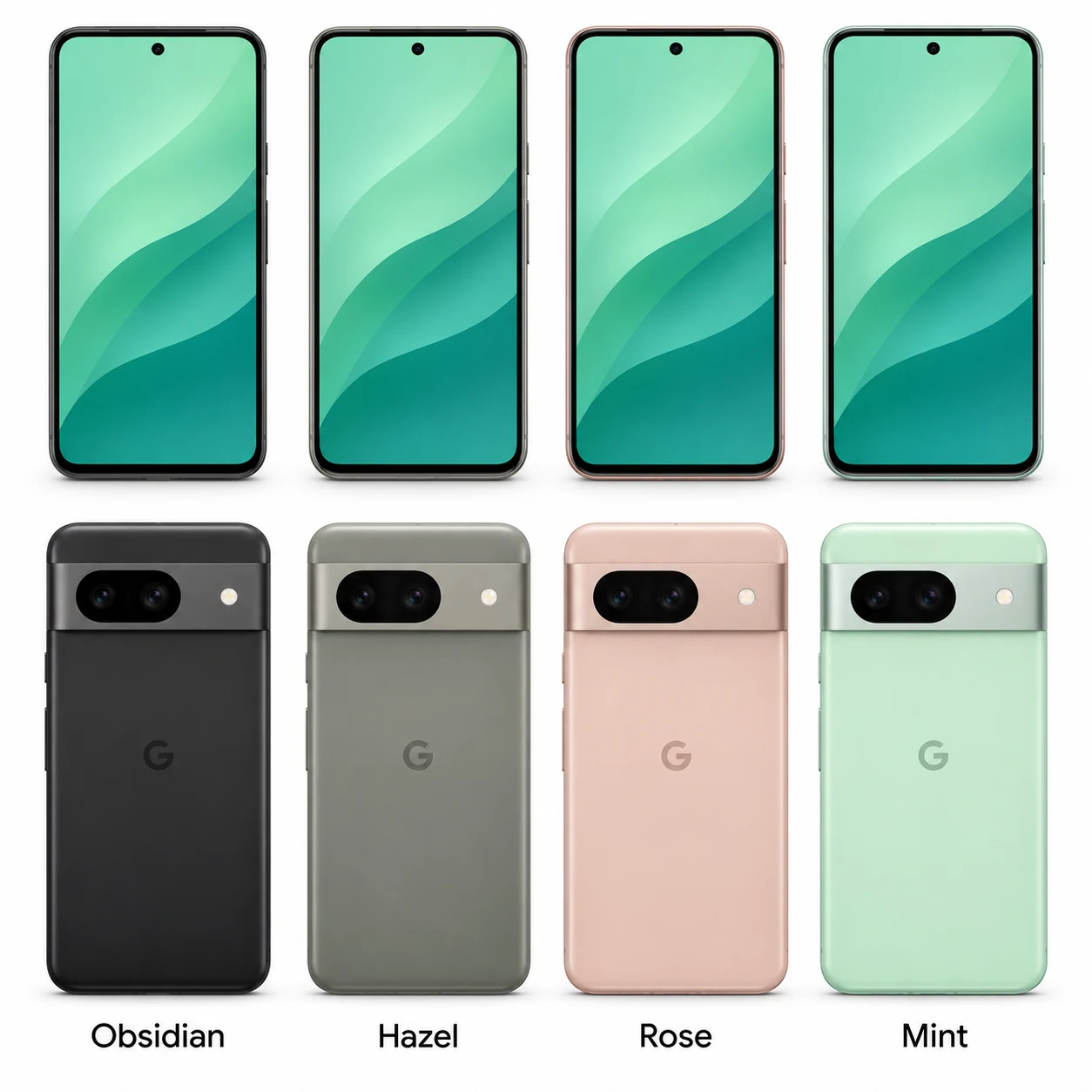
Flat-sided Tensor G4 Pixel with a raised oval unit for two rear cameras.
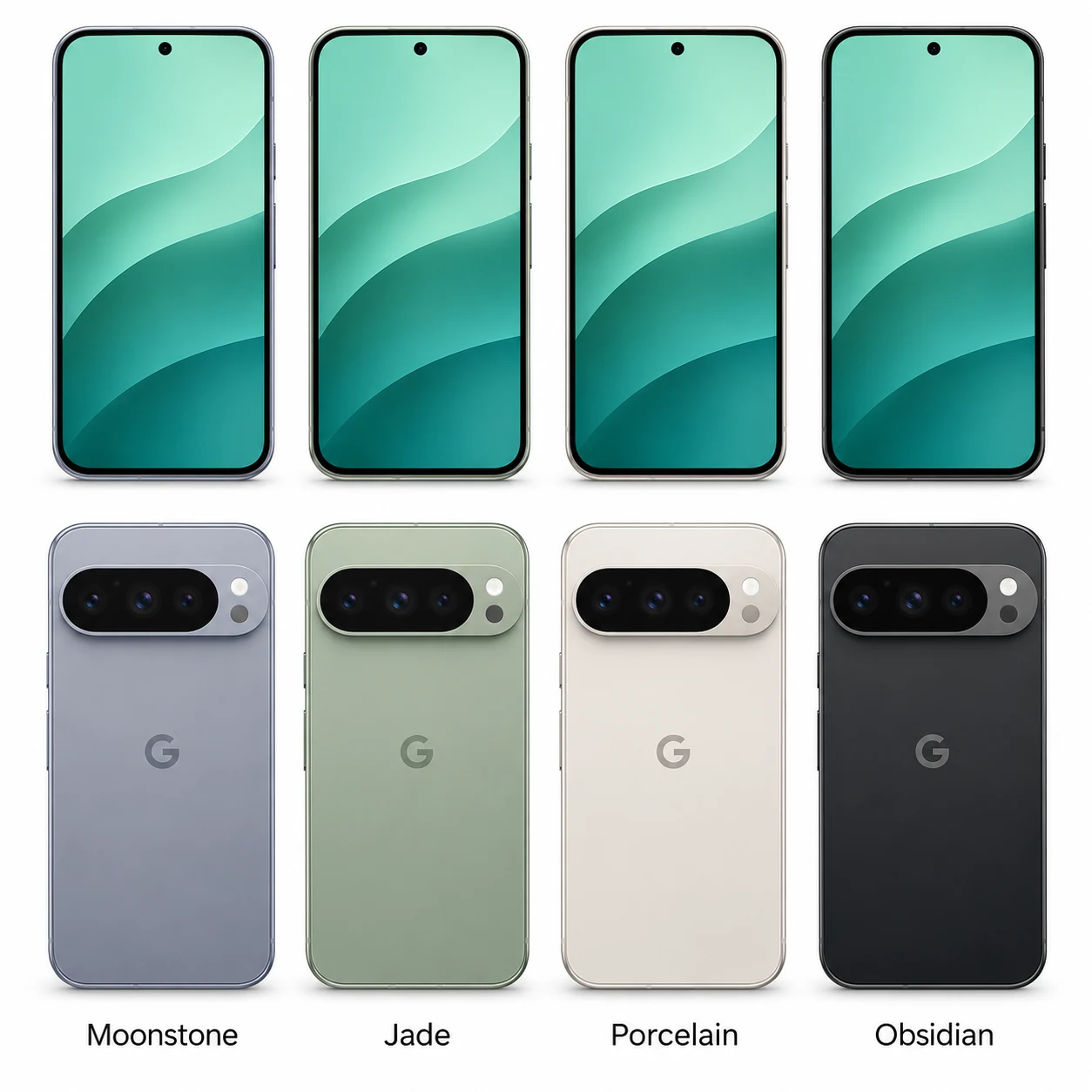
Compact Pro Pixel with a 6.3-inch LTPO display and dedicated 5x telephoto camera.
Taller Google foldable with an 8-inch inner display and Tensor G4.
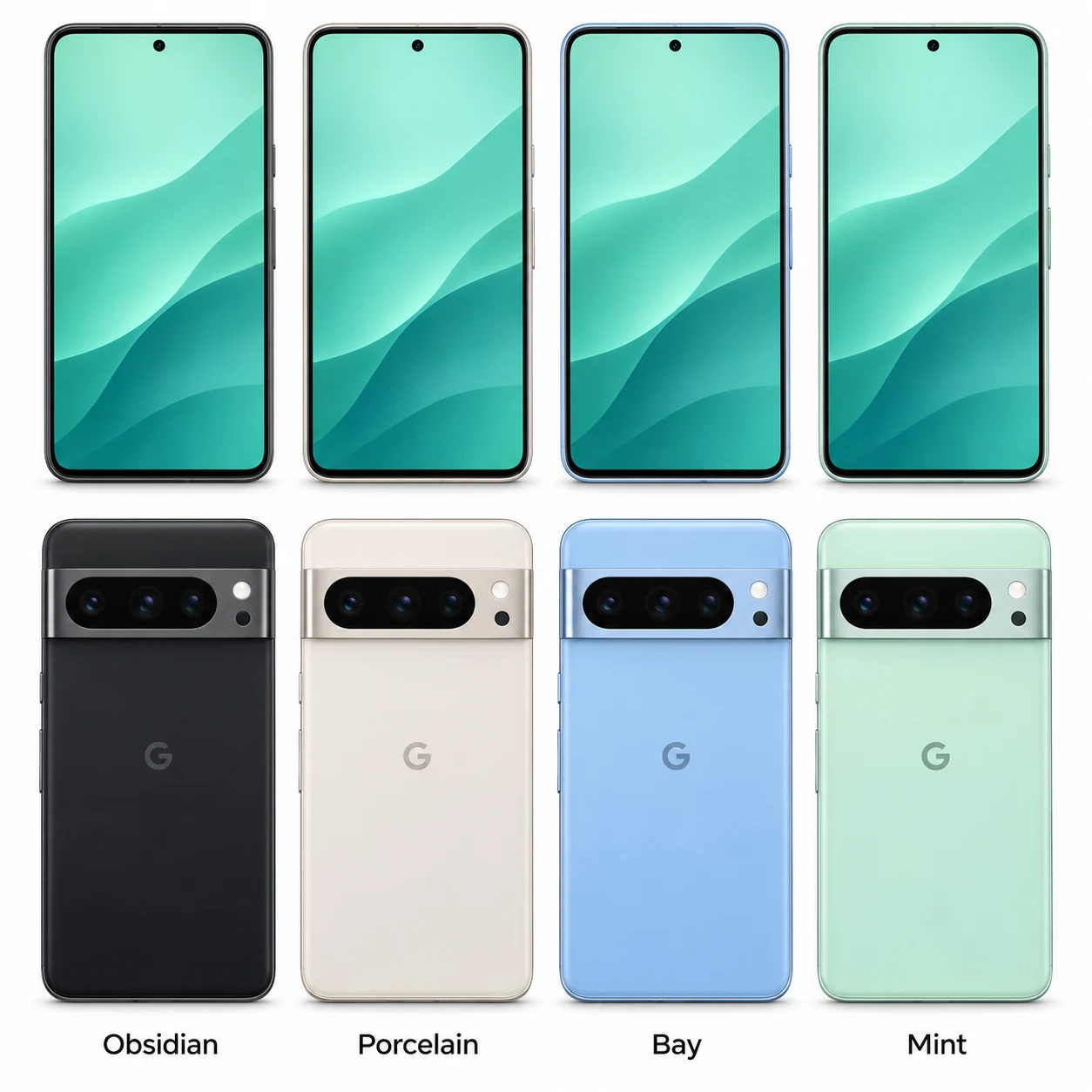
Large 2024 Pro Pixel with a 6.8-inch screen and triple rear camera system.
Two case sizes; brighter Actua display; four size/connectivity G-codes.
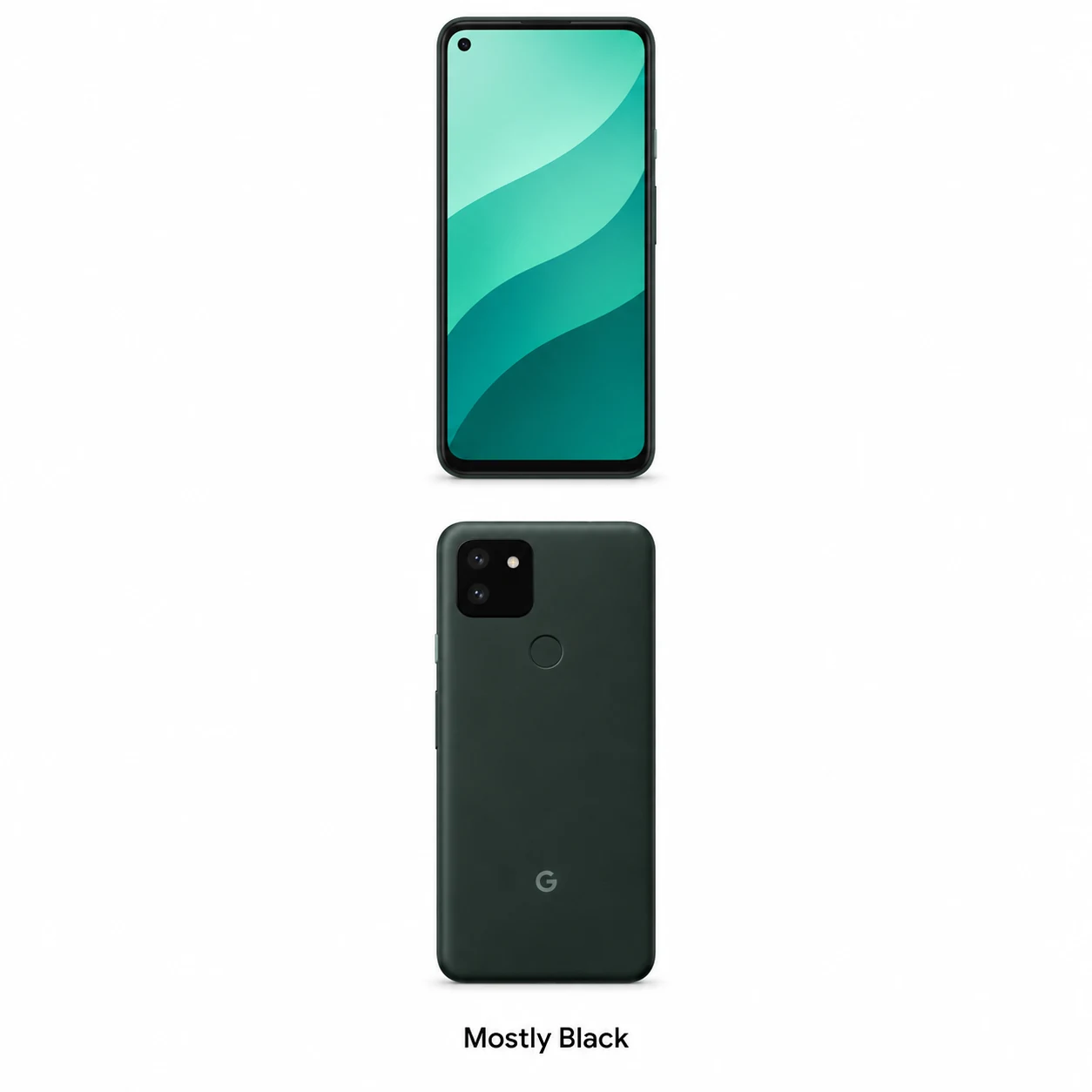
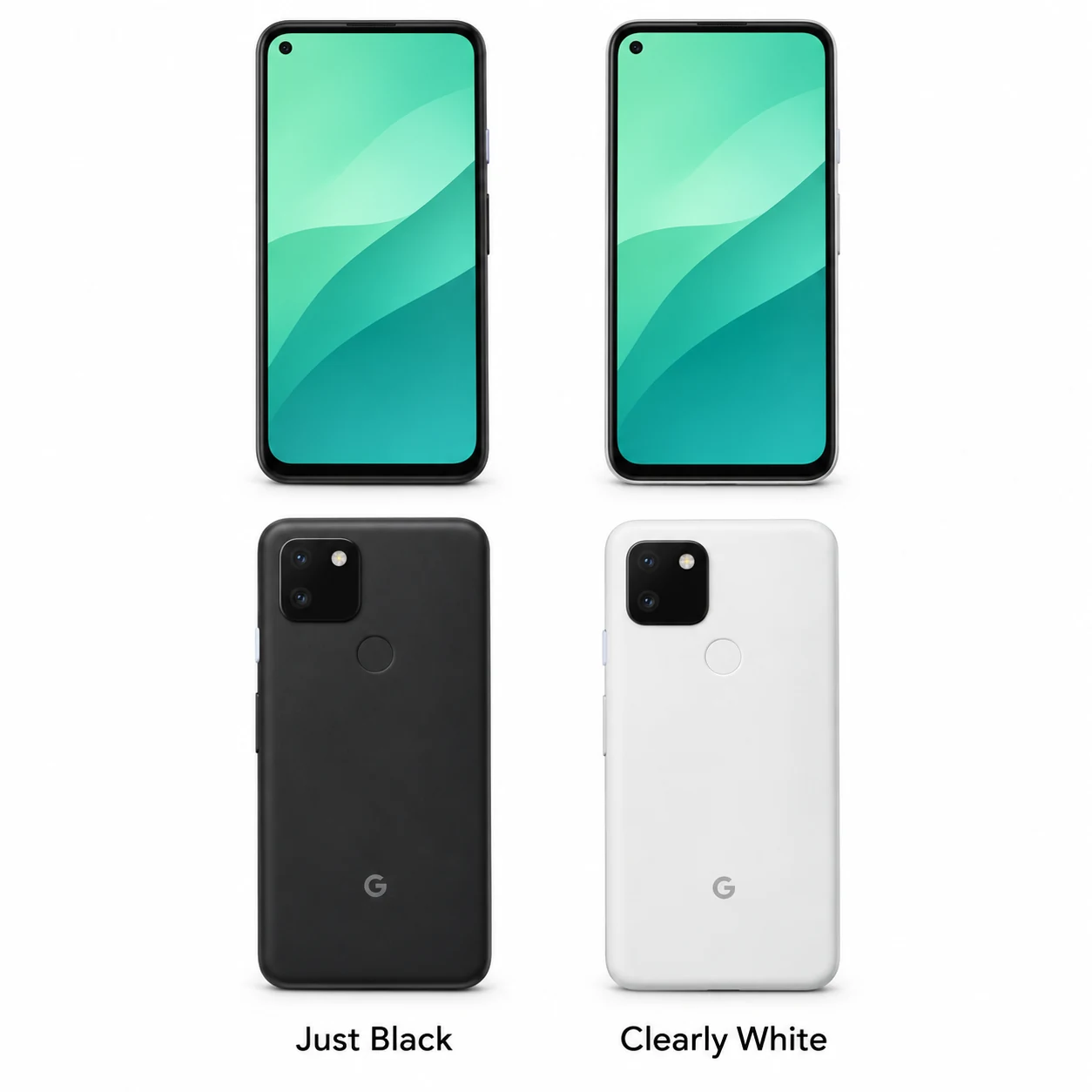
A-series Pixel with a 90Hz screen, 64MP main camera and Qi wireless charging.
Compact Tensor G3 Pixel with a 120Hz display and seven-year update policy.
Flat-screen Pro model with Tensor G3, three rear cameras and a temperature sensor.
Google’s first foldable, with a wide outer screen and 7.6-inch inner display.
2023 · Tensor G2 · An Android tablet with an optional charging speaker dock.
41 mm aluminium case; pin-contact charging and revised rear sensor array.
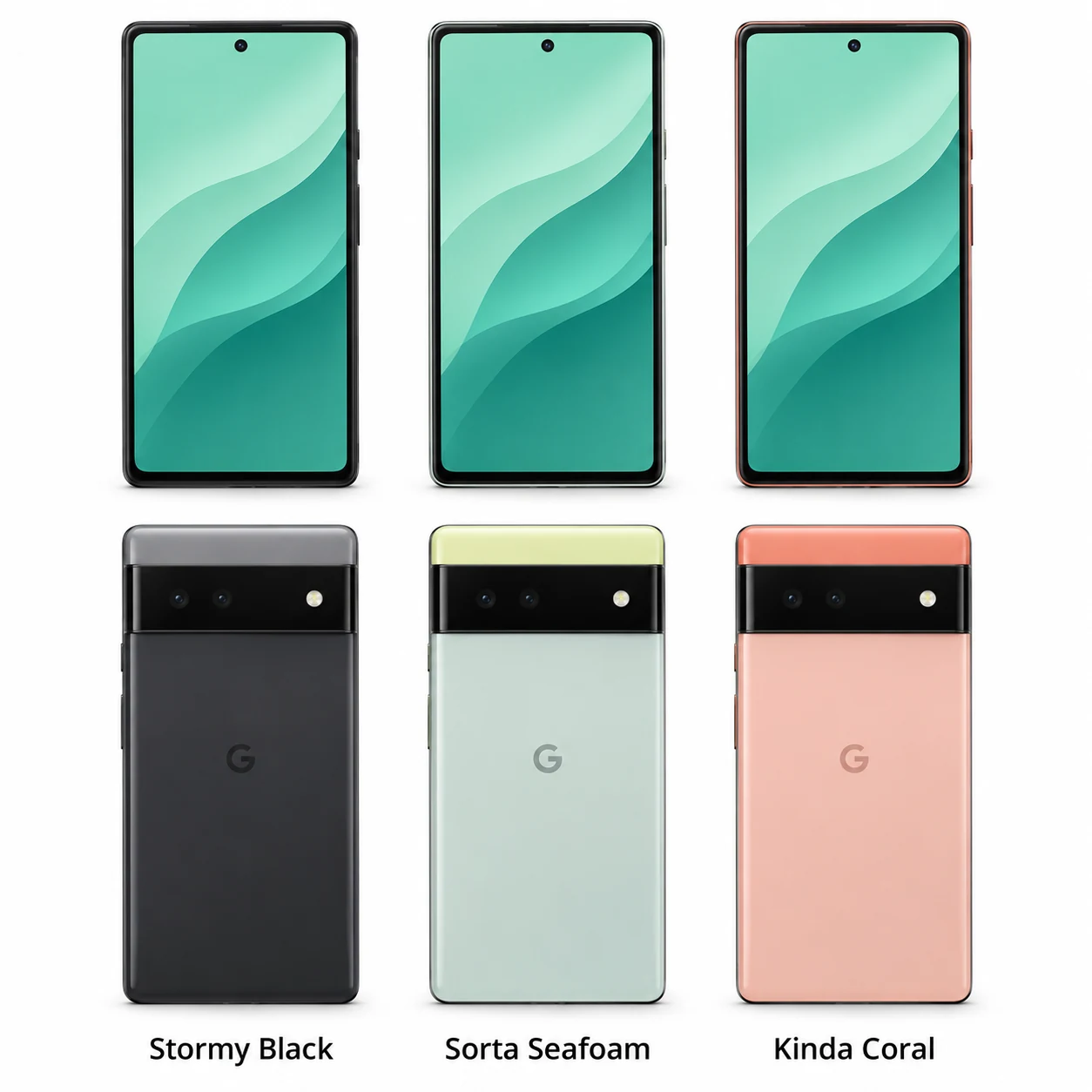
Compact Tensor a-series Pixel with a 6.1-inch OLED screen and USB-C charging.
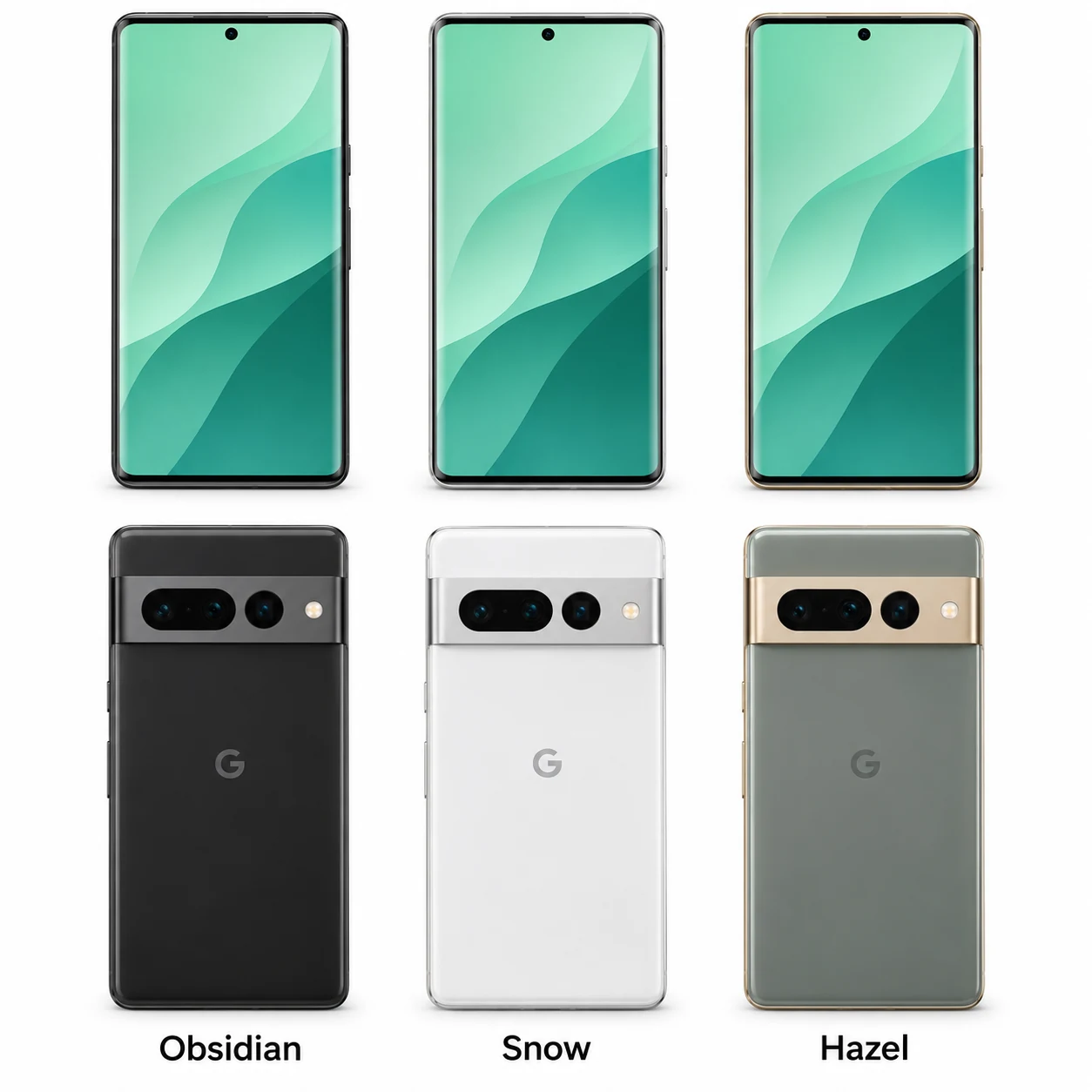
Tensor G2 Pixel with a 6.3-inch screen and metal-surrounded dual-camera bar.
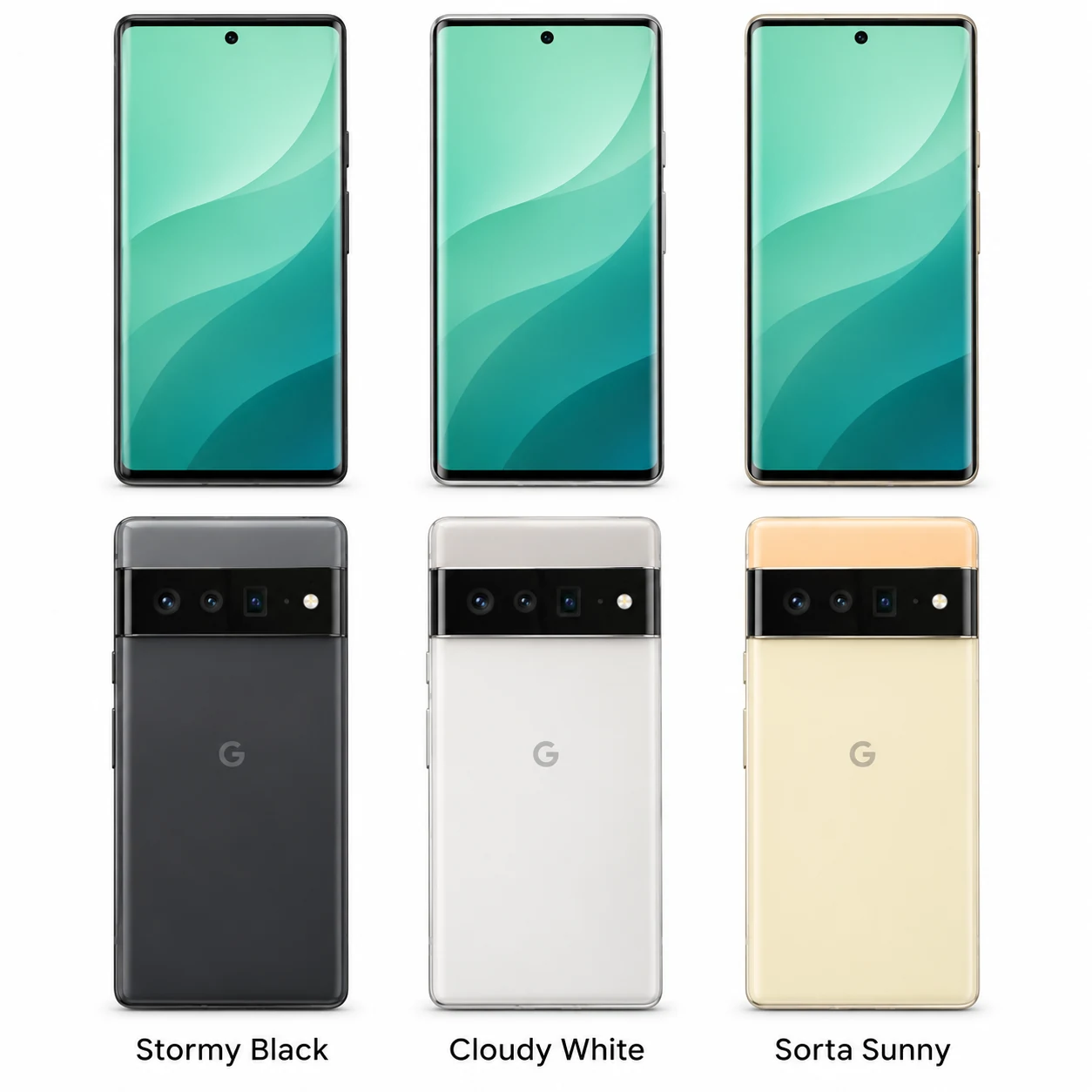
Large Tensor G2 Pixel with a curved LTPO display and dedicated 5x telephoto camera.
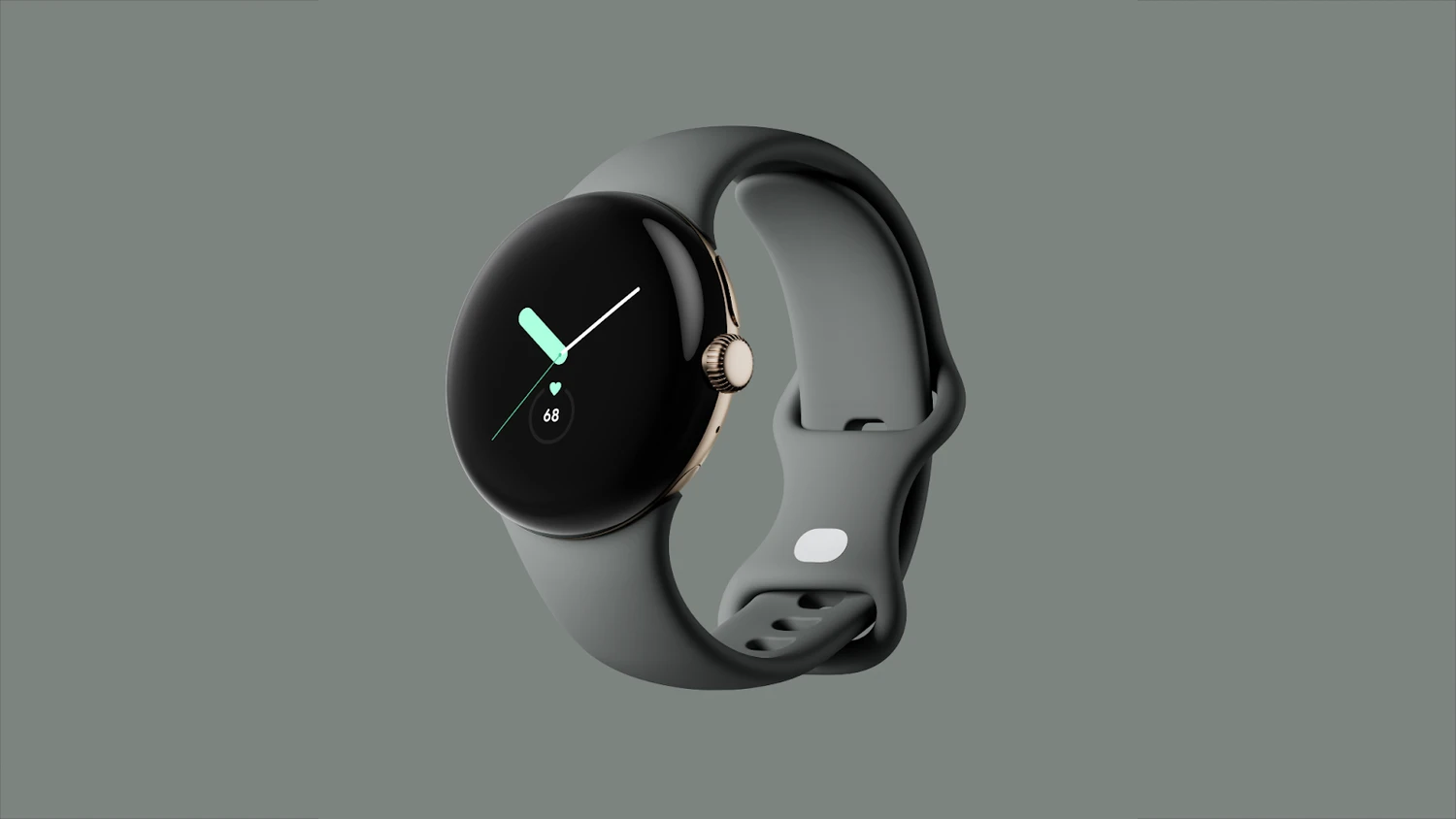
Original stainless-steel 41 mm case; first-generation magnetic charging puck.
Large 2021 a-series Pixel; US and Japanese hardware variants are recorded.
First-generation Tensor Pixel, with a 6.4-inch screen and full-width camera bar.
Large first-generation Tensor Pixel with a curved LTPO screen and 4x telephoto camera.
Compact 4G Pixel with a single rear camera and a 5.81-inch OLED screen.
A separate 6.2-inch model with 5G and wide plus ultrawide rear cameras.
Compact 5G flagship with a 90Hz display, rear fingerprint reader and Qi charging.
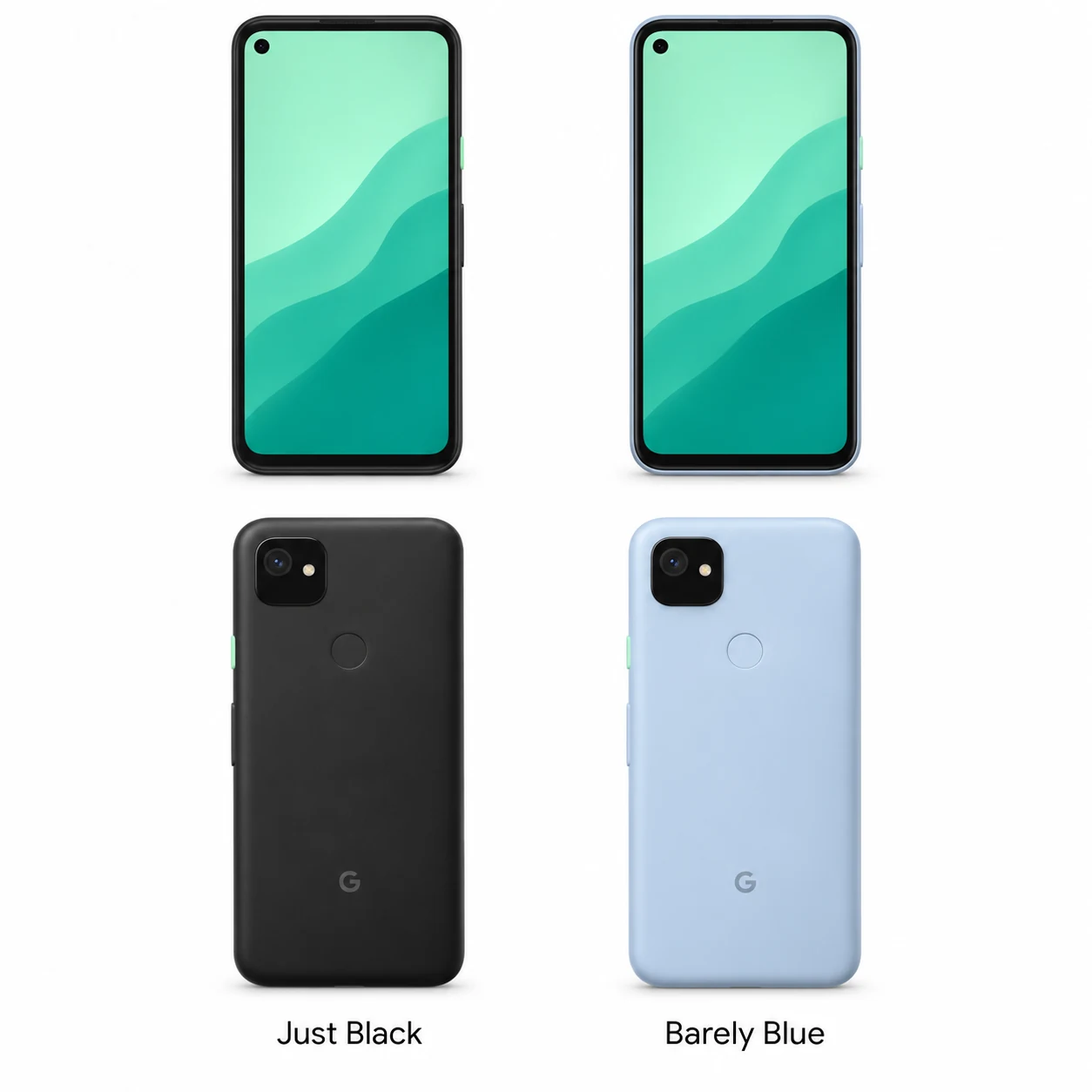
First compact Pixel a-series phone, with an OLED display and headphone socket.
The first larger a-series Pixel, with a 6-inch OLED screen and 3,700mAh battery.
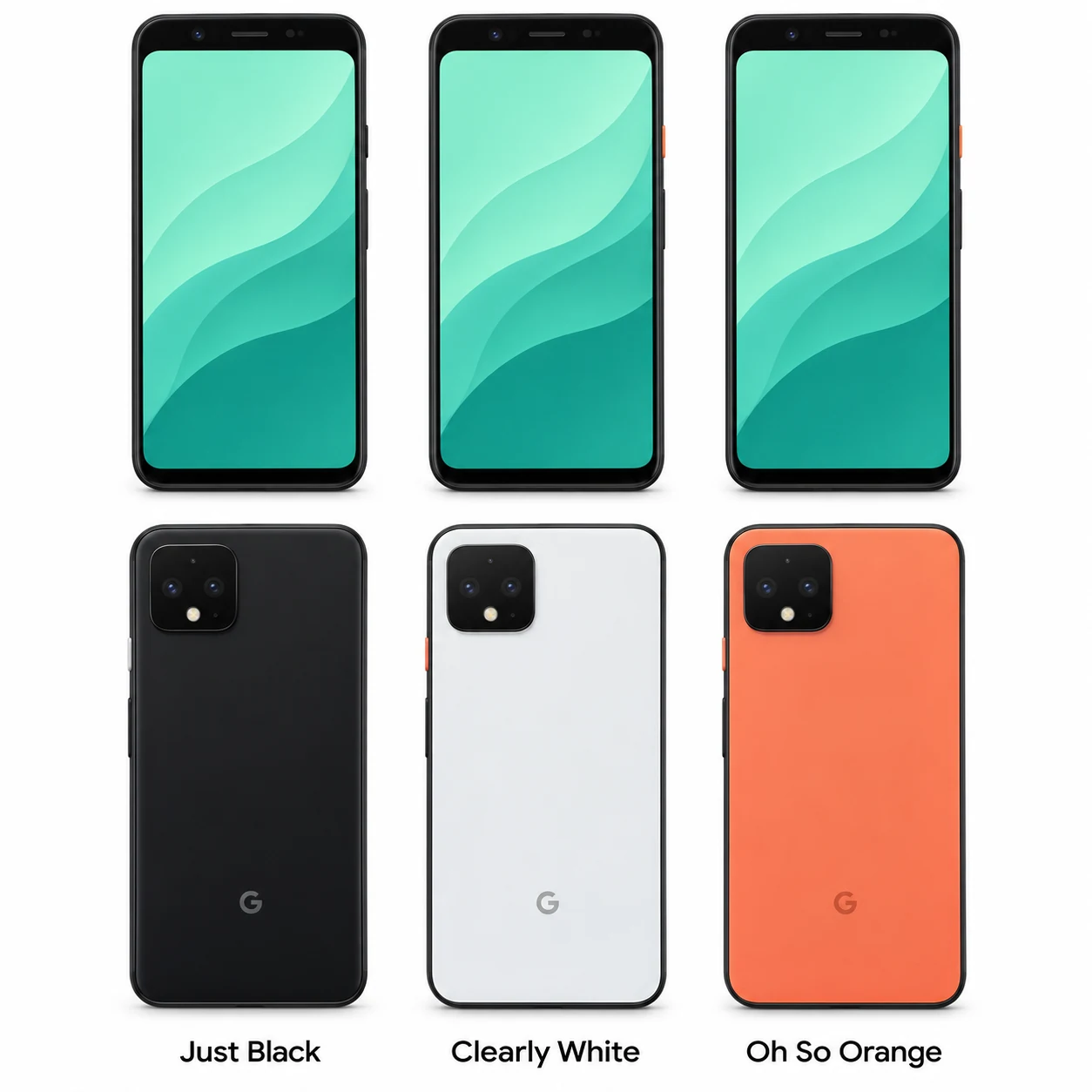
Compact Pixel with face unlock, a 90Hz screen and a telephoto camera.
The larger Pixel 4, with face unlock and a 6.3-inch Quad HD+ OLED display.
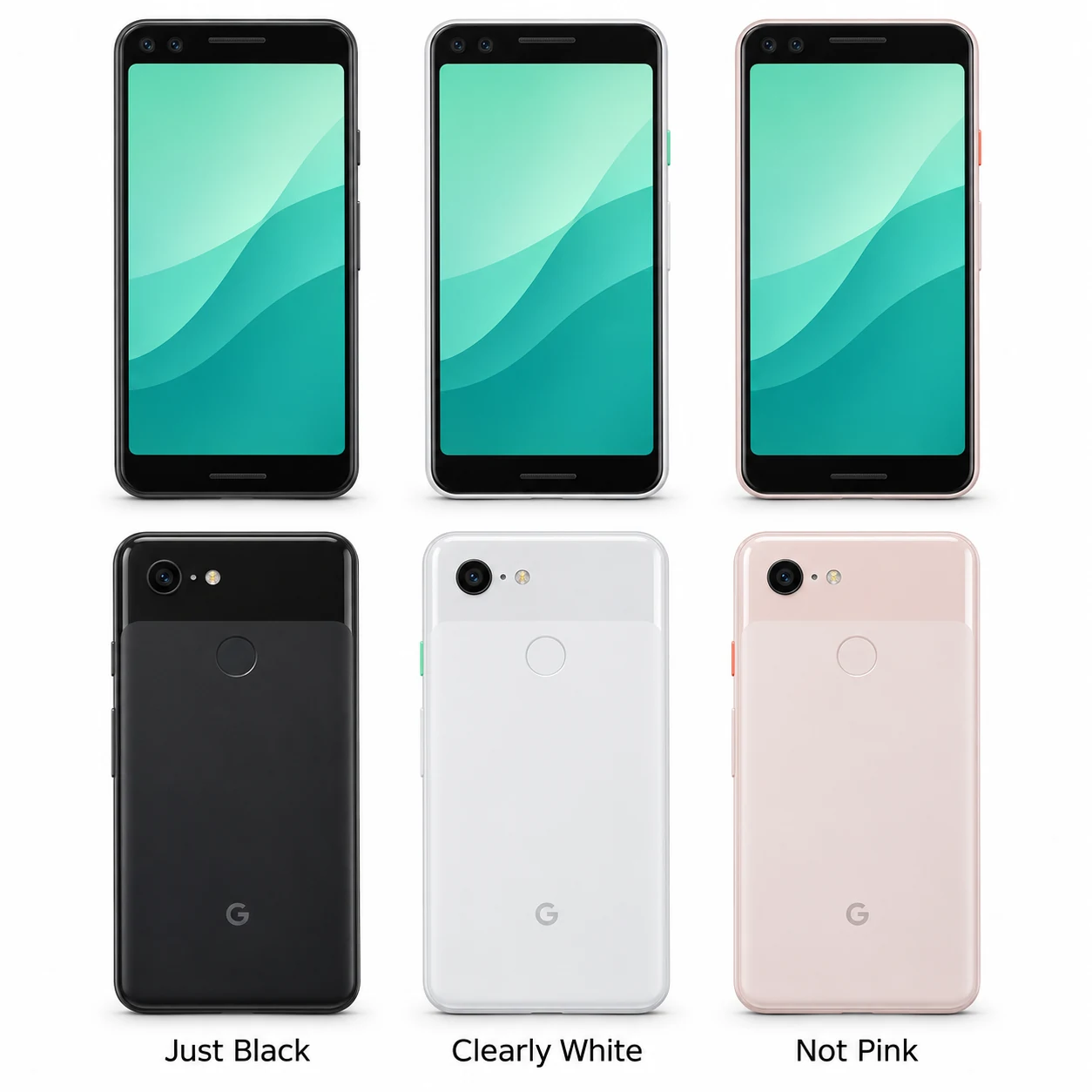
A 5.5-inch Pixel with dual selfie cameras and Qi wireless charging.
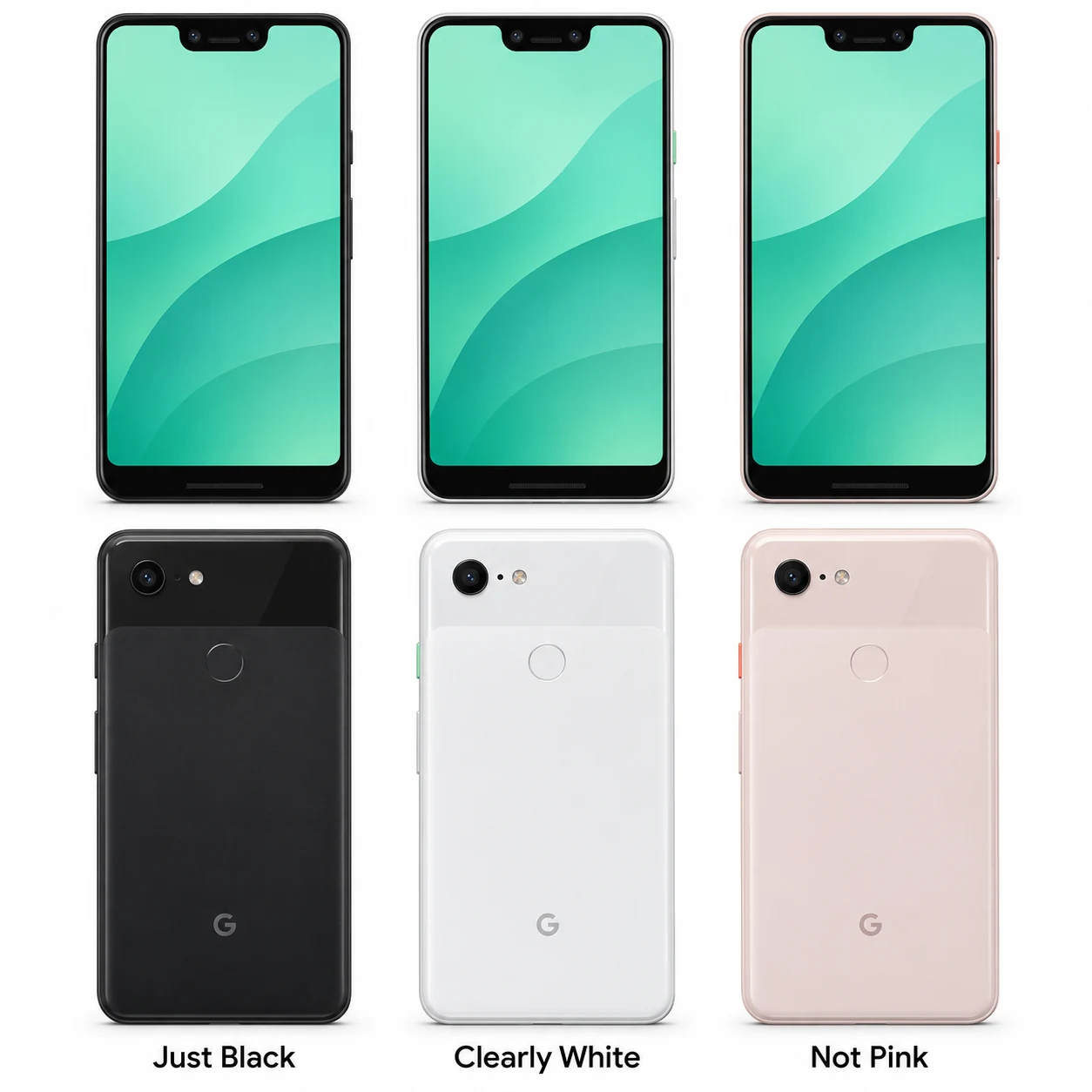
Large 2018 Pixel with a notched OLED screen and two selfie cameras.
2018 · 12.3-inch · A ChromeOS tablet with Intel processor options.
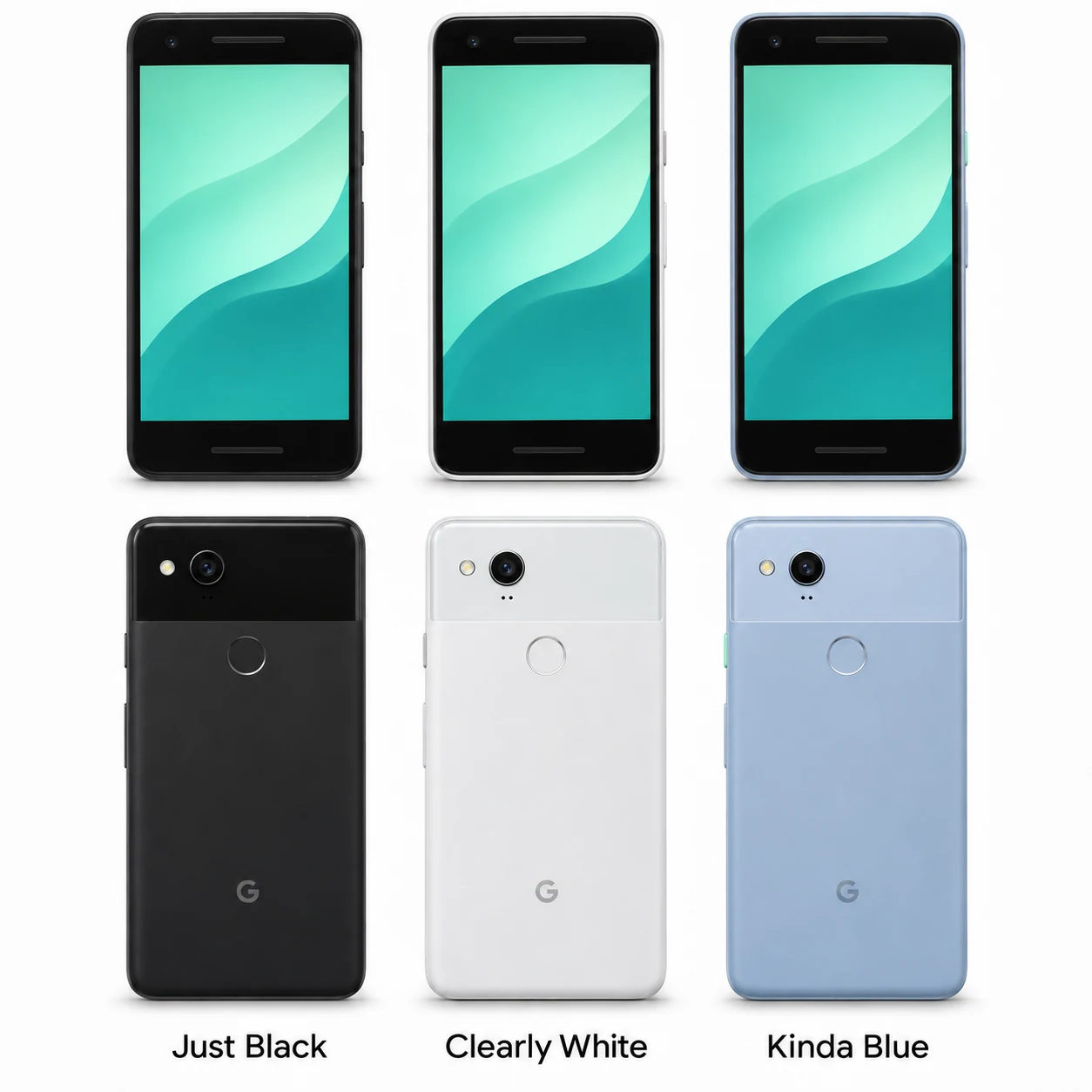
Compact 2017 Pixel with front stereo speakers and a single rear camera.
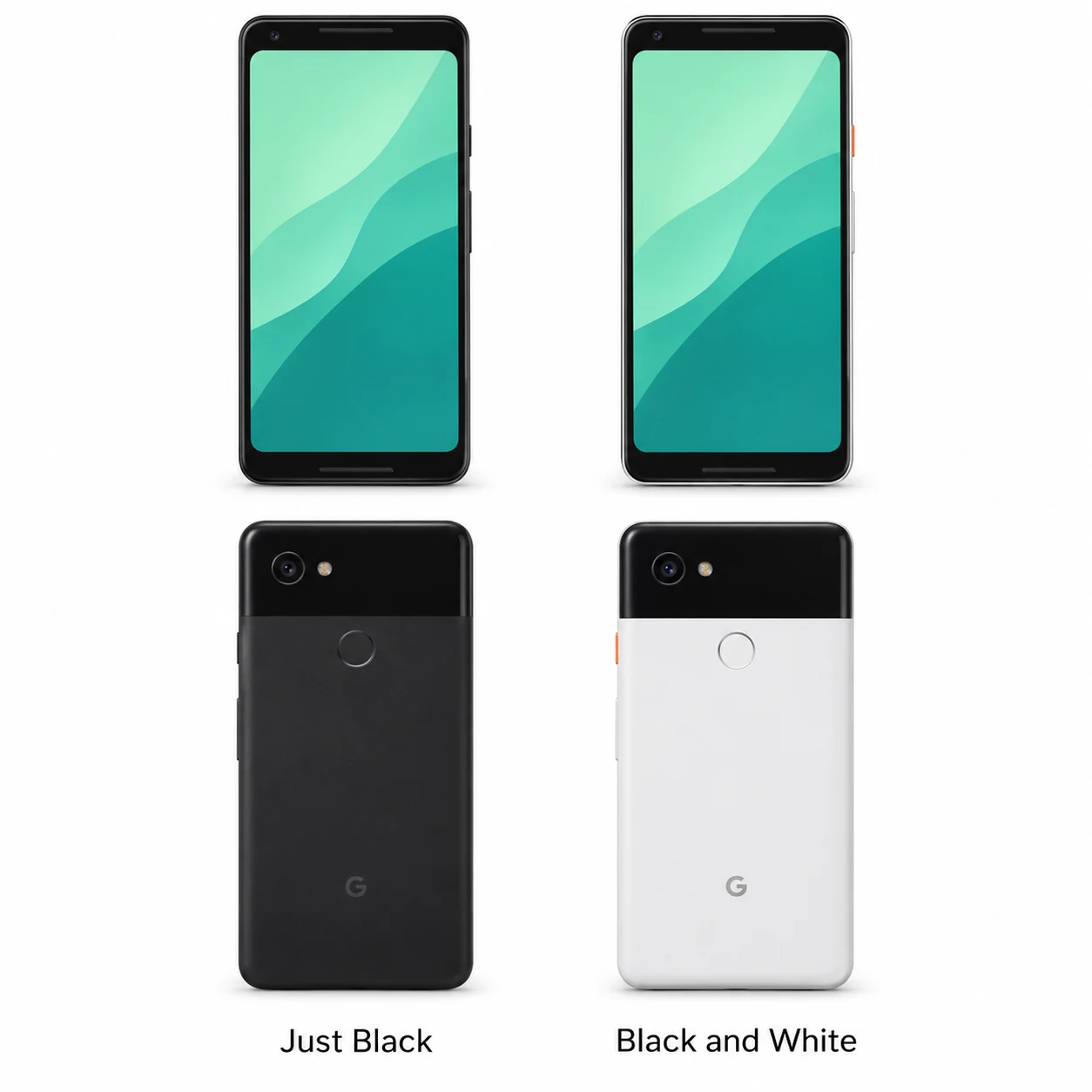
A tall 6-inch display distinguishes the larger second-generation Pixel.
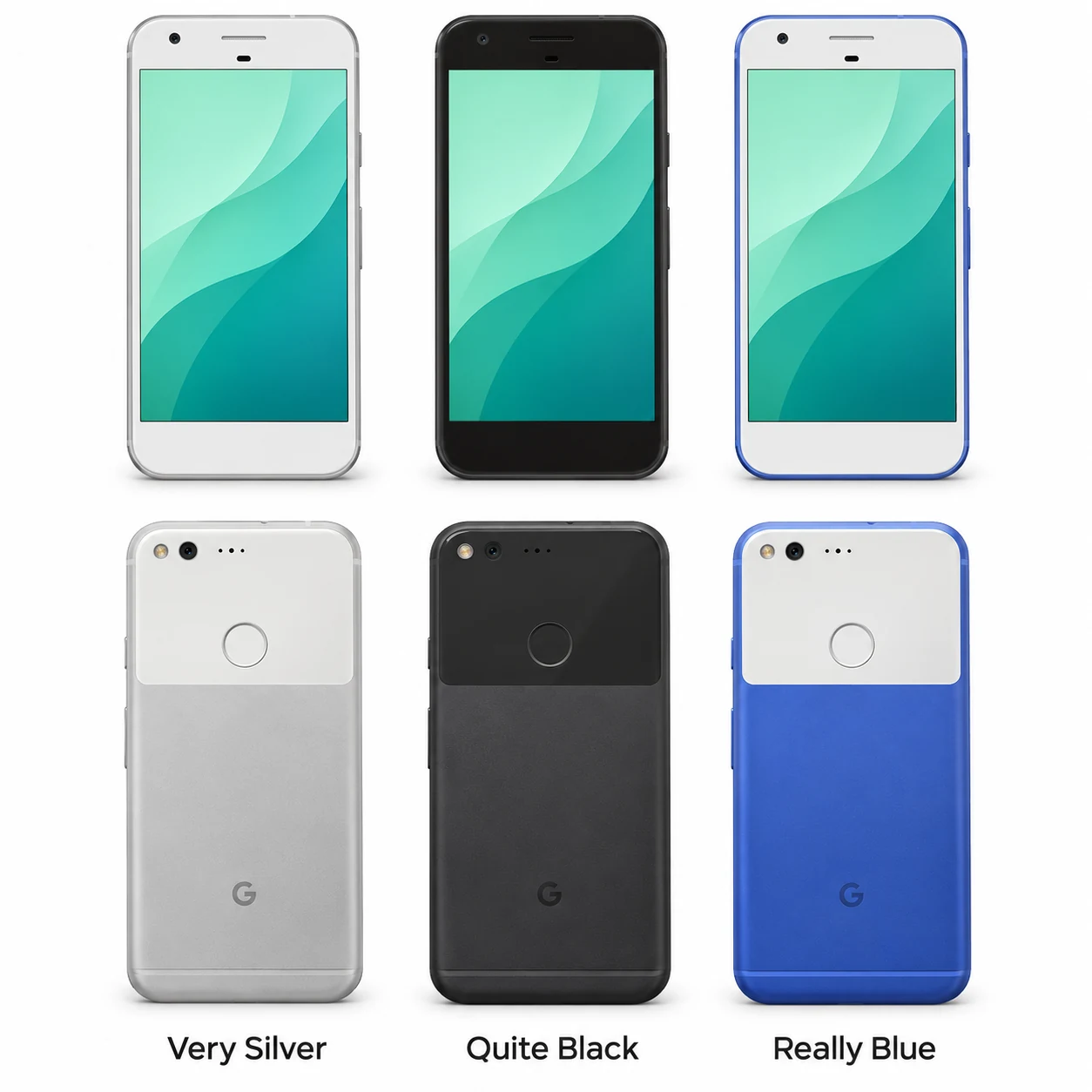
Original 2016 Pixel with a 5-inch AMOLED display and rear fingerprint reader.
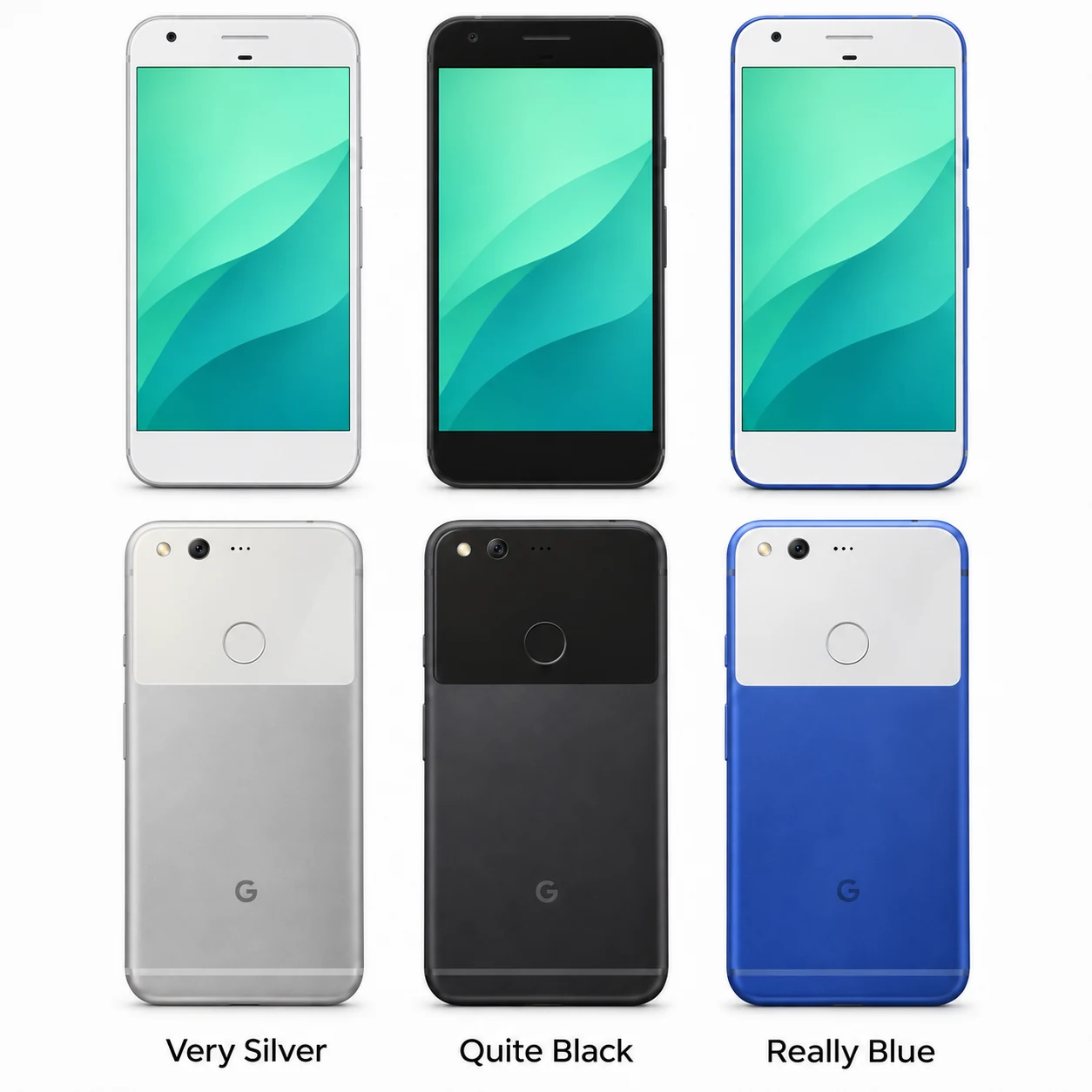
The larger original Pixel, with a 5.5-inch Quad HD AMOLED screen.
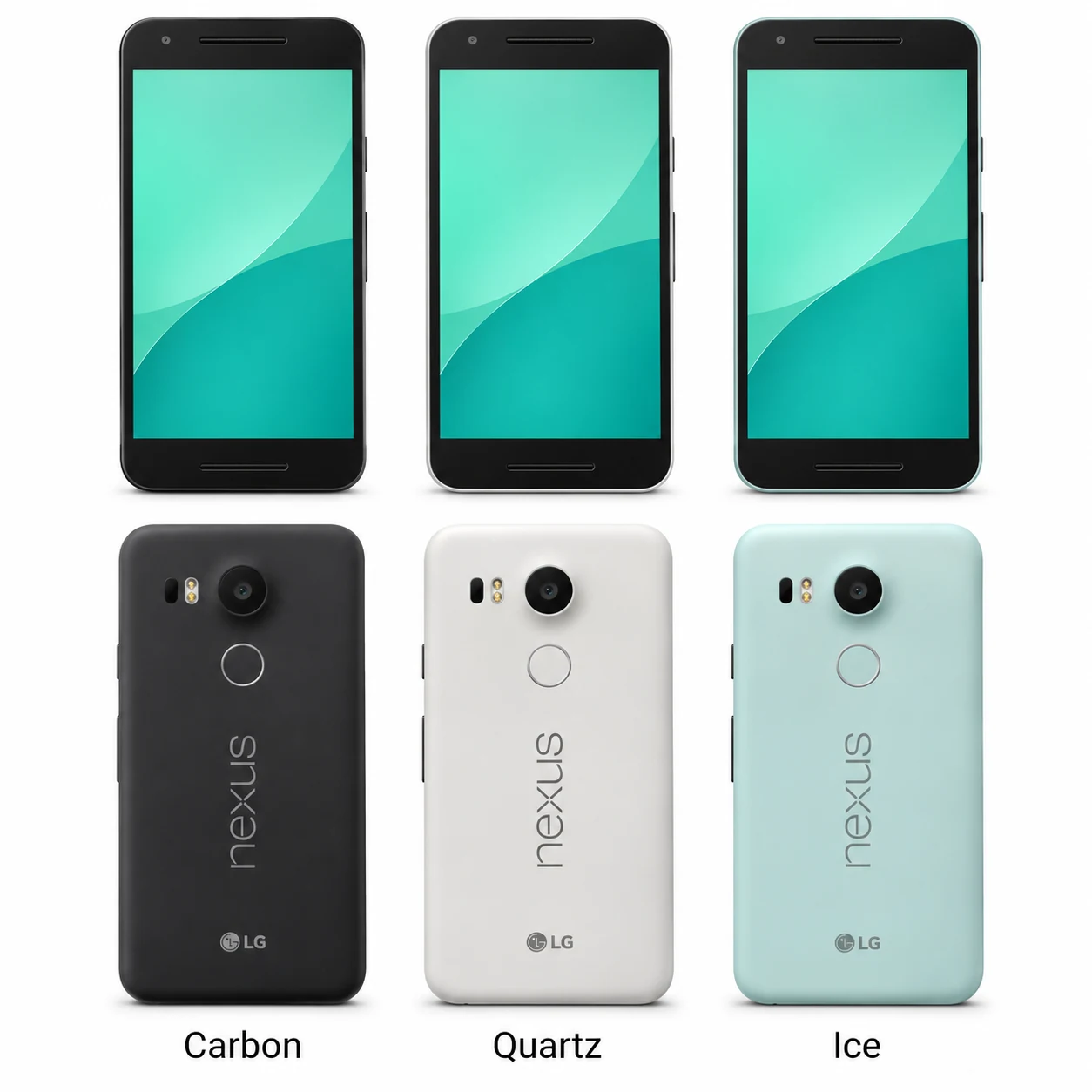
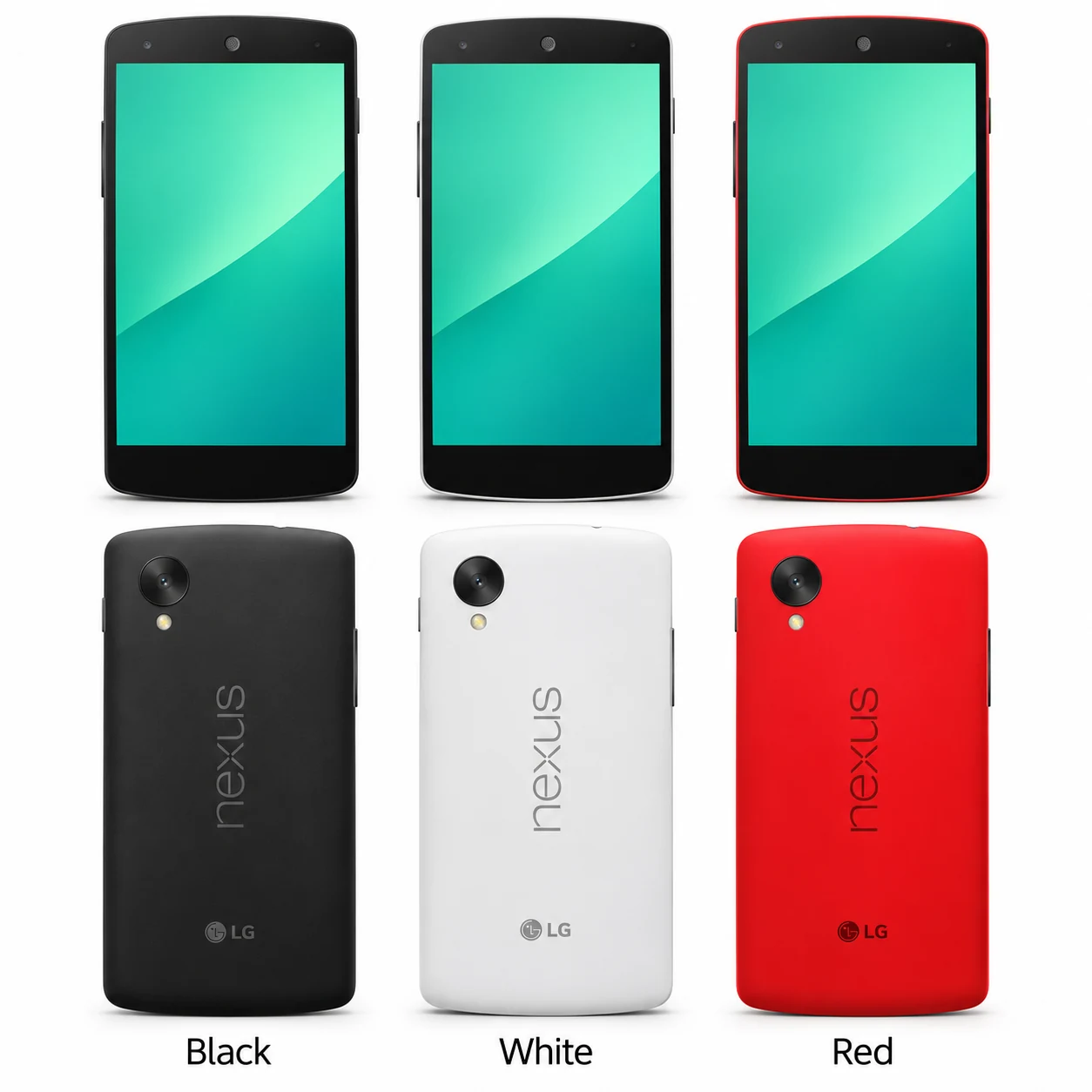
2015 · Snapdragon 808 · USB-C and a rear fingerprint reader in a lighter Nexus.
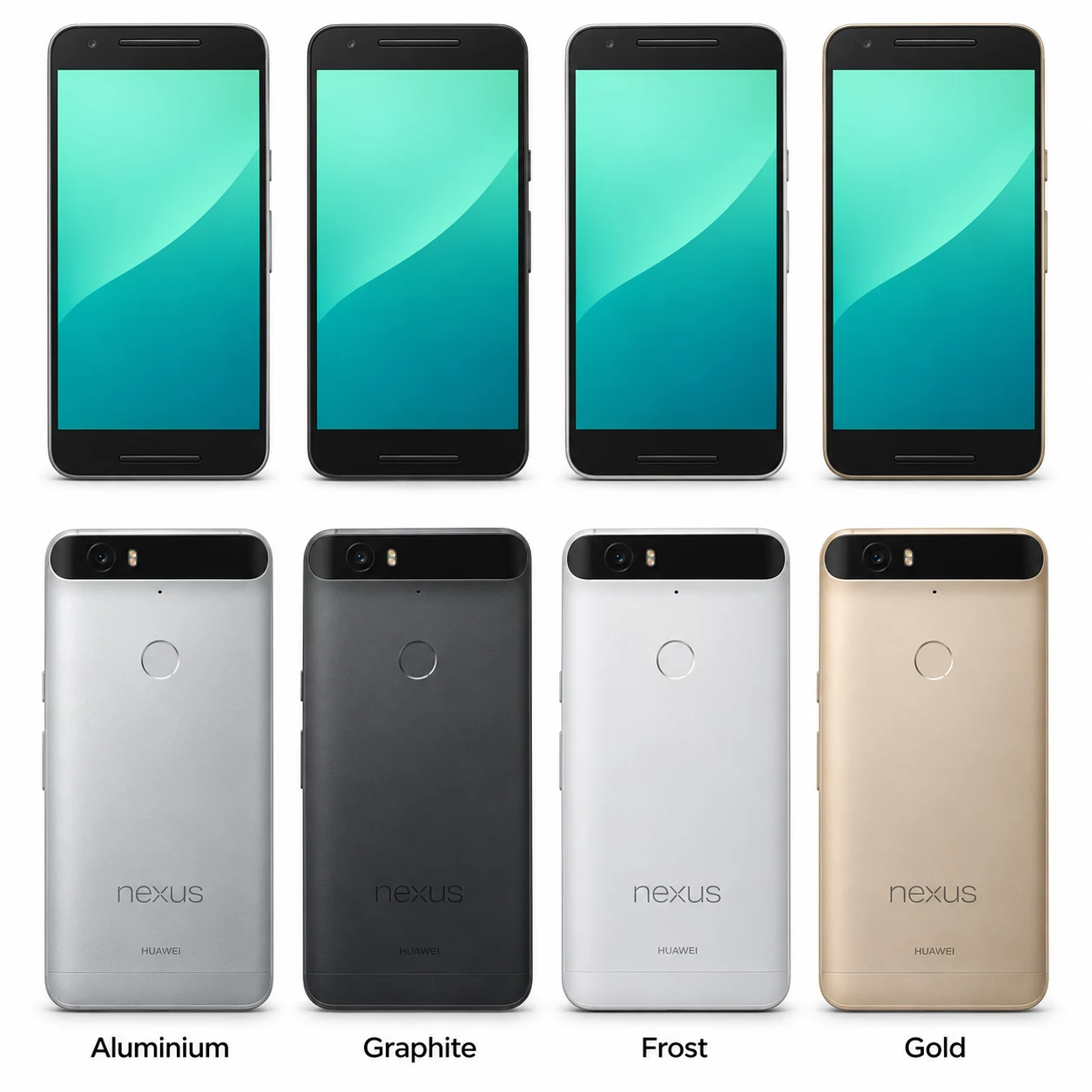
2015 · Snapdragon 810 · An aluminium Nexus with AMOLED and front stereo speakers.
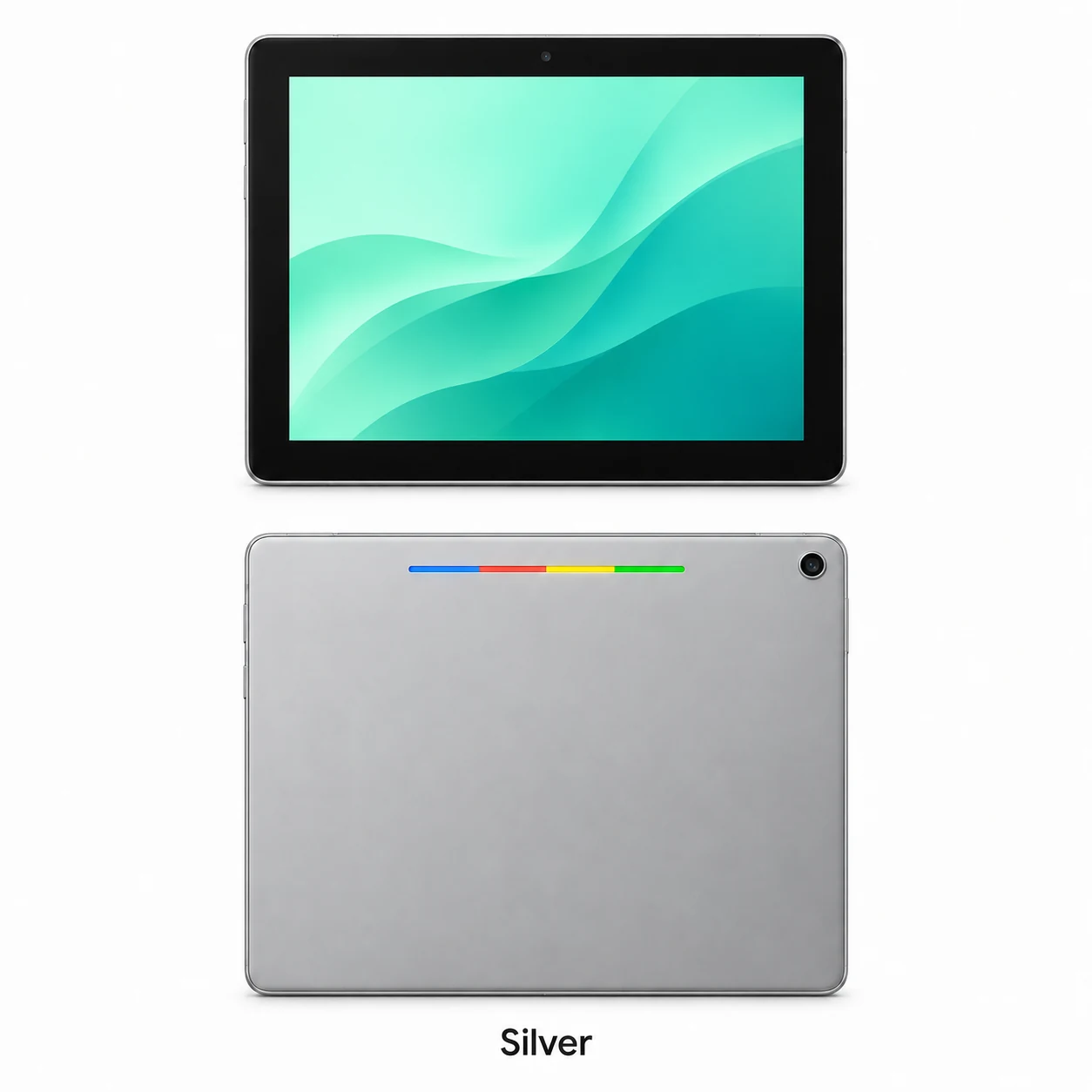
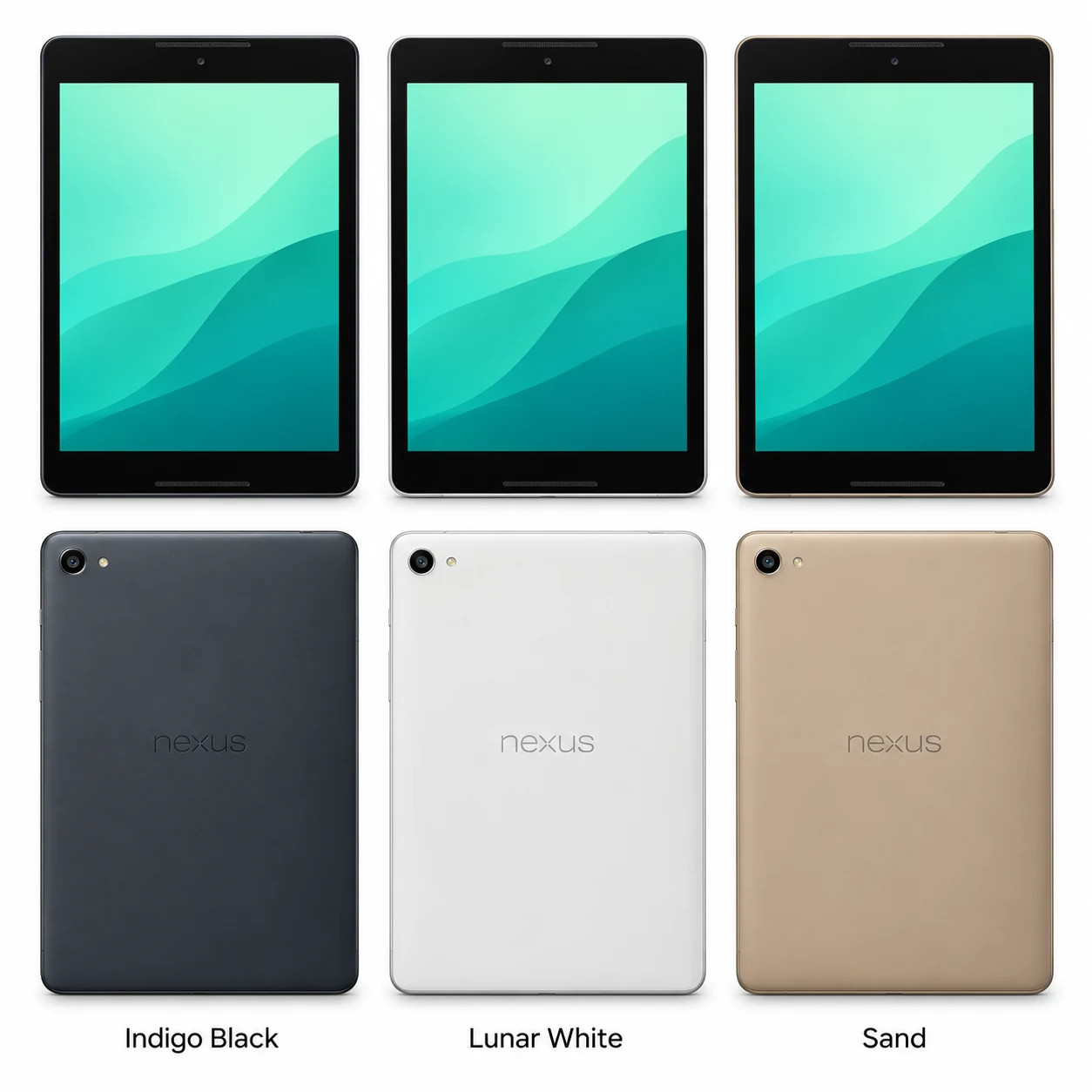
2015 · Tegra X1 · Aluminium Android tablet with a distinctive rear lightbar.
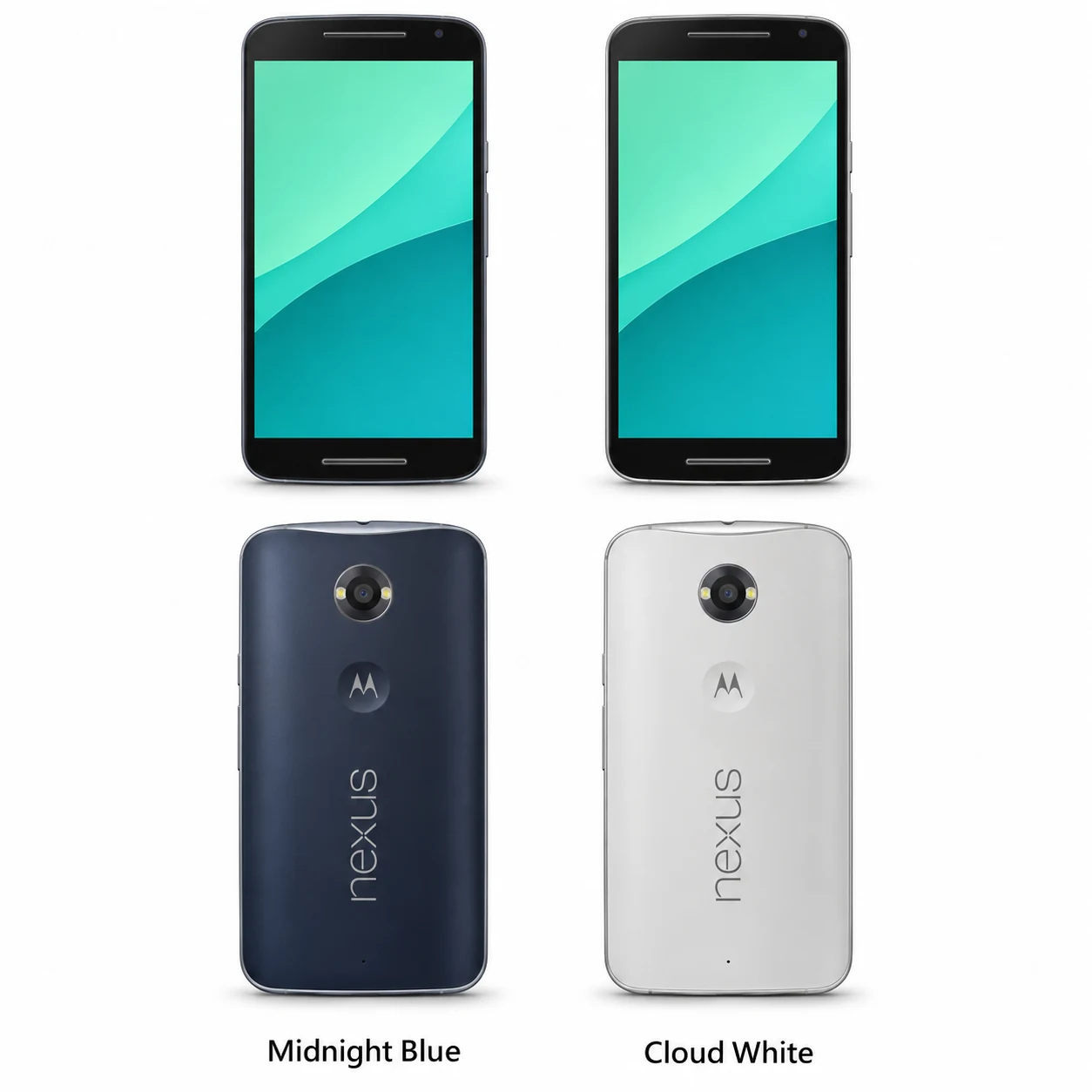
2014 · Snapdragon 805 · A large AMOLED Nexus with front stereo speakers.
2014 · 8.9-inch · HTC-built Nexus tablet with front stereo speakers.
2013 · Snapdragon 800 · Full HD display, stabilised camera and wireless charging.
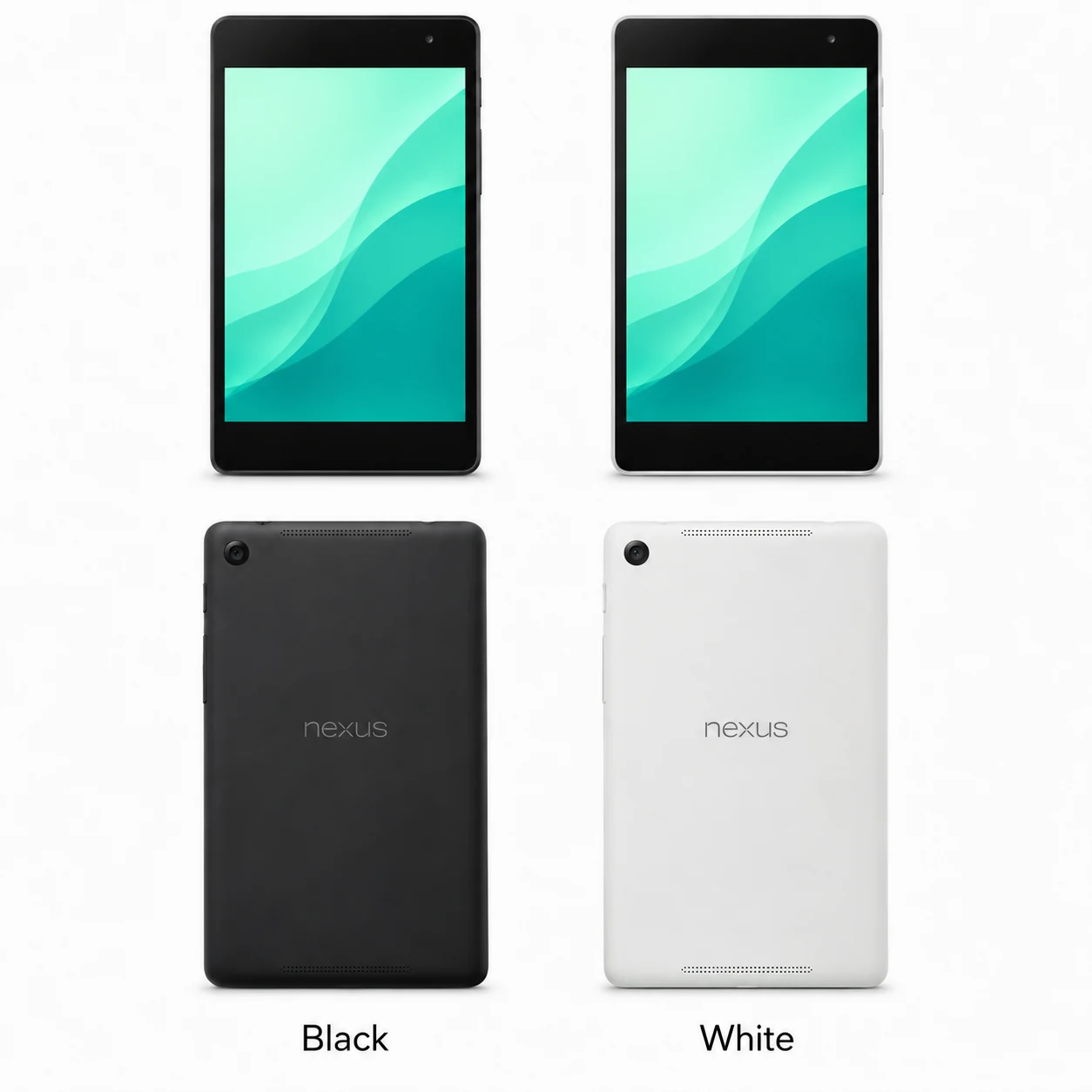
2013 · 7.02-inch · The second-generation Nexus 7 with a rear camera.
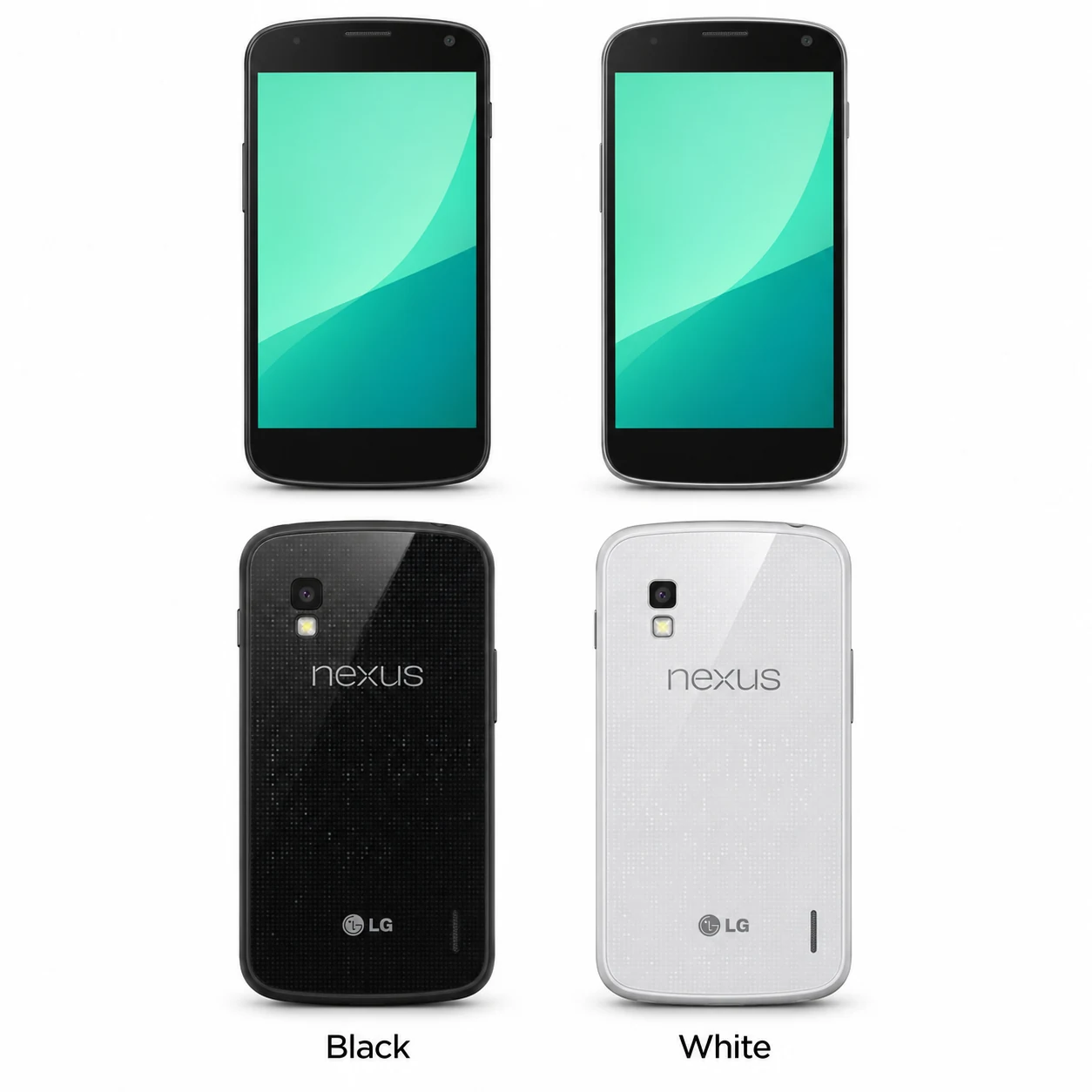
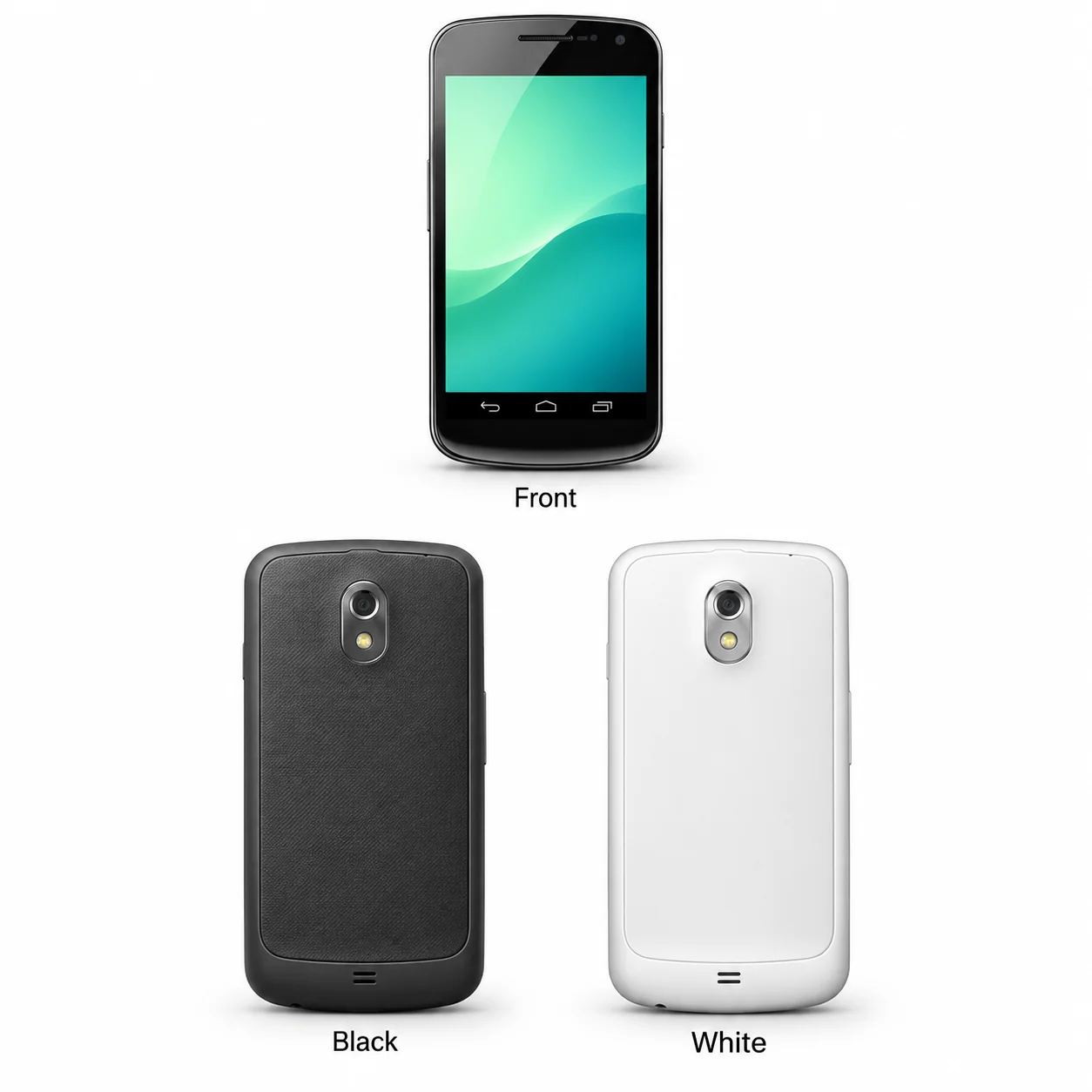
2012 · Snapdragon S4 Pro · A glass-backed Nexus with wireless charging.
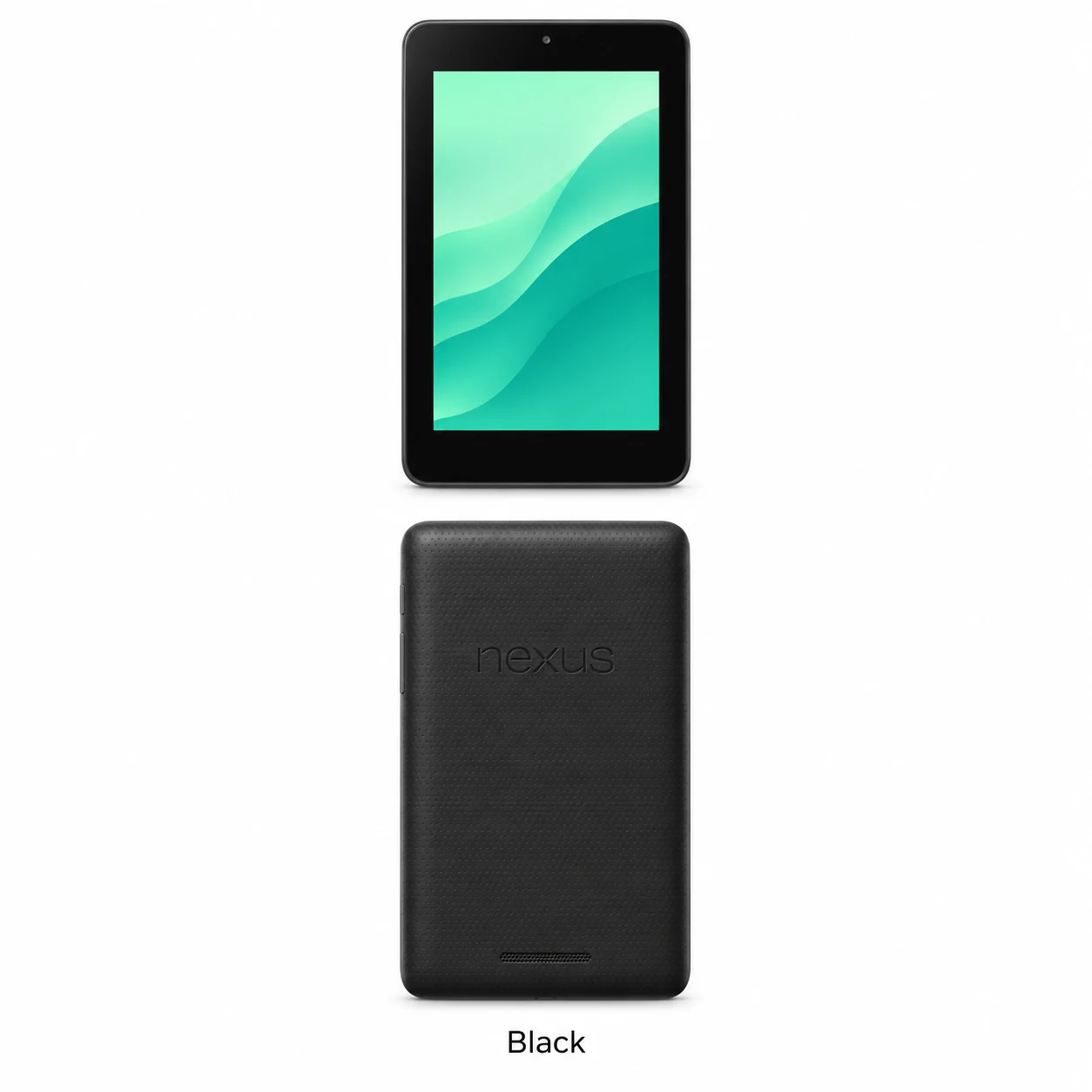
2012 · 7-inch · The original Nexus 7, with a front camera only.
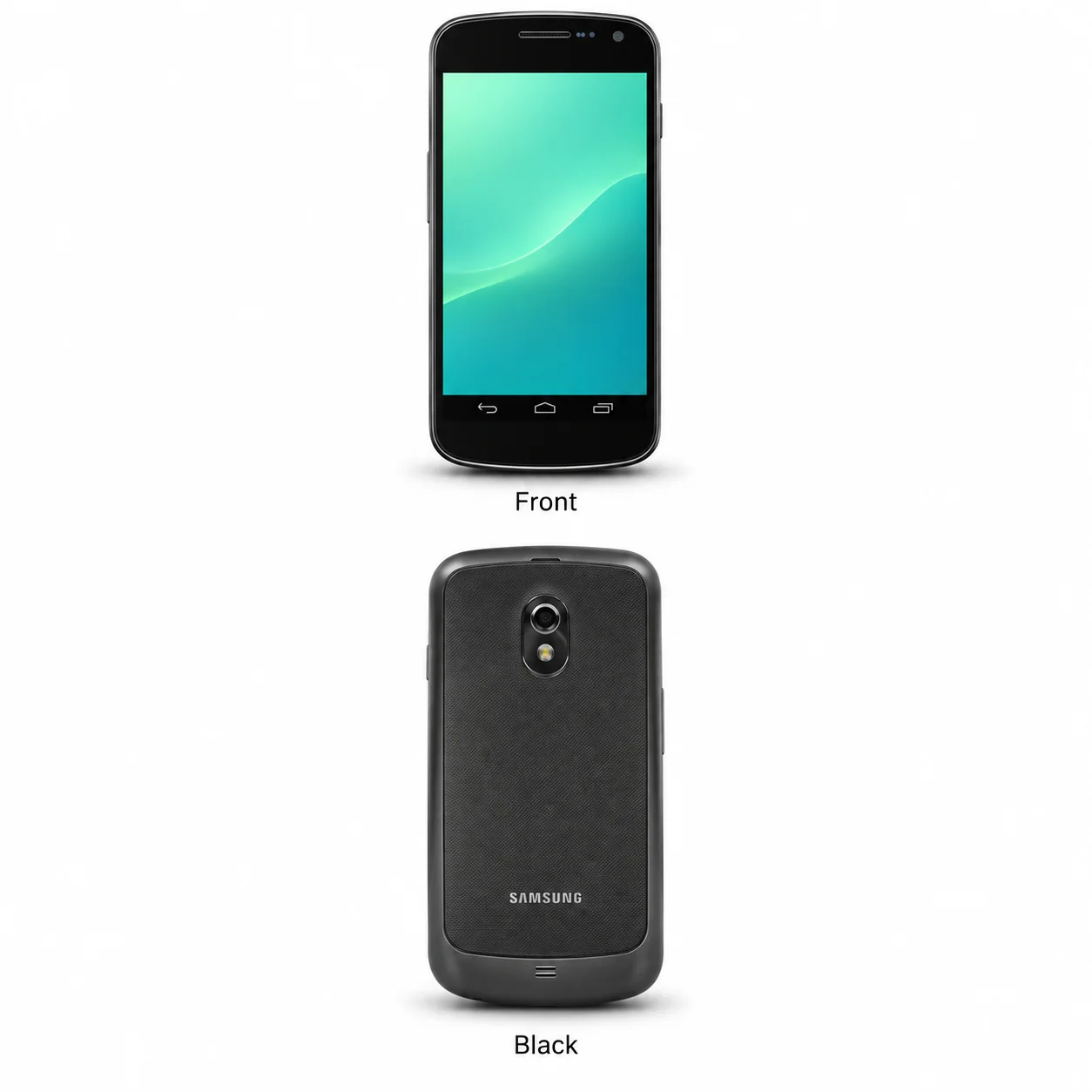
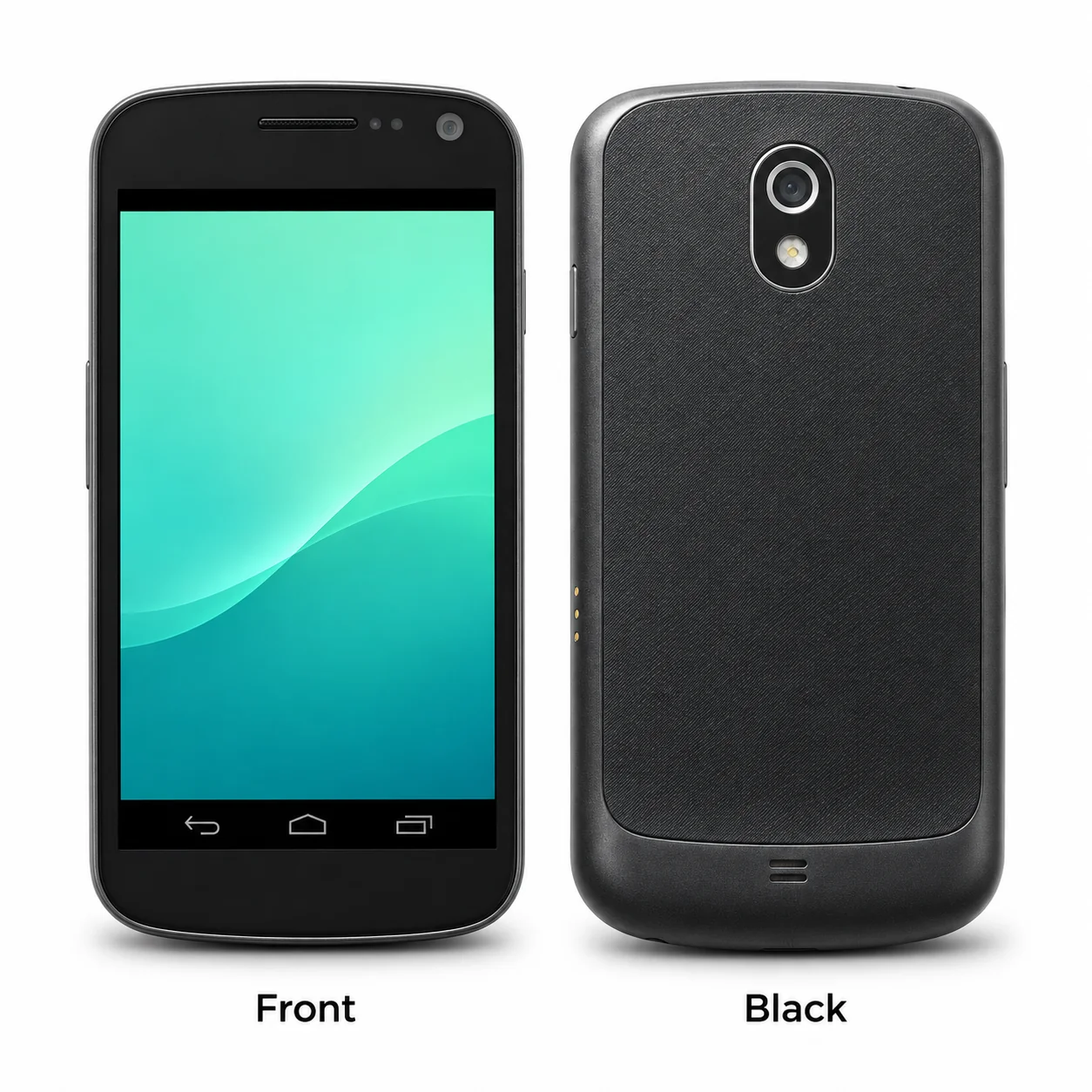
4.65-inch Super AMOLED, 4G LTE and Micro-USB charging.
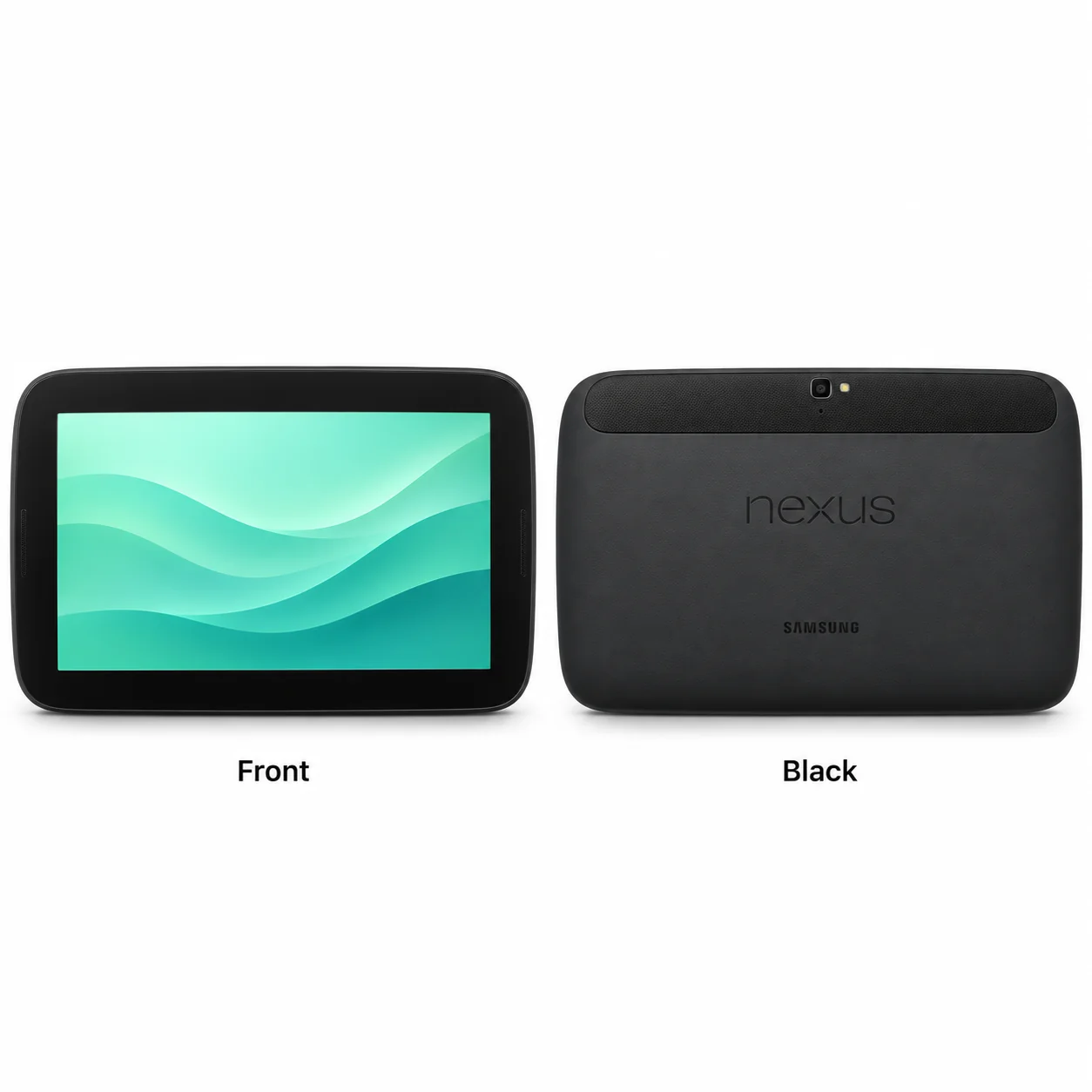
2012 · 10.1-inch · Google Nexus
4.65-inch Super AMOLED, 4G LTE and Micro-USB charging.
4.65-inch Super AMOLED, 4G LTE and Micro-USB charging.
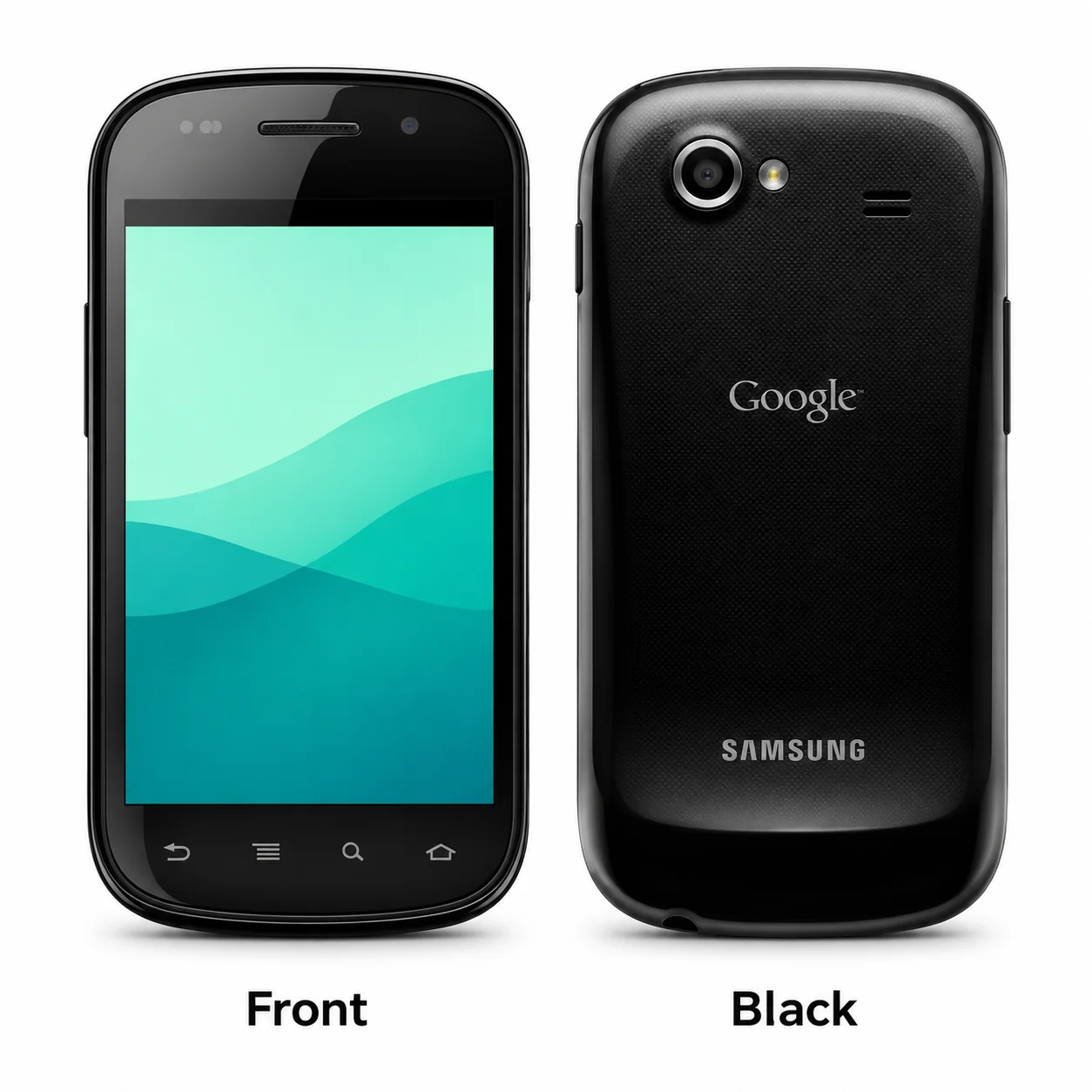
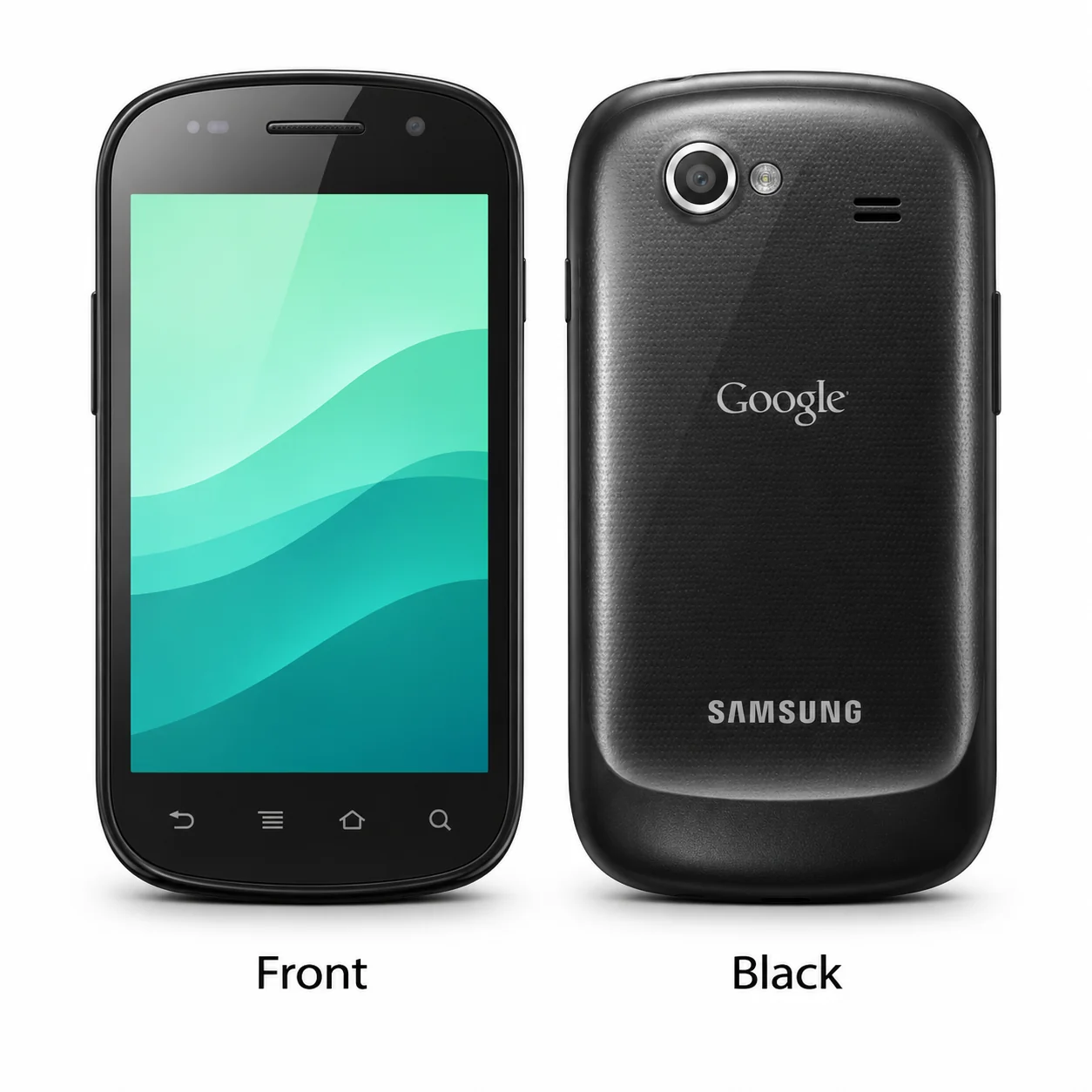
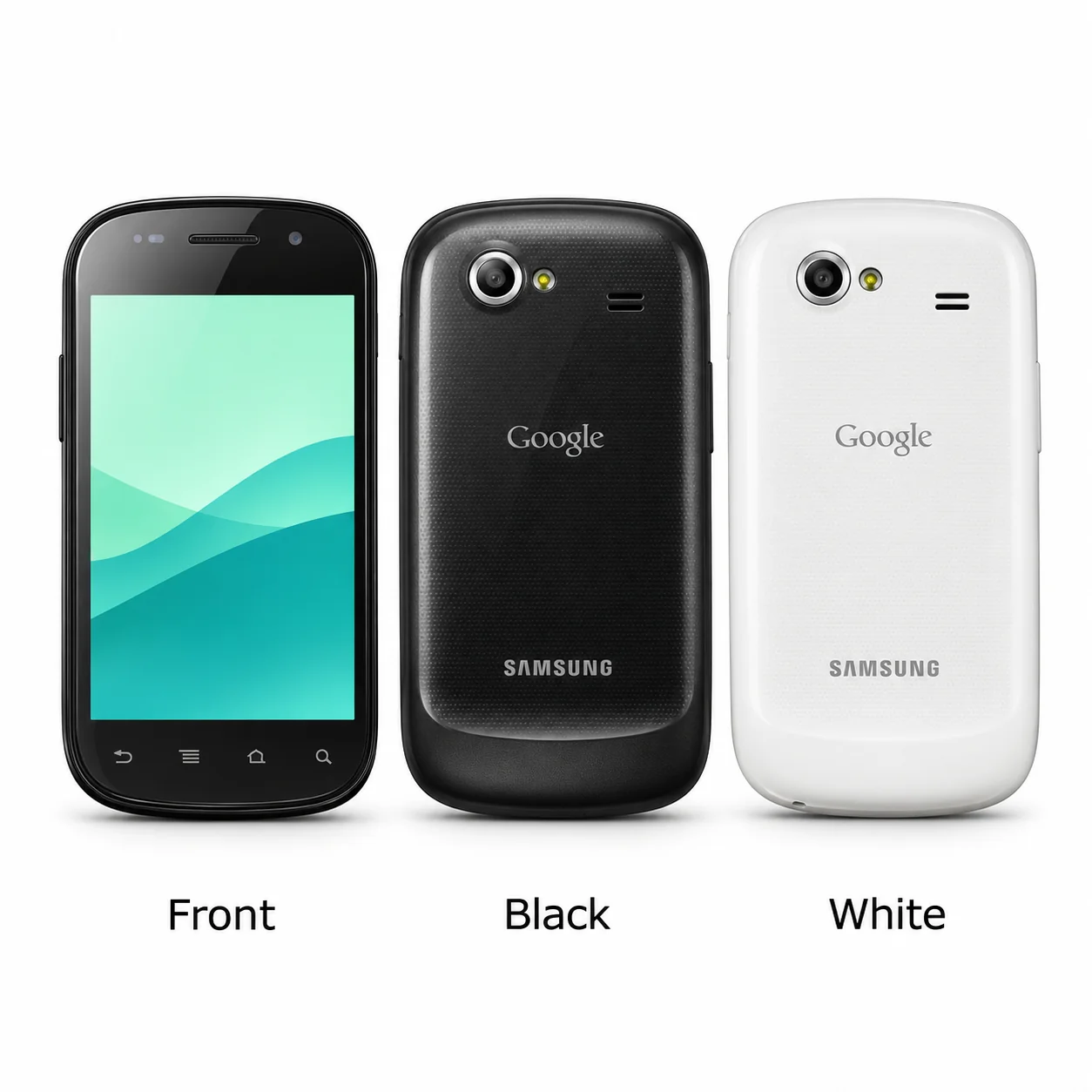
4.0-inch Super AMOLED; 3G. Compare the model marking and original hardware.
4.0-inch Super AMOLED; 3G. Compare the model marking and original hardware.
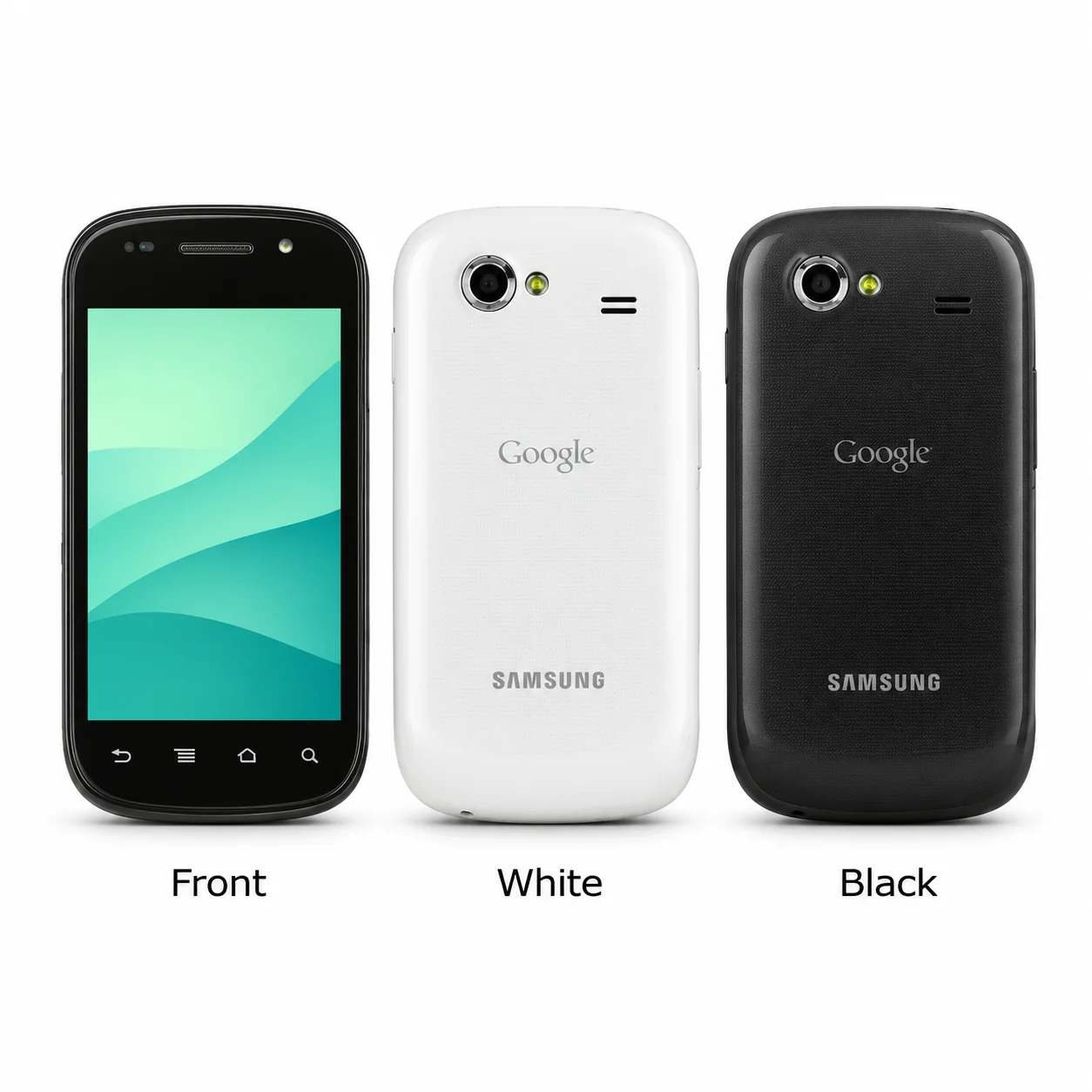
4.0-inch S-LCD; 3G. Compare the model marking and original hardware.
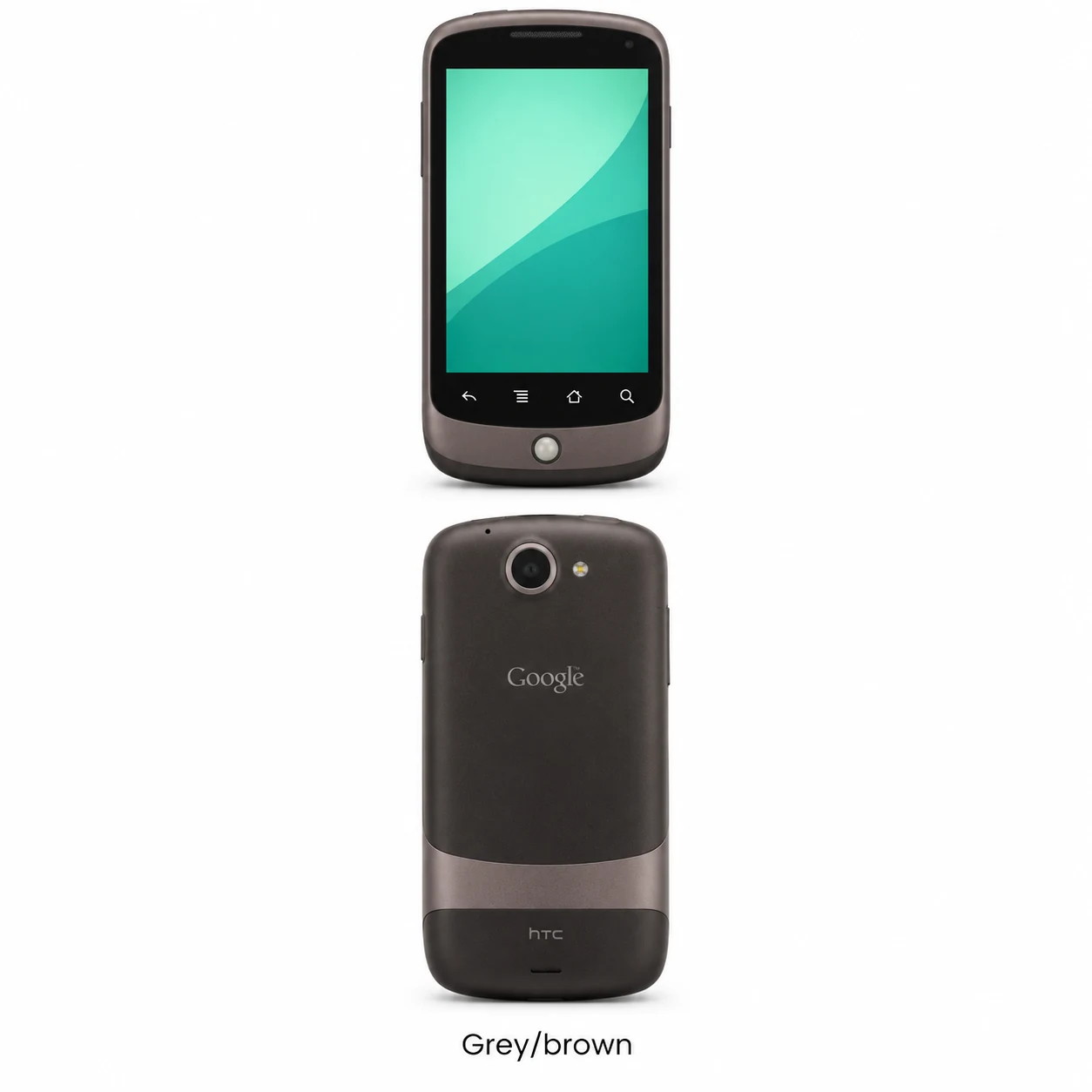
2010 · HTC-built Nexus · A compact phone with a trackball and removable battery.
4.0-inch Super AMOLED; 3G. Compare the model marking and original hardware.
Try a shorter model name, a keyword or the beginning of its model code. Clear the range filter to search all models on this page.
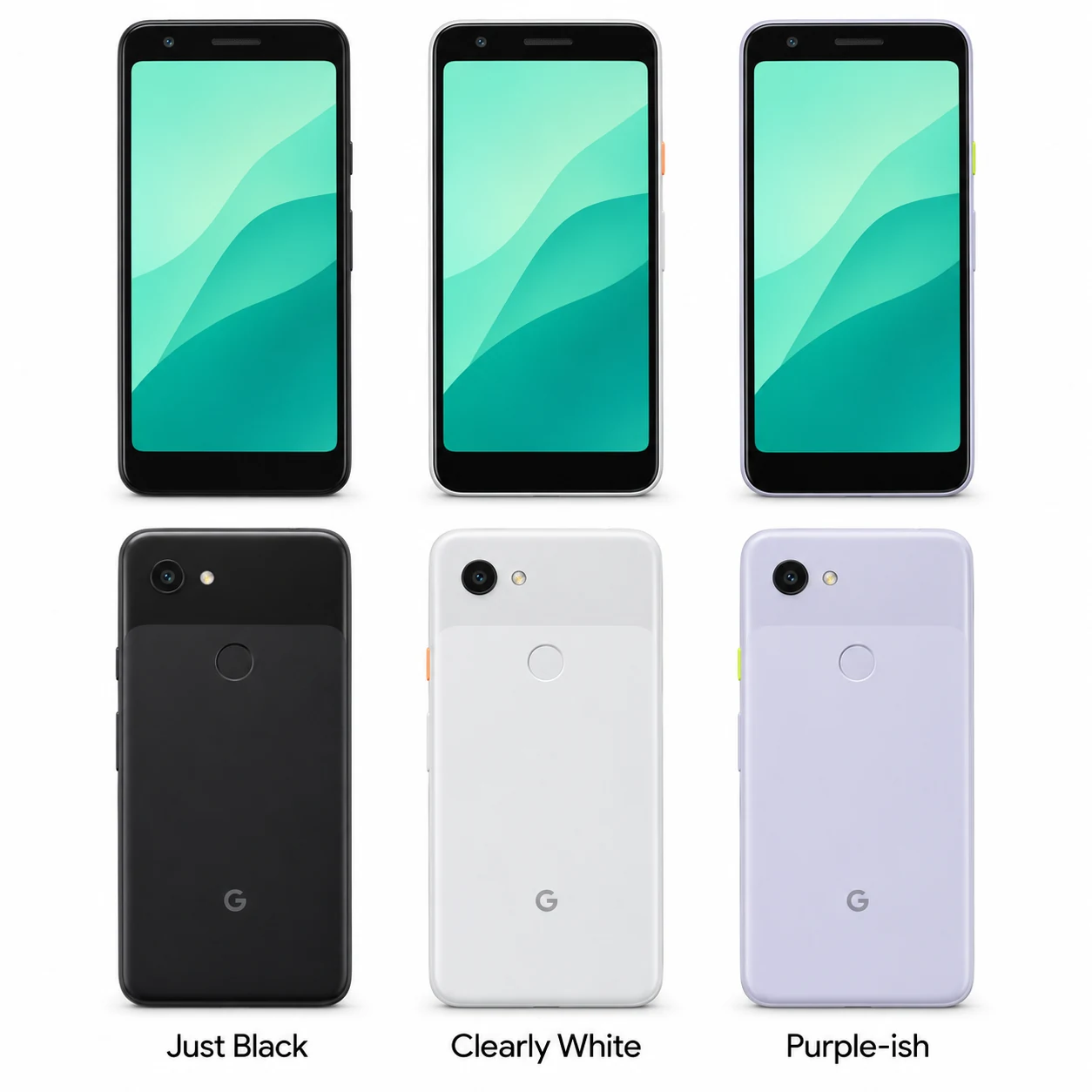
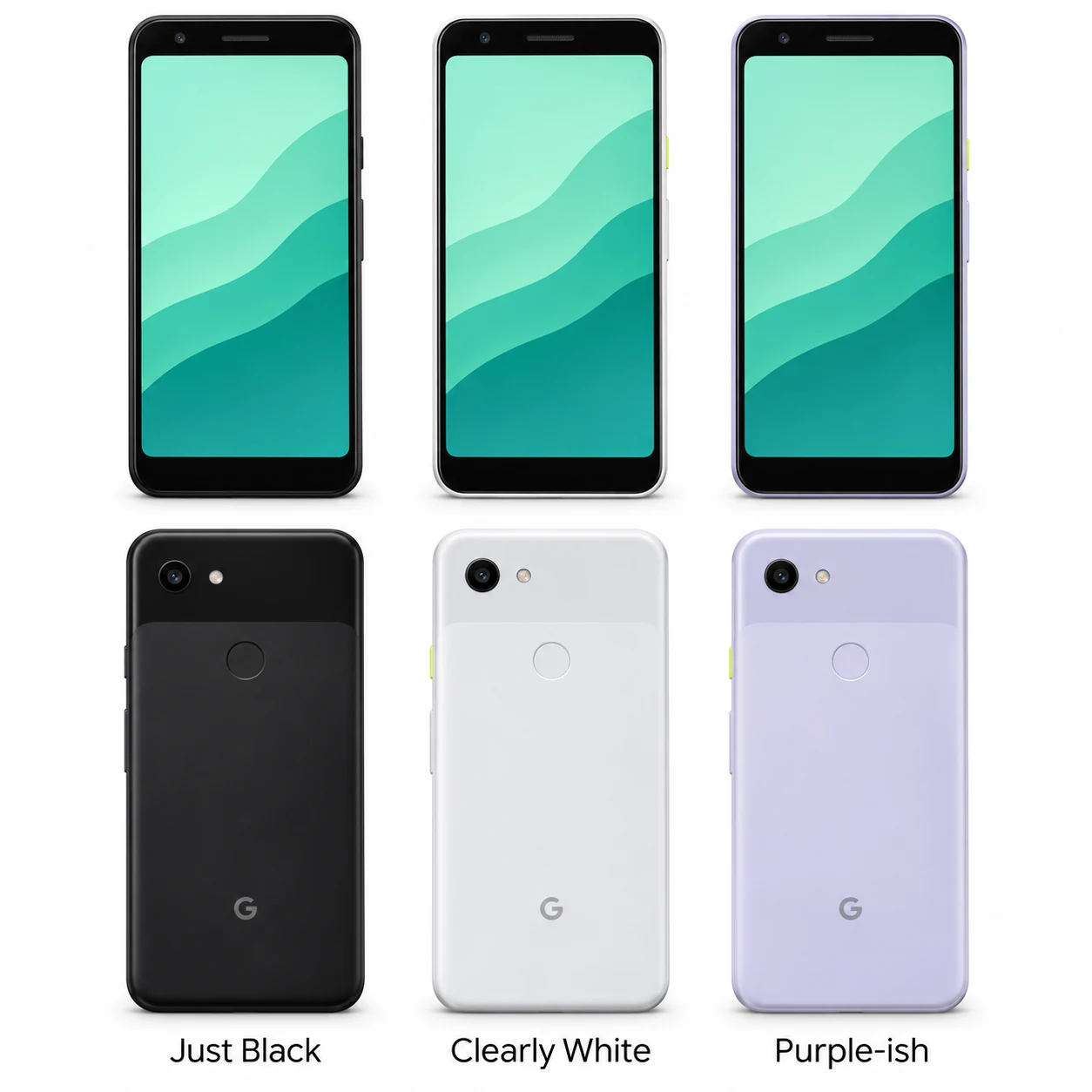
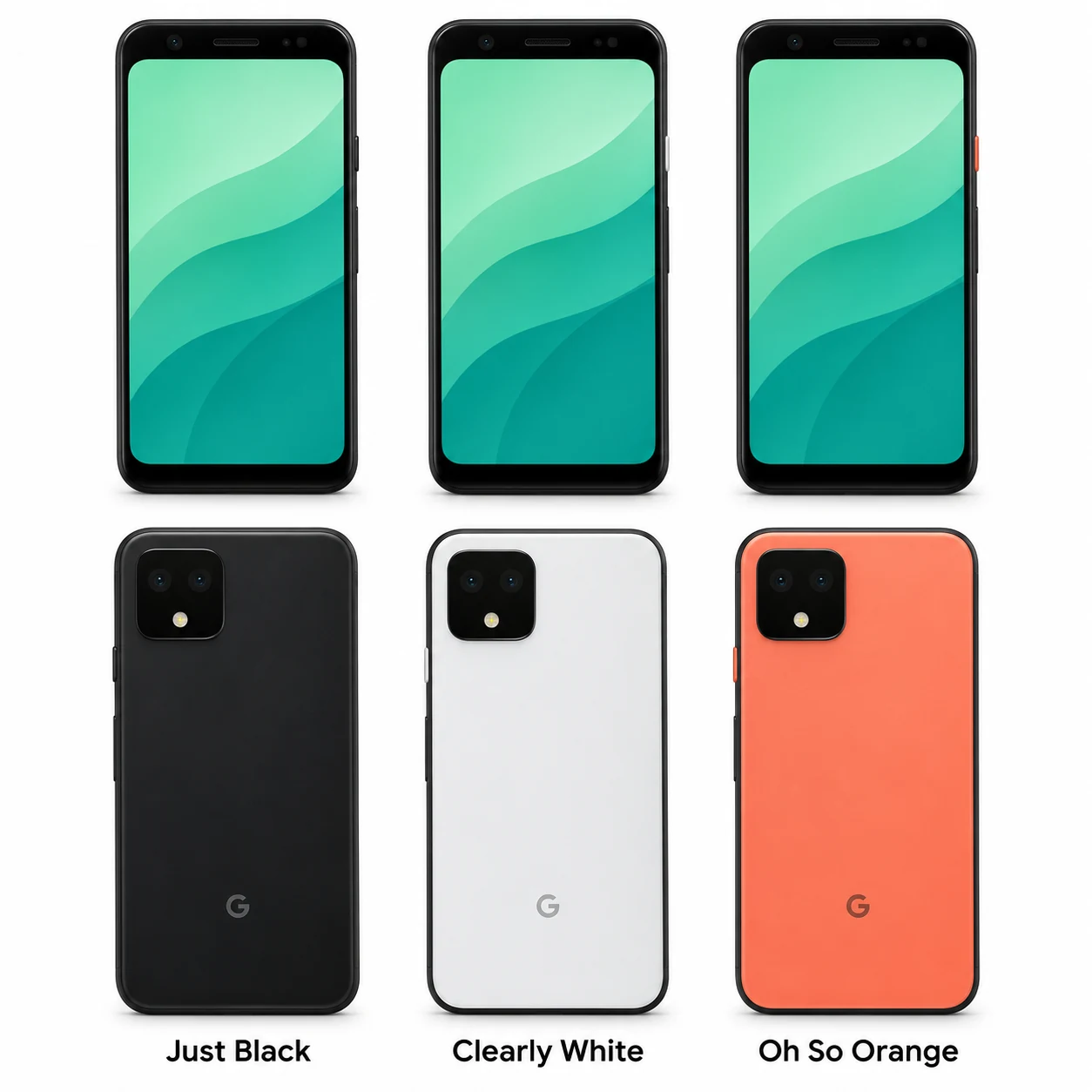
Colours and small details in the pictures are approximate. Confirm the model marking in the device information, on its label or on the original packaging before choosing accessories or replacement parts.
The name identifies the range. The model number identifies the hardware version.
Many devices share a model number. A serial number identifies an individual device. Depending on its mobile network, a cellular device may also have an IMEI, MEID or ESN.