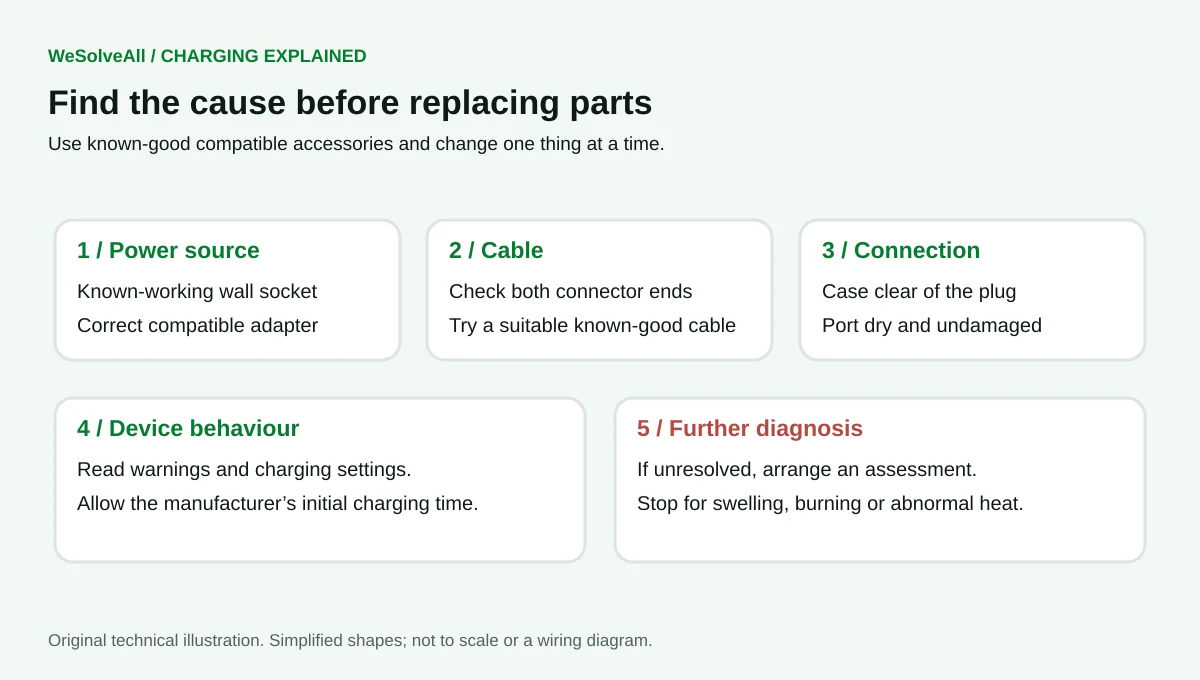
Start with the power source, then check the adapter, cable, connection and device settings. A device that will not charge does not automatically need a new battery or charging port. Stop testing if there is liquid, scorching, swelling or abnormal heat.
How to diagnose a charging problem, step by step
- Look and smell before connecting. If a cable is split, a connector is scorched, the case is swelling or something smells burnt, do not continue charging.
- Check the socket. Use a known-working wall socket. If the socket itself is damaged or behaves abnormally, leave it unused and seek appropriate electrical help.
- Connect directly to a compatible adapter. Temporarily remove hubs, extension accessories and charging docks from the test.
- Check that the case is not obstructing the plug. Remove the case if it prevents the connector seating fully.
- Inspect the cable and port in good light. Do not insert a tool. Check for lint, a bent connector, moisture or movement of the socket itself.
- Try one known-good compatible cable. Keep the same adapter. If charging becomes reliable, the original cable is a likely cause.
- Then try one known-good compatible adapter. Keep the working cable. For a dedicated laptop supply, use a verified compatible replacement rather than any plug that fits.
- Allow for a deeply discharged battery. Leave a safe, undamaged device connected for the time recommended by its manufacturer before assuming the display should respond immediately.
- Check settings and restart if appropriate. Look for a charging limit, thermal message or disabled fast-charging setting. Follow the model's restart procedure.
- Arrange diagnosis if the fault remains. Record what you tried and which combinations worked. That information helps avoid unnecessary parts.
Google's Pixel guidance uses checks for the case, charger, cable, outlet and port before moving on to further troubleshooting. On a deeply depleted Pixel, it notes that an initial response can take time. Do not assume every brand uses the same waiting time. [31]
What does the symptom suggest?
| What happens | Possible explanation | Useful next check |
|---|---|---|
| Charges with one cable only | Worn cable or damaged plug; possibly a marginal port | Compare with another verified compatible cable without bending either |
| Charges only when held at an angle | Damaged cable, packed debris or a worn socket | Stop using pressure; inspect and arrange a port check |
| Charging symbol appears but percentage falls | Device uses power faster than it receives it; power may also be limited by a fault | Check adapter specification and test during light use |
| Stops at a repeatable percentage | Configured charge limit, battery management or another fault | Read charging settings and any message before replacing parts |
| Stops when warm | Temperature protection or abnormal heating | Disconnect, let it return to normal temperature and check the cause |
| Works directly but not through a dock | Dock supply, host port, cable or power allocation | Compare the dock's laptop output with the device requirement |
Why will my phone not charge past 80%?
On supported iPhones, a configured limit or Optimised Battery Charging can affect when charging continues. Temperature can also restrict charging. Read the battery settings and on-screen explanation first. A pause at 80% is not, by itself, proof of a faulty port. [32]
Why does it charge, but not quickly?
Check whether the adapter provides the required charging standard on the port you are using, whether the cable is suitable, and whether other connected devices reduce the available power. Then check device temperature, battery level and charging settings. A steady trickle from an old computer USB socket is a different situation from a compatible wall fast charger.
Is the port fine if wireless charging works?
That result suggests the battery can accept some charge through a different route. It does not prove every other part is healthy, nor identify whether the wired problem is the cable, port or internal circuitry. Treat it as one useful test result.
When should I book a repair?
Book an assessment when compatible accessories do not resolve the problem, the socket moves, there are damaged contacts, or charging repeatedly cuts out. Back up important data while the device is still usable, if it is safe to do so. You can explain the symptom without choosing a replacement part yourself.
Tell the repairer: the model, when the problem began, whether there was a drop or liquid exposure, and the results of your cable and adapter checks. Ask them to confirm the cause before agreeing to a battery or port replacement.
More charging help
- Charging port problems: loose sockets, lint, damage and repair
- Wet charging port or moisture warning? What to do next
- How to choose a replacement laptop charger without guessing
Need an assessment? Find an independent repair shop through WeSolveAll, then contact the business directly to confirm diagnosis, price and repair terms.